See a payment's details
Find any payment, see what your customer paid, the fees, what reaches your balance and when, how they paid, and refund or answer a dispute.
Overview
Every payment your customers make through VezmoPay, from a payment link, an invoice, a checkout or your own site, is in one list: VezmoPay › Transactions. Open any payment to see its full story: the amount and fees, when the money is available, how your customer paid, the checks it passed, and any refund or dispute.
How it works
When a customer pays, the payment appears in Transactions with its status. As it moves on, for example when it is refunded or disputed, its status and timeline update.
| Status | What it means |
|---|---|
| Succeeded | The payment went through. Its net amount is on its way to your balance. |
| Processing | Started but not finished yet, for example a bank payment on its way. |
| Awaiting verification | Your customer still has to verify their bank account before the bank payment can go ahead. |
| Partially refunded | You refunded part of it. |
| Refunded | You refunded all of it. |
| Disputed | Your customer's bank opened a dispute. A dispute you win goes back to Succeeded. |
| Failed | The payment didn't go through, for example the card was declined. No money moved. |
| Canceled | The payment was canceled before it finished. |
| Incomplete | Your customer started a checkout but never paid. Hidden unless you filter for it. |
Find a payment
Go to VezmoPay › Transactions. At the top, Summary adds up what you see: net after fees, gross volume, fees and their effective rate, and the average payment. Below it, All transactions lists every payment, newest first.
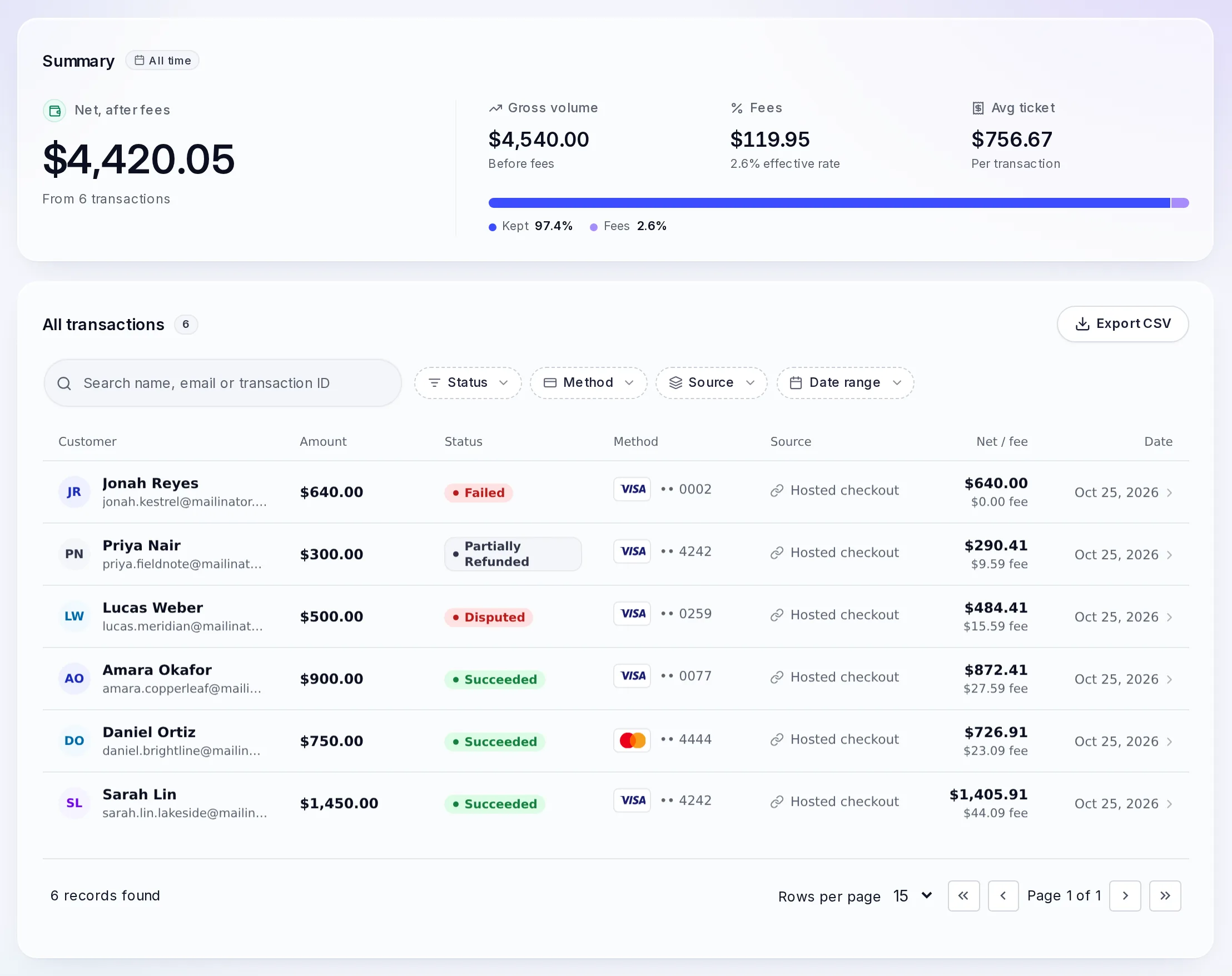
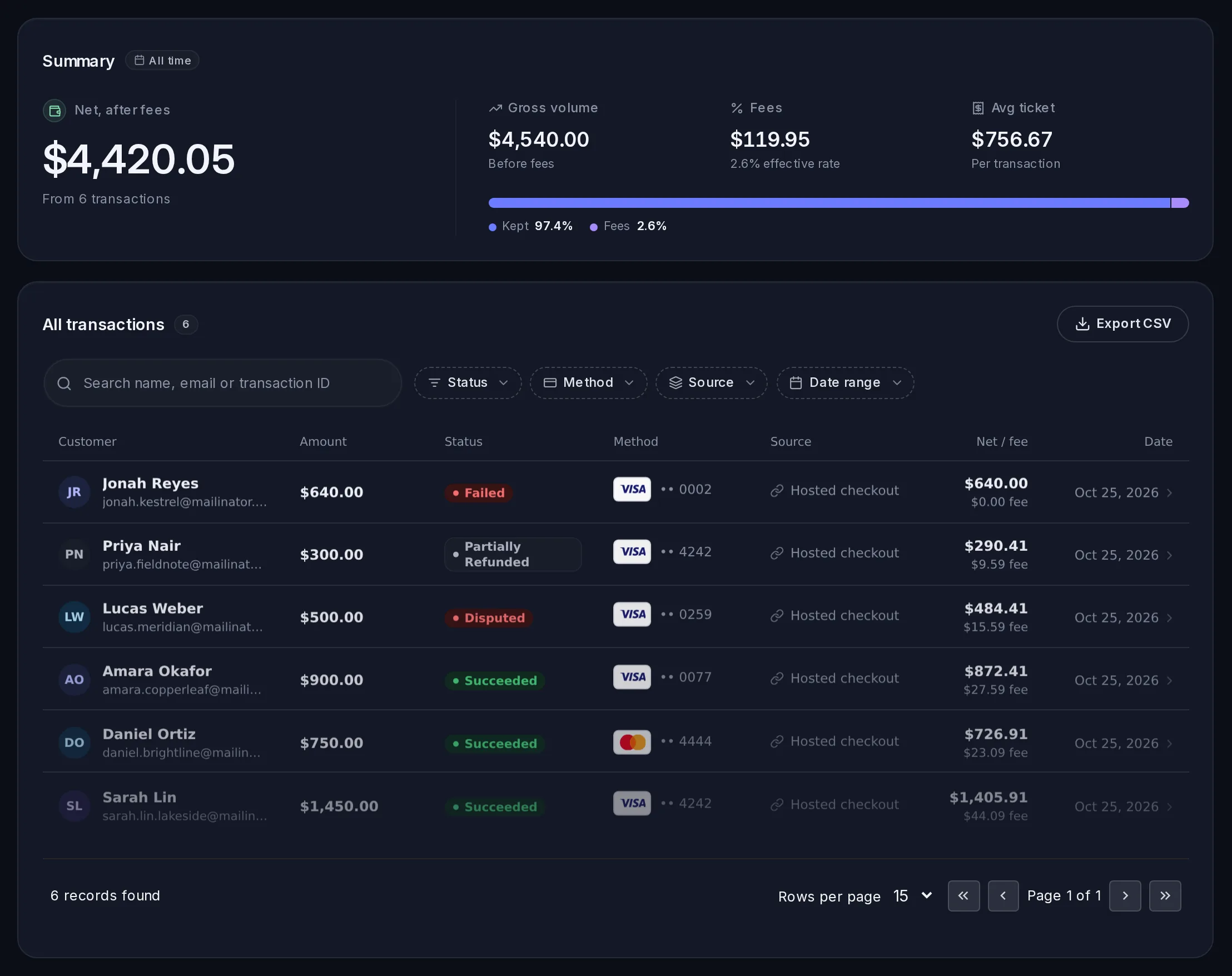
Each row shows the Customer, Amount, Status, Method (for example the card's last four digits), Source (where the payment came from), Net / fee and Date.
- Search by name, email or transaction ID. Search also finds a payment by its reference or by the last four digits of the card or bank account.
- Filter by Status, Method (card, bank transfer, wallets and other methods), Source (invoice, hosted checkout, product, subscription, embedded checkout, your own site or app) and Date range. Clear all removes them.
- Export CSV downloads the payments that match your filters, with the customer, billing address, amount, fee, net and refunded amount. One export holds up to 10,000 payments; narrow the dates for more.
You can also find a customer's payments under VezmoPay › Customers, and a client's under Clients. Payments › Payment History is a simpler list of payments, with a tab for payment links.
Read a payment's details
Select a payment to open it. The top shows the amount, the status and the transaction ID, with Receipt and Refund buttons.
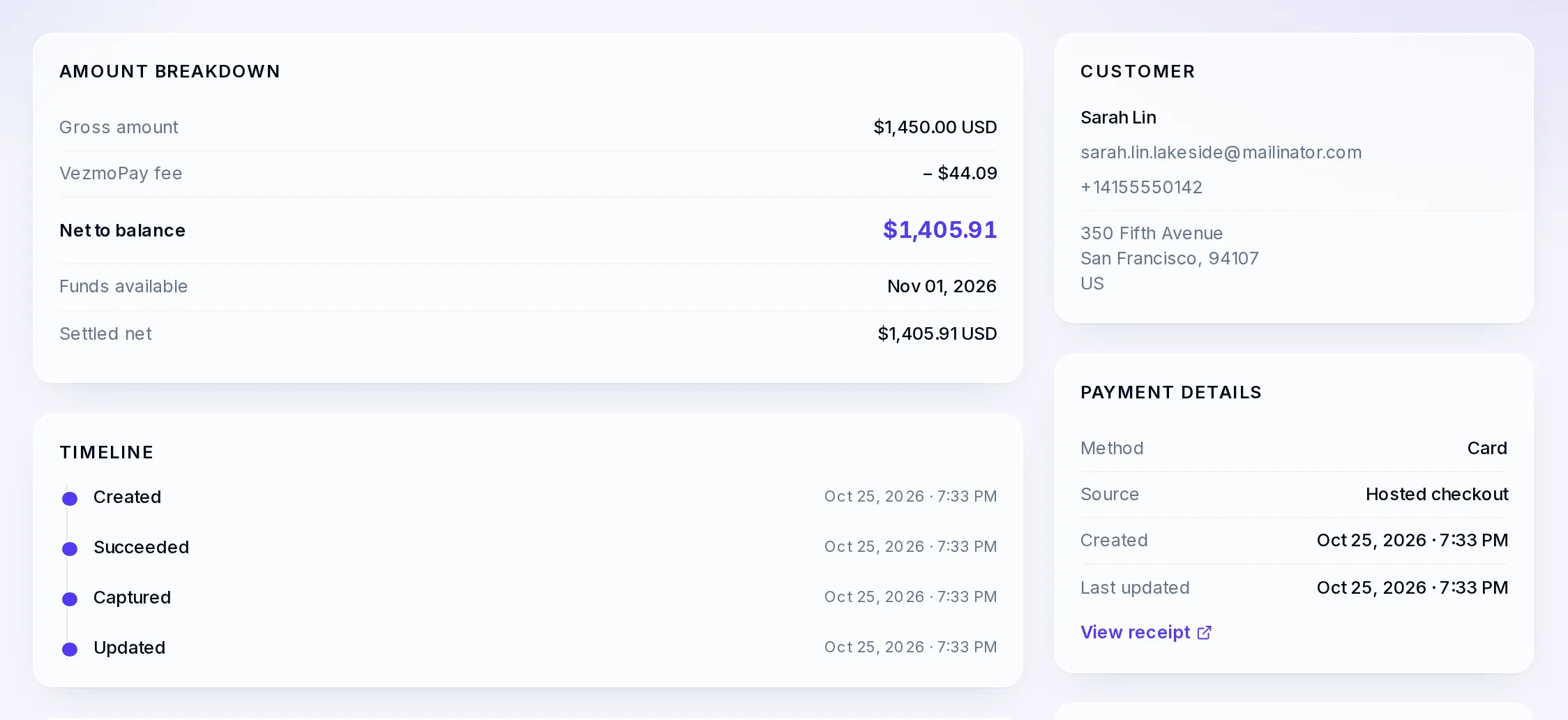
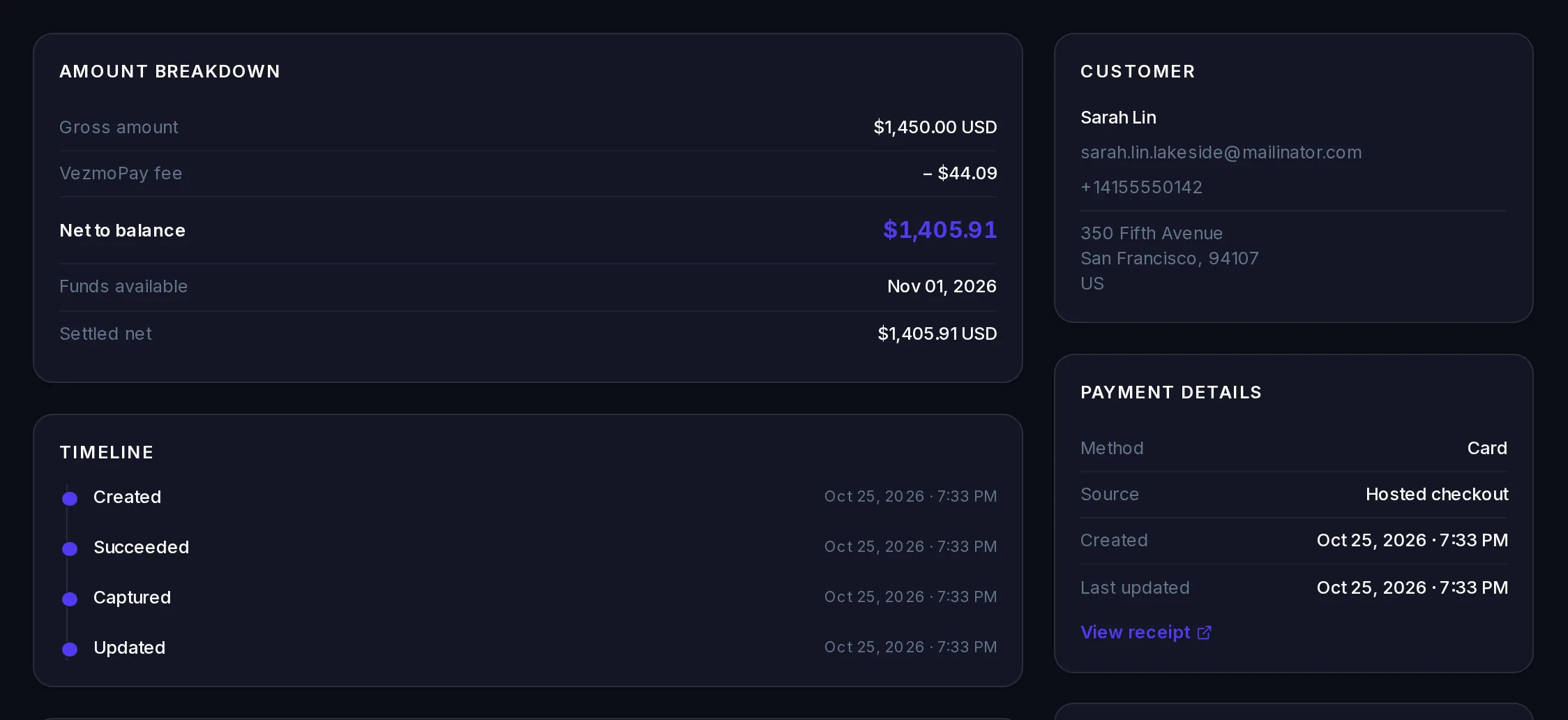
Amount breakdown
- Gross amount
- What your customer paid. If they paid in their own currency, Your price shows your price and Buyer paid what they were charged, with the Exchange rate.
- VezmoPay fee
- The fee for this payment. See VezmoPay pricing.
- Refunded
- Anything you refunded so far.
- Net to balance
- What reaches your balance from the sale: the gross amount minus the VezmoPay fee. Refunds come out of your balance separately.
- Funds available
- The date the net amount becomes available to pay out.
- Settled net
- The net amount once the payment has settled, in your settlement currency.
Timeline
Each step in the payment's life with its date and time, for example Created, Succeeded, Refunded and Disputed. Bank payments can also show Processing and Awaiting verification.
Customer, payment details and details
- Customer
- Your customer's name, email, phone and billing address, as they entered them.
- Method and Source
- How they paid, and where: an invoice, a payment link (Hosted checkout), a product page, an embedded checkout or your own site or app. For an invoice, View source opens it.
- Created and Last updated
- When the payment started and when it last changed.
- Statement descriptor
- The name your customer sees on their card or bank statement, when one was set.
- Transaction ID and Reference
- The IDs to quote to our team, and to find the payment again with search.
Payment method, risk & verification
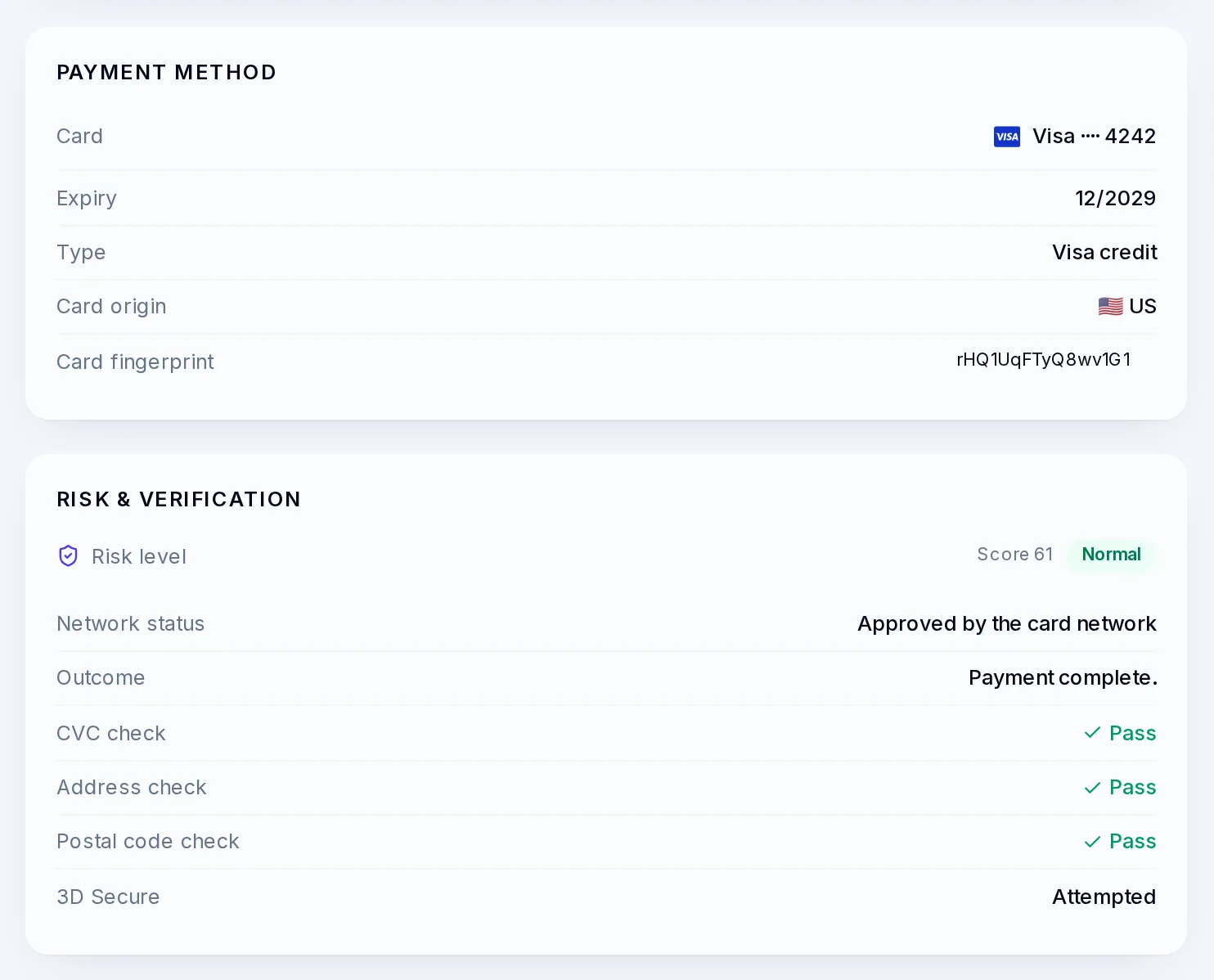
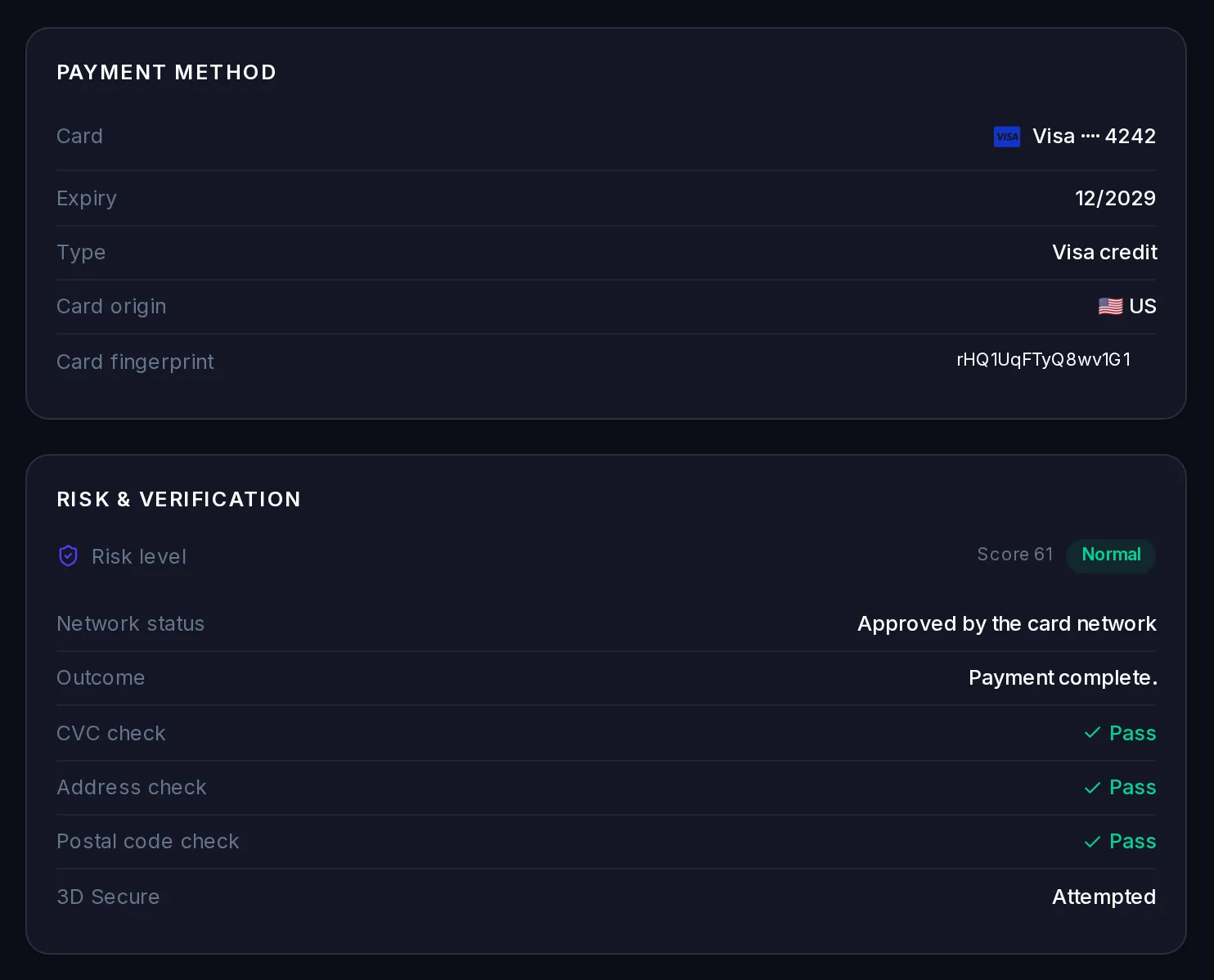
- Card
- The card brand and last four digits, and the wallet if they used one (Apple Pay, Google Pay and others). For bank payments: the bank, routing number and account type.
- Expiry, Type, Card origin
- The card's expiry date, its brand and whether it is credit or debit, and the country that issued it.
- Card fingerprint
- Within your account, the same card always has the same fingerprint, so you can spot one card used for several payments.
- Risk level
- Normal, Elevated or Highest, with a score, from our risk checks.
- Network status and Outcome
- What the card network and the customer's bank said. For a failed payment, Declined by and Decline reason say who declined it and why.
- CVC, address and postal code checks
- Whether the details your customer typed matched what their bank has.
- 3D Secure
- Whether the customer's bank asked them to confirm the payment, and the result.
The 3D Secure row reads one of: Authenticated (the customer confirmed with their bank), Attempted (the bank didn't take part, so the attempt counts), Not needed (exempt), Not supported by this card, Failed or Could not be completed. Network status says what the card network answered, such as Approved by the card network.
Receipt
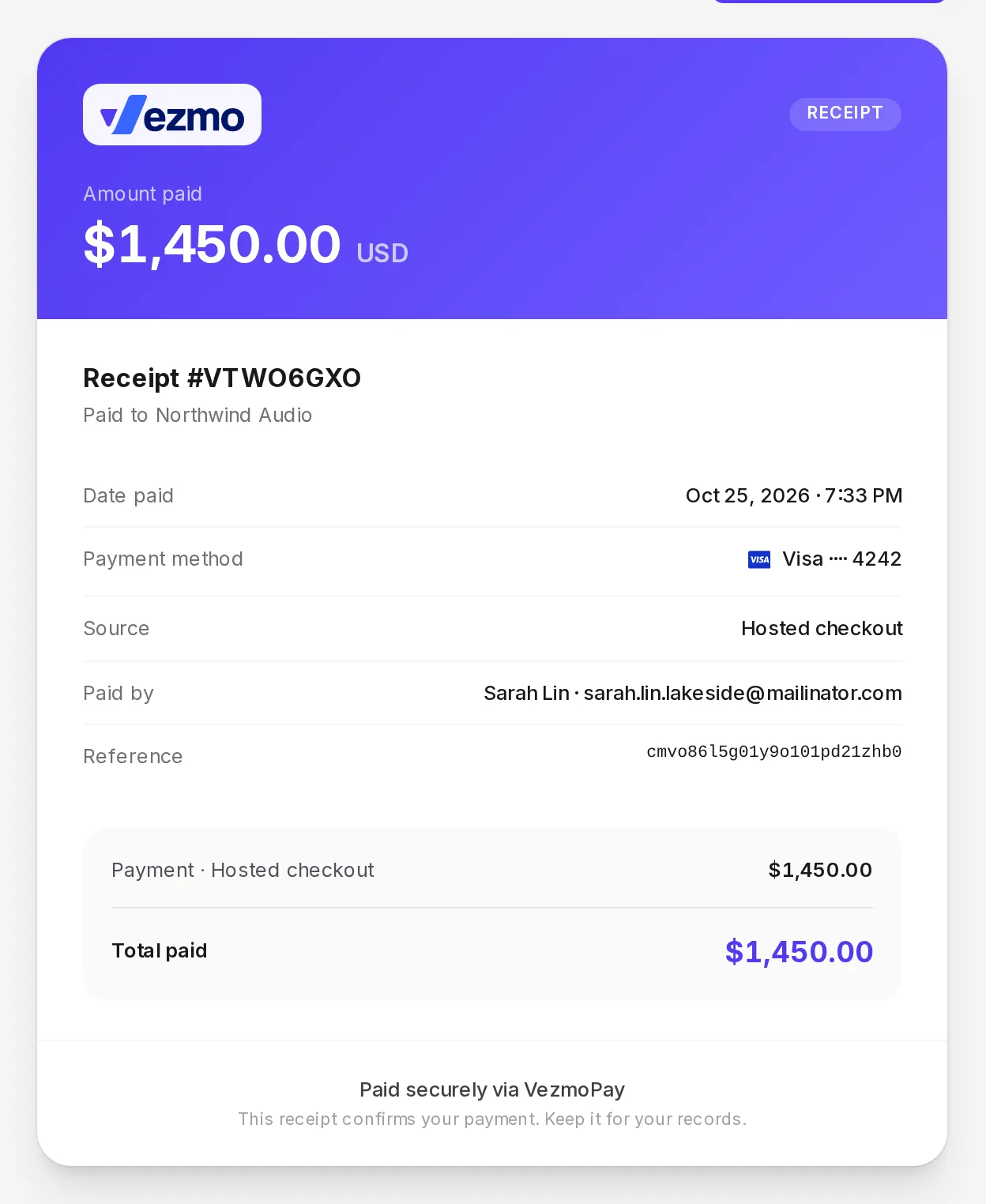
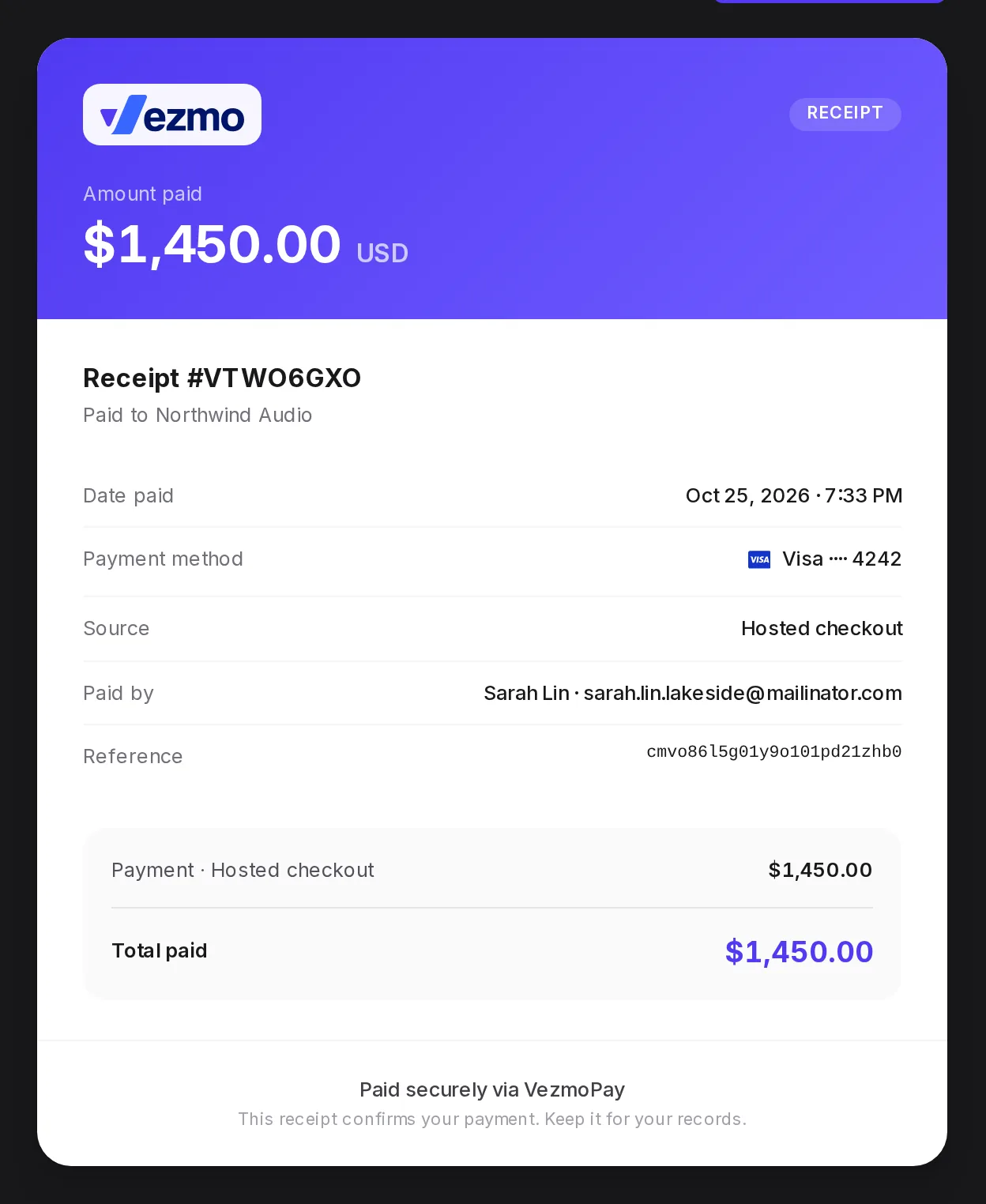
Select Receipt (or View receipt) for a receipt with the amount paid, the date, the payment method, the source, who paid and the reference. Use Print / Download to print it or save it as a PDF to send to your customer. Your customer already got a receipt by email when they paid.
Refund a payment
Open the payment and select Refund
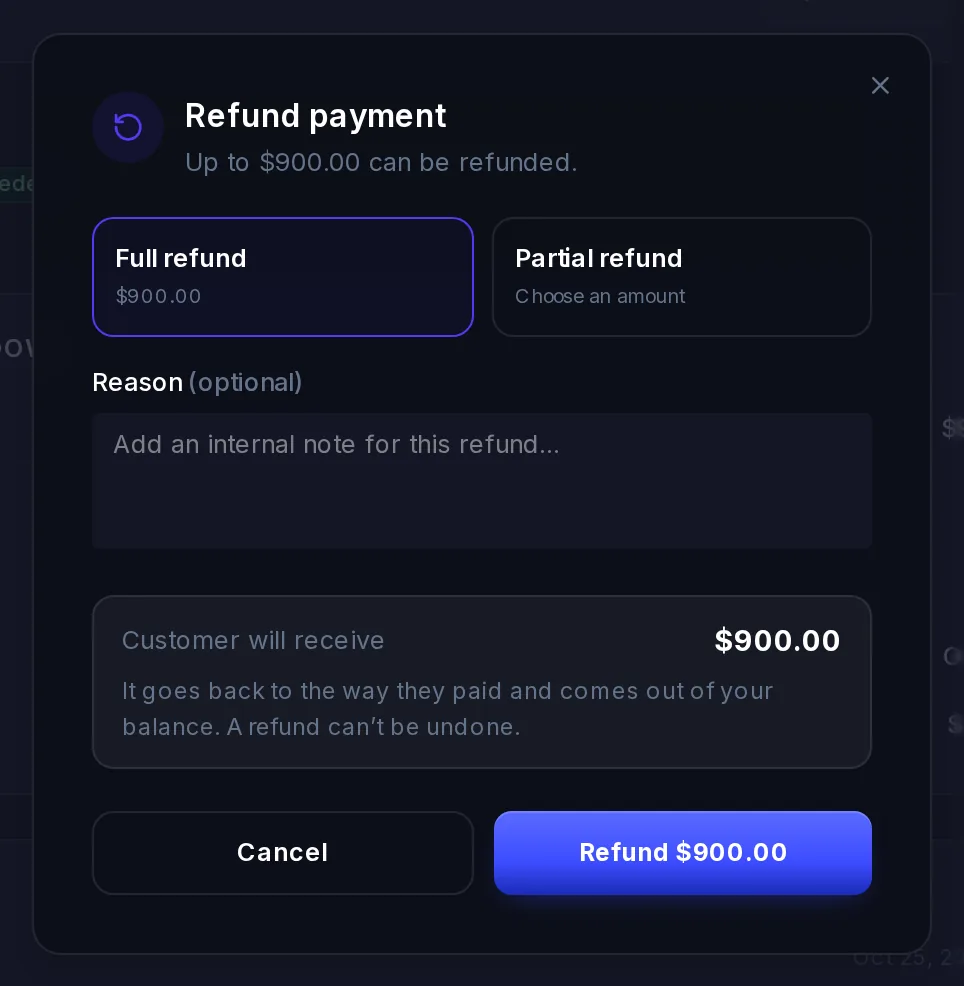
The dialog shows how much can still be refunded.
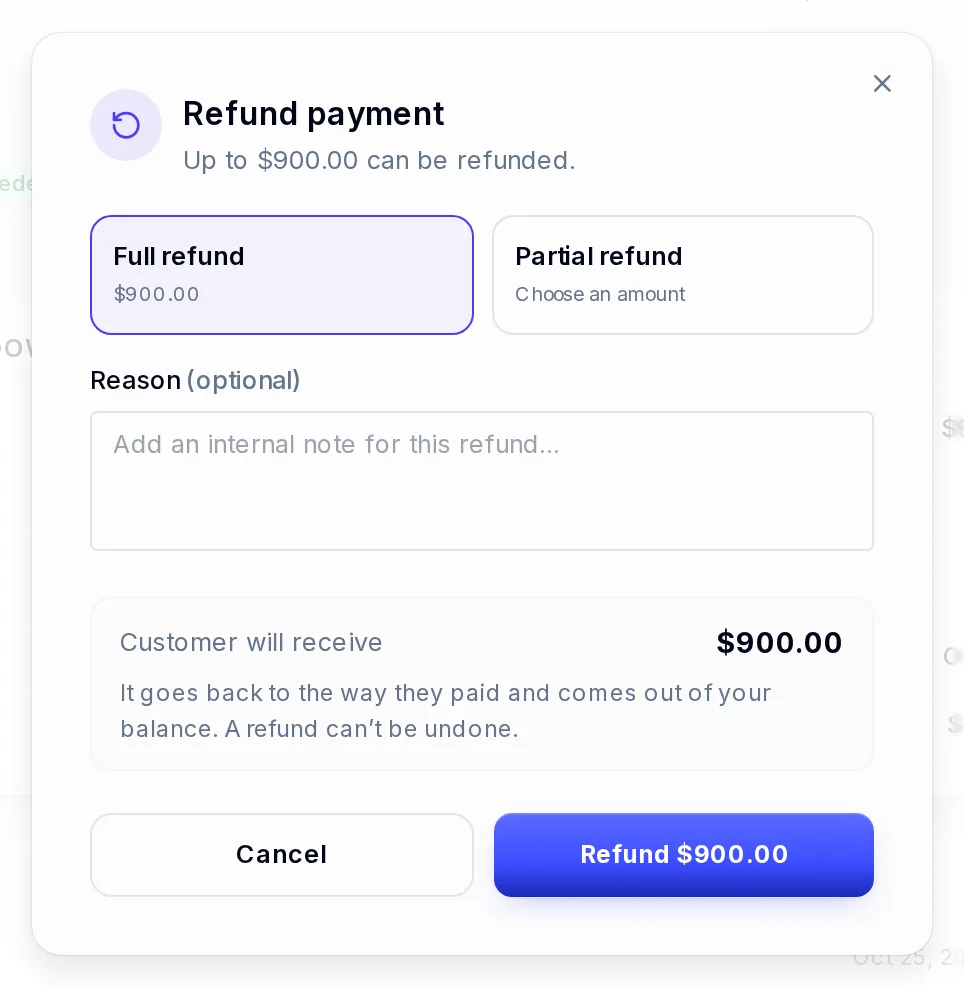
Choose a full or partial refund. Choose Full refund or Partial refund
For a partial refund, enter the Refund amount (or select Max). You can refund part of a payment more than once, until nothing is left.
Add a reason if you like, then confirm
The reason is a note for your team. The money goes back the way your customer paid and comes out of your balance. A refund can't be undone.
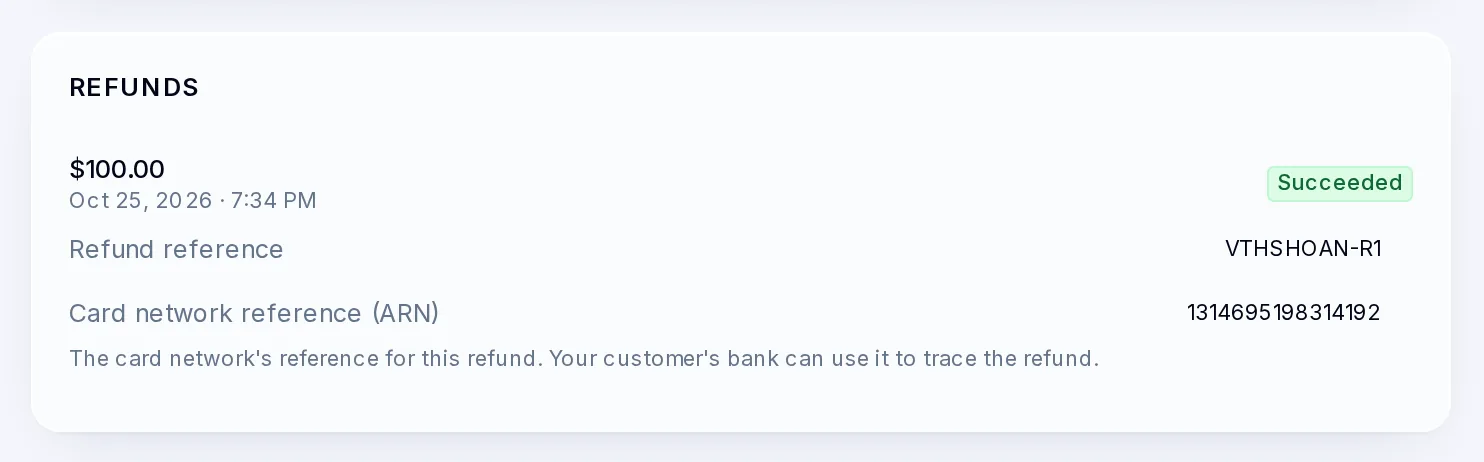
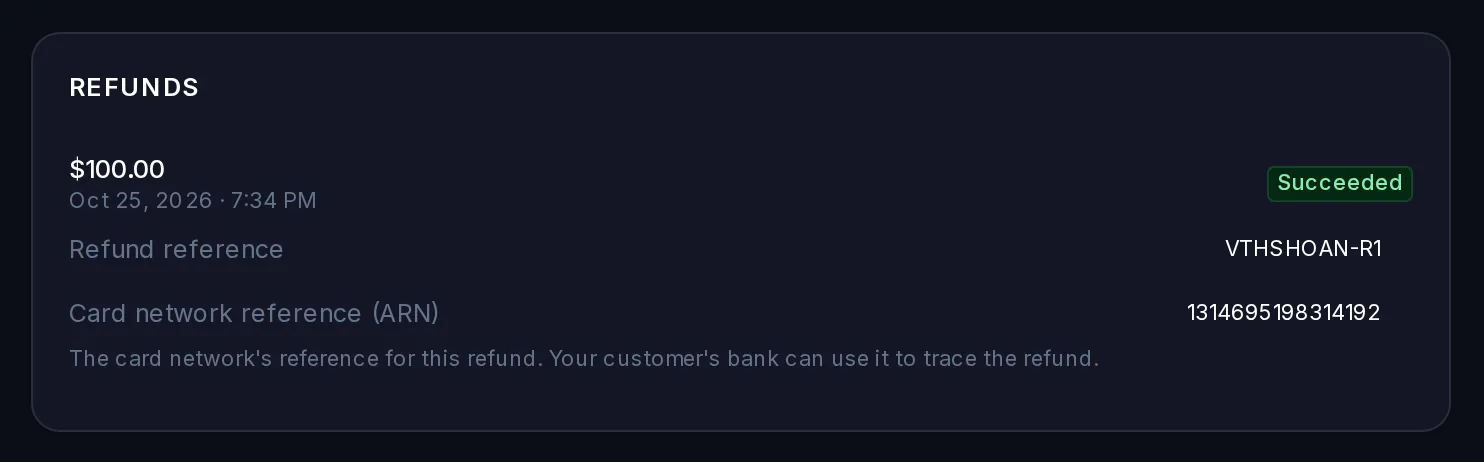
After a refund, the payment shows Partially refunded or Refunded, and its Refunds section lists each refund with its amount, date, reason, status, reference and the card network reference (ARN). The ARN is usually ready 1 to 3 days after the refund; your customer's bank can use it to trace the money.
You can refund a payment once it has succeeded. You can't refund it once it has been disputed (even if you won the dispute), while a bank payment is still settling, or before your business is approved.
While your account is on hold you can still refund your customers. If your account is suspended or closed, contact support and our team will refund your customer for you.
Answer a dispute
When a customer's bank disputes a payment, the payment shows Disputed and a red panel at the top of its details says why, how much, and the date you must respond by.
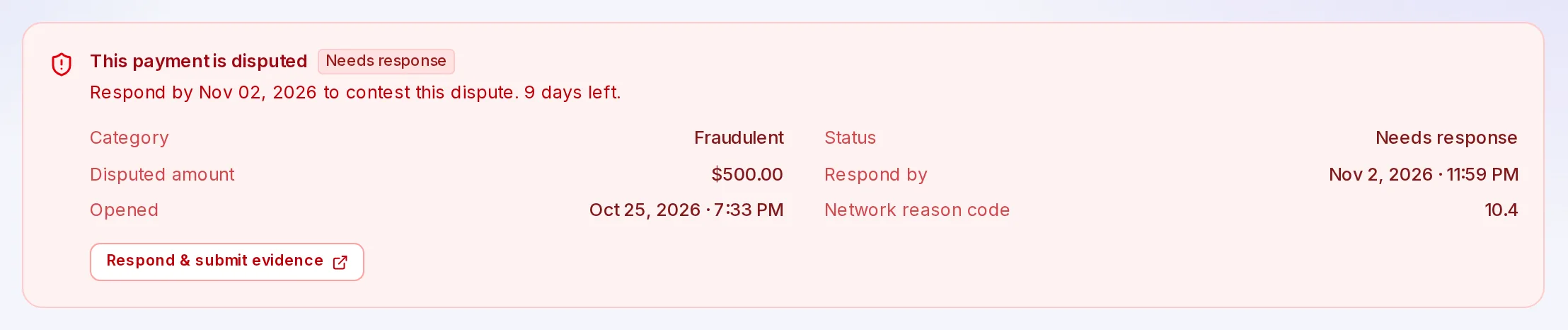
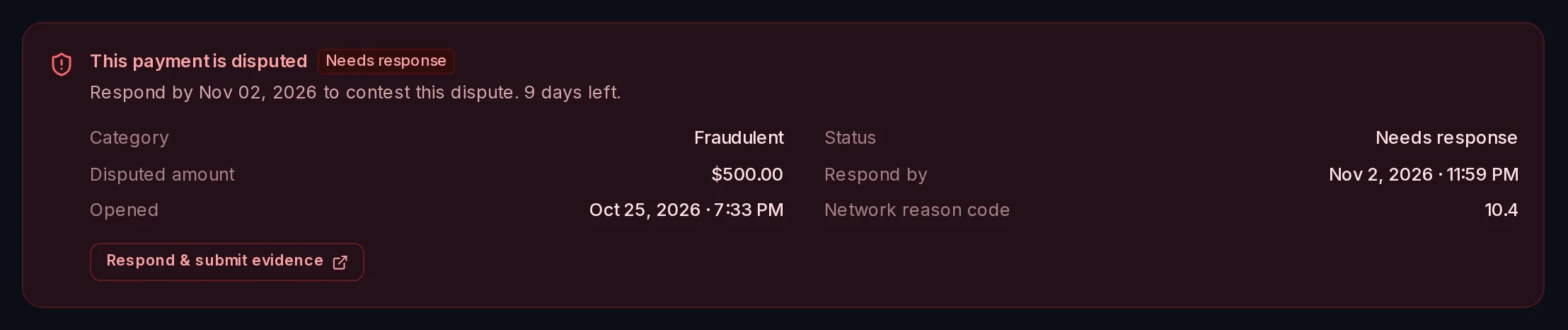
Select Respond & submit evidence to send your side. The dispute's status then moves through Needs response, Under review, and Won or Lost. You can see every dispute in VezmoPay › Disputes.
What happens when
A card payment fails
The payment shows Failed, with Declined by and the Decline reason under Risk & verification. No money moved. Your customer can try again with another card.
A bank payment is still on its way
It shows Processing until the bank confirms it. If the customer has to verify their bank account first, it shows Awaiting verification, and the details page lets you copy or resend the verification link. You can cancel a bank payment until the bank debit is submitted.
My export is too big
One export holds up to 10,000 payments. Choose a shorter Date range and export in parts.
Related
Facts checked against the product on 26 Oct 2026.
Was this page helpful?
Payment links
Create a link for a set amount, send it to anyone by email, text or chat, and get paid by card, bank or wallet. No website needed.
Taxes and tax forms
Which US tax form to give us and when, how to sign it in the dashboard, where to see your 1099-K status and download your tax documents, and how tax works on invoices.