Agreements and e-signatures
Send a contract to sign online, check each signer's ID with a live photo and selfie, and approve every signer before the agreement is complete.
Overview
An agreement is a document your clients sign online: a PDF you upload or one made from a template. You add who signs, send it, and see who has opened and signed it. When everyone has signed, Vezmo adds a certificate of completion with the full record of who did what and when, and emails the signed copy to everyone.
For agreements where you need to know who is signing, turn on Require identity verification (KYC). Each signer takes a live photo of their ID and a short selfie on their phone, then signs. You look at each signer's ID and approve them before the agreement is complete.
The pictures on this page follow one example: Atlas Studio sends a consulting agreement to Amara Kowalski and Leo Park at Northwind, with a $1,250.00 first month's fee to pay after signing.
Send an agreement
Start a new agreement
Go to Agreements and select New Agreement. Choose Upload PDF to use a contract you already have, or From template for an employment agreement, an NDA, a service agreement and more.
Add who signs
Add each signer's name and email, and place their signature, date and other fields on the document (a template places them for you). Turn on Sign in order if each signer should get their turn only after the one before has signed. With it off, everyone can sign at once.
Choose the options
- Expiration is the last day to sign. Leave it empty and the agreement expires 30 days after you send it.
- Attach payment adds a payment the signer makes right after signing.
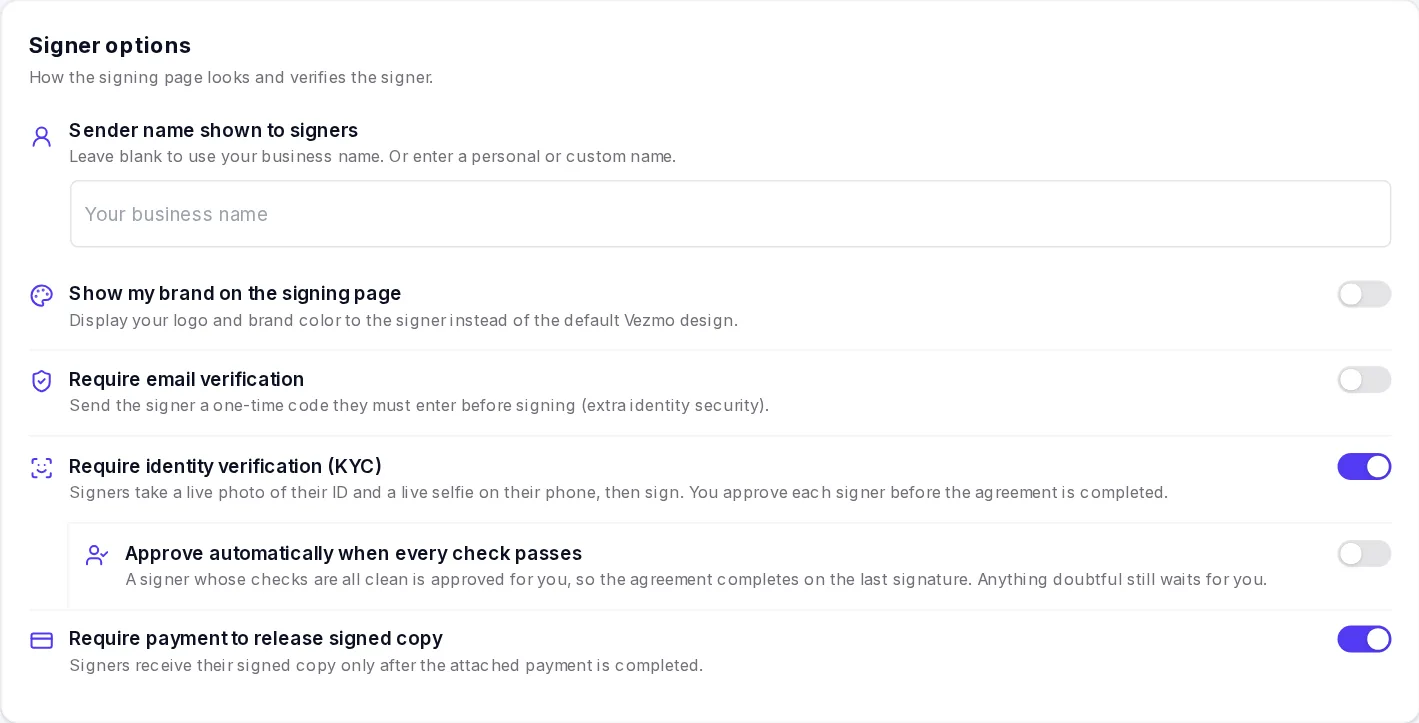
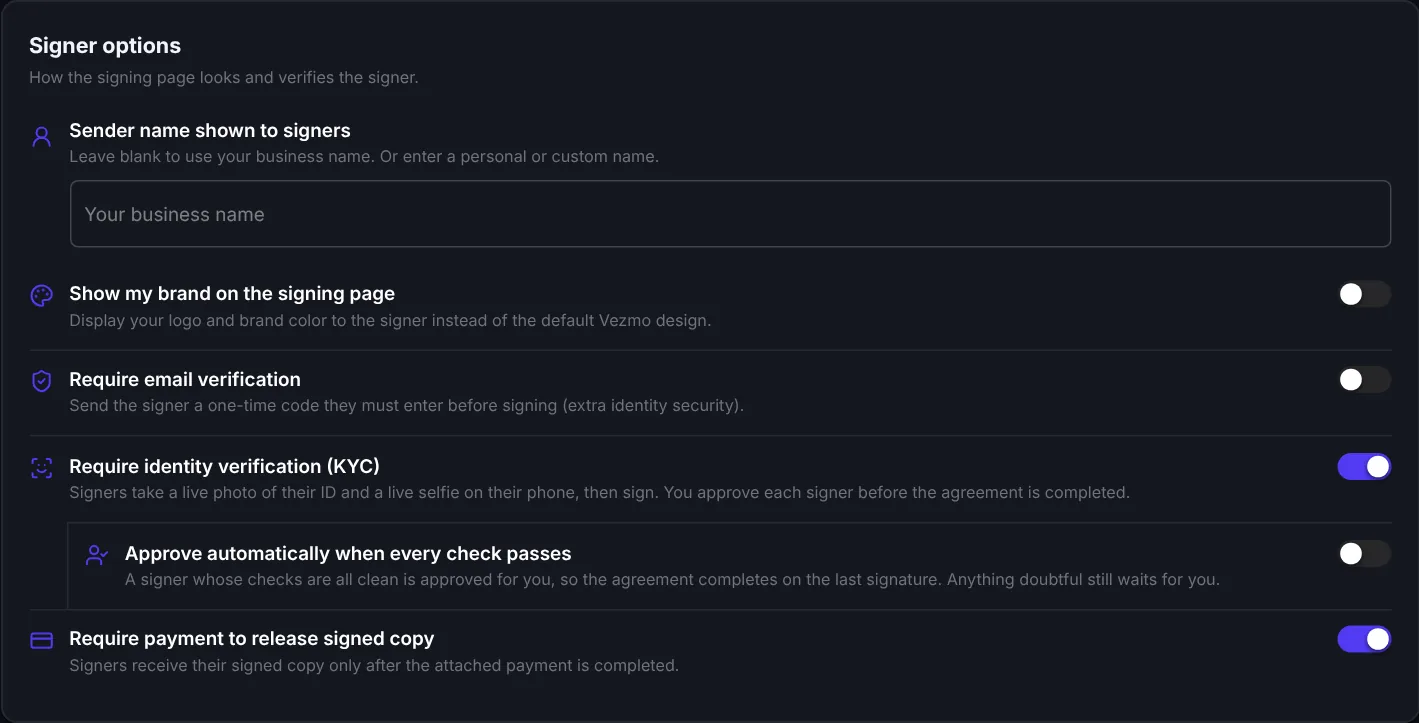
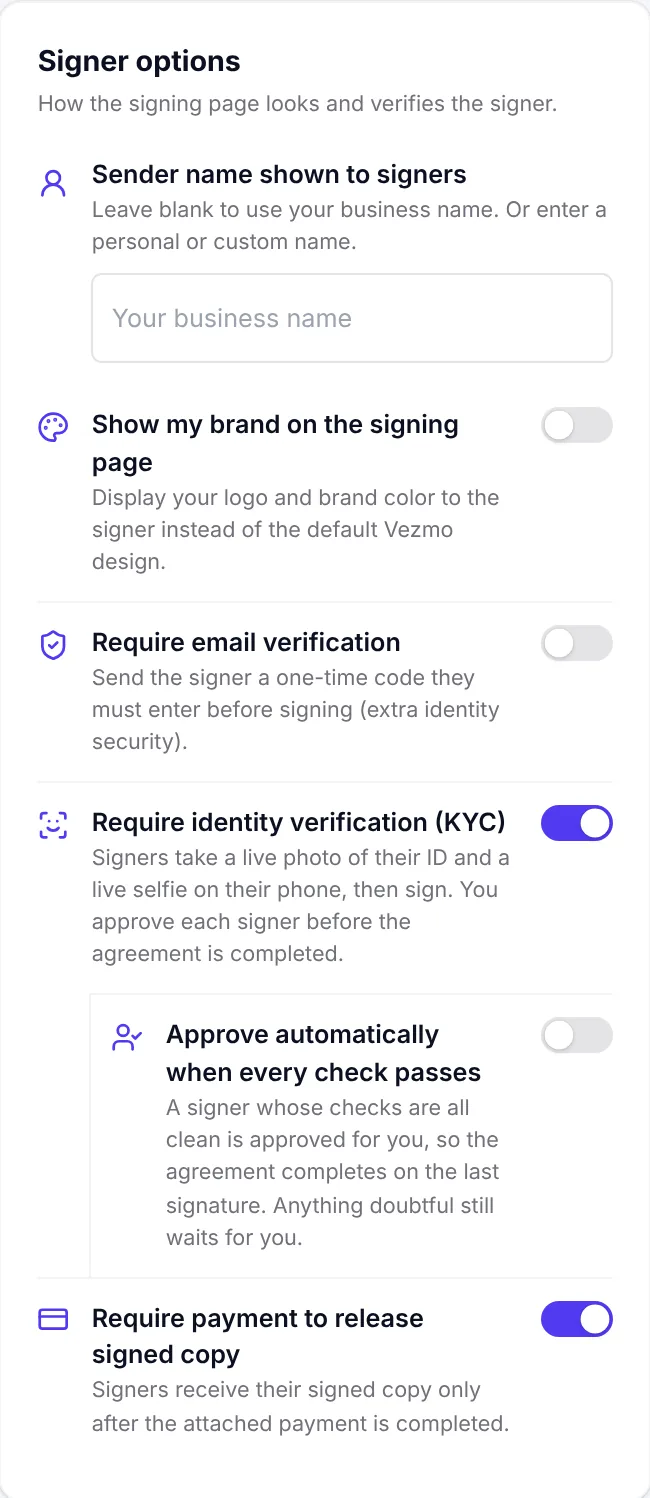
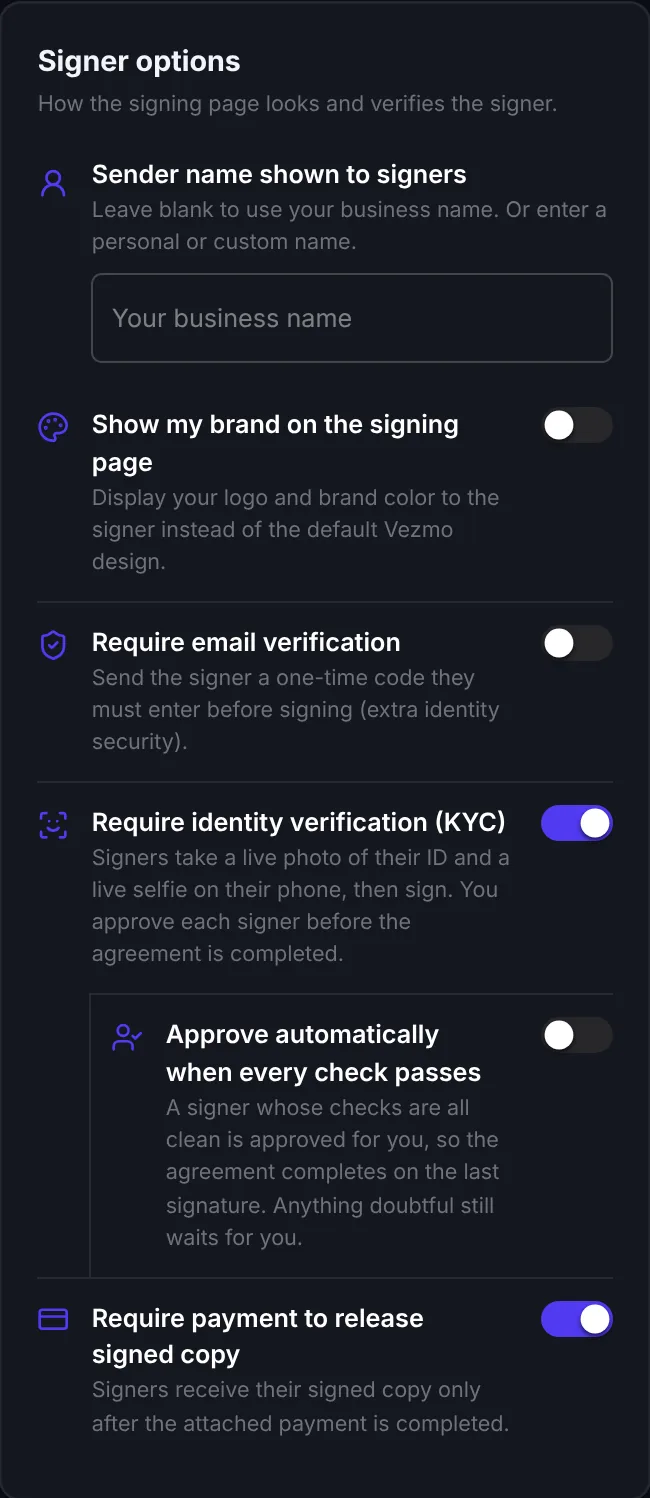
- Sender name shown to signers is the name on the signing page and in the emails. Leave it blank to use your business name.
- Show my brand on the signing page shows your logo and brand colour instead of the Vezmo design.
- Require email verification sends each signer a one-time code to enter before they can sign.
- Require identity verification (KYC) asks each signer for a live ID check. See below.
- Require payment to release signed copy holds back the signer's copy until the attached payment is made.
Send it
Select Send for signature. Each signer gets an email with their own private link and the document attached.
What the signer sees
Each signer opens the link in their email (and enters the code we email them, if you turned that on), agrees to sign electronically, and sees the whole document.
Start
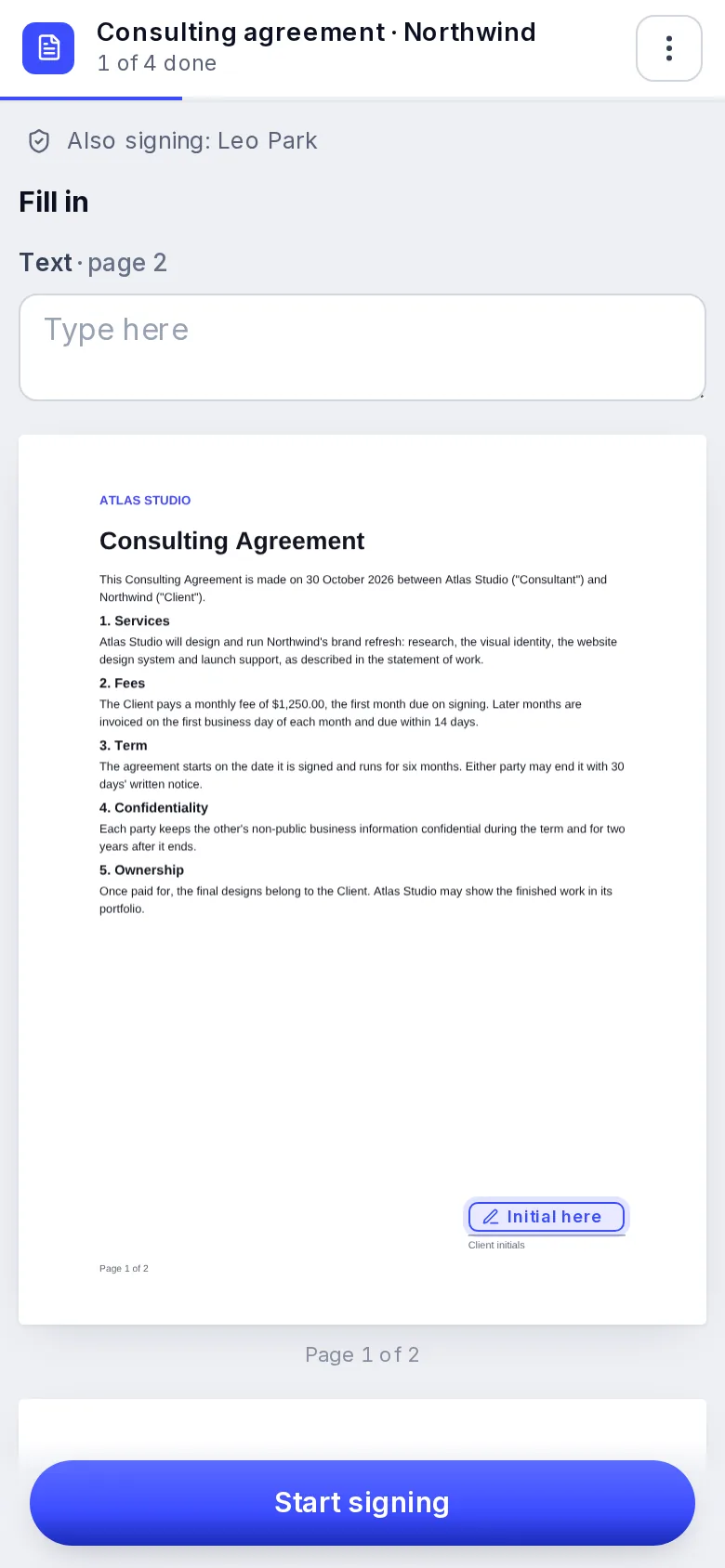
Start, beside the top of the first page, takes them to their first field. A tag beside the page then leads them from field to field: Initial, Fill in or Sign. The date signed fills itself.
Sign
They add their signature once, typed, drawn or uploaded, and it goes on every signature field that is theirs.
Finish
Finish, at the top, signs the document. Until every required field is filled in, it takes them to the next one instead.
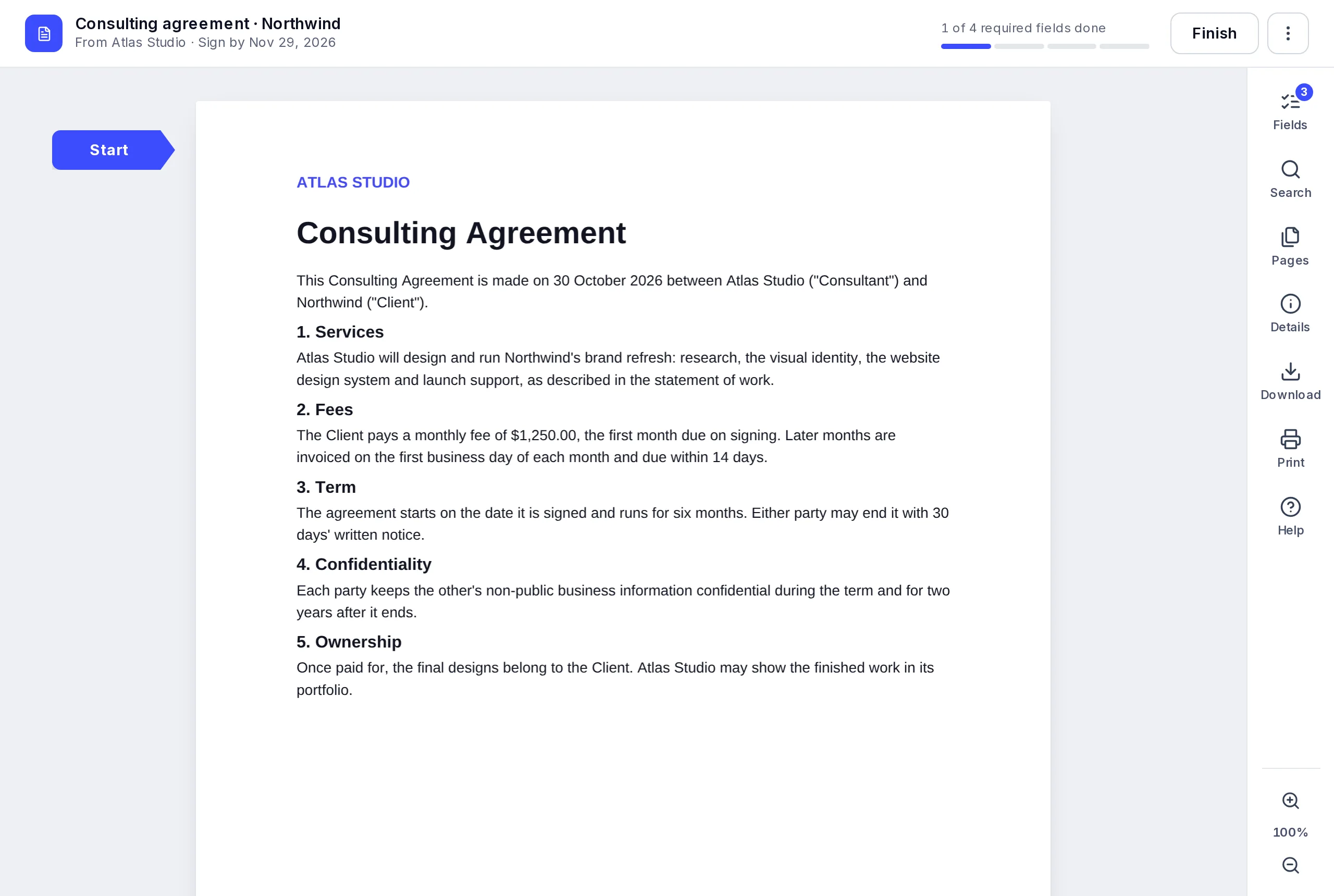
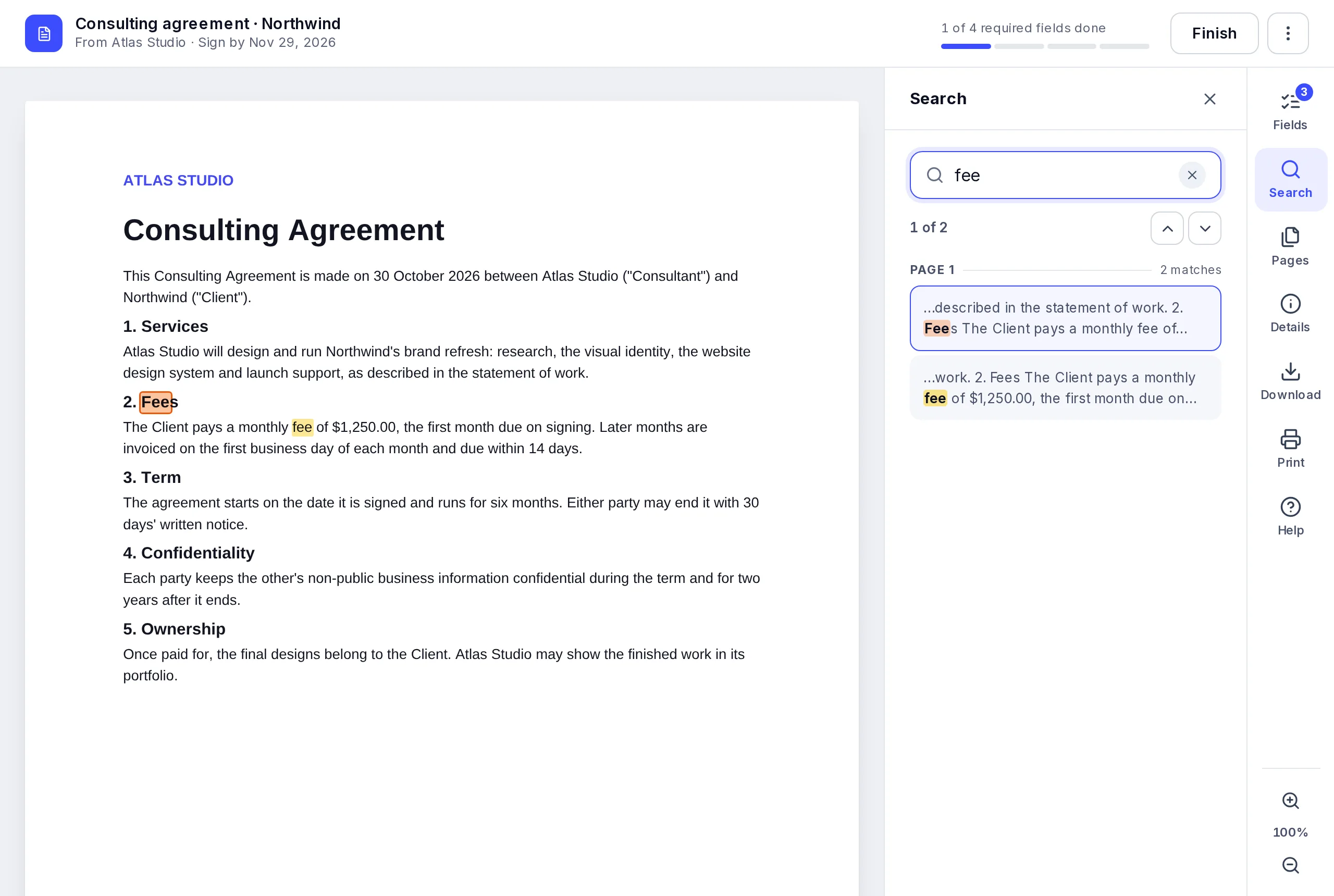
The tools on the right show what is left (Fields), every page (Pages), who sent it, the deadline and who signs (Details), and let the signer Download or Print the document, get Help, and zoom. Search finds a word, a name or an amount anywhere in the document: every match lights up on the pages, and a list shows each one with the words around it. Ctrl+F (⌘F on a Mac) opens it too.
On a phone, a button at the bottom leads from field to field, and the tools are in the ⋮ menu. A signer who doesn't want to sign selects Decline to sign in the ⋮ menu and gives a reason; you're emailed.
Statuses
| Status | What it means |
|---|---|
| Draft | Not sent yet. You can still change it. |
| Sent | Emailed to the signers. Nobody has opened it yet. |
| Viewed | A signer has opened it. |
| Partially signed | Some signers have signed; the others haven't yet. |
| Waiting for your approval | Everyone has signed and the ID check is on. Nothing is complete until you approve each signer. The pill is amber while a signer has a check to look at. |
| Ready to complete | You've approved every signer. Select Approve and complete. |
| Approved · finishing | You selected Approve and complete. We're sealing it and adding its certificate; everyone gets the signed copy when it's ready. |
| Completed | Signed by everyone, with its certificate. Everyone has the signed copy. |
| Declined | A signer declined to sign. |
| Voided | You cancelled it. Its links stopped working. |
| Expired | Its last day to sign passed before it was complete. |
Require an ID check
With Require identity verification (KYC) on, each signer proves who they are before they sign. There is nothing to upload: the phone's camera takes the photos.
The signer agrees to the ID check
After agreeing to sign electronically, the signer reads how their ID and selfie are used and agrees to it.
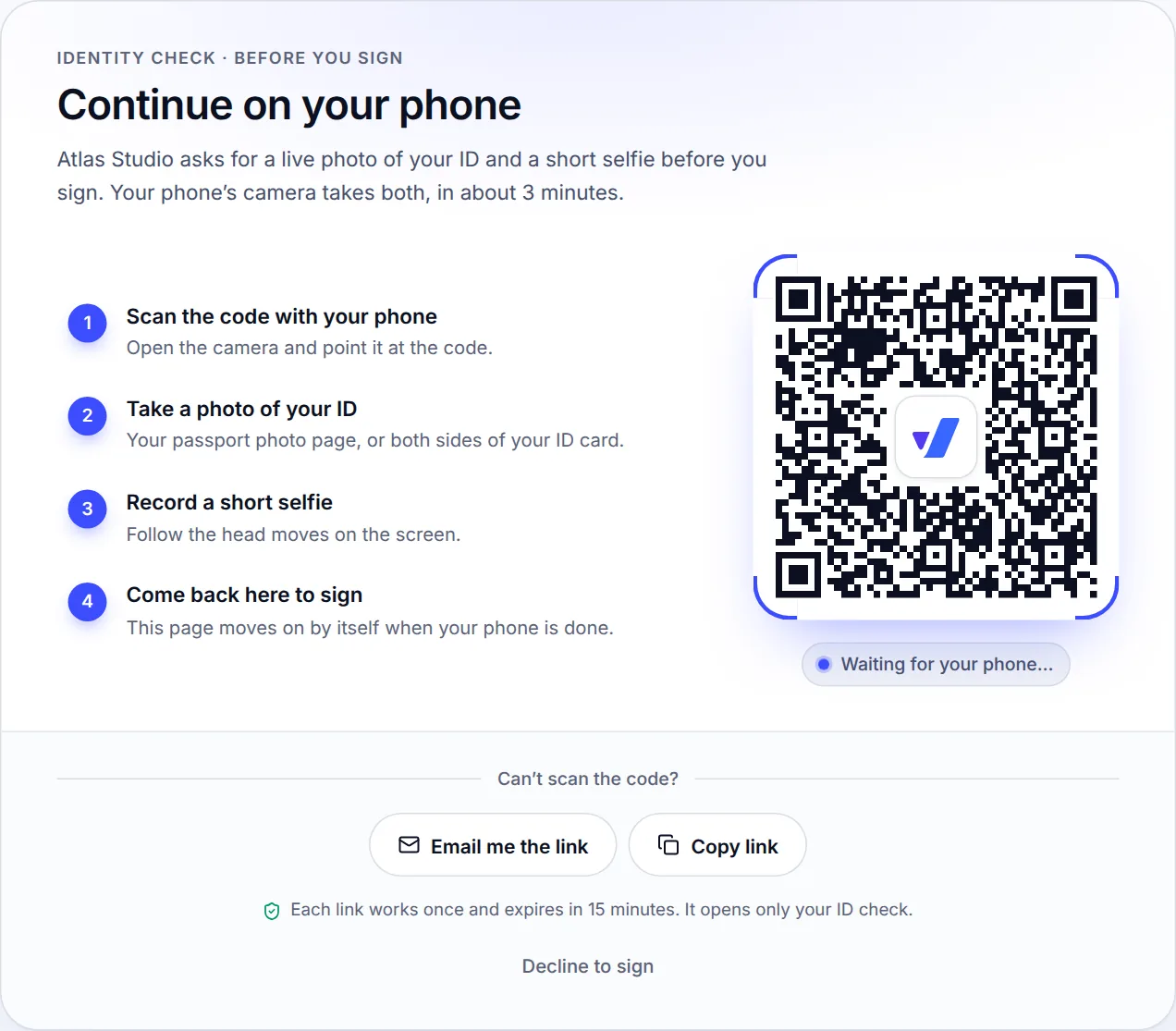
On a computer, they continue on their phone
The signing page shows a code to scan with their phone's camera. A signer who can't scan it can select Email me the link (it goes to their own email on the agreement) or Copy link. Each link works once, on one phone, and expires in 15 minutes; the page makes a new one when it is needed. On a phone or tablet, the check runs right on the signing page.
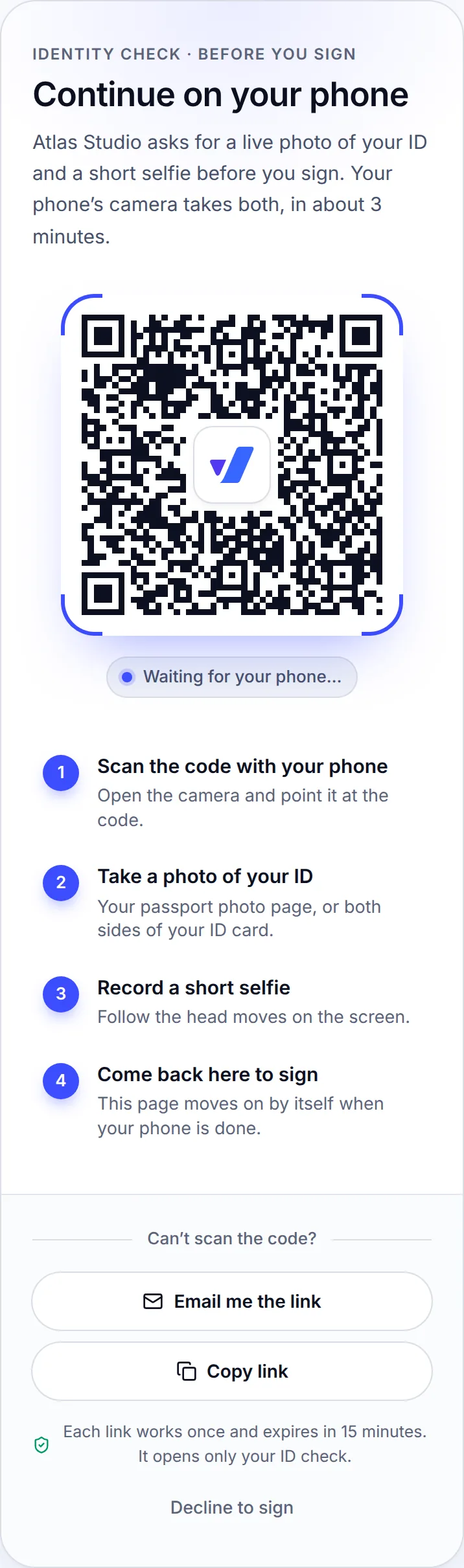
On a computer: one code covers the ID and the selfie. They take a photo of their ID and a short selfie
The signer chooses their ID: a passport (the photo page), a national ID card or a residence permit (the front, then the back). The camera guides them to each photo. Then they record a short selfie video, following the head movements on the screen.
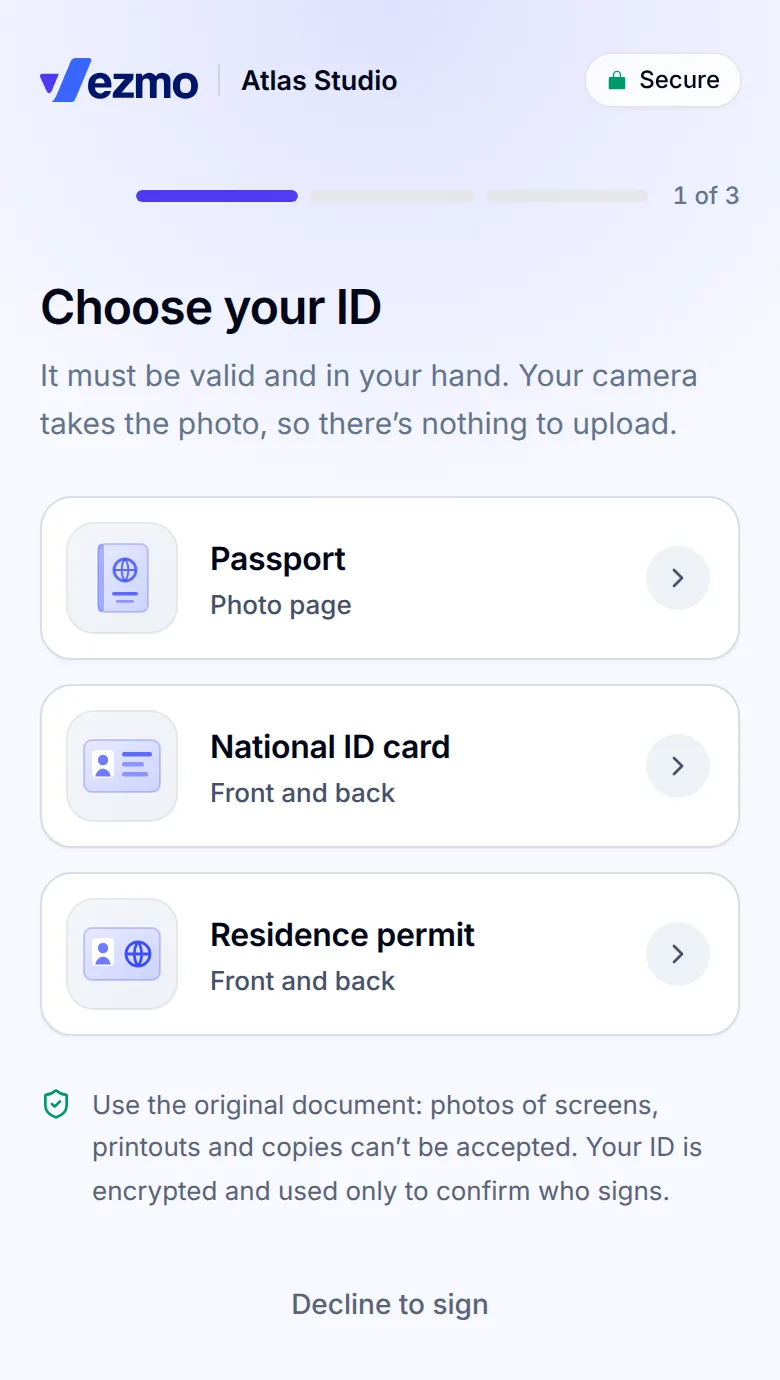
On the phone: the signer chooses their ID. They sign
The computer moves on by itself when the phone is done, and the signer signs. If a photo or the selfie can't be used, for example no face shows or the selfie is a photo of the ID, they are asked to try again; a signer has 5 tries.
We compare the face in the selfie with the photo on the ID, check that the selfie is a real person making the movements asked for, read the name on the ID and compare it with the name you sent the agreement to, and check that the photos are clear. A check where something can't be confirmed still lets the signer sign: you decide when you review it.
What the signer sees after signing
The signer's page says they've signed and that you'll confirm everyone's identity, and that the final copy comes by email once the agreement is complete. If you attached a payment, they can pay straight away.
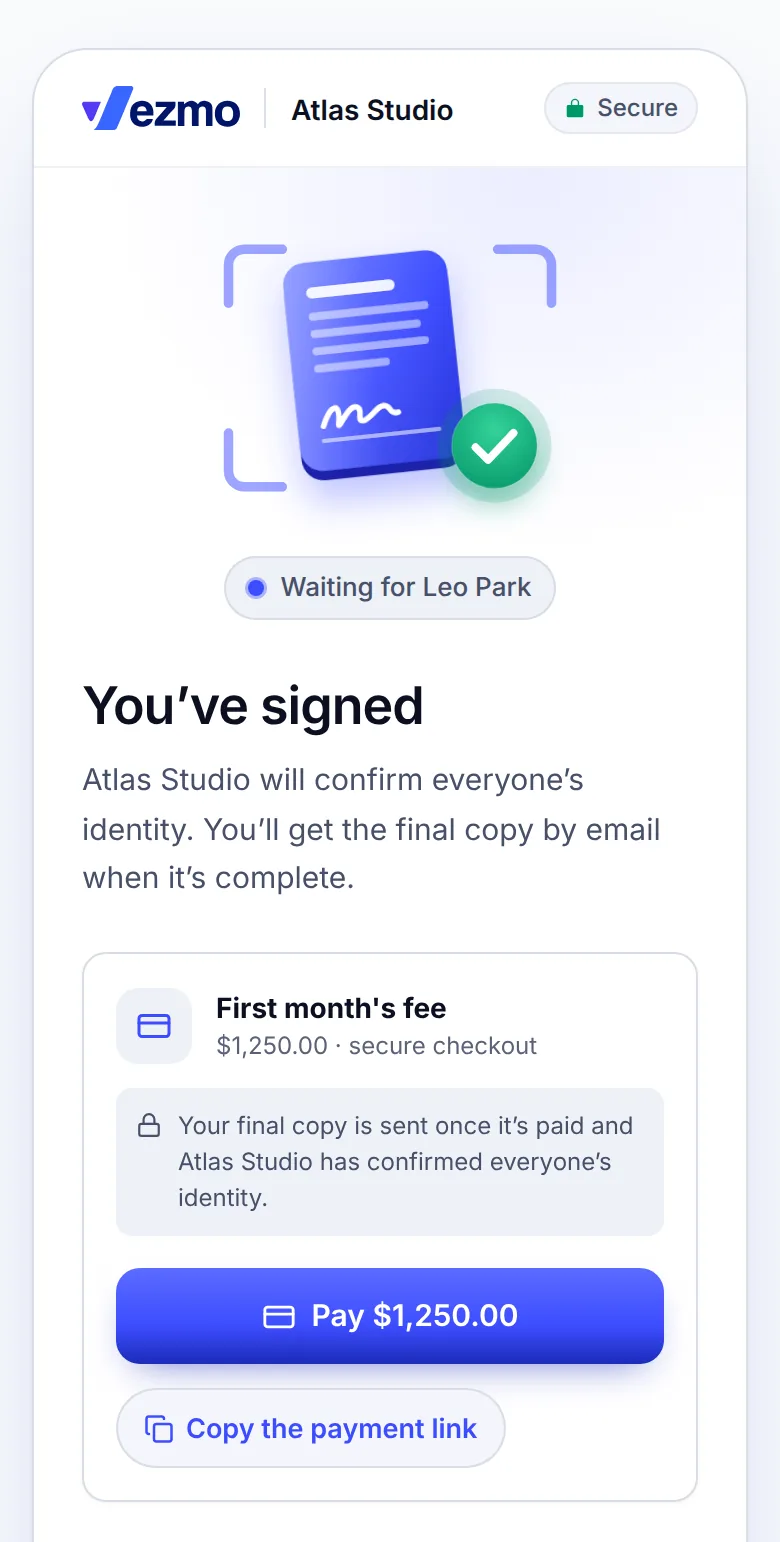
Approve the signers
When everyone has signed, the agreement shows Waiting for your approval. Nothing is sealed and nobody gets the final copy until you approve every signer and complete it.
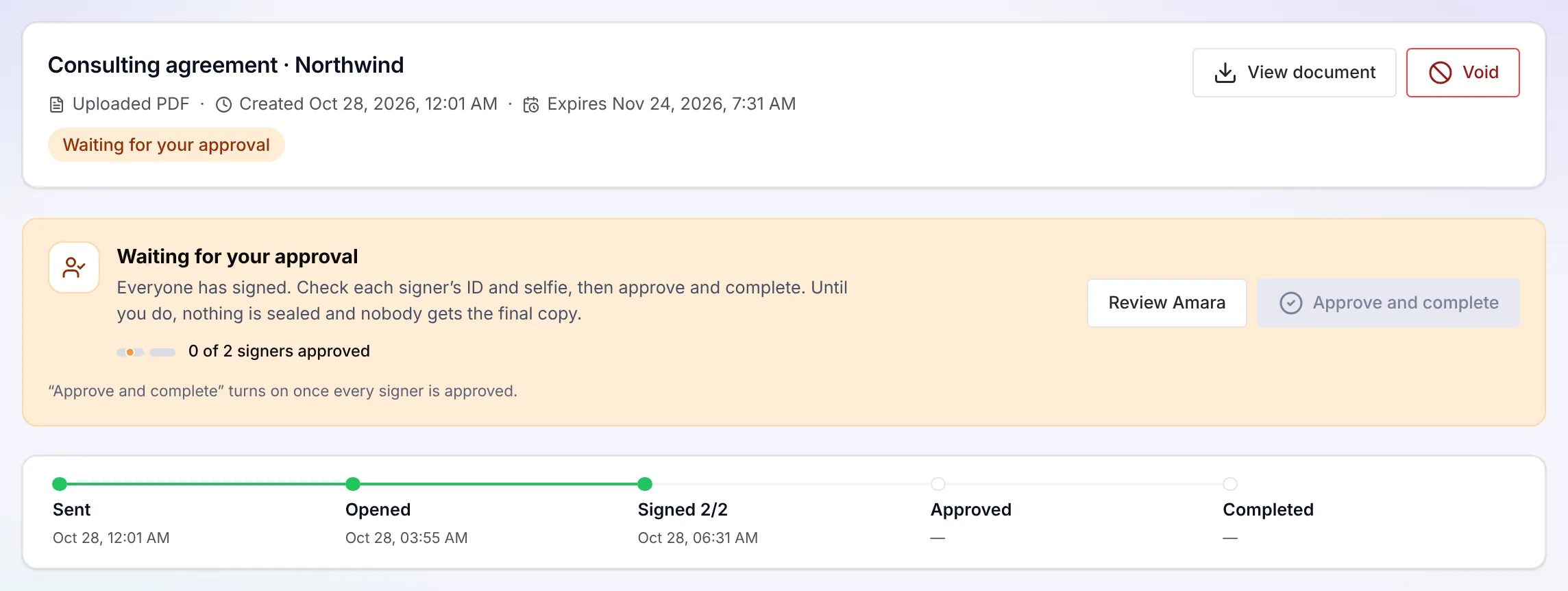
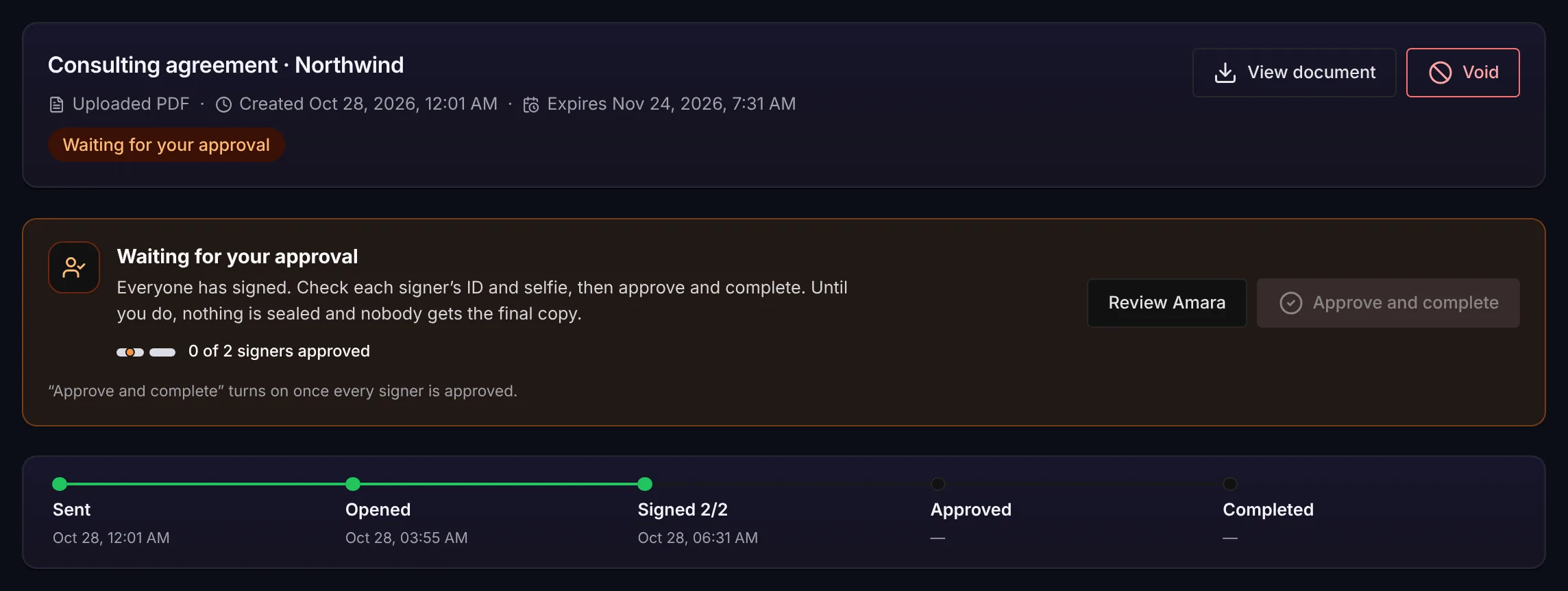
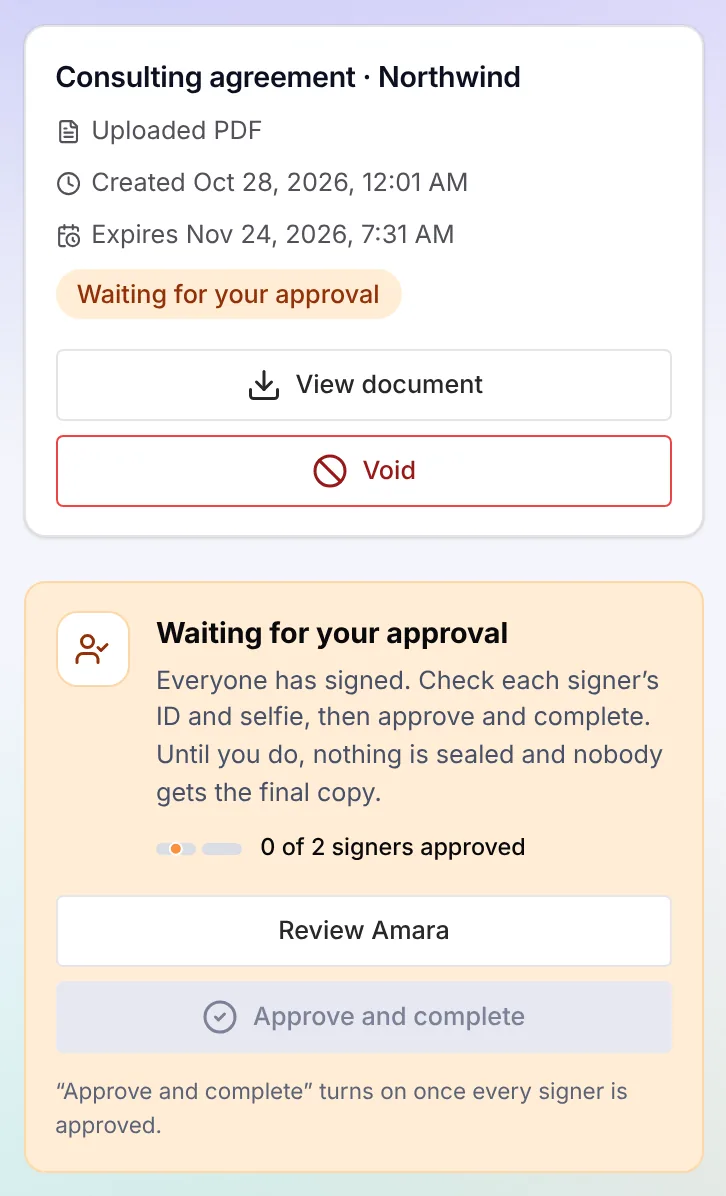
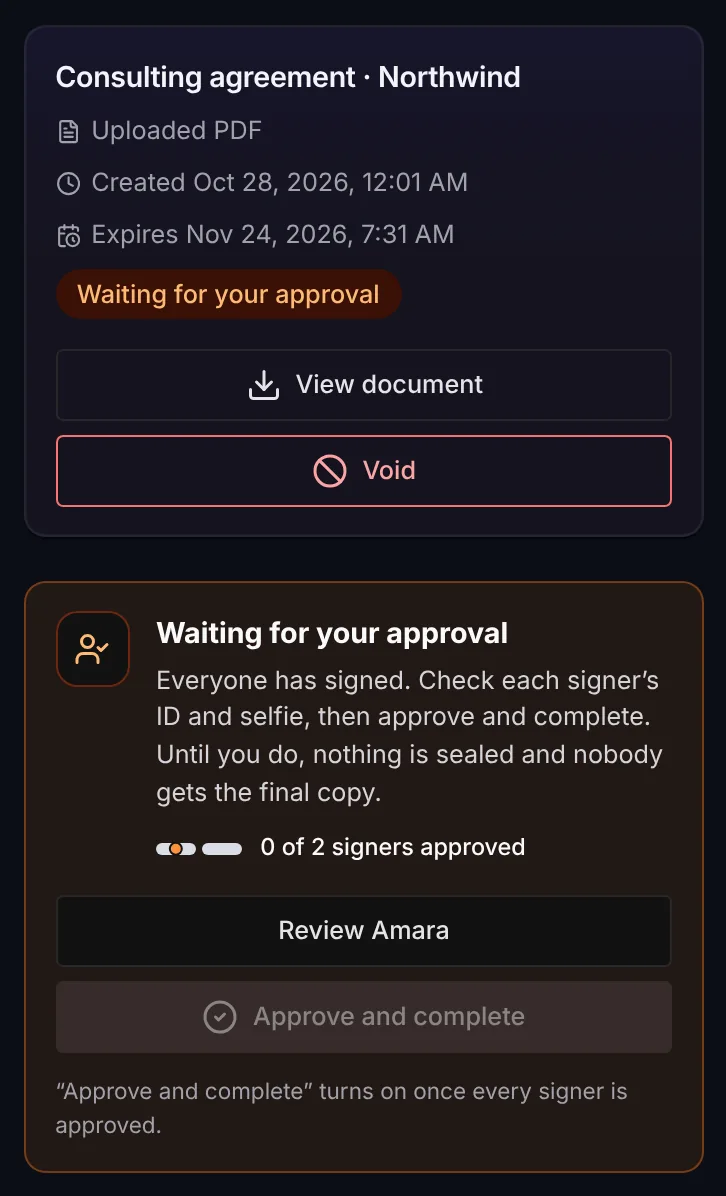
Select the review button on the banner (it names the signer whose checks need a look, here Review Amara), or Review ID on a signer, to open their ID check. You see their ID photo beside their selfie, the name you sent the agreement to beside the name on their ID, their selfie frames and video, and each check in plain words: face match, live selfie, a real person, name, passport code and photo quality. Anything that needs a look is highlighted.
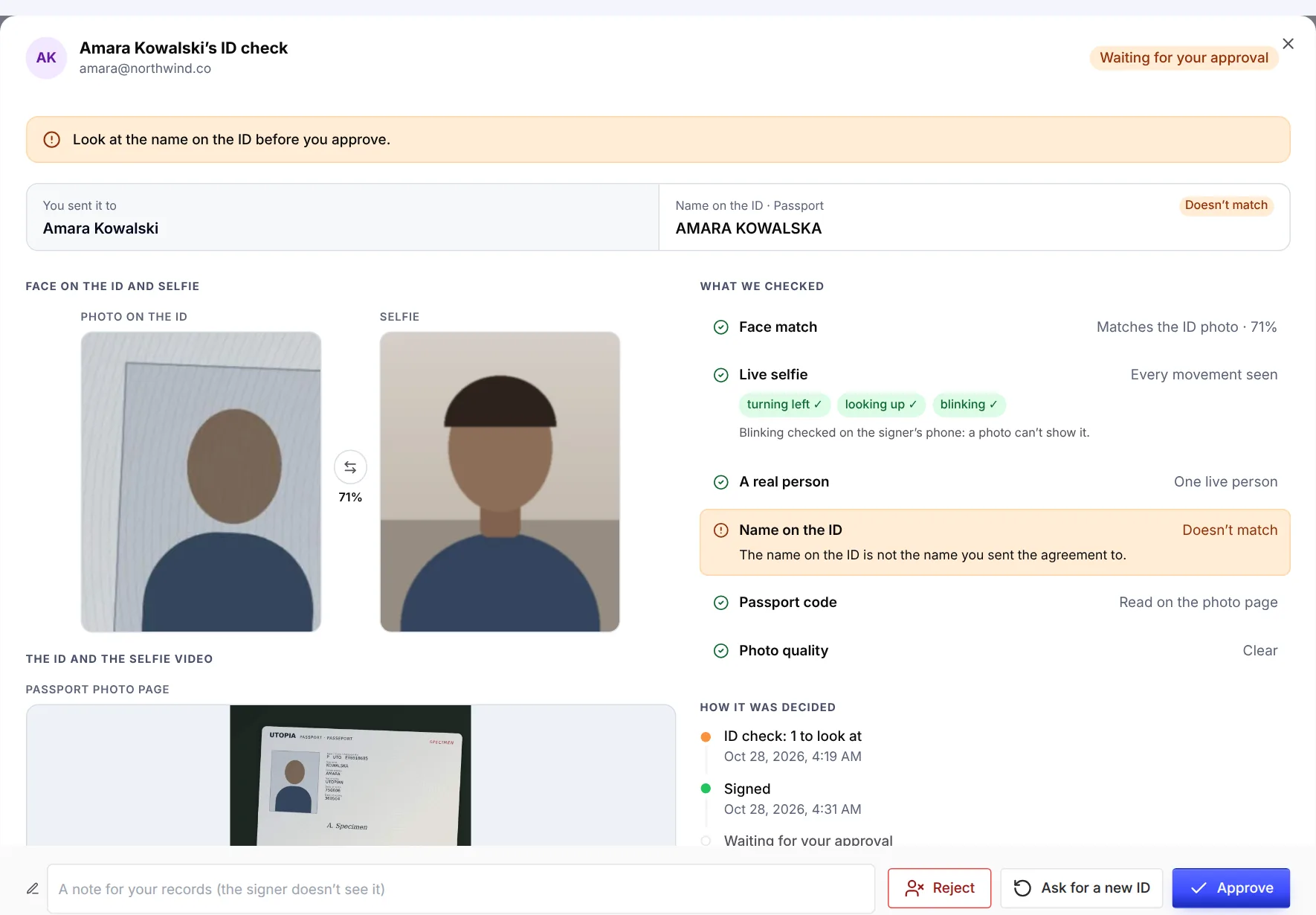
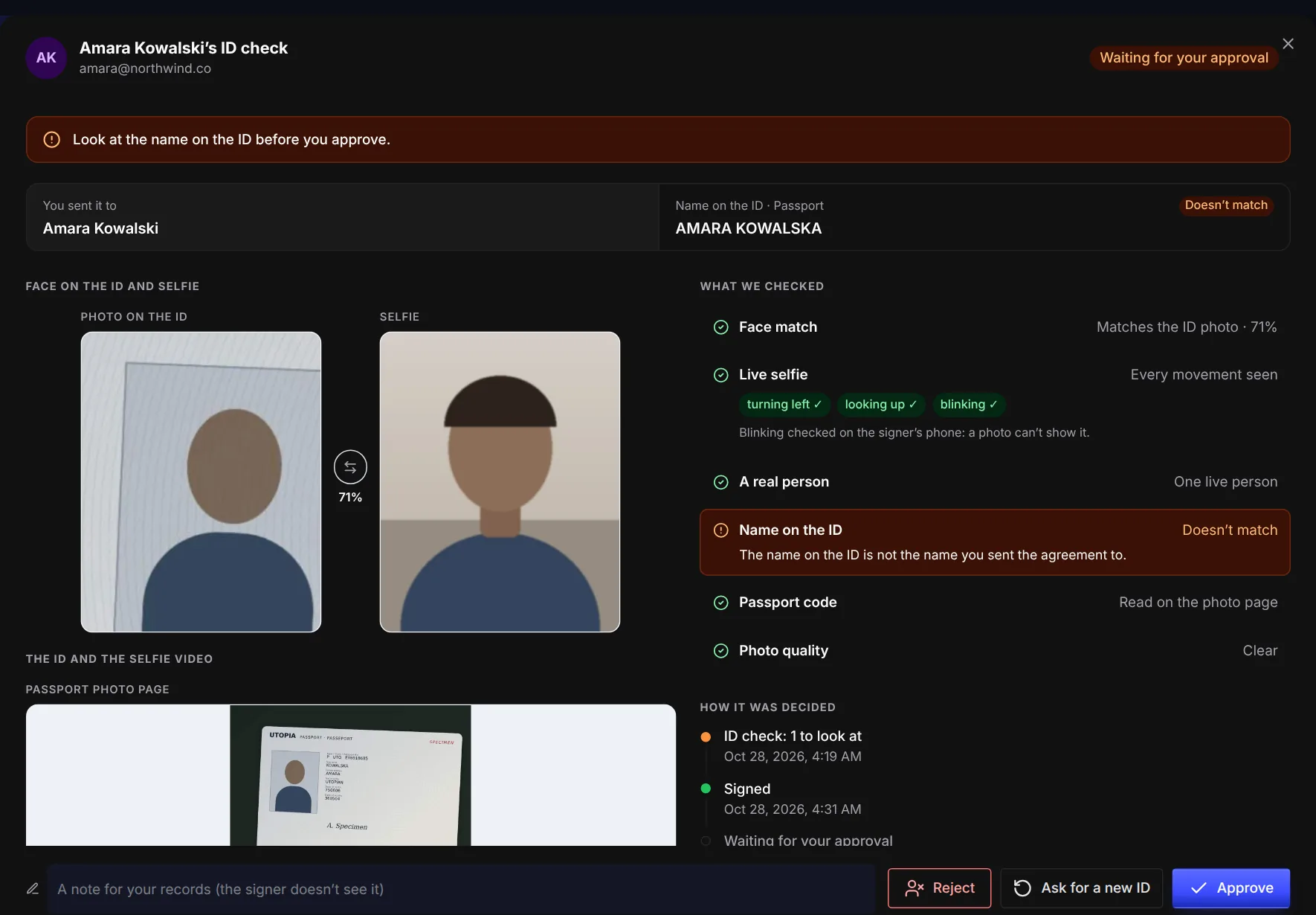
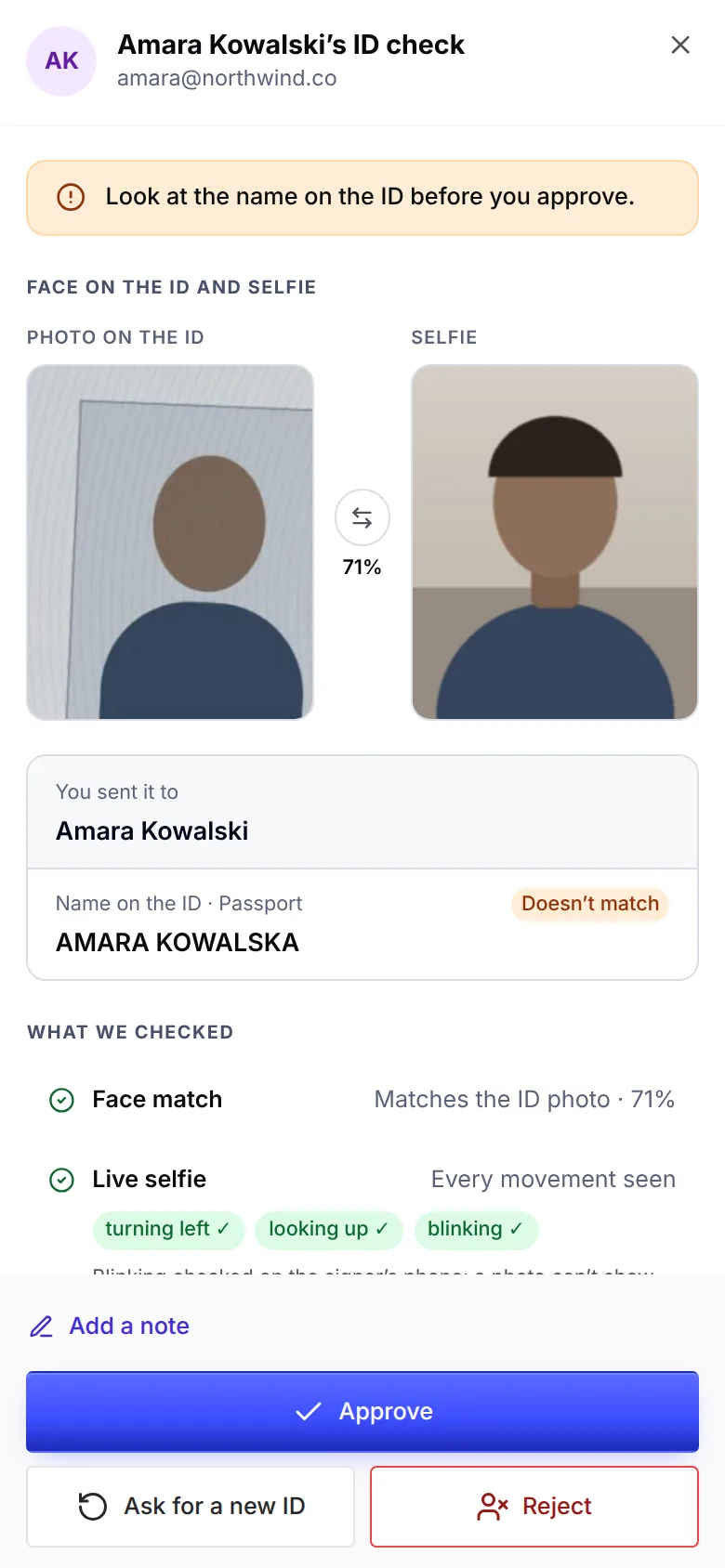
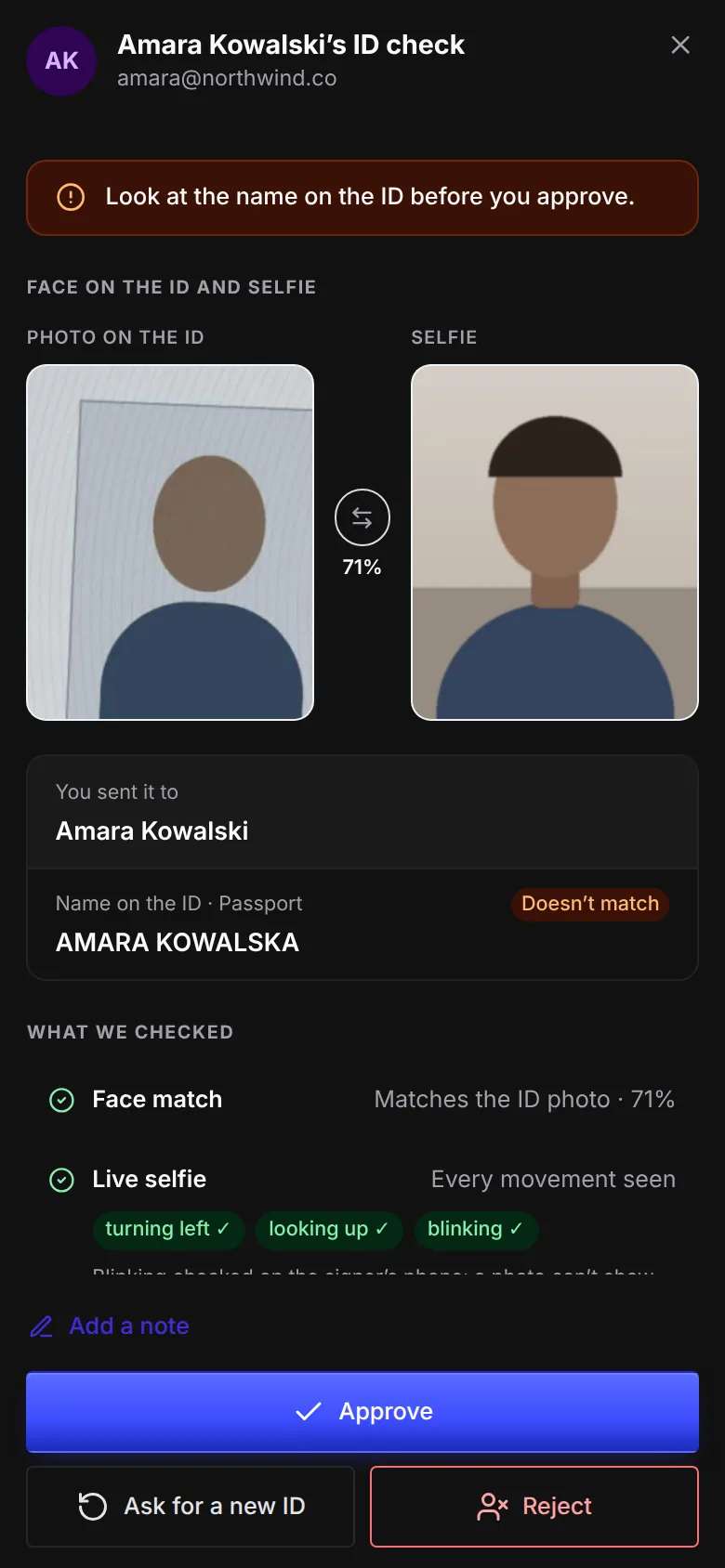
For each signer, you can:
- Approve them.
- Ask for a new ID and selfie. We email them a link that opens only the ID check, with fresh tries. Their signature stays; they don't sign again. When they've done it, the signer waits for your approval again.
- Reject them. Their signature is cancelled, and you choose what happens next: cancel the agreement, or replace the signer with someone else, who gets their own invitation and signs in their place. The new signer can't use the rejected signer's email, or that of anyone rejected before on the agreement. We email the rejected signer that their signature was cancelled, without a reason, and their link stops showing the agreement.
You can add a note for your records to each decision. It is kept with your decision, and the signer never sees it.
Once every signer is approved, select Approve and complete. Vezmo seals the agreement, adds the certificate of completion and emails the signed copy to every signer and to you. If making the signed copy takes longer, the agreement shows Approved · finishing until it's ready, within about 10 minutes; selecting it again changes nothing.
Approve automatically
Turn on Approve automatically when every check passes (under the ID check option, off by default) and a signer whose checks are all clean is approved for you. If every signer is, the agreement completes on the last signature, as one without an ID check does. A check that needs a look still waits for you.
Reminders and your To-do
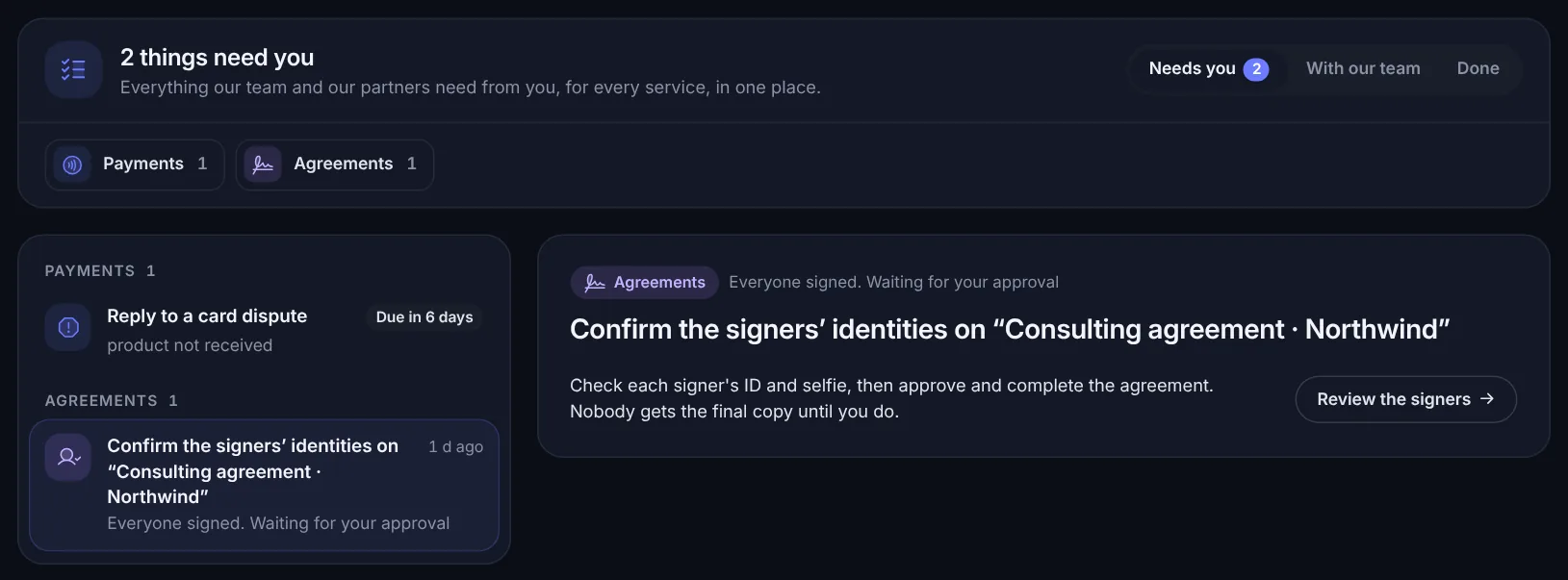
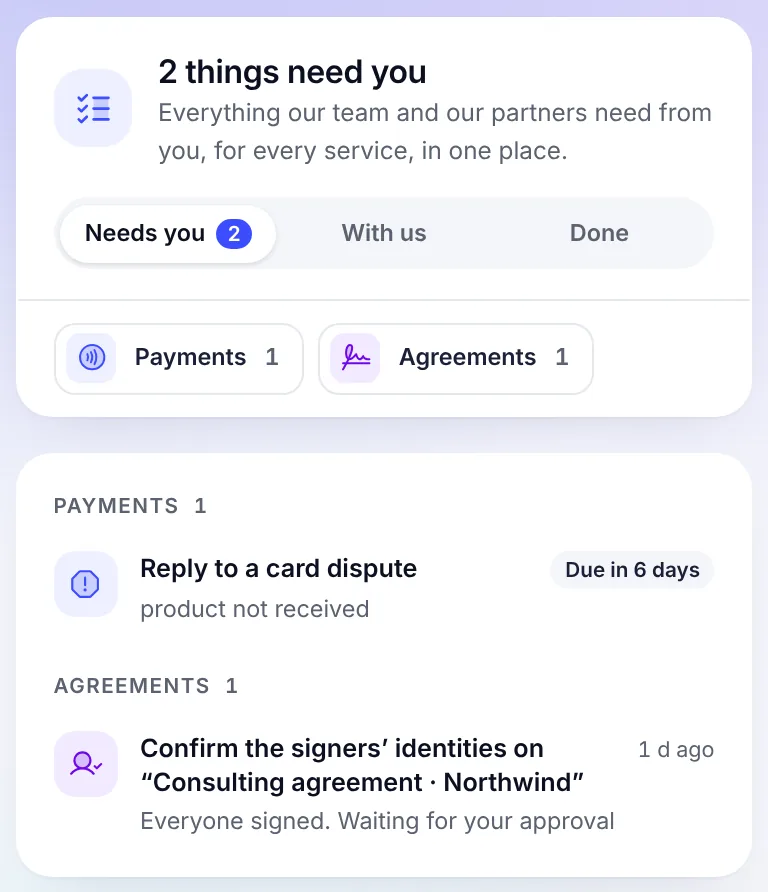
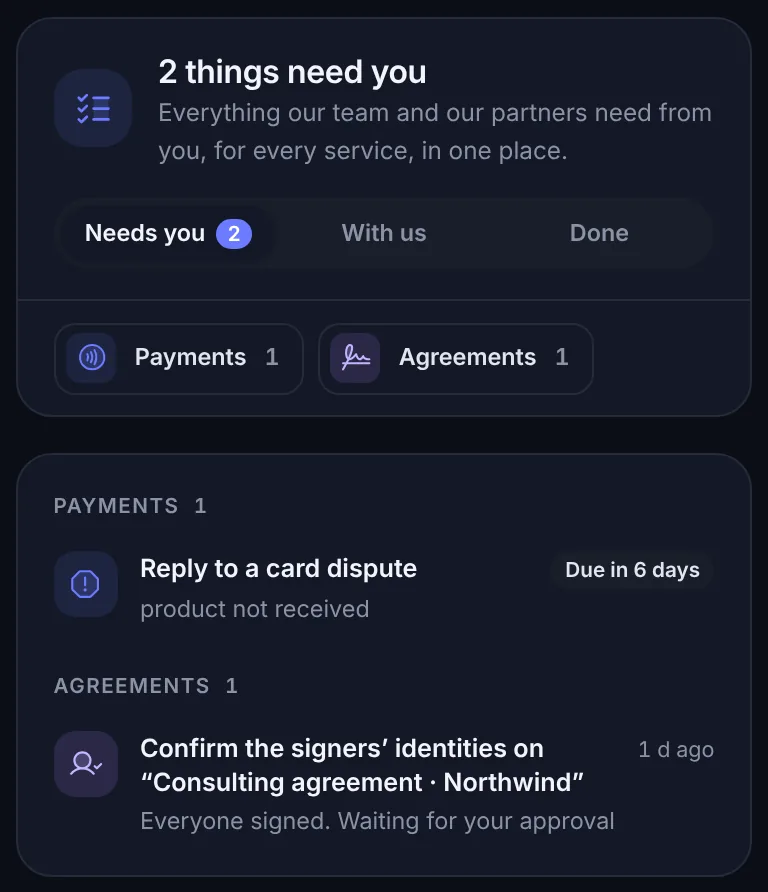
While an agreement waits for your approval, we remind you by email and in the dashboard a day after everyone signed and again after 3 days. It is also on your To-do page as "Confirm the signers' identities on" the agreement, and goes when you complete it, reject a signer or cancel it. The agreement still expires on its last day to sign. In your notifications, the review stays under Needs action until it's done.
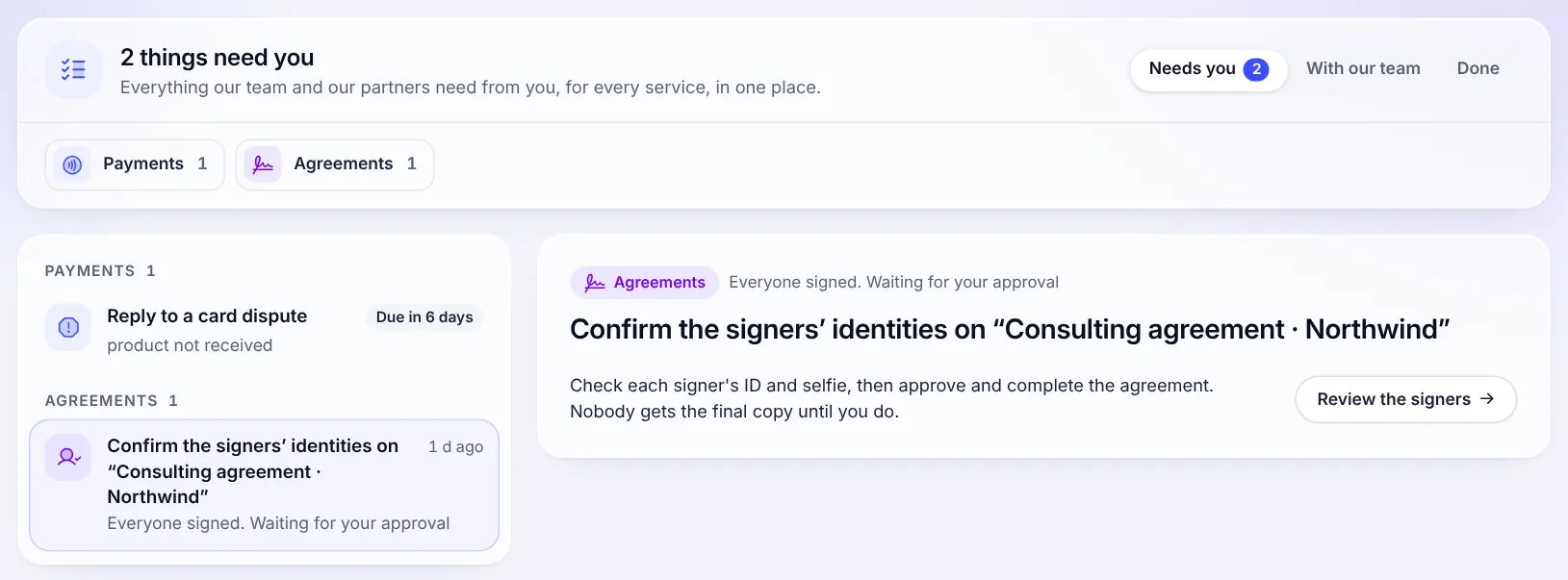
Payment and the signed copy
The signer pays the attached payment right after signing. The order is always: their ID, their signature, then the payment.
- With Require payment to release signed copy on, the signed copy goes to the signers once the agreement is complete and the payment is made, whichever happens last. You get your copy when it completes.
- If you reject a signer who already paid, their payment stops counting at once: the signed copy needs a new payment, and the agreement gets a new payment link for the same amount for whoever signs in their place. The agreement's payment card shows Refund for each rejected signer who paid. It refunds that signer's payment the same way as from the payment's own page, and needs the permission to change payments. If a payment can't be tied to a signer, the card links to Payments to refund it from there.
- If an agreement is cancelled, declined or expires after someone paid, its payment card shows Refund for each payment and nothing more to pay, and we tell you by email and in the dashboard.
The certificate of completion
Every completed agreement ends with a certificate: who signed, when, from where and on what device, how each signer proved who they are, and every step of the activity. With the ID check on, each signer's card says Identity: Checked and approved by the person who approved them and the date, or Approved automatically, all checks passed.
What happens when
A signer declines
The agreement shows Declined, and you get an email. An unpaid payment link on it stops taking payments.
A signer doesn't sign
Select Resend on the agreement to email the signers who haven't signed a fresh link. We also remind them by email in the last days before the agreement expires.
I want to stop an agreement
Select Void and confirm. Its links stop working, an unpaid payment link closes, and anyone who opened or signed it is told. You can void an agreement that waits for your approval, but not once you've selected Approve and complete.
A signer's new ID check runs out of tries
They show New ID check failed. Ask them again for a new ID and selfie, which gives them fresh tries, or reject them.
A signer's ID check runs out of tries before they sign
They can't sign. Select Give them new tries from their card: we email them a new link, they take the ID check again and then sign. Or reject them to replace them or cancel the agreement.
Related
- Notifications: the bell, Needs action and what reaches you by email.
- Payment links
- See a payment's details
- Agreements in the API: create and send agreements, approve signers and
complete agreements from your own code, with webhooks such as
agreement.awaiting_approval.
Facts checked against the product on 30 Oct 2026.
Was this page helpful?