Notifications
What Vezmo tells you and where, the bell and its count, what needs you, the Notifications page with each notification's details, the alerts that pop up, choosing what reaches you by email, and the daily summary.
Overview
Vezmo tells you when something happens in your business: a payment comes in, a payout is paid, a customer disputes a payment, a client signs an agreement, or our team needs something from you. You see every notification in three places:
- The bell at the top of the dashboard, with the number you haven't read.
- The Notifications page, with every notification and the details of what each one is about.
- Email: the account holder gets the business's emails; every teammate can turn on the ones they'd like in Settings › Notifications.
Each person on your team has their own notifications: what you read or dismiss stays as it is for your teammates, and each of you chooses what reaches you. You only see notifications about the parts of Vezmo your role lets you see.
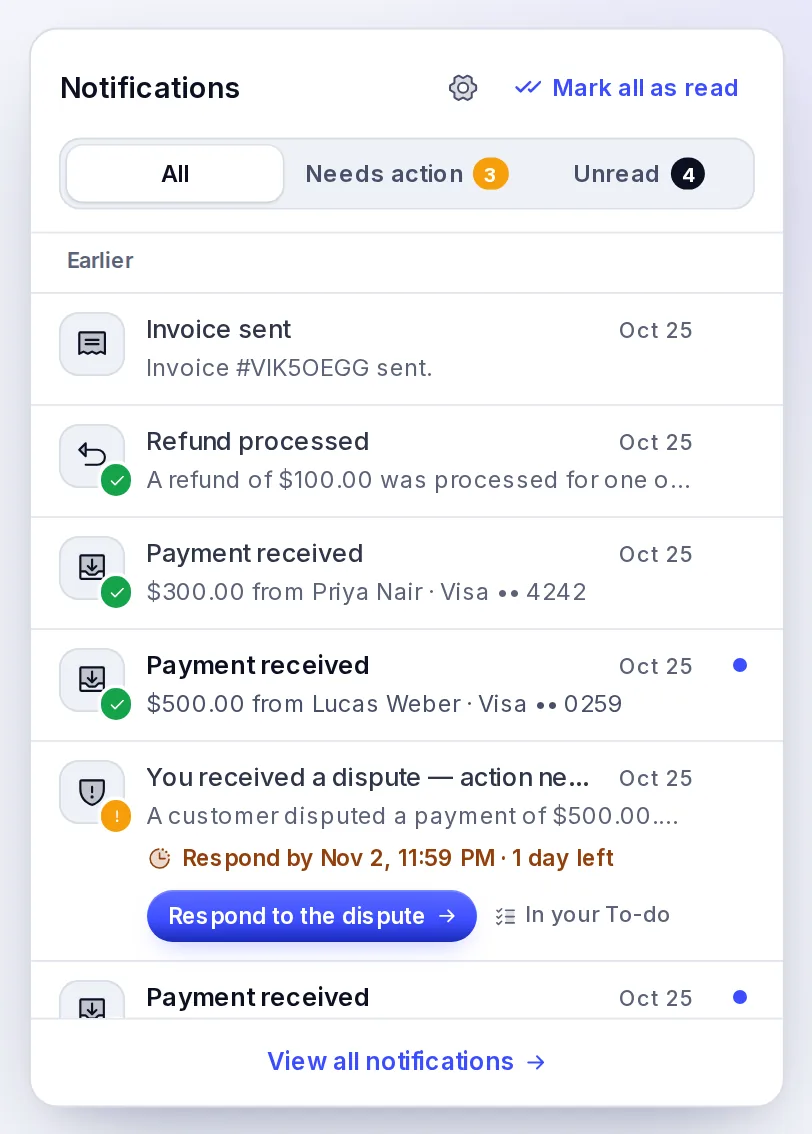
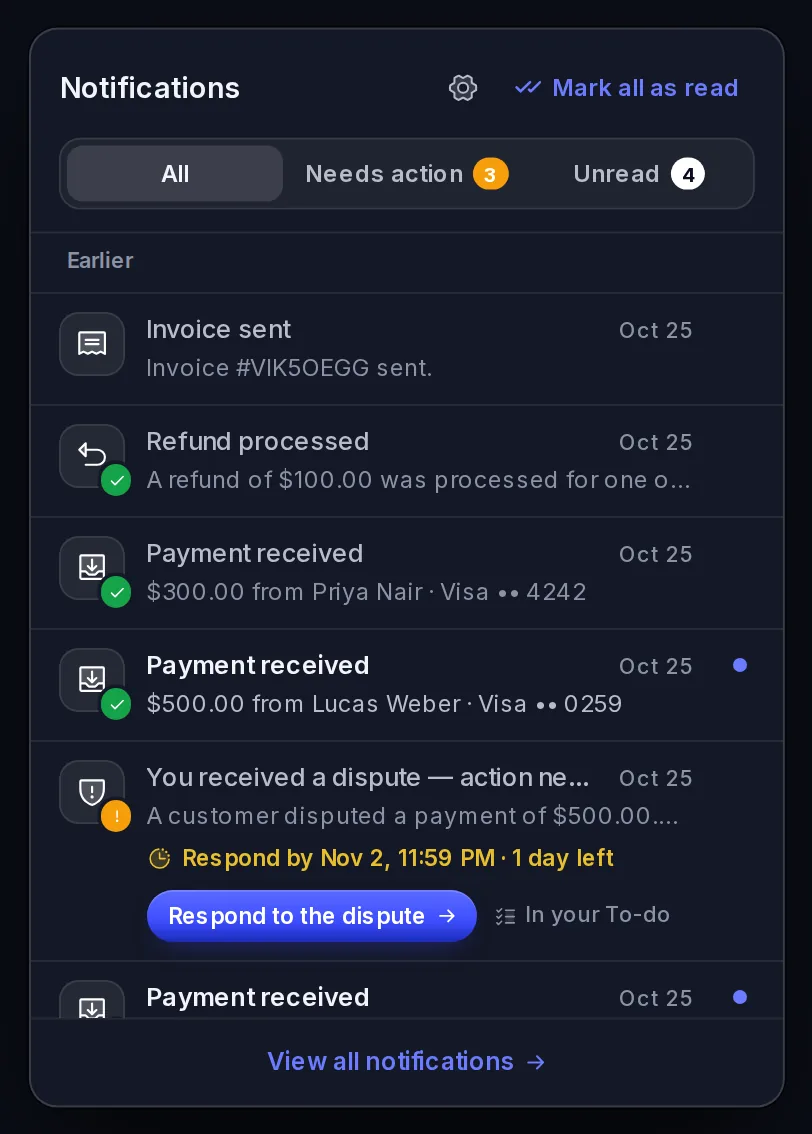
The bell
The bell shows how many notifications you haven't read: 1 to 9, then 9+. The same number shows in your browser tab, for example "(3) Vezmo", so you see it from another tab.
Open the bell to see your notifications, newest first, grouped into Today, Yesterday, This week and Earlier. Scroll down to load older ones. Three tabs filter them:
| Tab | What it shows |
|---|---|
| All | Every notification you haven't dismissed. |
| Needs action | Only the ones that ask you to do something and aren't done yet, with how many. |
| Unread | Only the ones you haven't read, with how many. |
Each notification has an icon for what it's about (a payment in, a payout, a dispute, a refund, an agreement, an ID check, an invoice, a proposal, your verification, Accounts, your To-do) and, on the icon's corner, a small mark for how it went:
| Mark | Means |
|---|---|
| Green tick | It worked: a payment received, a payout paid, a dispute won, your business verified. |
| Red cross | It didn't: a payment or payout that failed, a dispute lost, something declined. |
| Amber mark | It needs you. |
Beside each title you see how long ago it happened, for example "2 h". Unread ones are in bold with a blue dot. A dispute shows its deadline in amber, in your own time zone, for example "Respond by Nov 2, 11:59 PM · 1 day left". Select a notification to open it on the Notifications page.
Hover over a notification and select ⋯ to mark it read or unread, or to dismiss it. Mark all as read reads everything at once, including notifications sent to your whole business.
What you do yourself doesn't add to your unread count. When you send an invoice, you get one Invoice sent, already read, once the email has gone out. If it couldn't be sent, a notification under Needs action says so, so you can check the address and send it again.
Needs action
Some notifications ask you to do something: answer a dispute by its date, review a signer's ID check, approve an agreement, send something our team asked for, or take a live selfie. They carry an amber Needs action label (or, for a dispute, its deadline) and a button straight to the thing, such as Respond to the dispute, Review the ID check or Open your To-do.
Needs action is your To-do plus anything else waiting for you. When the To-do has open items, the tab starts with them ("Waiting in your To-do"). A notification whose task is already in your To-do says In your To-do and isn't counted twice, so the number matches your To-do when everything waiting is there.
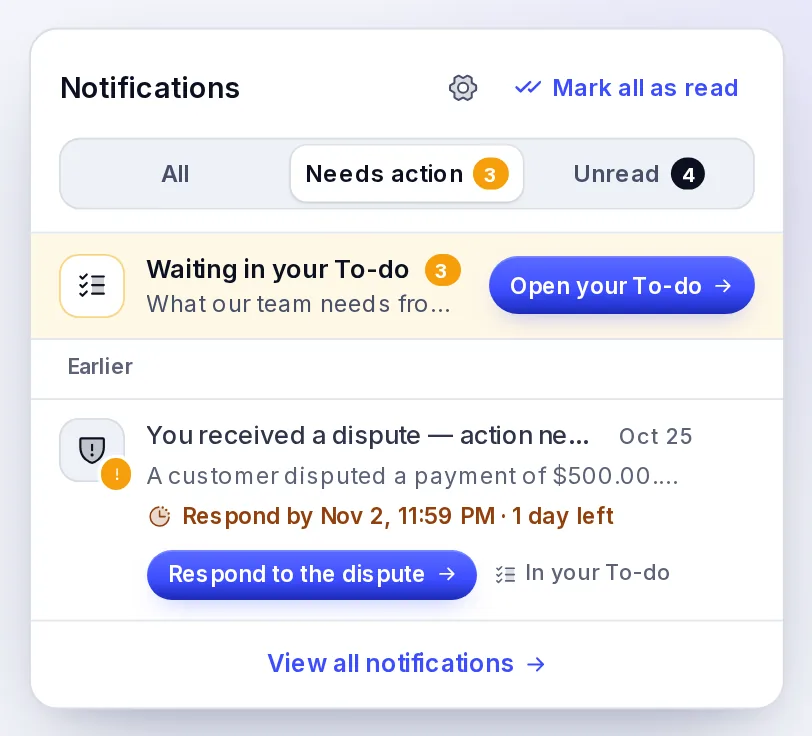
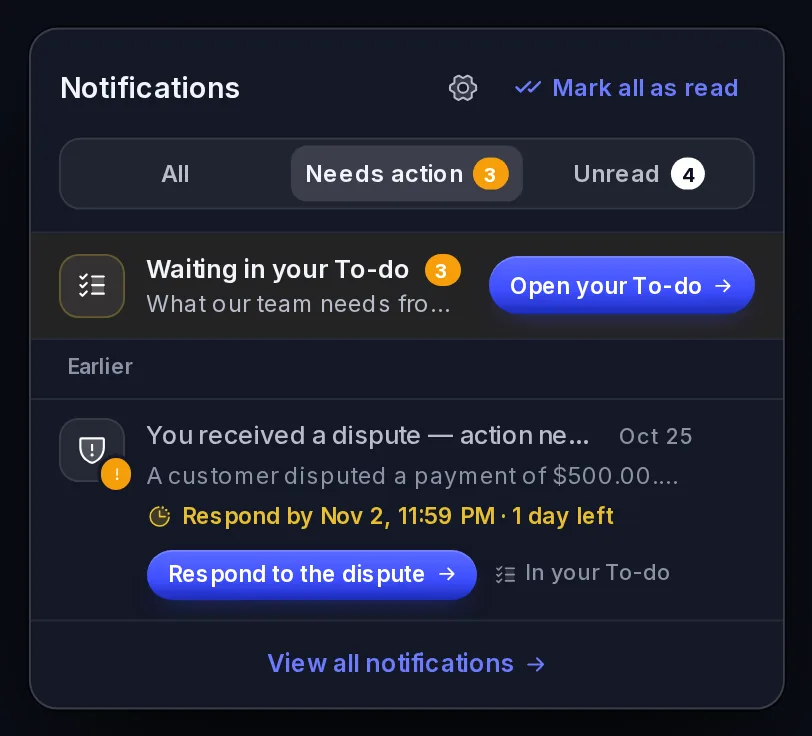
When the task is done, for example the dispute is answered or the ID check is reviewed, the label turns to a green Done and the notification leaves the Needs action tab. Your To-do page lists the same work by service.
The Notifications page
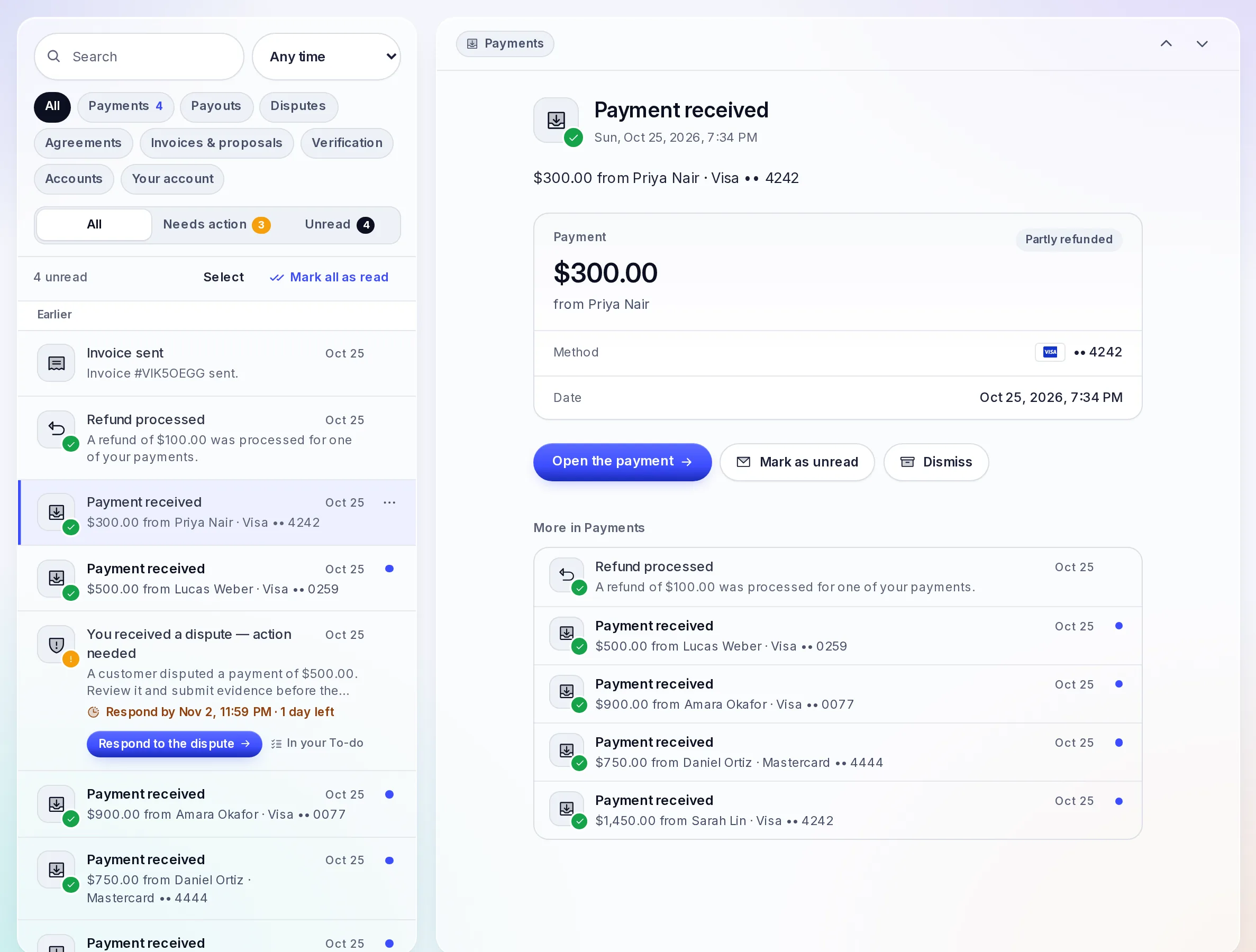
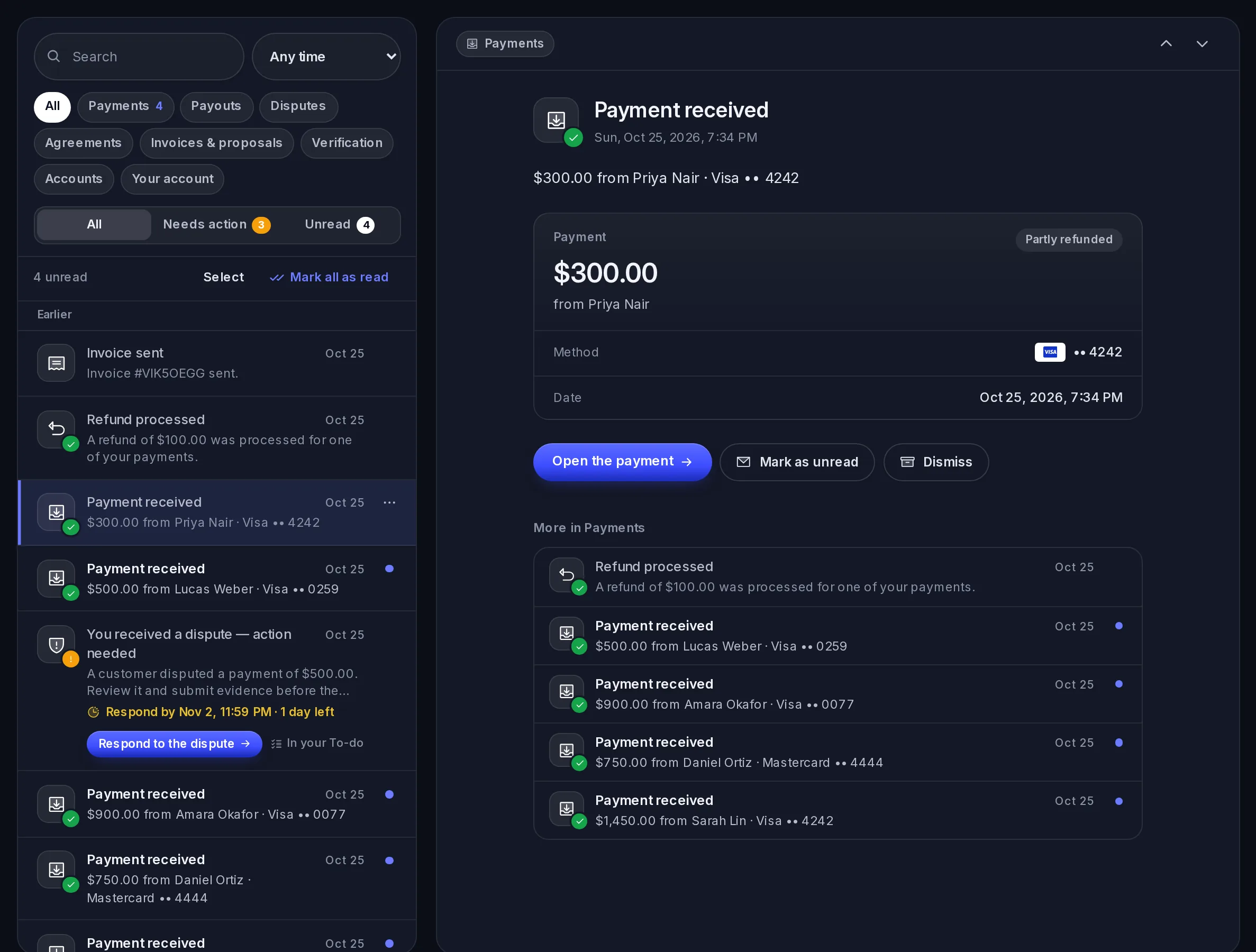
Select View all notifications in the bell, or any notification, to open the Notifications page. Your notifications are on the left and the one you open is on the right, with:
- the whole message and the date and time it happened;
- the latest on what it's about: for a payment, the amount, the customer, the card and its status; for a payout, the amount, when it was paid or is expected, and the account it went to when we have it; for a dispute, the amount, the reason and the date and time to respond by, in your own time zone; for an agreement, who has signed;
- when there's something to do and no details to show, what to do and by when;
- one button to it, such as Open the payment or Respond to the dispute;
- Mark as unread and Dismiss, and a few more recent notifications of the same kind.
To find a notification:
- Use the tabs: All, Needs action or Unread.
- Search its words.
- Pick a category: Payments, Payouts, Disputes, Agreements, Invoices & proposals, Verification, Accounts or Your account. Each shows how many you haven't read.
- Choose Any time, Last 7 days or Last 30 days.
On a phone, search, time and categories are under Filter. With a filter on, Mark these as read reads just those.
To act on several at once, select Select (or hover over a notification's icon and tick it), then Mark read or Dismiss.
On a computer, ↓ or J opens the next notification, ↑ or K the one before, Enter follows its button and Esc closes it. On a phone, the list fills the screen and a notification opens on its own, with a back arrow.
Alerts while you work
Two things pop up in the corner of the dashboard as they happen, with View:
- a payment received, for example "$25.00 from Priya Nair";
- a new dispute.
Everything else updates the bell's count without interrupting you.
Choose what reaches you
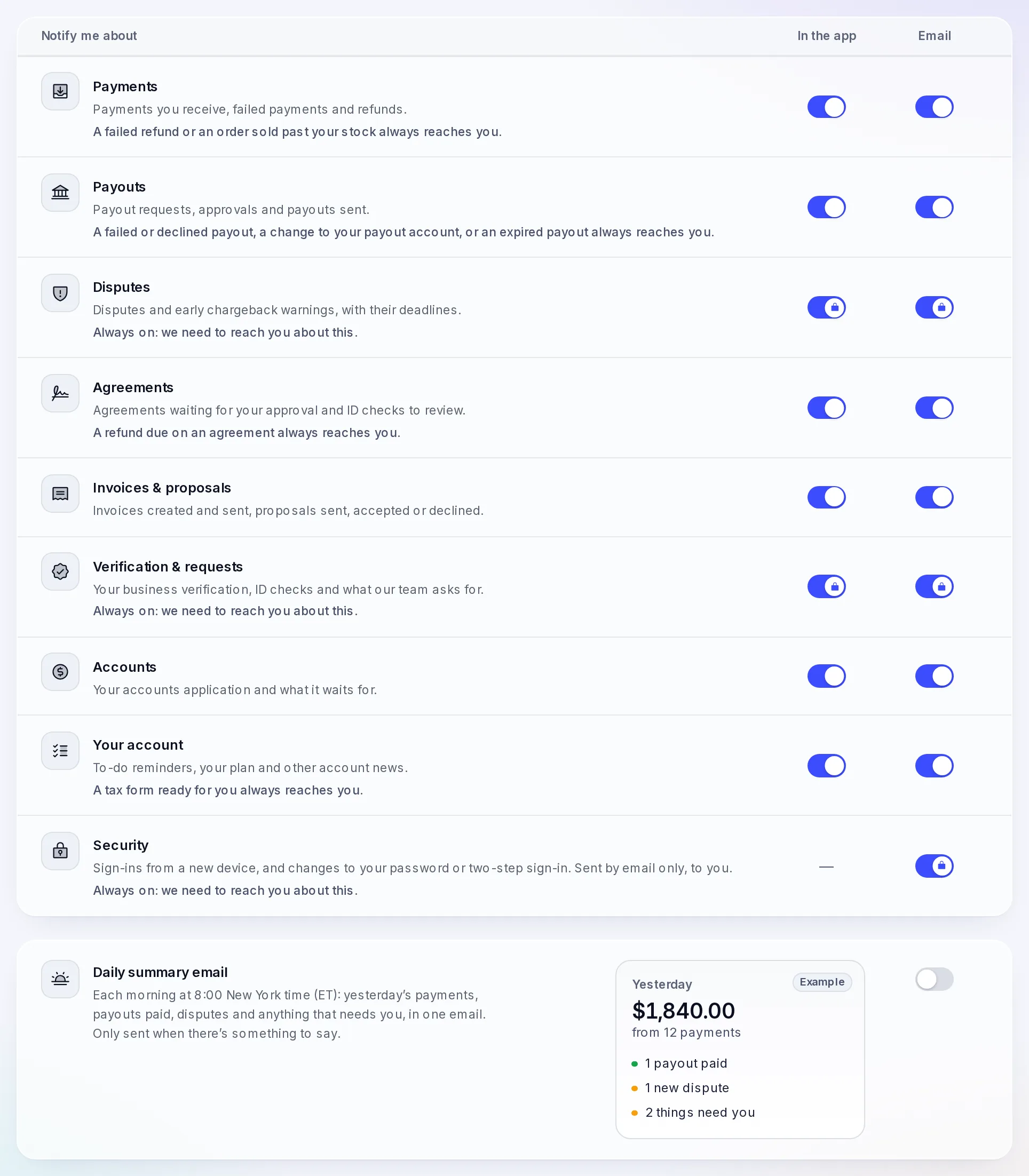
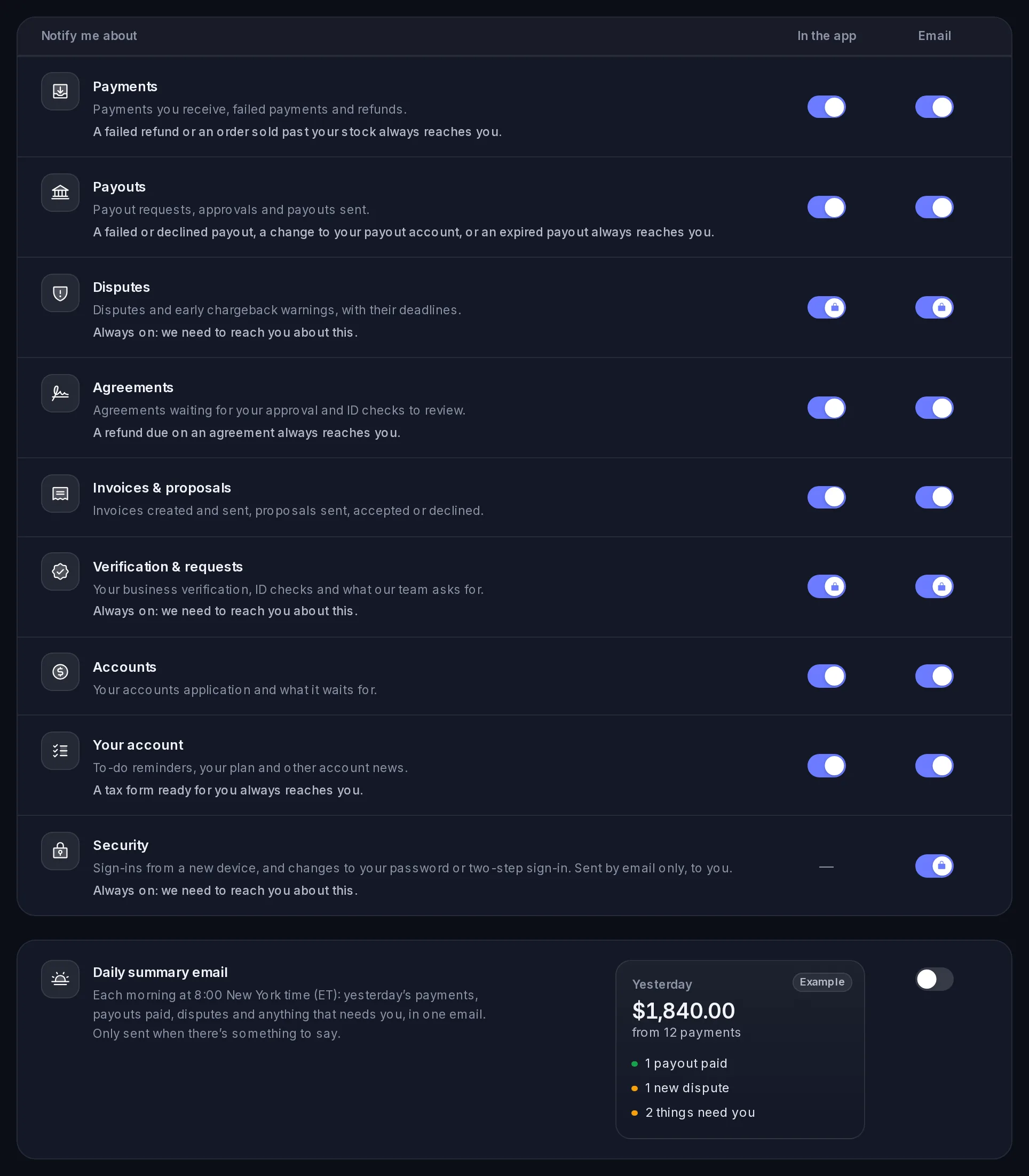
In Settings › Notifications (or the gear in the bell) you choose, for each kind, whether it shows In the app (the bell and the Notifications page) and whether it comes by Email. Each switch saves as you change it. These are your own settings: each teammate chooses theirs.
Email works per person:
- The account holder gets your business's emails. They start on, and the essentials are always on: Disputes, and Verification & requests. The account holder is the person who set up the business; if they've left, it's the longest-standing teammate, so the essentials always reach someone.
- Every other teammate can turn on the emails they'd like, for anything their role lets them see. They all start off, and nothing is locked for them: the essentials always go to the account holder. A teammate who turns on Verification & requests also gets our team's asks and selfie requests.
- Security emails (sign-ins from a new device, and changes to your password or two-step sign-in) always go to you, by email only.
Whatever the switches, the account holder always gets these by email: a payout that failed or was declined, a payout request that expired, a change to your payout account, a refund that didn't reach your customer, an order paid past its stock, a refund due on an agreement, a tax form that's ready, and anything that holds or pauses your account.
The daily summary
Turn on Daily summary email to get one email each morning at 8:00 your time (the time zone your browser uses when you turn it on, shown beside the switch). It covers the day before: your payments (how many, and the total in each currency), payouts paid, disputes, anything that needs you, and your open To-do. It's off until you turn it on, and it's only sent on days with something to say.
Related
- See a payment's details: answer a dispute.
- Agreements and e-signatures: reviewing signers and your To-do.
Facts checked against the product on 1 Nov 2026.
Was this page helpful?
Get started with Vezmo
Open your account in four short steps, choose your plan, find your way around the dashboard and get ready to take your first payment.
Plans and billing
How your Vezmo plan is paid, what happens when you move up or down a plan, what happens if a payment fails, where to find your plan invoices, the two account fees (extra currency accounts and the Free plan's upkeep), the 30 days' notice before a price goes up, and the reminder before a price agreed for your business ends.