Add a currency
Add account details in another currency to your Vezmo account. Which currencies you can add, which are ready now and which need a quick check by our team, what each status means, what to do when your To-do asks for something, and what an extra currency costs.
Overview
Most businesses start with US dollar account details. You can add account details in other currencies, so clients pay you in their own currency the way they pay anyone there, for example in euros by SEPA. Each currency you add shows in Accounts › Currency accounts, with its balance and its account details to share.
Some currencies are ready now: they open as soon as you select Open. Others need a quick check by our team first, usually 1–2 business days. Either way, there's nothing to fill in again: we use the details you already gave us in your verification.
Account details are provided by our regulated partners. Vezmo is a financial technology company, not a bank.
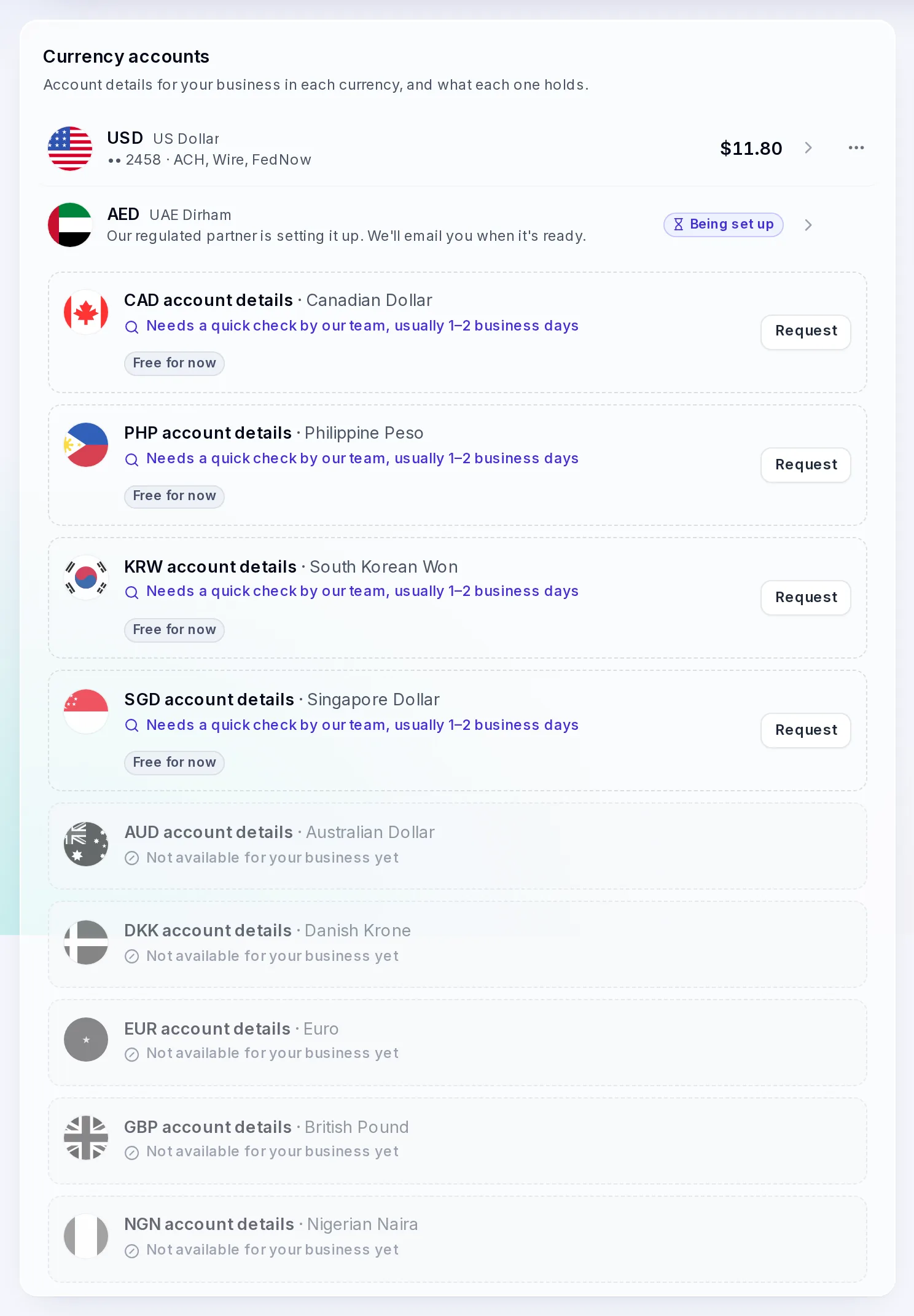
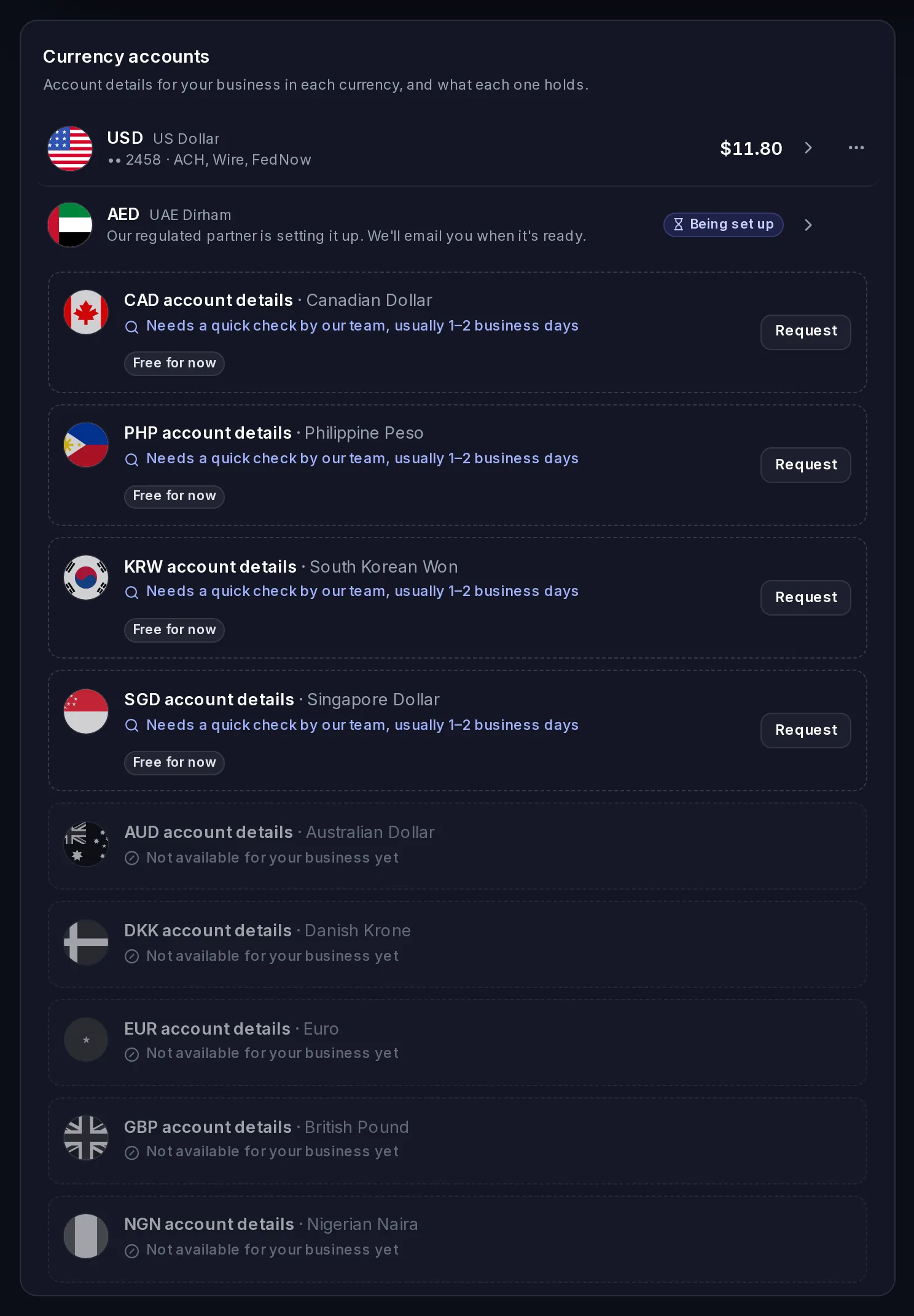
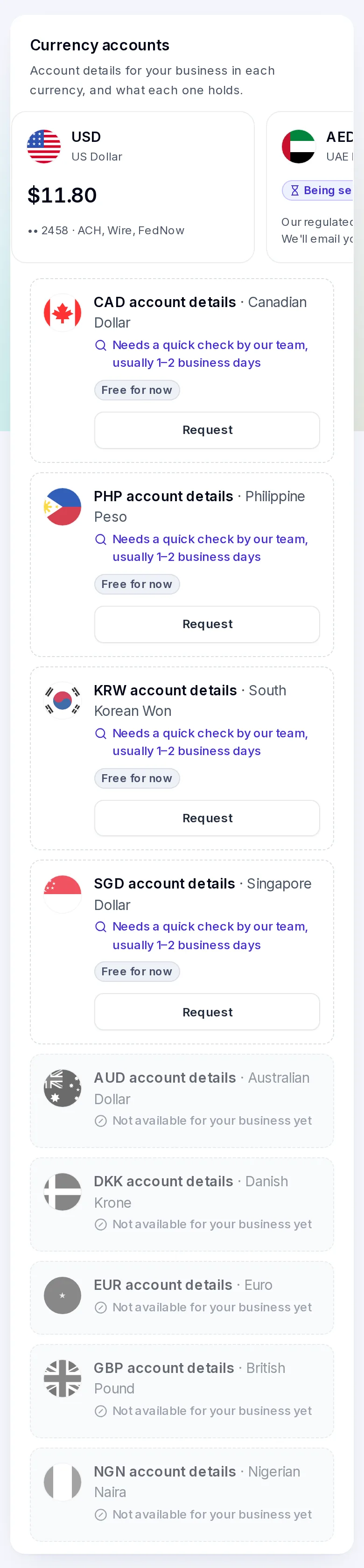
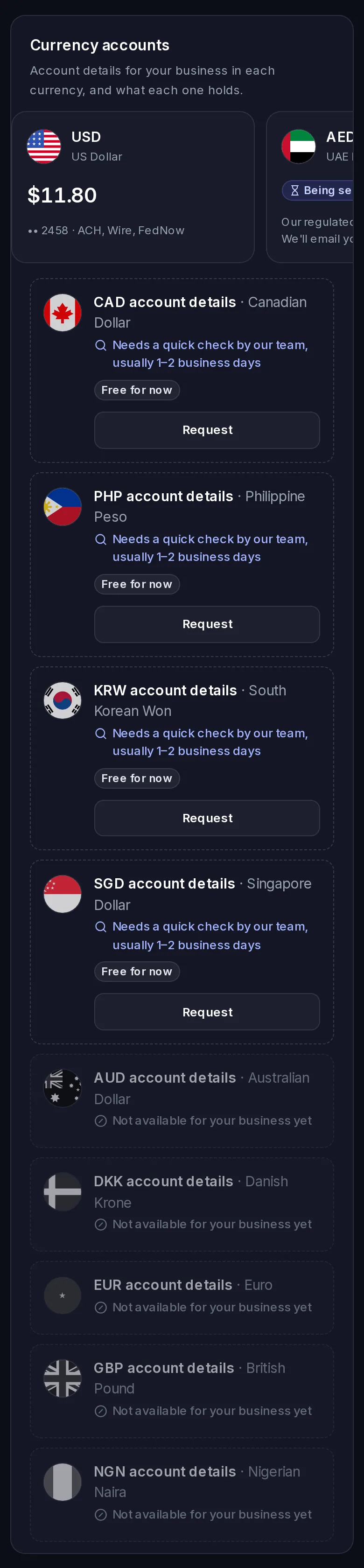
Which currencies
| Currency | What you get |
|---|---|
| US dollar (USD) | Account details for ACH and wire. |
| Euro (EUR) | Clients in Europe pay by SEPA or SEPA Instant. |
| British pound (GBP) | Account details for payments in British pounds. |
| Singapore dollar (SGD) | Account details for payments in Singapore dollars. |
| UAE dirham (AED) | Clients in the UAE pay by local transfer. What arrives stays in your AED balance. For companies outside the UAE mainland, including free zone companies. |
Add a currency shows the currencies your business can add. Which ones depends on your business, so you may not see all of them, and it can list other currencies too, where one of our regulated partners offers them for your business.
When you apply for Accounts, you can tick the currencies you need under Which currencies do you need? US dollars are ticked for you, and it's optional: you can add more later.
Add a currency
Open Add a currency
In Accounts, under Currency accounts, select Add a currency. Each currency shows what it receives, when it would be ready, and whether your plan includes it.
Open or Request
A currency that's ready now has Open. One that needs a quick check has Request. If the currency costs extra on your plan, you see what's taken and confirm first.
Share your account details
Once the account details are ready, the currency's page shows them, ready to share with the people who pay you. If our team checked it, we email you when it's ready.
Ready now, or a quick check
| On the currency | What it means |
|---|---|
| Ready now | It opens as soon as you select Open. |
| Ready in about 1 business day | It opens when you select Open, and the account details are set up within about a business day. |
| Needs a quick check by our team, usually 1–2 business days | We set it up with one of our regulated partners that doesn't hold an account for your business yet, so our team looks at your request first. Select Request. |
| Not available for your business yet | Shown greyed, with nothing to select. We can't open this currency for your business right now. |
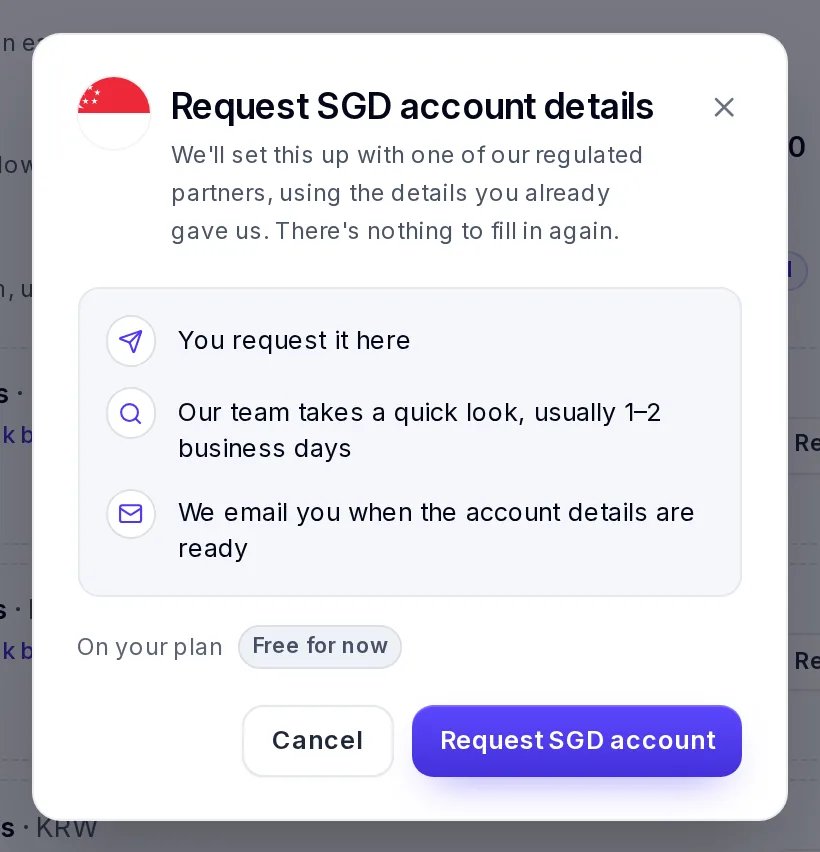
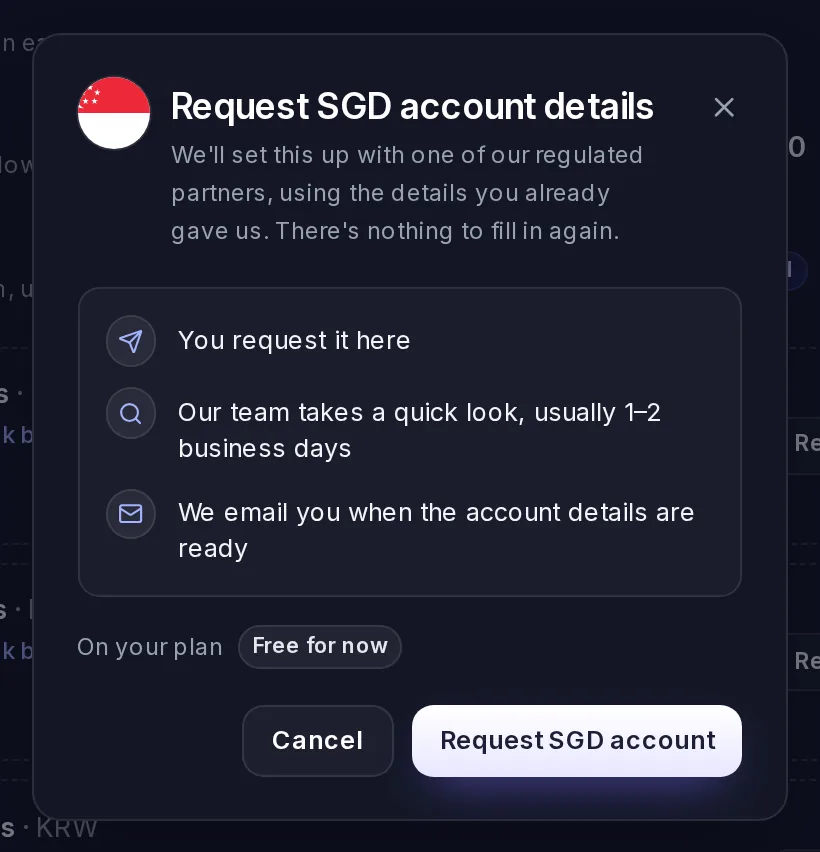
When you select Request, you see what happens next and the fee if there is one. Confirm, for example with Request SGD account, and you're done: "Requested. We'll email you when your SGD account details are ready."
What each status means
A currency you've asked for shows on Currency accounts with its status, until its account details are ready.
| Status | What it means | What to do |
|---|---|---|
| Requested | You asked for it when you applied for Accounts. We look at it with your application. | Nothing. |
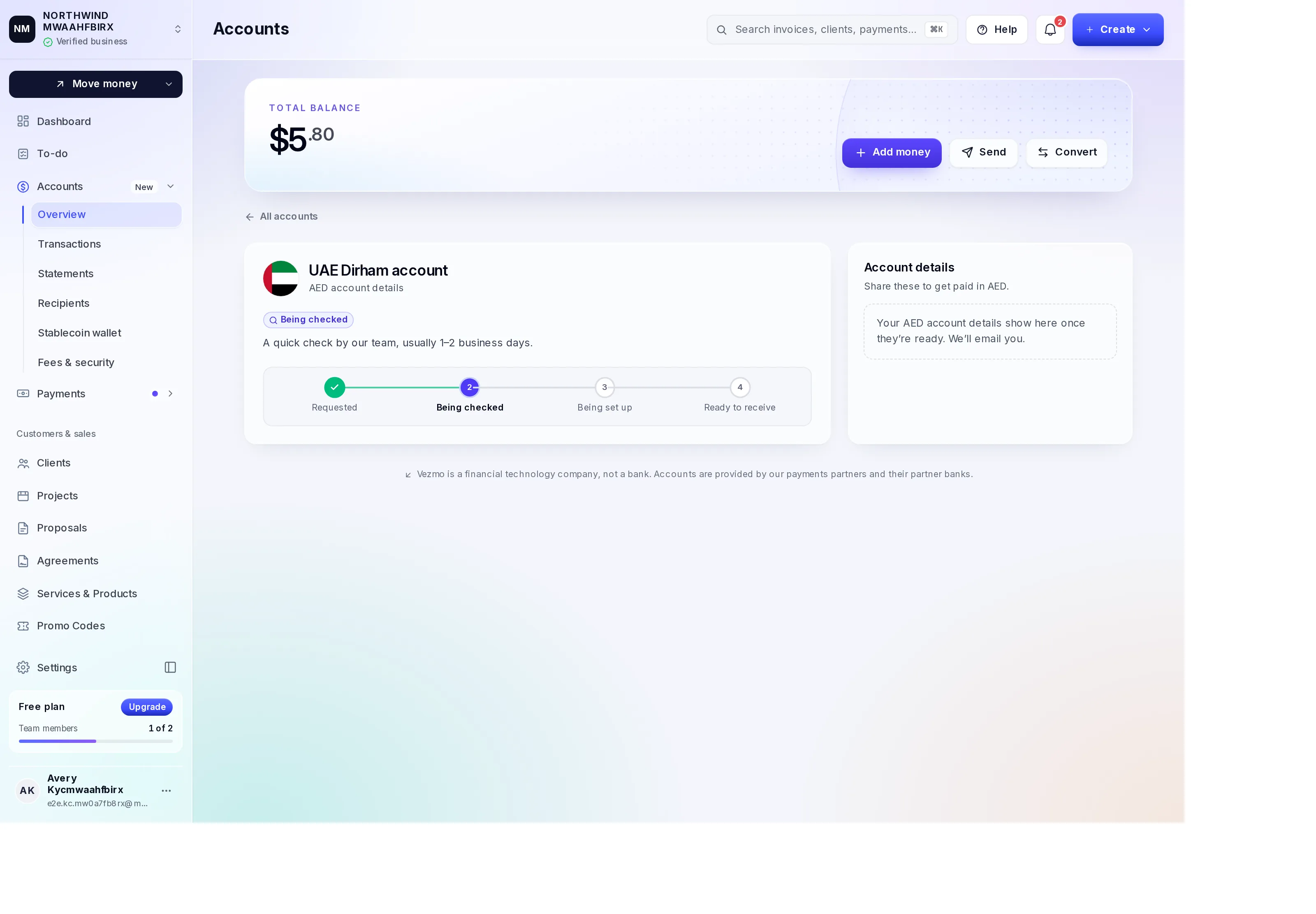
| Being checked | Our team is taking a quick look, usually 1–2 business days. | Nothing. |
| Being set up | We're setting it up with one of our regulated partners. | Nothing. We email you when it's ready. |
| Waiting on you | We need something from you before it can open. | Select See your To-do and give what's asked. |
| Not available for your business | We can't open this currency for your business. | Read the reason if there is one, or select Contact support. |
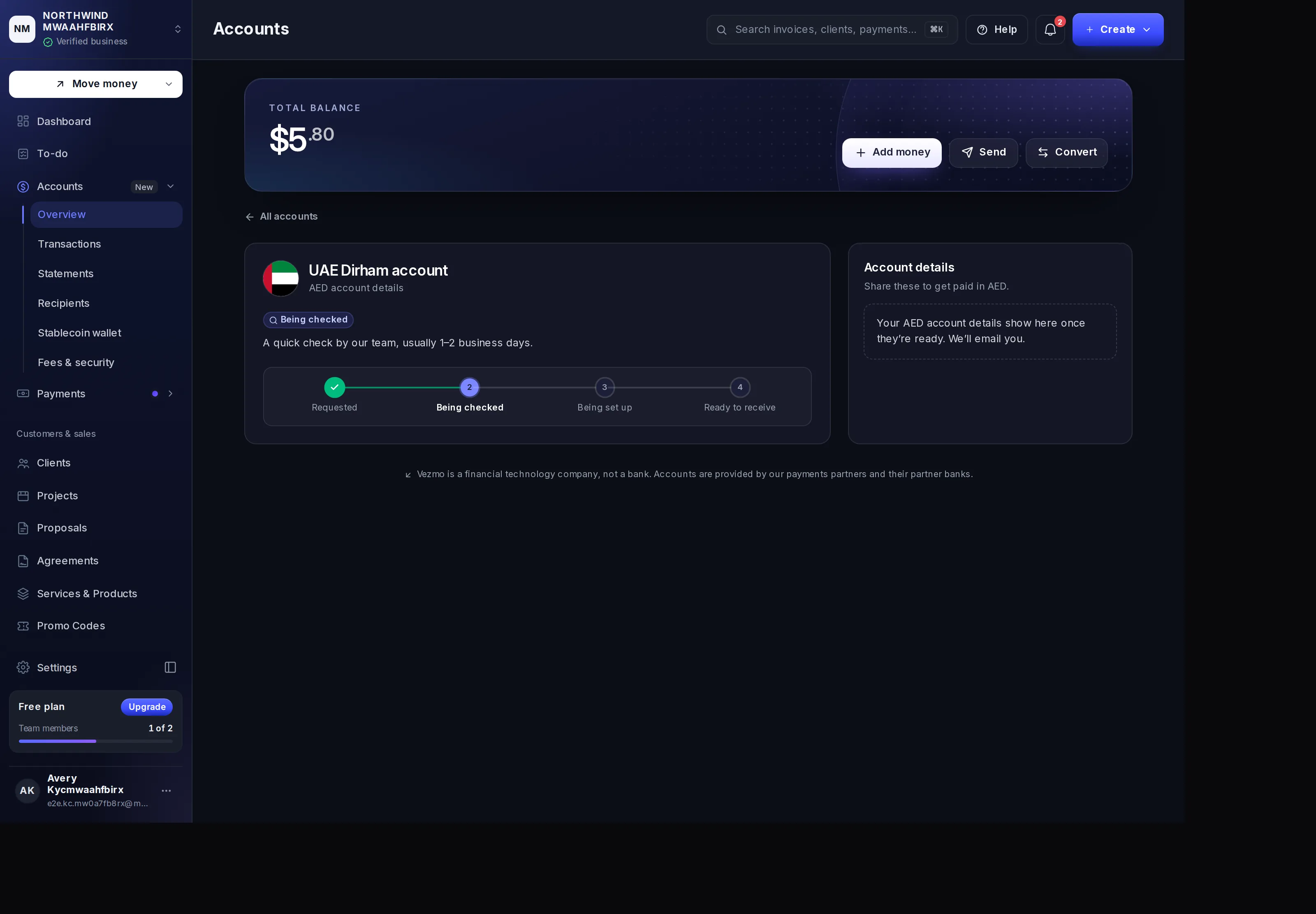
Select the currency to see its page: where it is on its way, from Requested to Ready to receive, and the next step when there is one.
When your To-do asks for something
Sometimes the partner that opens a currency needs something more from you, for example to accept its terms or to confirm a detail. The currency then shows Waiting on you, we email you, and your To-do page lists what's needed under Accounts. Give it there, once. As soon as you have, setting up the currency carries on, and the status moves back to Being set up.
When an owner agrees to the updated consent
If an owner or director verified their ID from a link before 5 November 2026, your To-do can ask them to agree once to the updated consent for their ID check. There's no new ID check. Send them their link from the To-do. On the page it opens, they read the consent, select Agree, and enter the 6-digit code we send to their own email or mobile number, so we know it's them who agrees. If neither is on file, the To-do asks you to add their email in Verification first.
Not available for your business
A currency can show Not available for your business after our team looked at your request, with our reason when there is one. Nothing changes for your other currencies. If you have a question about it, select Contact support. You can ask for the currency again after 30 days.
A currency shown greyed under Add a currency, Not available for your business yet, can't be added for your business right now. It may become available later.
If account details didn't open
Now and then account details can't be opened. The currency's page then says so, with the reason when there is one. Select Request again: it opens or requests the currency the same way as the first time, and nothing is filled in again. If it still doesn't open, select contact support.
Account details that were turned off say so on the currency's page. Select contact support to find out more.
The fee
Your plan includes some currency accounts beyond US dollars. Each one after that costs a monthly fee, from the day it opens. When you open or request a currency, it says whether it's included in your plan or what it costs, and you confirm before anything is taken. See Account fees.
Your other accounts keep working
While a currency is being checked or set up, your other currencies work as usual: you keep receiving, sending and converting with them. Nothing you already have is paused or asked for again.
Statements and account letters
Under Accounts › Statements you can download these as PDFs:
- A monthly statement for each currency: your account details, the month in one line (opening balance, money in, money out, closing balance) and every transaction with its running balance. Each payment out shows its fee. Months run on UTC.
- A statement of balances at the end of any day.
- An account confirmation letter for each currency with open account details, for clients and platforms that ask before they pay you. It names the bank that provides your details, and it's signed.
Anyone can check your letter
Each letter carries a reference, a code and a QR code. Whoever you give it to can scan the QR, or go to user.vezmo.com/verify/letter and enter the reference and code. They see that we issued it, what it says and whether those account details are still open. They never see your full account number.
Questions
Why is one currency ready now and another needs a check?
A currency opens at once when one of our regulated partners that already holds an account for your business opens it. If only another of our partners opens it, our team takes a quick look first, then sets it up using your verification.
Do I need to give my documents again?
No. Your verification covers it. If anything more is needed for a currency, your To-do page asks for it, once.
Will you tell me when it's ready?
Yes. We email you "Your SGD account details are ready", with the currency you asked for, and it shows in the app under Accounts notifications. See Notifications.
Related
Facts checked against the product on 5 Nov 2026.
Was this page helpful?
Taxes and tax forms
Which US tax form to give us and when, how to sign it in the dashboard, where to see your 1099-K status and download your tax documents, and how tax works on invoices.
A US dollar account for freelancers
What you give, once, to get US dollar account details as a freelancer, remote worker or gig worker. Your ID, proof of address, tax form, a 3-month bank statement and an identity check.