Clients and projects
Keep everyone you work with in one list, add a client in four short steps and edit one in two, see a client's invoices, payments and projects on their page, set up projects with a fixed price or an hourly rate, and invoice a client straight from a project.
Overview
Clients is the list of everyone you work with: their contact details, what they've paid you and the work you're doing for them. Projects groups that work, one project per job, with a price, dates and a status. Both are in the menu under Customers & sales.
A client is the person or business you bill. You pick them when you send an invoice, a proposal or a payment link, so their name and email are filled in for you. Someone who buys from your product checkout is added as a client when their order goes through.
The clients list
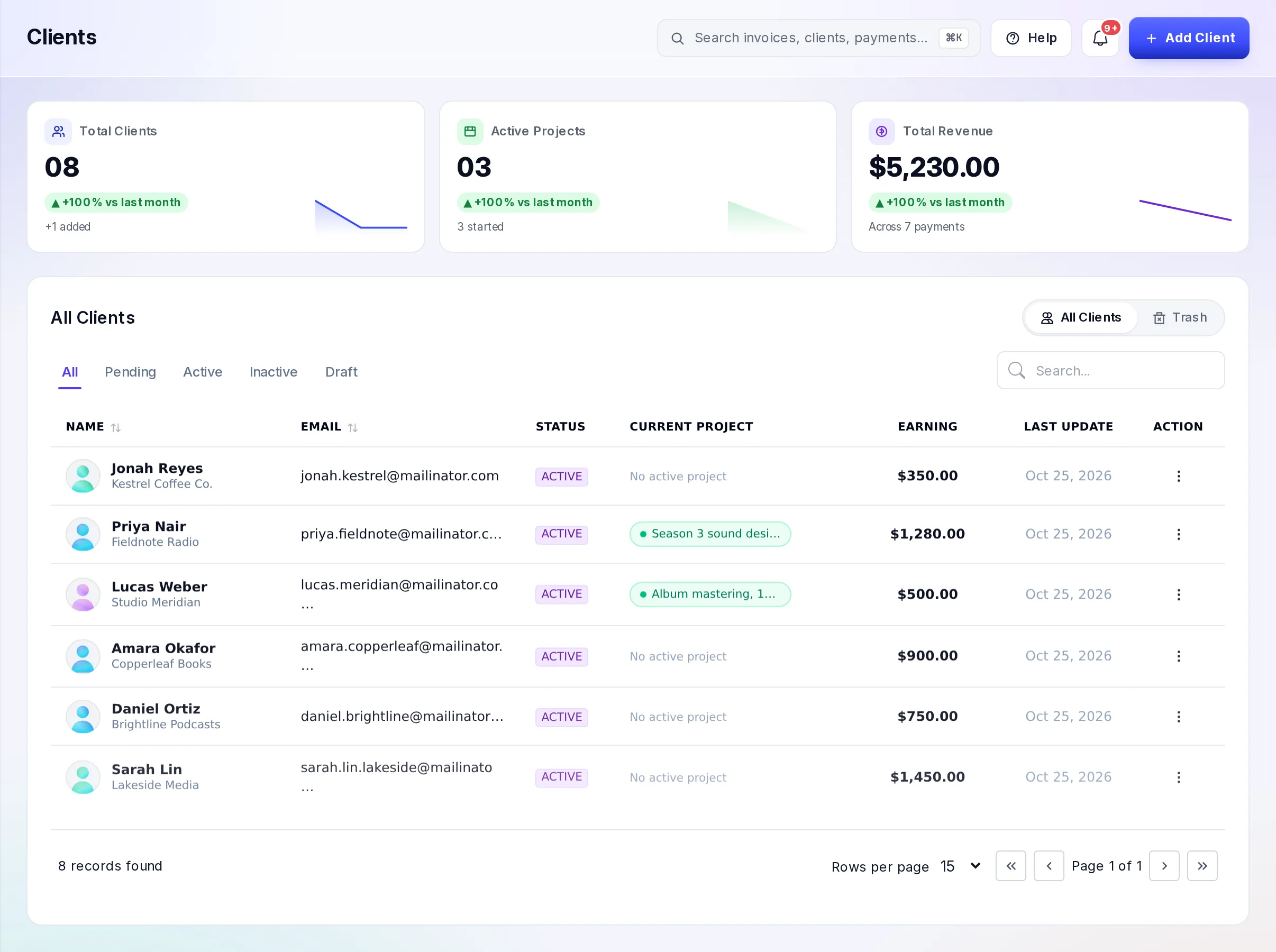
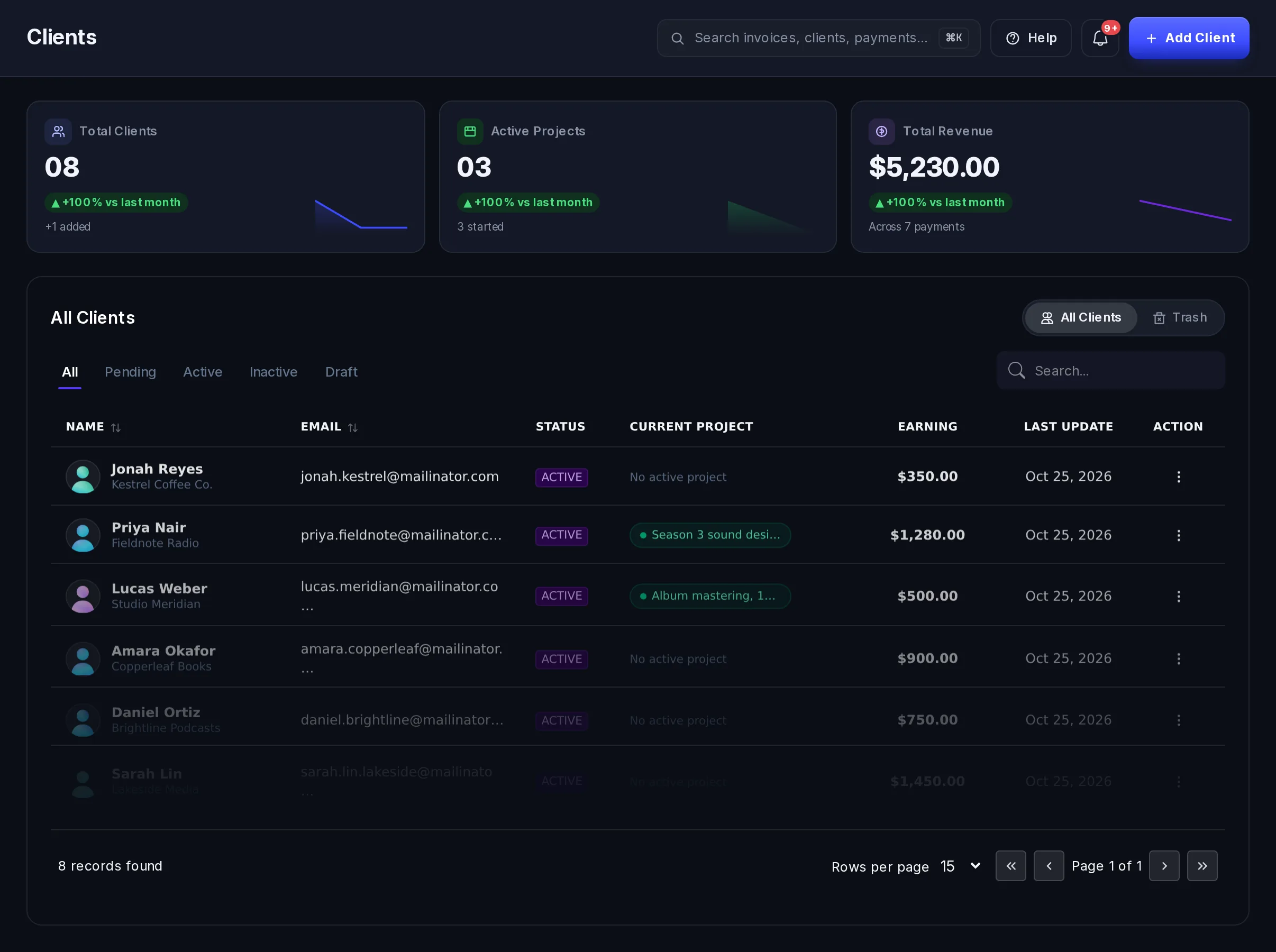
- The cards at the top: Total Clients, Active Projects and Total Revenue, each compared with last month. On a phone, select View Stats to show them.
- The table: each client's name and company, email, status, current project, Earning (what they've paid you through VezmoPay) and when they were last updated. Select a row to open the client's page.
- The filters above the table show one status at a time, and Search finds a client by name, email or company.
- The menu (⋮) on a row: Edit, View and Trash.
A client's status is Active, Inactive or Draft. Active and Inactive are yours to set, for example to mark clients you no longer work with. Draft means you saved the client before finishing the steps. Only Active clients can be picked on an invoice, a proposal or a payment link. The dashboard doesn't set Pending itself.
Add a client
Select Add Client at the top of the Clients page. Four short steps follow. Only the first one has required fields, and you can save a draft from the first three.
Client Information
Enter the Client Name and Email (both required), and if you like the Company Name, Phone number and Country. The Billing address (street, apartment, city, state or region, postal code) is optional: it's printed under "Bill to" on the invoices you send this client. Select Continue.
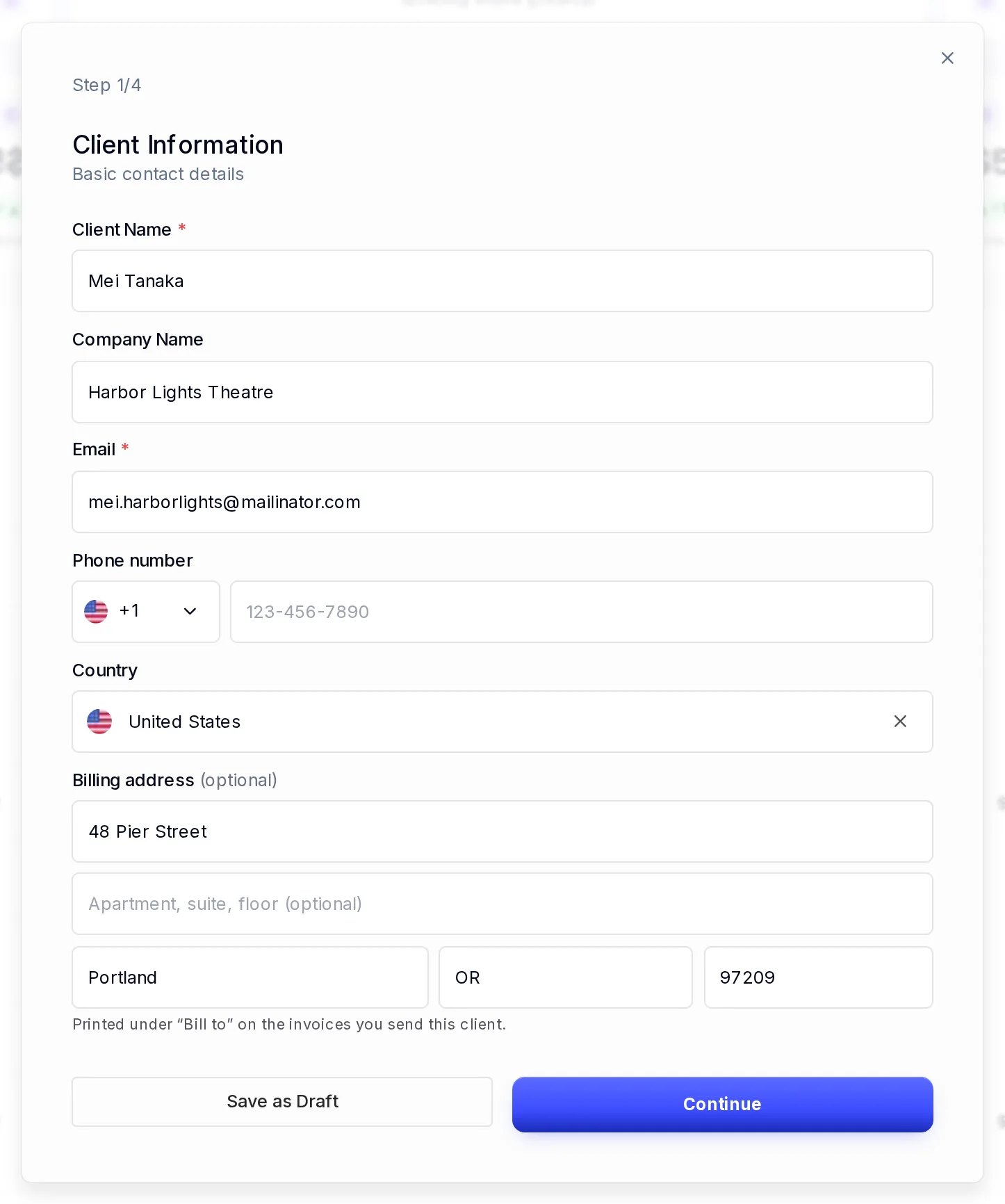
Step 1: who the client is, and the address for their invoices. Client Overview
Add a logo or profile picture (PNG, JPG or WebP, up to 5 MB), Client Notes for your team, Tags such as "VIP", and the Status: Active or Inactive. Select Continue.
Project Setup (optional)
Start the first project for this client: the service or product it's for, a Project Title, a budget and its currency, a description and the delivery milestones. If you fill in any of the service, title or budget, fill in all three. To skip it, leave them empty and select Continue.
Finalize
Check everything on one page. Select Edit beside a section to go back to it, then Save client. The client shows in your list as Active or Inactive, as you chose, and the project, if you added one, in Projects as In Progress.
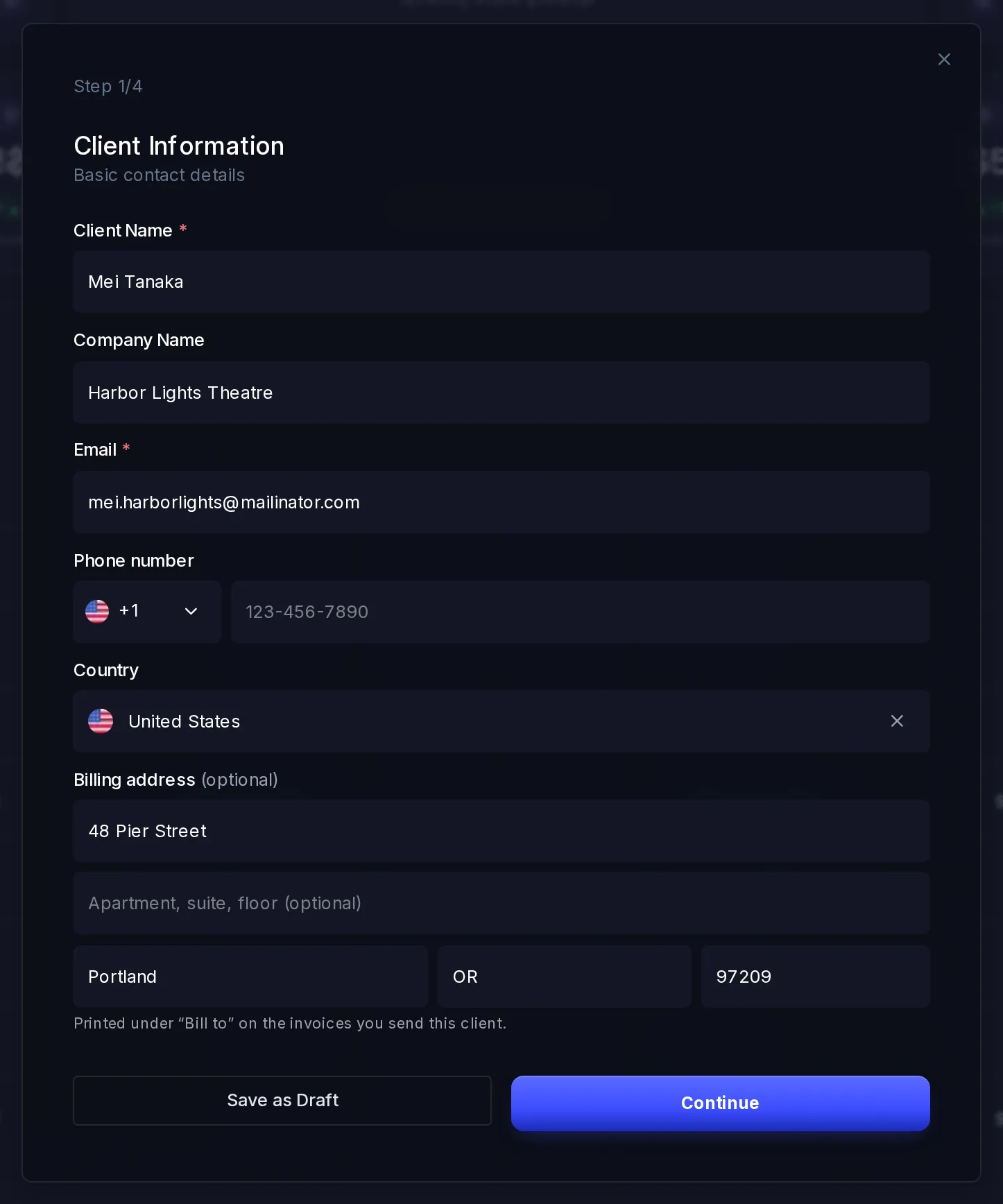
Save as Draft keeps what you've entered so far and adds the client to your list as Draft. To finish, open the row's menu and select Edit.
Each email is one client in your list. If you add a client with an email that's already on your list, no second client is made and the one you have stays as it was: use Edit to change it. A client in Trash doesn't count, so restore them instead of adding them again.
Edit a client
Open the row's menu (⋮) and select Edit. Change the contact details and select Continue, then the picture, notes, tags or status, and select Update Client. Editing a draft and saving it makes the client Active, unless you choose Inactive.
The client's page
Select a client in the list to open their page. At the top are their name, status, email and company, and More details, which opens their full contact details, billing address, tags, notes and current project.
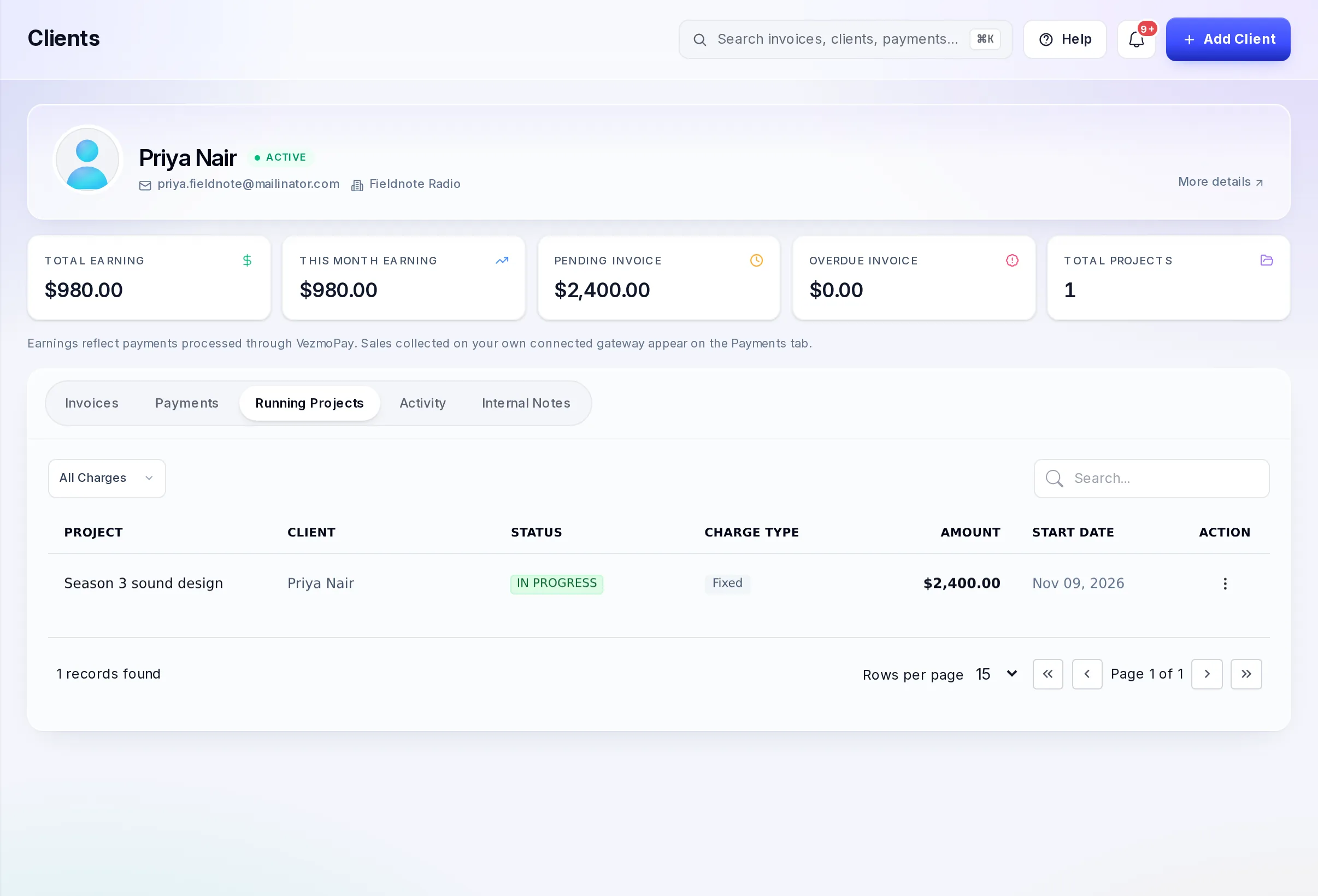
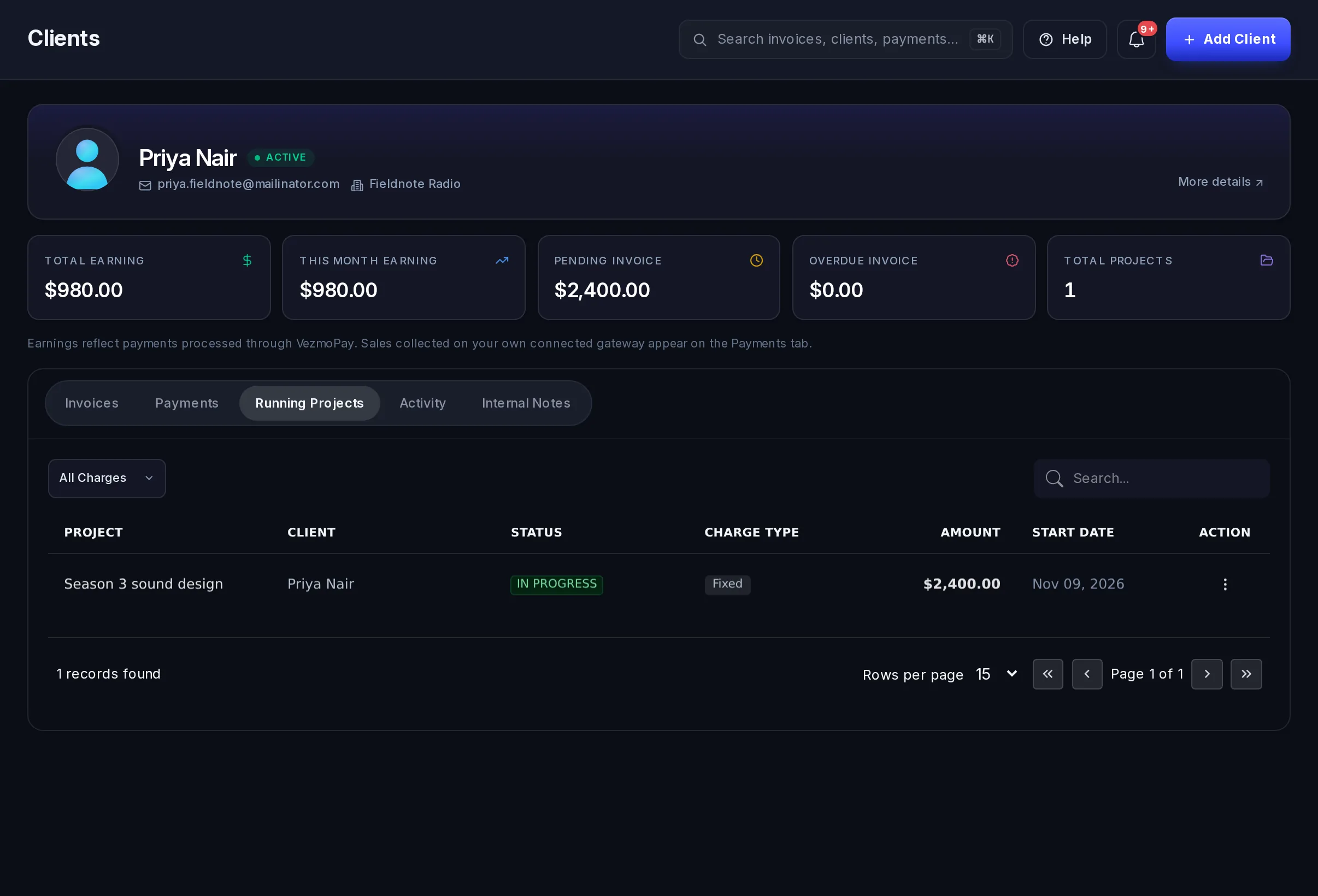
The five figures are Total Earning, This Month Earning, Pending Invoice, Overdue Invoice and Total Projects. Earnings count the payments made through VezmoPay. Amounts in other currencies are converted and shown in US dollars.
| Tab | What it shows |
|---|---|
| Invoices | Every invoice for this client, with filters for Draft, Pending, Paid, Cancelled and Overdue. |
| Payments | Their payments. |
| Running Projects | Their projects that are In progress. To see all of them, filter Projects by this client. |
| Activity | The invoices and proposals emailed to them, and their answers to your proposals. |
| Internal Notes | Notes your team keeps about this client. They are never shown to the client. |
Remove and restore a client
Open the row's menu (⋮), select Trash and confirm. The client moves to the Trash tab, and so do their projects. Their invoices and payments stay as they are.
To bring a client back, open Trash, find them (the tab has its own search) and select Restore in the row's menu. Their projects come back with them.
Projects
A project is one piece of work for one client: a title, a price, dates and a status. Open Projects in the menu.
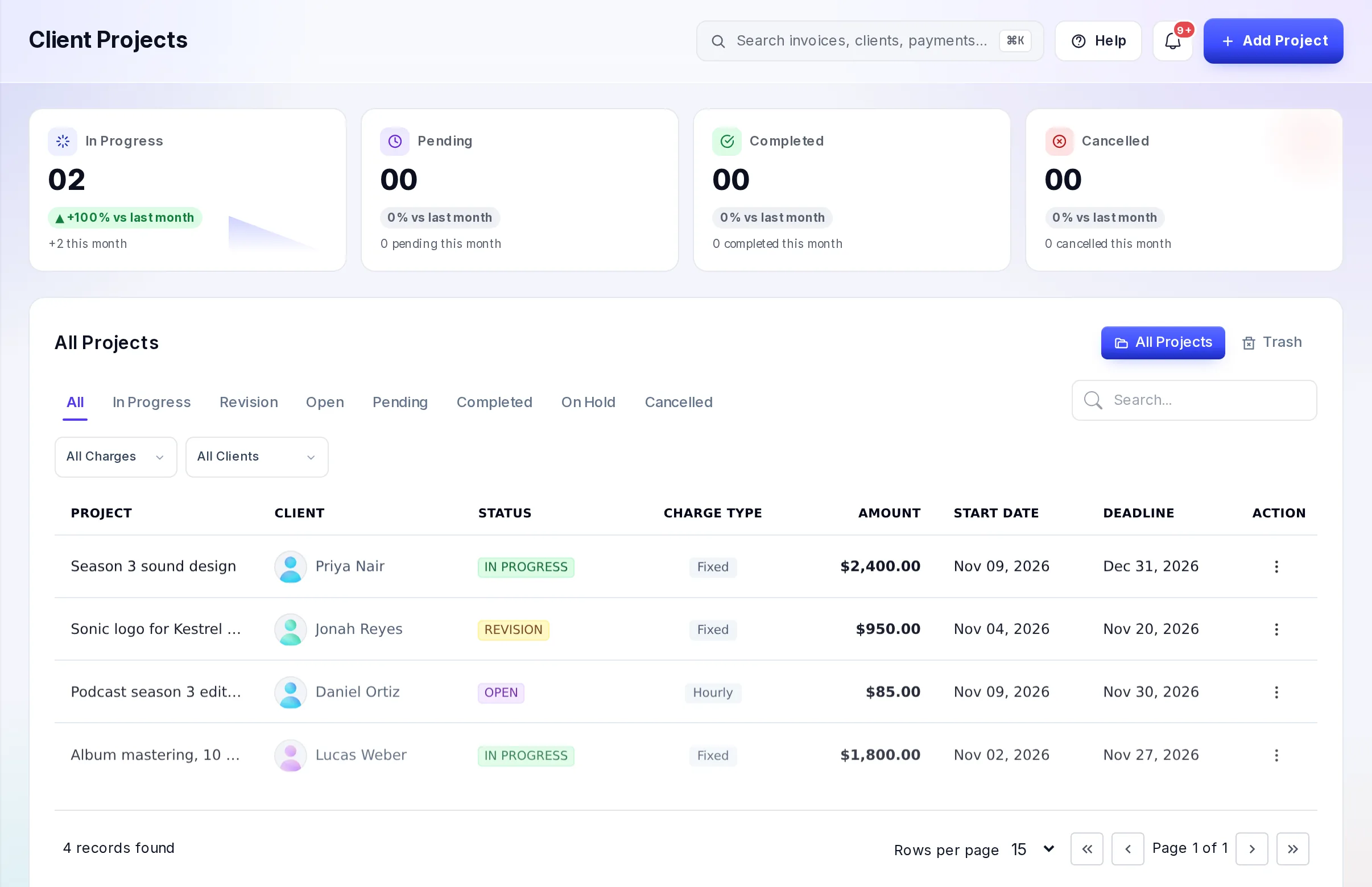
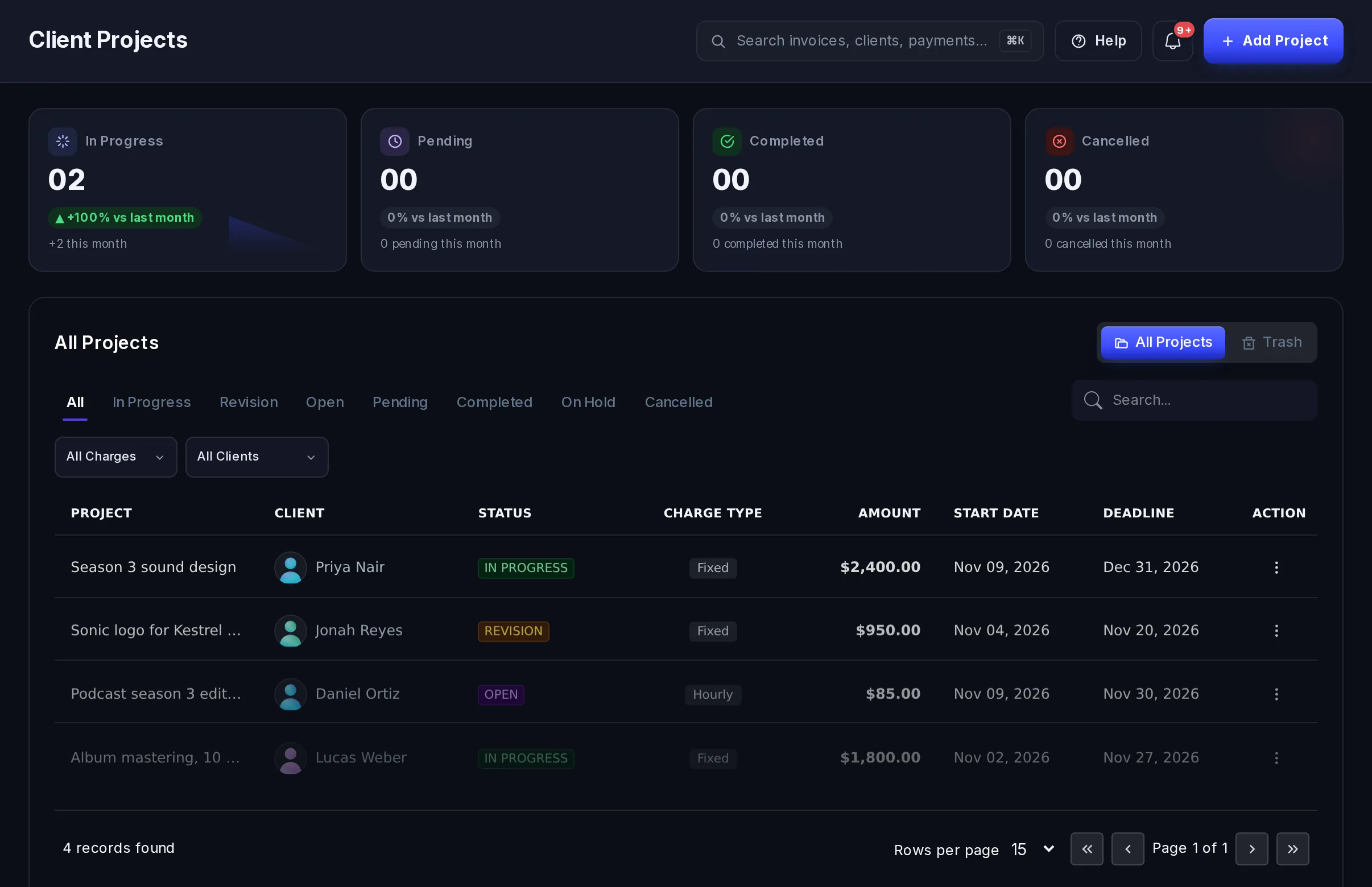
- The cards count the projects In Progress, Pending, Completed and Cancelled.
- Filters: by status, by charge type (All Charges, Fixed or Hourly) and by client. Search finds a project by its title.
- The menu (⋮) on a row: Edit, View, Create Invoice (for a project that's In progress or in Revision) and Delete. Deleted projects go to the Trash tab, where Restore brings them back.
Create a project
Open the form
On the Projects page, select Add Project.
Fill it in
- Client, Title and Amount are required.
- Description: the scope and what you'll deliver.
- Currency and Amount: the price of the whole job, or your rate per hour. New projects start in your business's default currency.
- Charge Type: Fixed for one price for the job, Hourly for a rate per hour.
- Status: where the work stands (see below). New projects start as DRAFT.
- Start Date and End Date: the end date can't be before the start date.
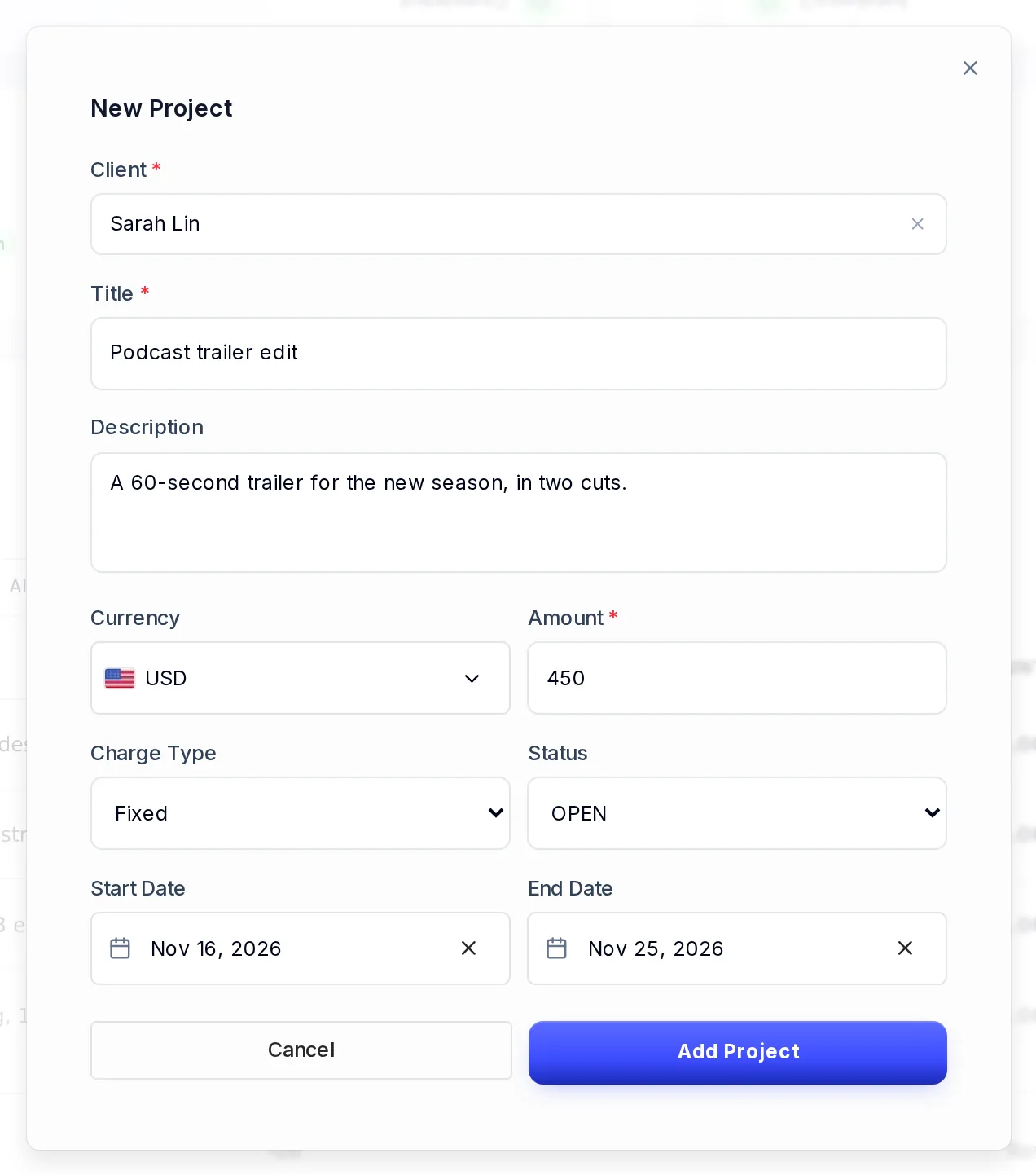
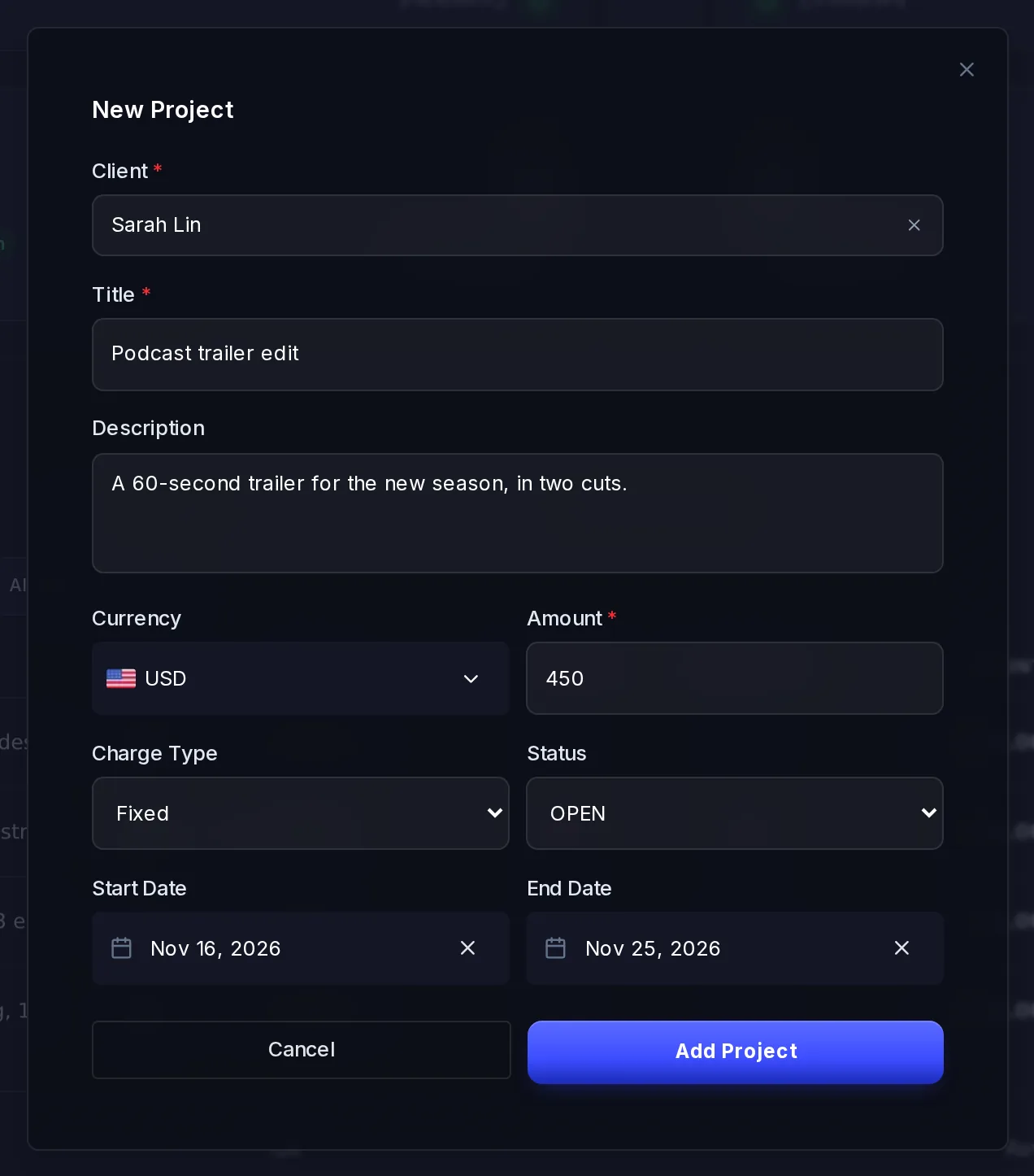
A new fixed-price project. Save it
Select Add Project. To change it later, select Edit in the row's menu and then Save Changes.
A project keeps the currency it was created in: its invoices and payments are in that currency. To bill in another currency, create a new project.
Project statuses
You set the status yourself, to keep track of the work. It doesn't change any invoice or payment.
| Status | Use it for |
|---|---|
| Draft | Work you're still planning. |
| Open | Agreed, not started yet. |
| In progress | Work under way. A project made from an accepted proposal starts here. |
| On hold | Paused. |
| Revision | Changes asked for. |
| Pending | Waiting on something, such as the client's feedback. |
| Completed | Done. |
| Cancelled | Called off. |
Invoice a client from a project
Open Create Invoice
On the Projects page, open the project's menu (⋮) and select Create Invoice, or select Create Invoice on the project's page. It's offered while the project is In progress or in Revision: change the status first if it isn't. The project, client and charge type are filled in.
Fill in the amount
- For an hourly project, enter the Hours. The total is the hours times the project's hourly rate.
- For a fixed project, enter the Invoice Amount. It can be part of the price, for a deposit or a milestone. Together, a project's invoices can't add up to more than its amount: the form tells you what's left. Cancelled invoices still count toward it.
Finish the invoice
Add a Discount (a percentage or an amount) and a Tax Rate (%) if you need them, then choose the Template Style (you can preview it), the Due Date and an optional Footer Message.
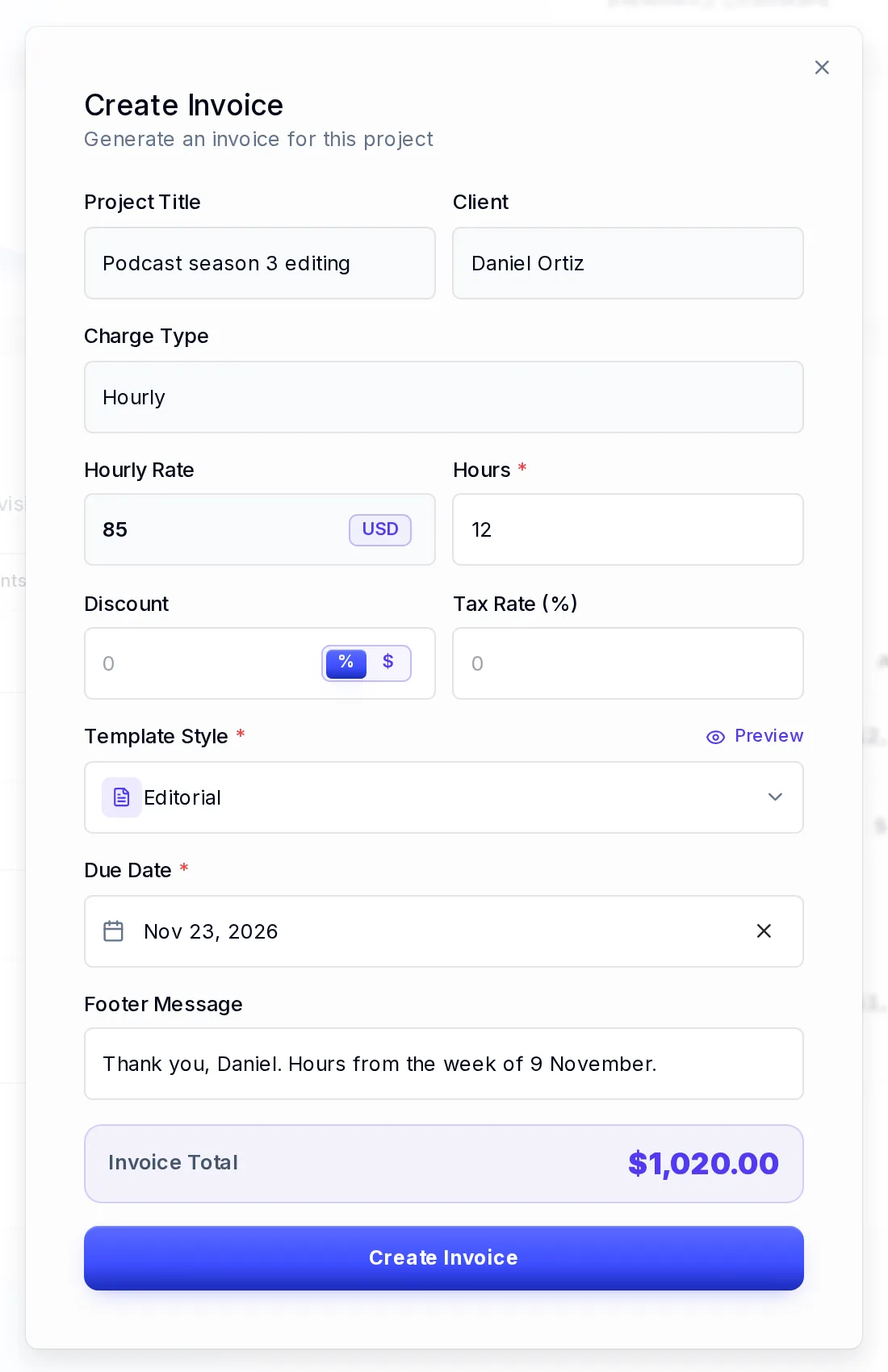
An invoice for 12 hours on an hourly project. Create it
Select Create Invoice. We email it to your client straight away, and it shows in Payments › Invoices and on the project. From there it works like any other invoice: see Send an invoice.
The project page
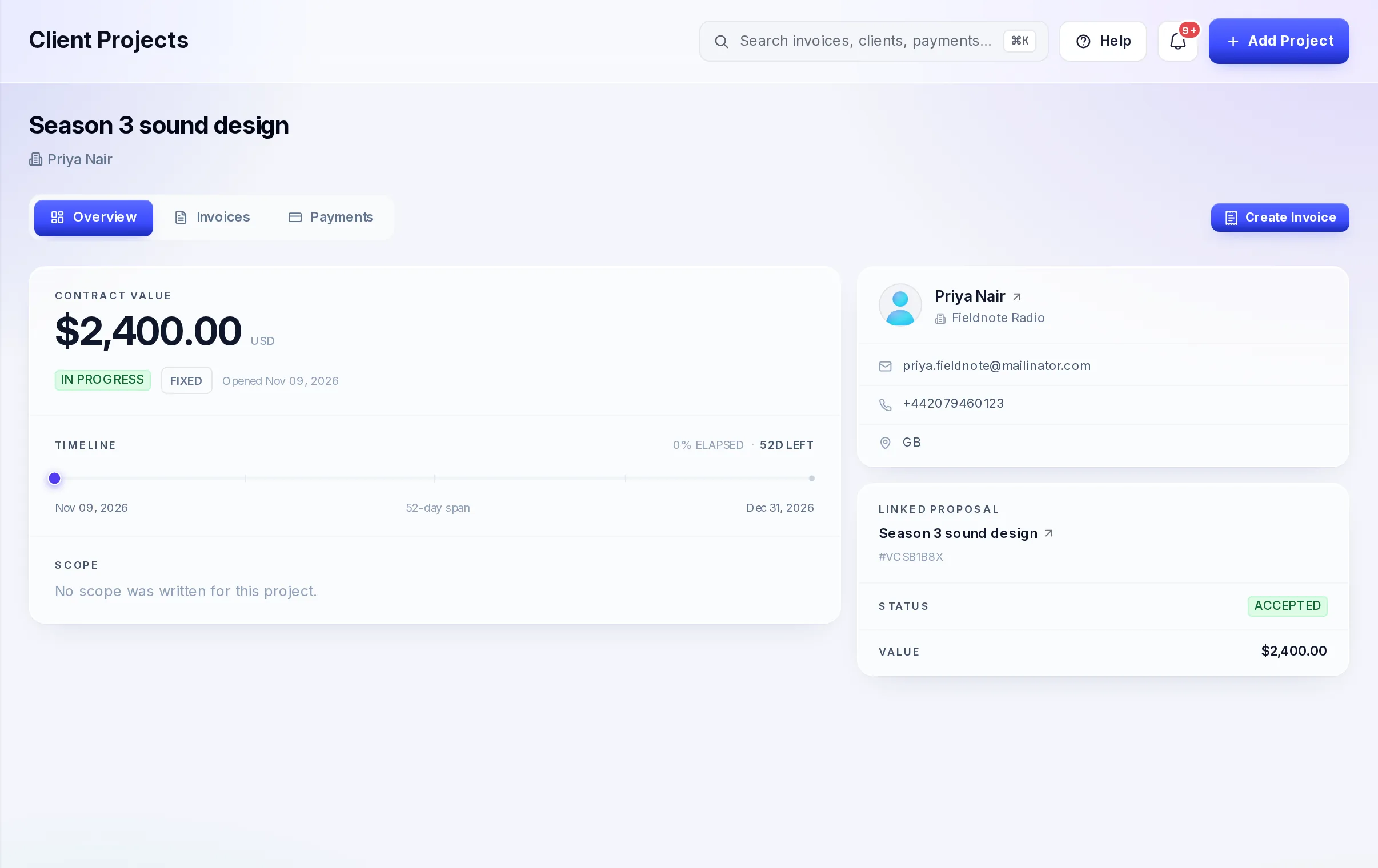
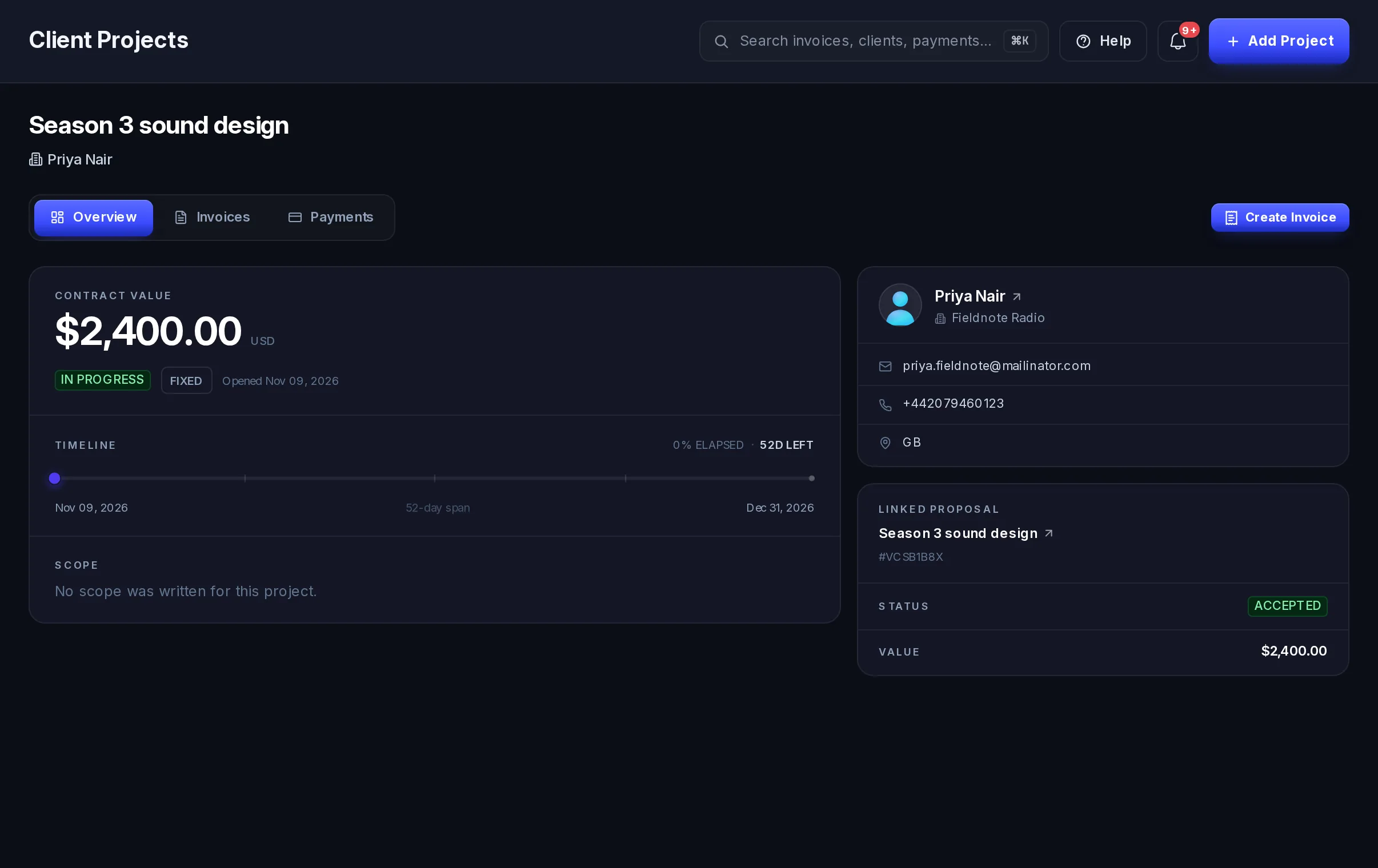
Select View in a project's menu to open its page: the contract value, a timeline from the start date to the end date (with the days left, or how far past the end date it is), the scope, the client's details, and the proposal it came from, if any. Next to Overview, the Invoices and Payments tabs list what you've billed and been paid for this project.
Questions
Where do clients come from?
You add them yourself, from Add Client, or while you create an invoice, a proposal or a payment link (+ Add Client in the client search). A customer who buys from your product checkout is added for you.
Can I delete a client for good?
Not from the dashboard. A client in Trash stays there, with their invoices and payments, until you restore them.
Why does a client show no earnings?
Earning counts payments made through VezmoPay. Invoices not paid yet show under Pending Invoice or Overdue Invoice on the client's page.
Who can see clients and projects?
Teammates whose role includes clients or projects. See Your team and roles.
Related
- Send a proposal: a proposal your client accepts becomes a project.
- Send an invoice
- Agreements
Facts checked against the product on 9 Nov 2026.
Was this page helpful?
Run your business
The tools around getting paid, from clients and proposals to agreements, bookkeeping and reports.
Send a proposal
Write a proposal with a fixed price or an hourly rate, send it in three steps, let your client accept or reject it online, and see what happens next (a project, and for a fixed price an invoice), plus the e-signature option, statuses, actions and email limits.