Send a proposal
Write a proposal with a fixed price or an hourly rate, send it in three steps, let your client accept or reject it online, and see what happens next (a project, and for a fixed price an invoice), plus the e-signature option, statuses, actions and email limits.
Overview
A proposal is your offer to a client: what you'll do, for how much, and when. You write it in the dashboard and we email it to your client. They open it, read it, and select Accept Proposal or Reject, without creating an account.
When your client accepts, Vezmo sets up what comes next: the proposal becomes a project, and a fixed-price proposal also becomes an invoice, emailed to your client.
How it works
- You write the proposal in three steps: the offer and its price, the agreement terms, then the text your client reads.
- You select Send Proposal. We email your client a link to it, and the proposal shows as Sent.
- Your client opens the link and accepts or rejects the proposal. We email you either way.
- If they accept, a project is created for the work. For a fixed price, an invoice is created and emailed to your client too.
Create and send a proposal
Open Proposals in the menu and select Create Proposal at the top of the page (on a phone, Add Proposal above the list).
The offer and its price
- Proposal Title (required), such as "Website redesign".
- Search Existing Client (required): pick who it's for from your Active clients, or select + Add Client to add someone new.
- Select Services / Products: at least one item from your catalog, to show what the work covers. Each shows on the proposal with its own price; the proposal's total is the price you set below.
- Multimedia introduction (optional): a YouTube link, shown on the proposal as Watch intro video, and a Profile bio, a personal message shown above your description.
- How do you charge? Fixed Price (one payment for the whole job) or Hourly Rate (a rate per hour, billed later against the hours you work). Then the currency and Your price.
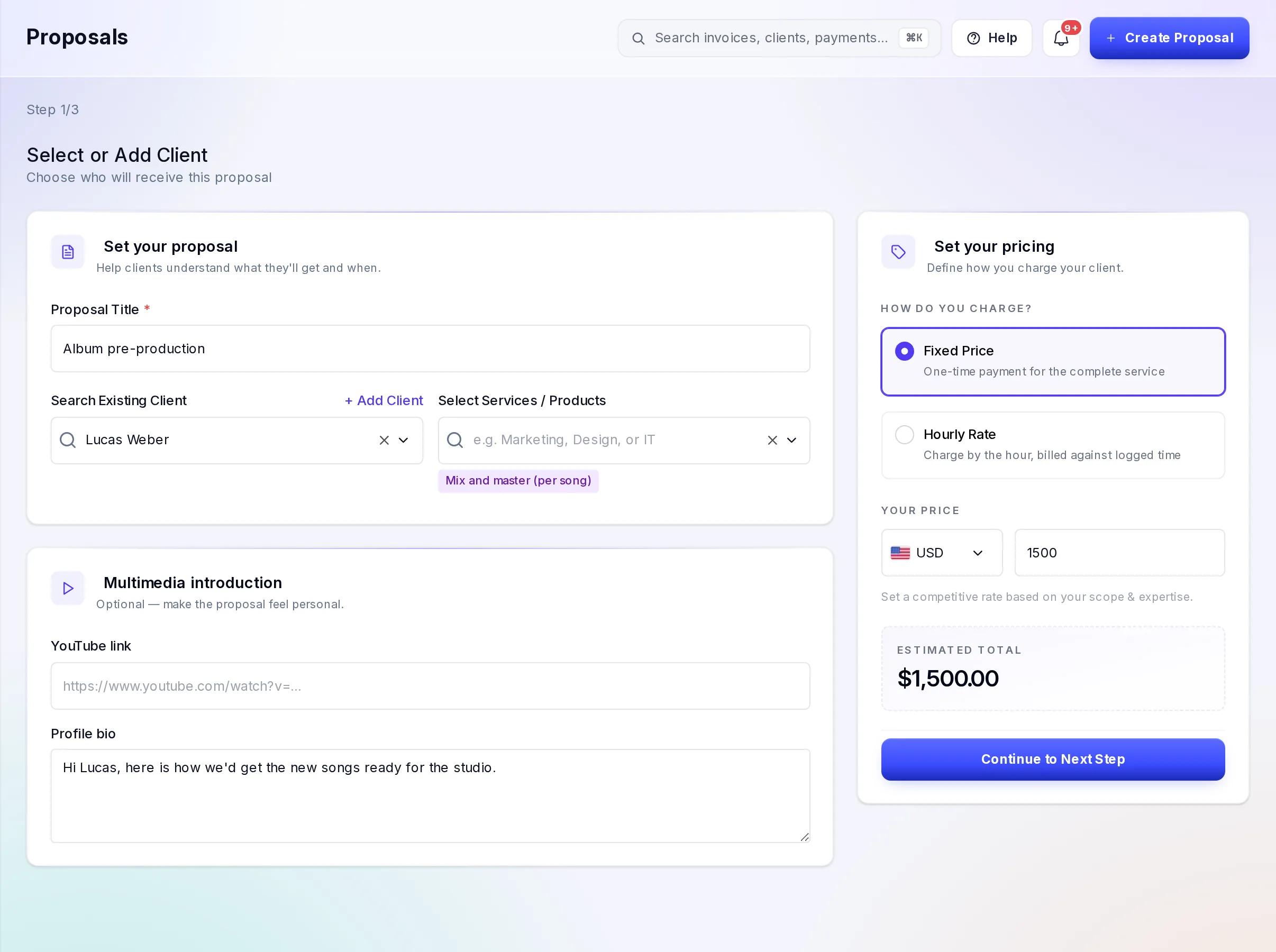
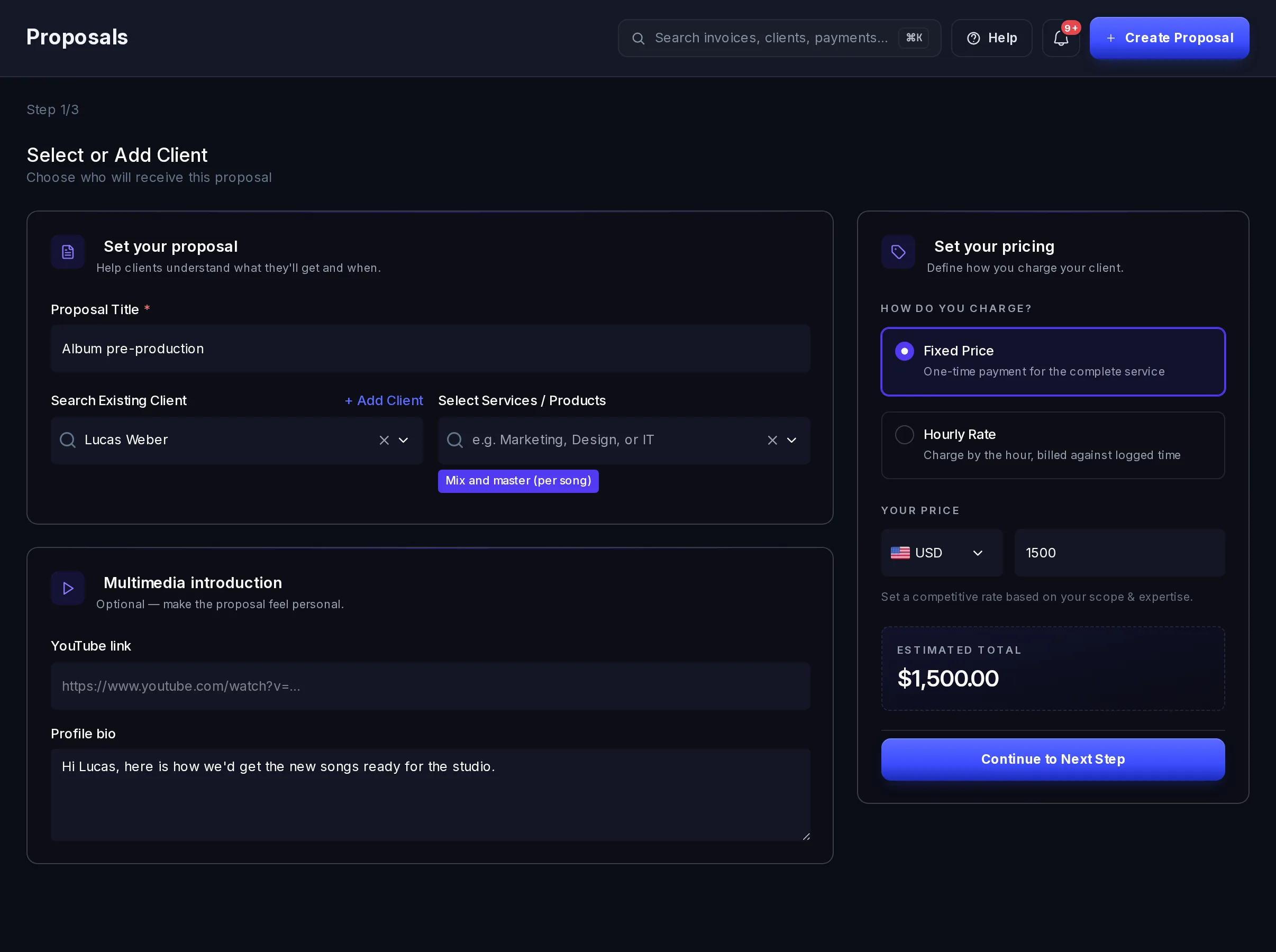
Step 1: the offer, the client and the price. Select Continue to Next Step. The proposal is saved as a draft from here on.
Agreement & Payment Terms
- Agreement Name (required).
- Effective Date (today, to start with) and Expiry Date: both are needed. The proposal shows the expiry date as its Due Date. If your client accepts, these become the project's start and end dates.
- Introductory Text for Client (optional).
- Redirect URL (optional): where your client goes after answering, such as a thank-you page on your website. Without one, they go to vezmo.com.
- CC Email(s) (optional): up to 10 other people to send a copy to, separated by commas. They can read the proposal but can't answer it.
- Expiry Rule (optional): a note in your own words, such as "Expires after 30 days".
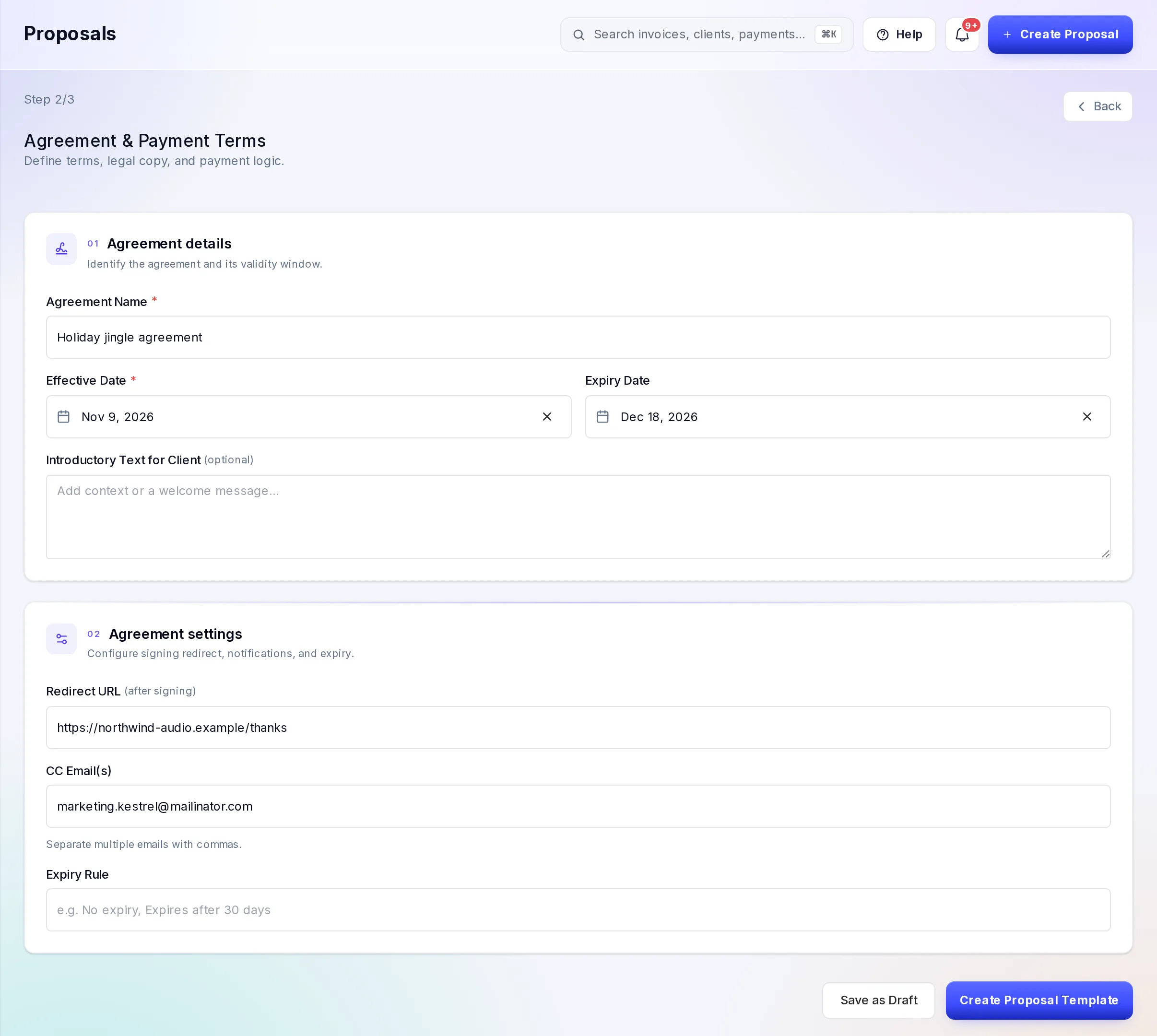
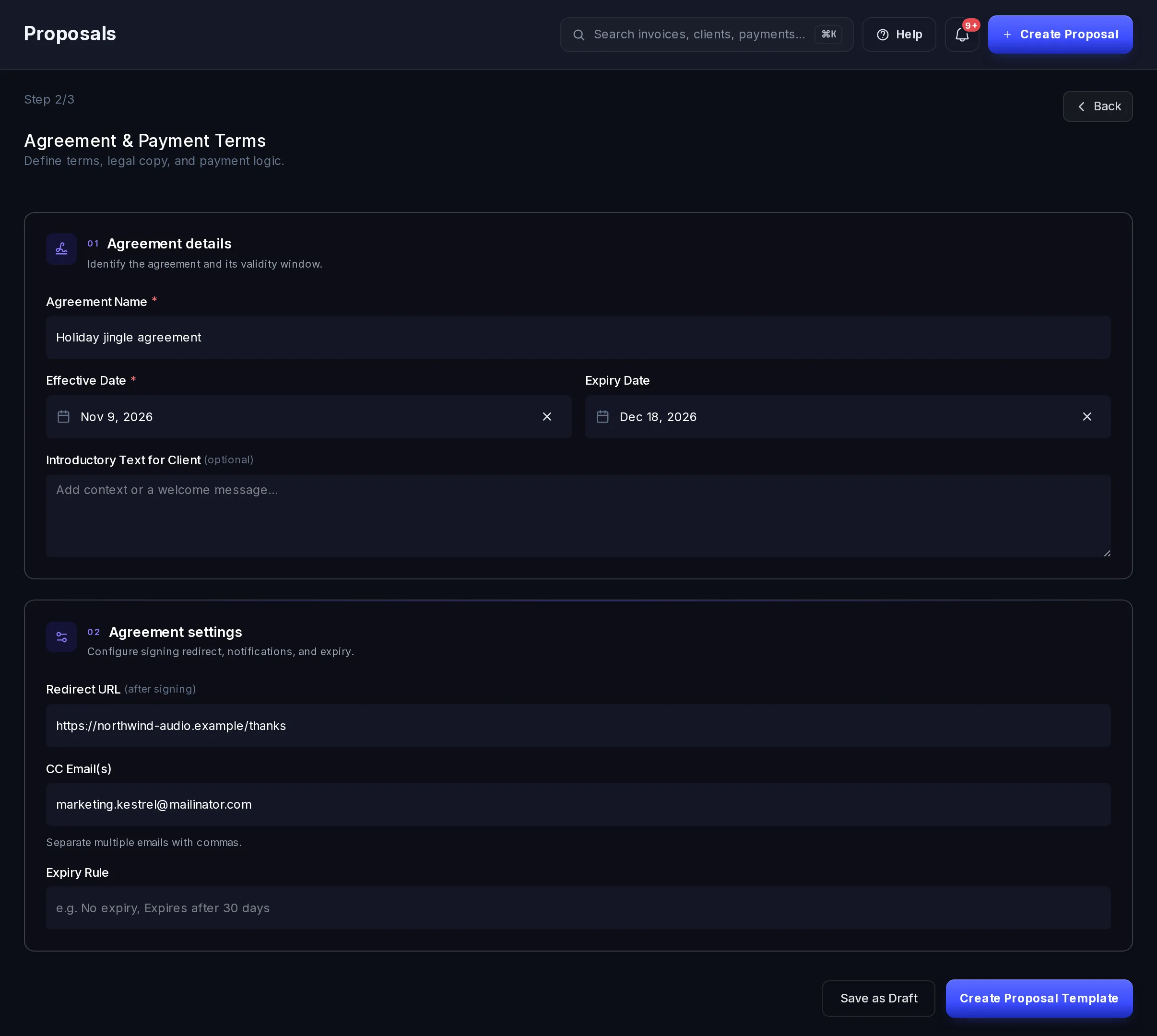
Step 2: the agreement's name, dates and who gets a copy. Select Create Proposal Template to go on, or Save as Draft to finish later.
Review & Send
Write the proposal itself under Proposal description: headings, bold and italic, lists, alignment and pictures. The page shows it the way your client will see it, with the agreement name, dates and total under it. The summary on the right shows the client, the agreement and the total.
Select Send Proposal. Your client gets an email with a link to review and accept, and the proposal shows as Sent. Or select Save as Draft to keep it for later.
Ask for an e-signature
On step 3, turn on Require e-signature to have your client sign before work starts. Then choose the document to sign:
- Auto-generate from proposal: a PDF made from your proposal.
- Upload custom PDF: your own PDF, up to 10 MB.
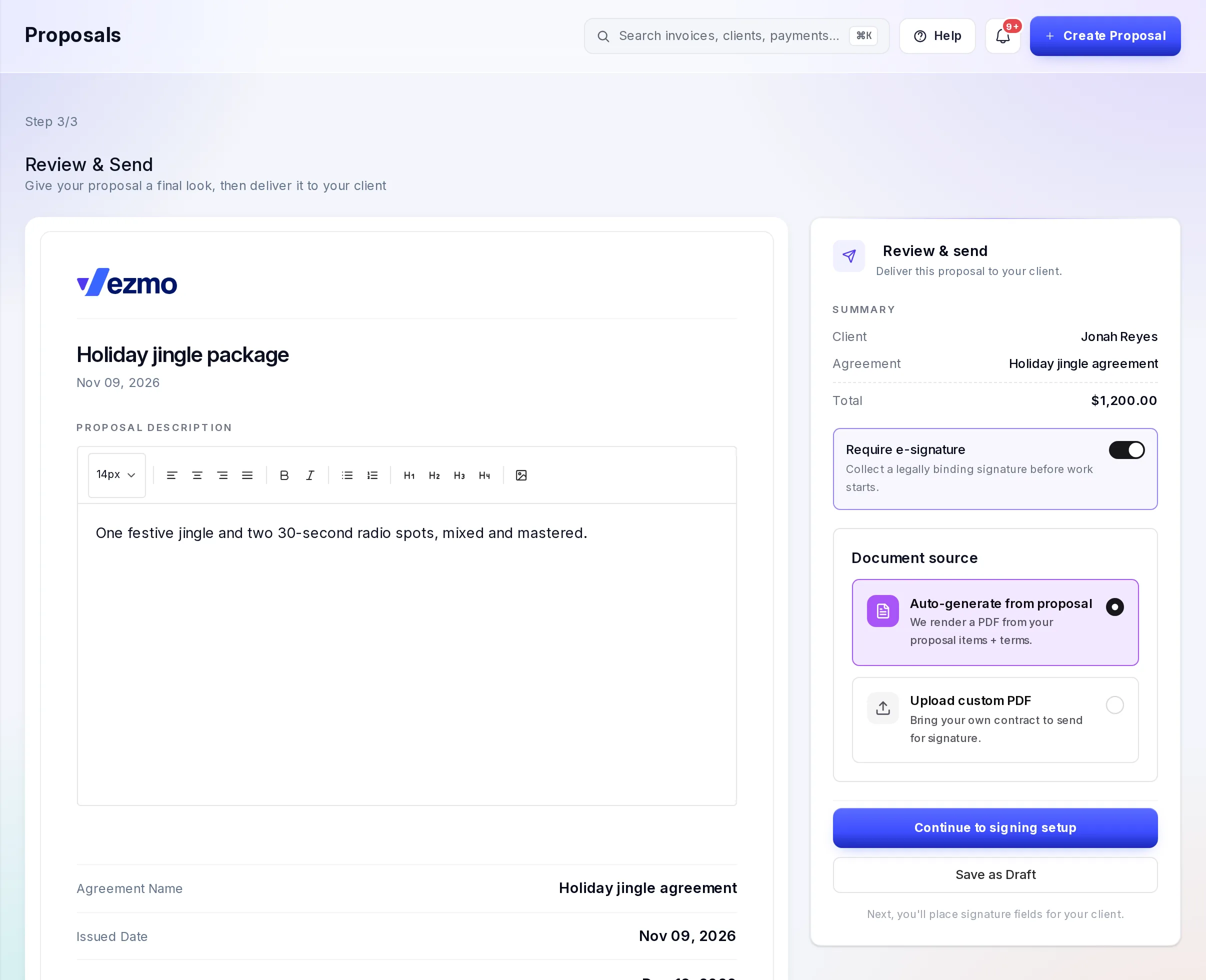
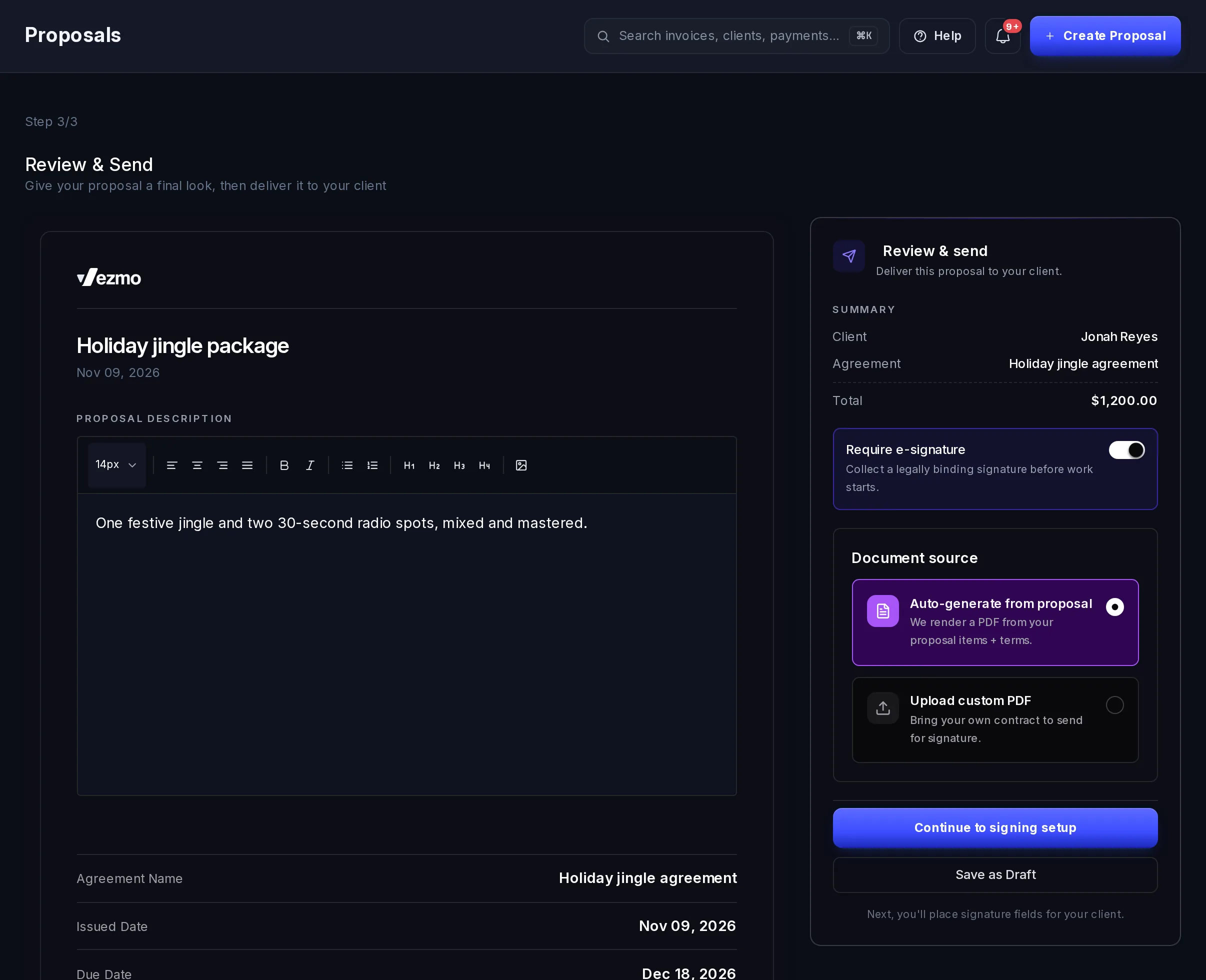
Select Continue to signing setup. On the next page you add the people who sign, place a signature field for each of them on the document, set when the signing invitation expires (end of day if you set no time), and select Send for signature. From then on it is an agreement, and everything in Agreements applies: what the signers see, ID checks, statuses and the signed copy. In Agreements it is marked as coming from a proposal.
With Require e-signature on, your client signs instead of selecting Accept or Reject, so no project or invoice is created for you. The proposal itself stays in your list as a draft.
What your client sees
The email is titled with your proposal's name and says Your proposal is ready, with a short summary and a View Proposal button. The link in it works for 24 hours. After that, the page says the link can't be opened: send the proposal again from your list (Resend) and your client gets a fresh link.
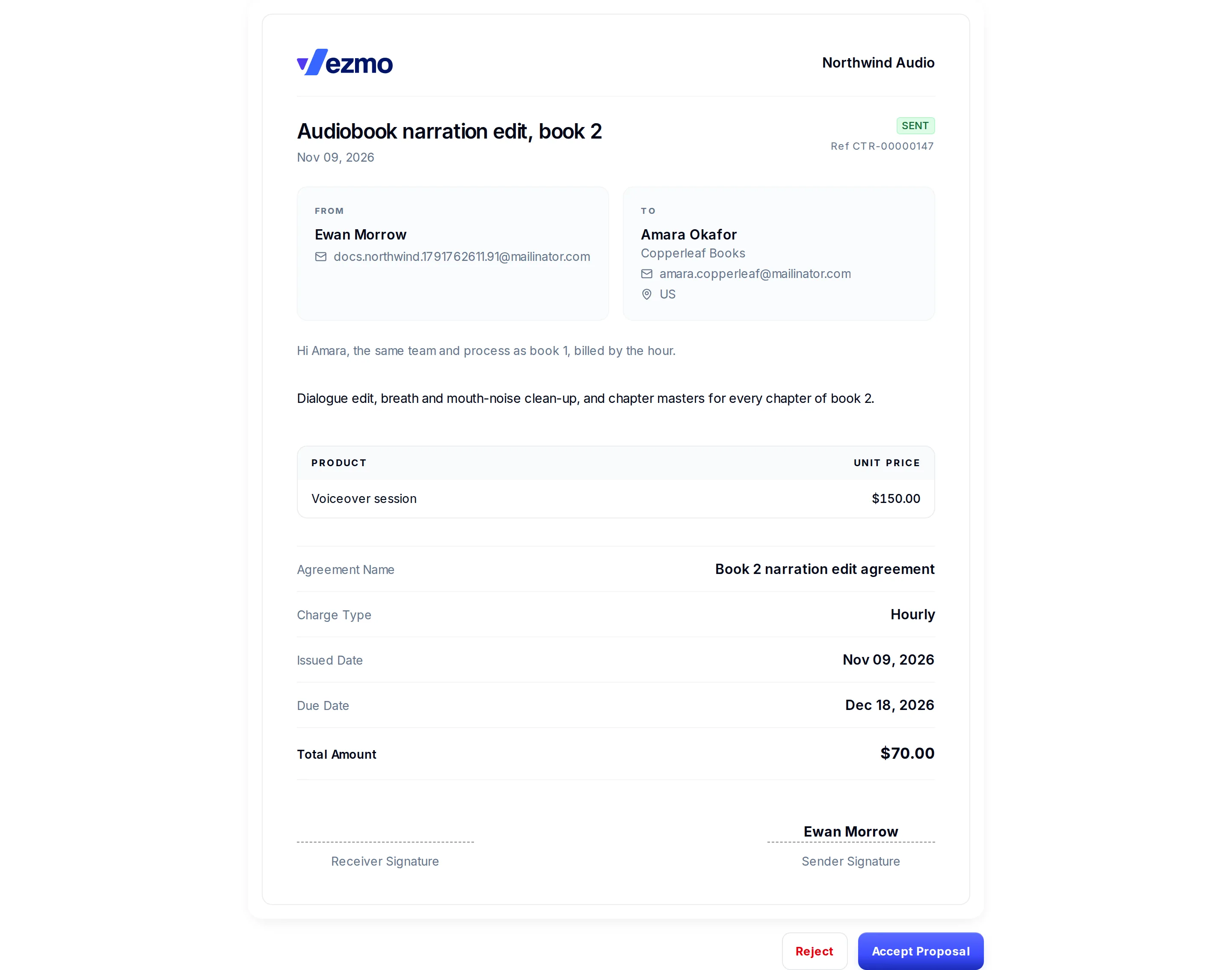
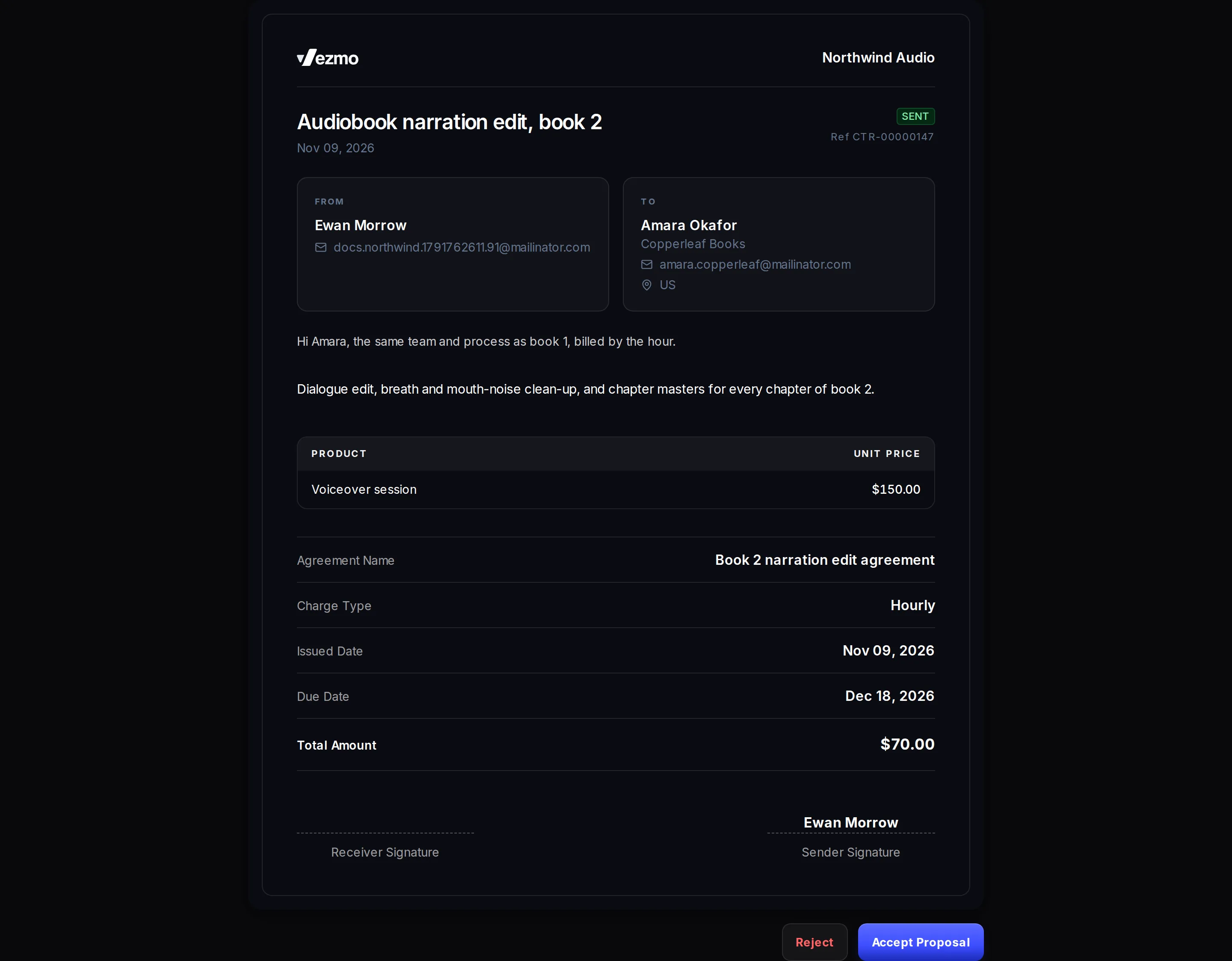
The page shows your business's name, who it's from and who it's to, your message and description, the services, the agreement name, the charge type, the dates and the total. At the bottom:
- Accept Proposal: their answer is recorded with their name and email, and they go to your Redirect URL (or vezmo.com).
- Reject: the proposal turns Rejected, and they go to the same place.
Once they've answered, the buttons are gone. Opening the link again shows the proposal with its status.
People in CC Email(s) get their own email with a view-only link. It works for 14 days and has no Accept or Reject buttons.
After your client answers
They accept
- The proposal turns Accepted, and we email Your proposal was approved to your business's account holder (unless they turned it off) and to anyone on your team who turned this email on in Notifications.
- A project is created for the client, In Progress, with the proposal's title, price, currency, charge type and dates. The project page links back to the proposal. See Clients and projects.
- For a fixed price, an invoice for the full price is created and emailed to your client, due 10 days after the proposal's Effective Date, so if your client accepts later than that, it's already overdue when it's made. It works like any other invoice.
- For an hourly rate, no invoice is created, because the hours aren't known yet. When you have them, open the project and select Create Invoice: see Invoice a client from a project.
An accepted proposal can't be edited, and its price and currency can't change.
They reject
The proposal turns Rejected, and we email Your proposal was not approved the same way. You can edit a rejected proposal and send it again.
Statuses
| Status | What it means |
|---|---|
| Draft | Not sent yet. You can edit or delete it. |
| Sent | Emailed to your client, waiting for their answer. |
| Accepted | Your client accepted. It can't be edited; you can only archive it. |
| Rejected | Your client said no. You can edit it and send it again. |
| Archive | Put away. Your client can no longer open or answer it, and it can't be taken out of Archive: Duplicate it to use it again. |
Manage your proposals
Proposals lists every proposal with its client, email, status and last update. The cards at the top count Total Sent, Accepted, Rejected and Draft. The filters show one status at a time, and Search finds a proposal by its title or the client's name or email.
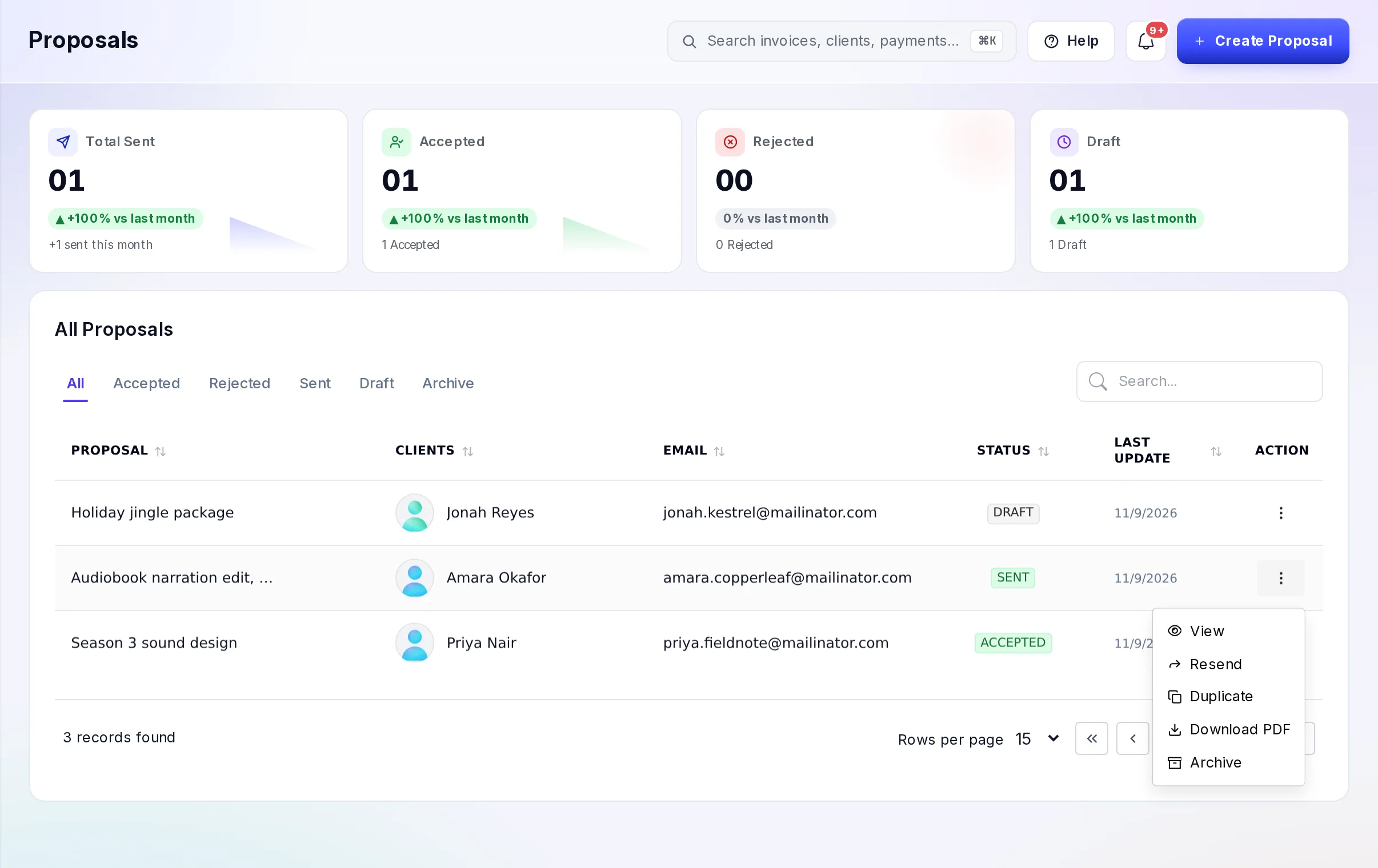
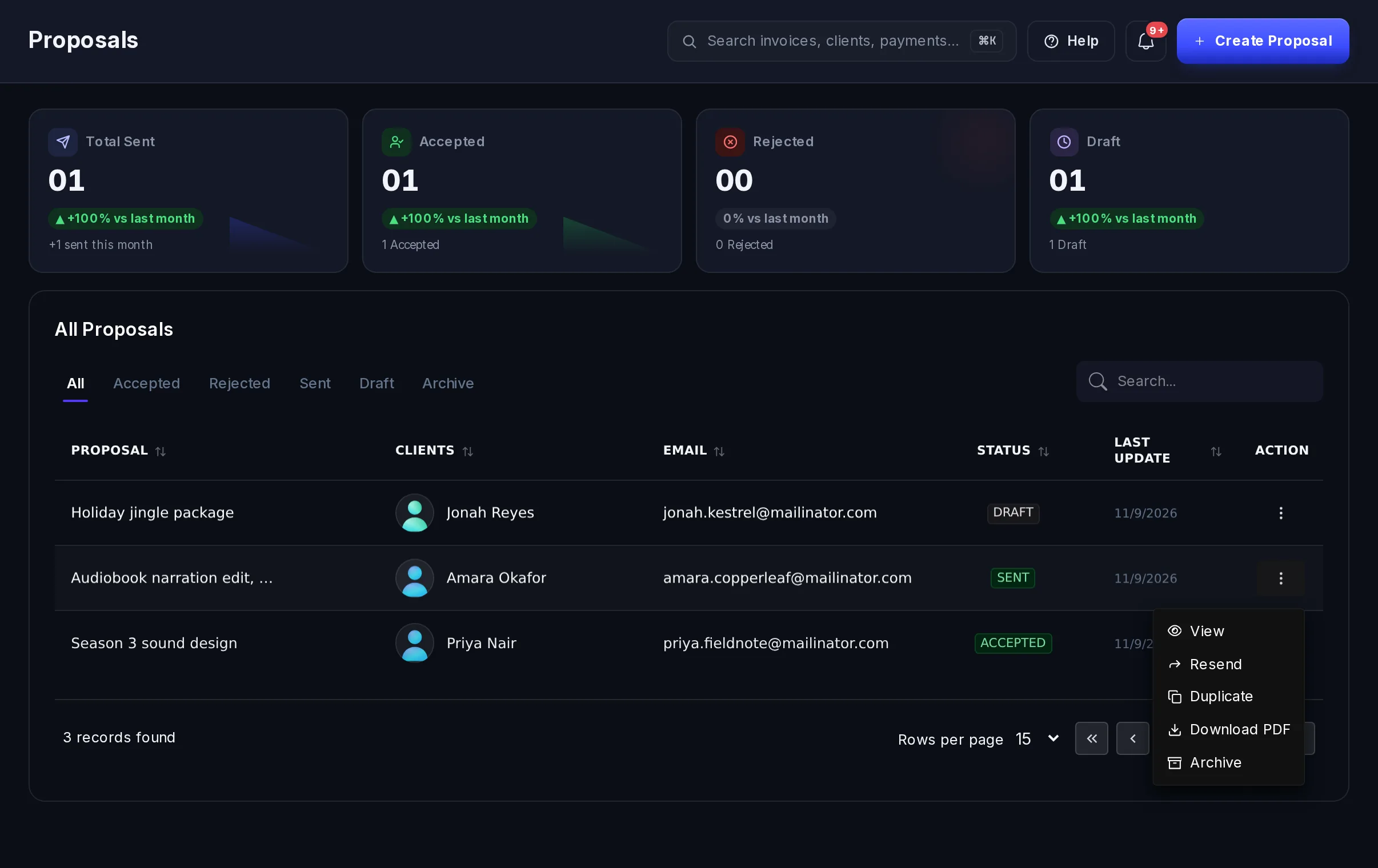
Open the menu (⋮) on a row:
| Action | When | What it does |
|---|---|---|
| View | Always | Opens the proposal. |
| Edit | Draft or Rejected | Opens the three steps again. |
| Resend | Sent | Emails your client a new link. After each send, wait a minute before the next one. |
| Duplicate | Always | Makes a copy, named "(Copy)", as a new draft. |
| Download PDF | Always | Downloads the proposal as a PDF. |
| Archive | Not archived | Moves it to Archive. |
| Delete | Draft | Deletes the draft. |
Test mode
Proposals you create in the dashboard are always live. Test proposals are made with a test API key: they carry a Test mode mark, they're emailed only to people on your team, and the invoice made when one is accepted is paid with test cards. See Test mode and live mode.
Email limits
Each proposal can be emailed once a minute. Your business can also send a set number of invoice and proposal emails in 24 hours, and every CC address counts as one. If you reach it, the message tells you when you can send more. To send more each day, contact support.
When you select Send Proposal on step 3, the proposal shows Sent even if a limit stopped its email that time. If your client didn't get it, select Resend once you can send again.
Questions
My client says the link doesn't work
Links in proposal emails expire after 24 hours. Select Resend in the proposal's menu to email a fresh link.
Can I change a proposal after sending it?
Not while it's Sent. Wait for your client's answer: a rejected proposal can be edited and sent again. To offer something different now, Duplicate it, change the copy and send that, then Archive the first one.
My client agreed by phone. Can I mark it accepted?
Not in the dashboard. Developers can record an answer given outside Vezmo through the API; it creates the same project and invoice.
Does a proposal expire?
Only its email link does, after 24 hours, and a new one is a Resend away. The Expiry Date shows on the proposal as its Due Date, but it doesn't stop your client from answering after that day.
Related
Facts checked against the product on 9 Nov 2026.
Was this page helpful?
Clients and projects
Keep everyone you work with in one list, add a client in four short steps and edit one in two, see a client's invoices, payments and projects on their page, set up projects with a fixed price or an hourly rate, and invoice a client straight from a project.
Agreements and e-signatures
Send a contract to sign online, check each signer's ID with a live photo and selfie, and approve every signer before the agreement is complete.