Your ledger
Your books in Vezmo, filled in for you as you get paid, plus the income and expenses you record yourself, voiding a mistake, importing entries from a spreadsheet, exporting a report, the categories and the Reports tab.
Overview
Ledger, under Insights in the menu, keeps your books. Everything that happens in VezmoPay is entered for you: each sale, the fees and costs that come with it, refunds and disputes. You add the rest yourself: money you received outside Vezmo, such as cash or a bank transfer, and what you spend to run the business.
The page has six tabs: Overview, Income, Expenses, External Accounts, Categories and Reports. Template, Import and Export are at the top right (on a phone, under ⋮).
The Overview tab
Overview shows your VezmoPay balance: what's available to pay out, what's available soon, your recent performance and every movement in your balance. It's the same as your balance page.
Income and expenses
Income and Expenses each start with a summary for the period (the total, the top category, how many entries and the average entry), then the list of entries.
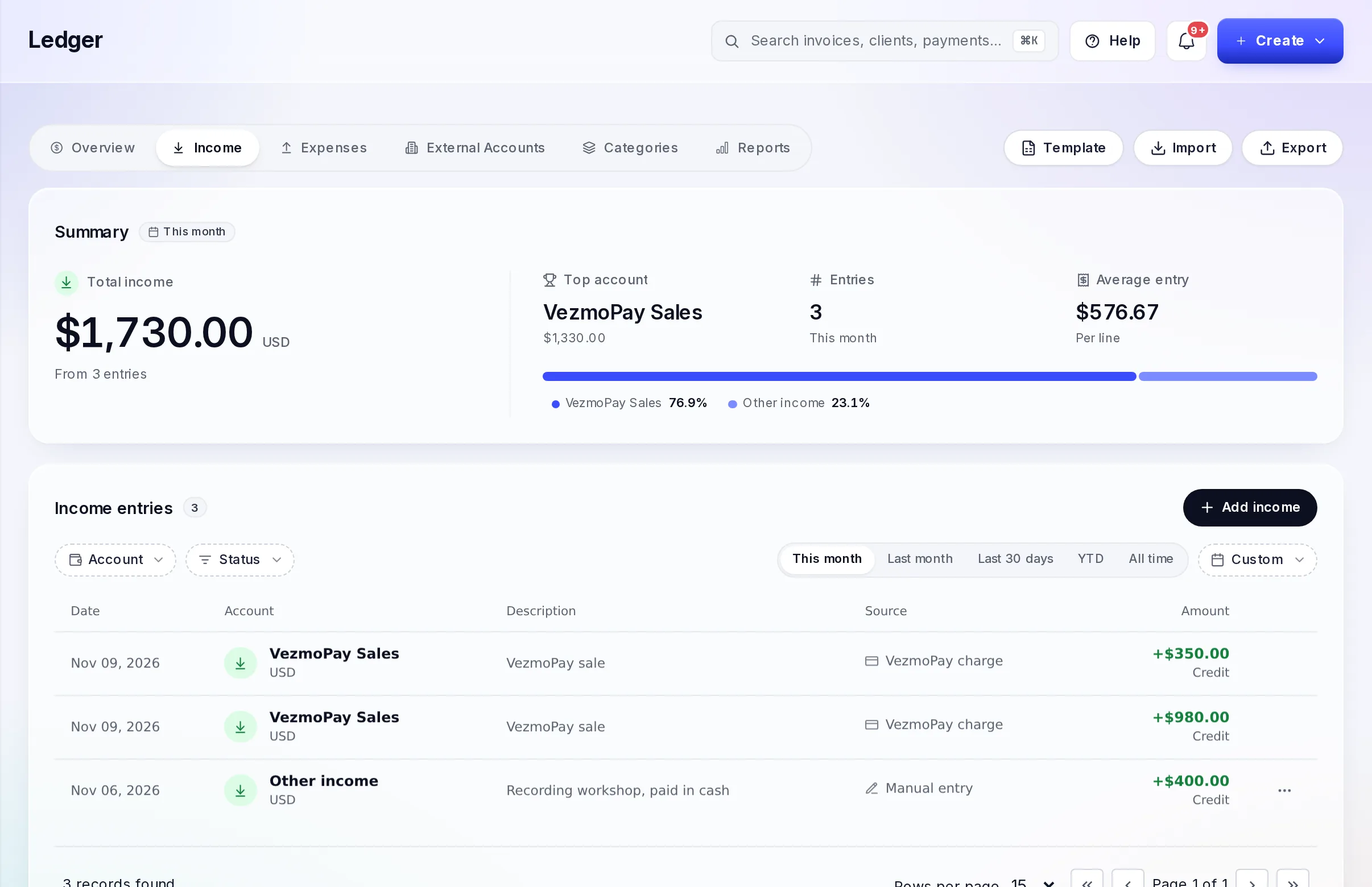
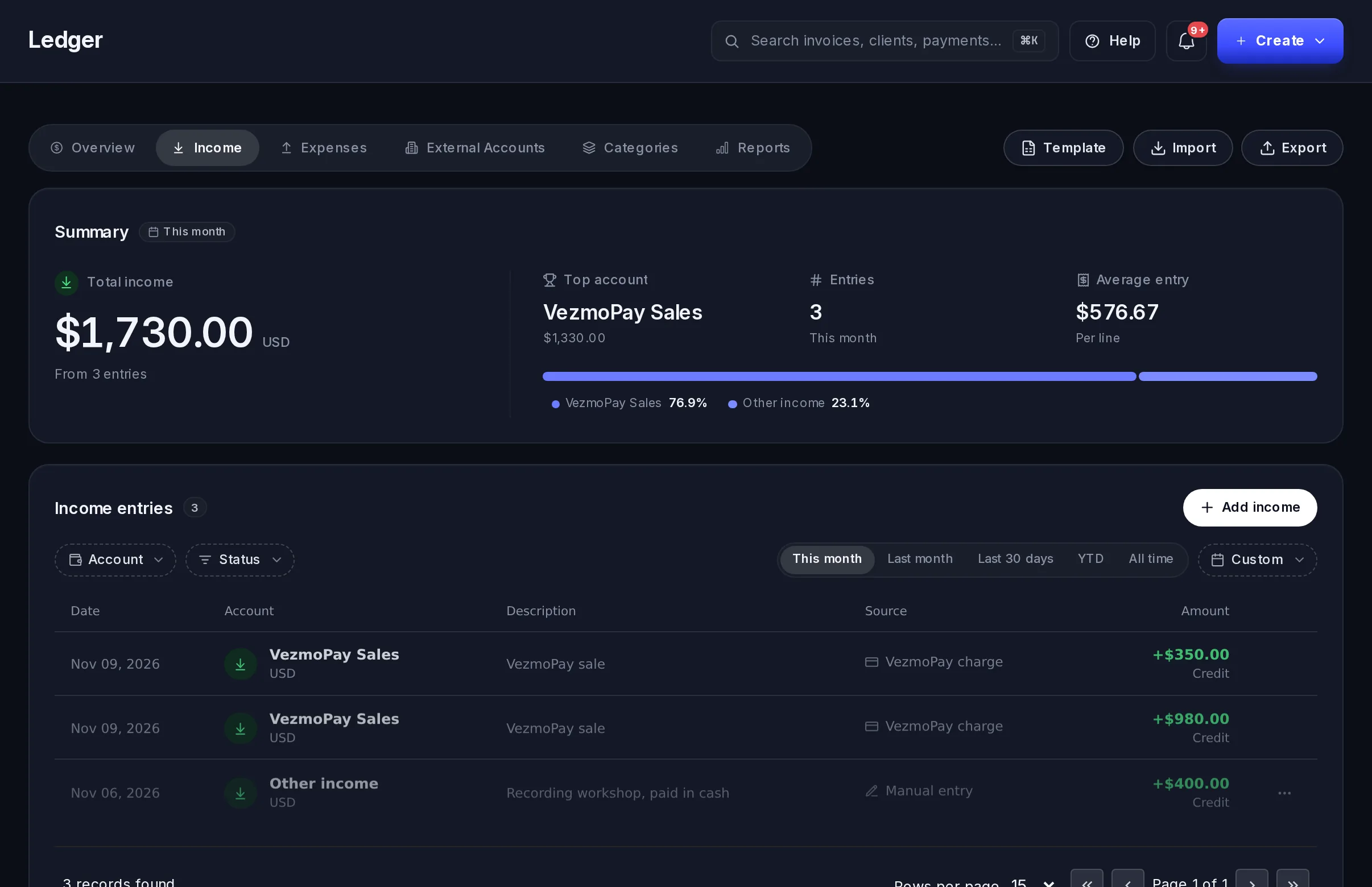
- The columns: the date, the category (Account), the description, where it came from (Source, such as a VezmoPay charge, or a manual entry) and the amount.
- Filters: by category (Account), by Status (Posted, Voided or Reversal) and by period: This month, Last month, Last 30 days, YTD, All time or Custom dates.
Record income or an expense
Open the form
On the Income tab select Add income, or on the Expenses tab select Add expense.
Fill it in
- Amount, in US dollars: from 0.01 to 1,000,000, with up to two decimals.
- Date: today or earlier.
- Category: for income, such as Service revenue, Sales (off-platform) or Tips & gratuities; for an expense, such as Rent & lease, Software & subscriptions or Travel.
- Description (optional): what it was for, up to 500 characters.
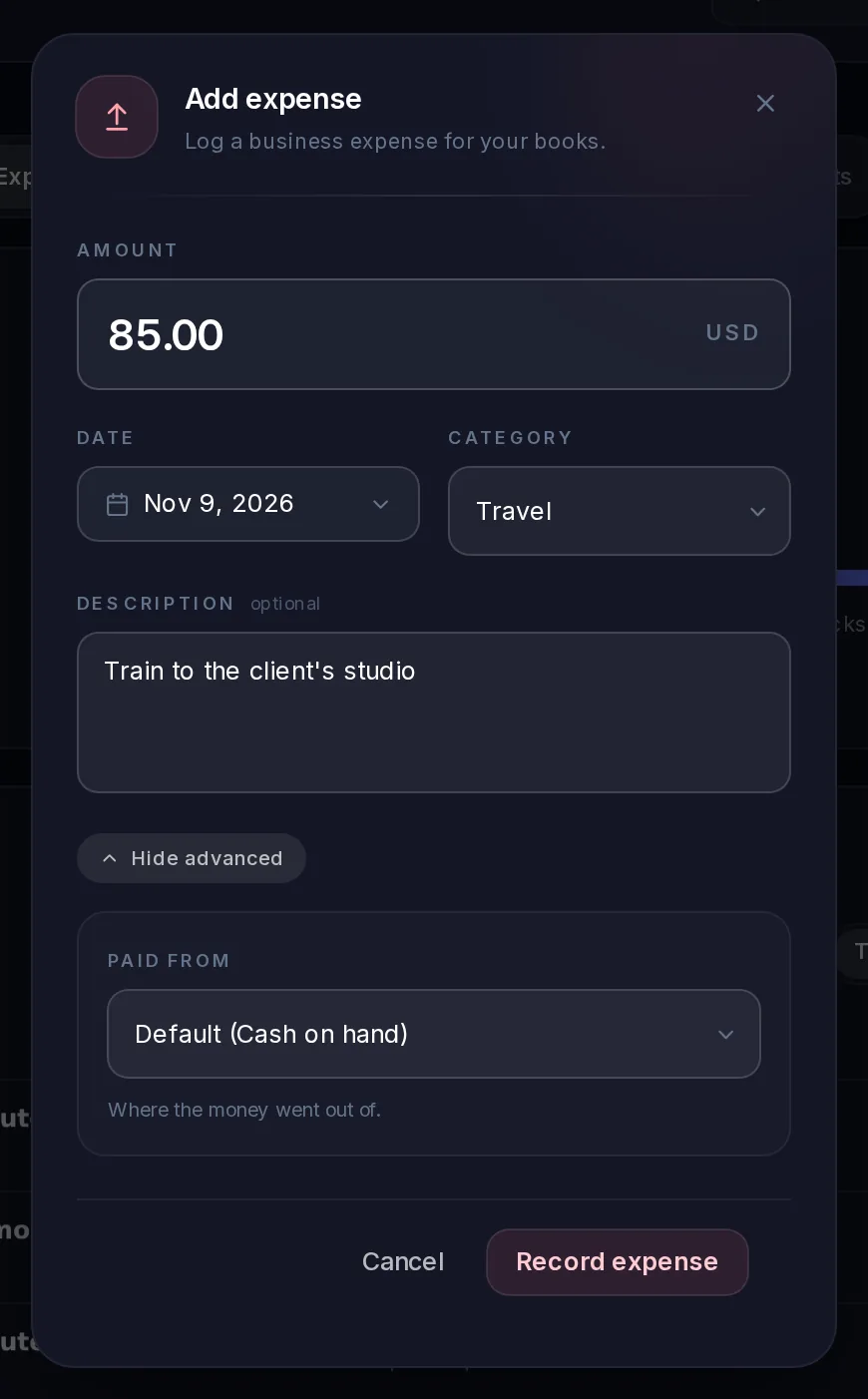
- Advanced options: where the money went in (Received into) or came from (Paid from). It's Cash on hand unless you choose another account.
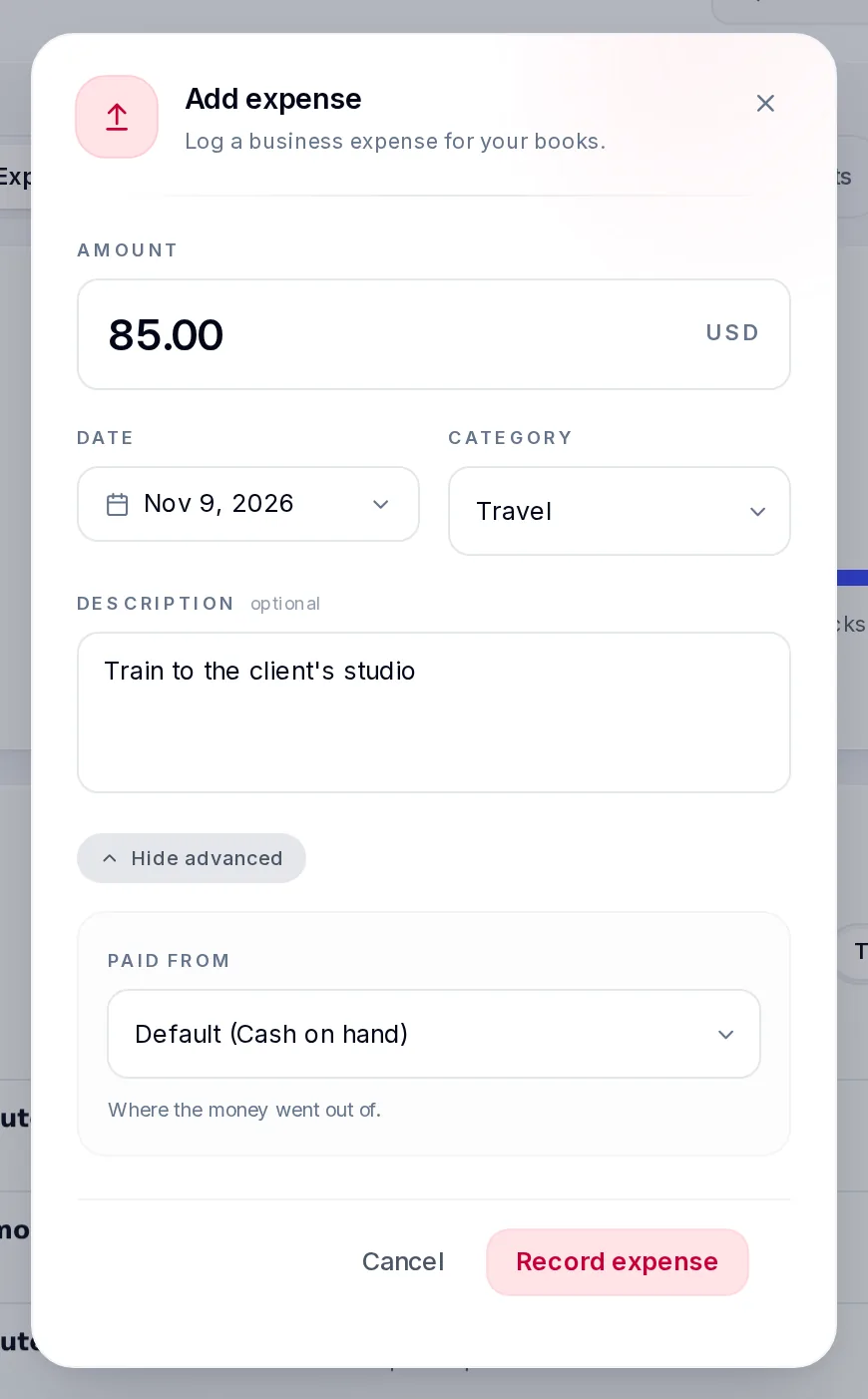
Recording an expense, with Advanced options open. Save it
Select Record income or Record expense. The entry appears in the list, with Manual entry as its source.
Void an entry
An entry can't be edited or deleted. If one is wrong, void it and record it again.
Find the entry
On Income or Expenses, select ⋯ at the end of the entry's row, then Void entry. Only entries you recorded or imported can be voided; the ones VezmoPay made can't.
Say why
Add a Reason if you like, such as "Duplicate" or "Typo" (up to 200 characters), and select Void entry.
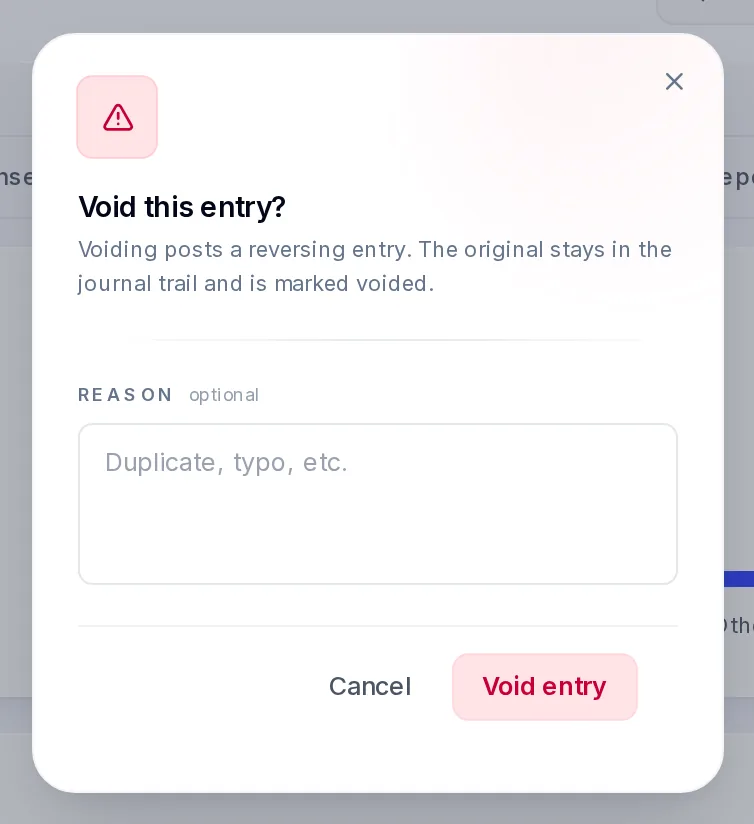
Voiding keeps a record of the original.
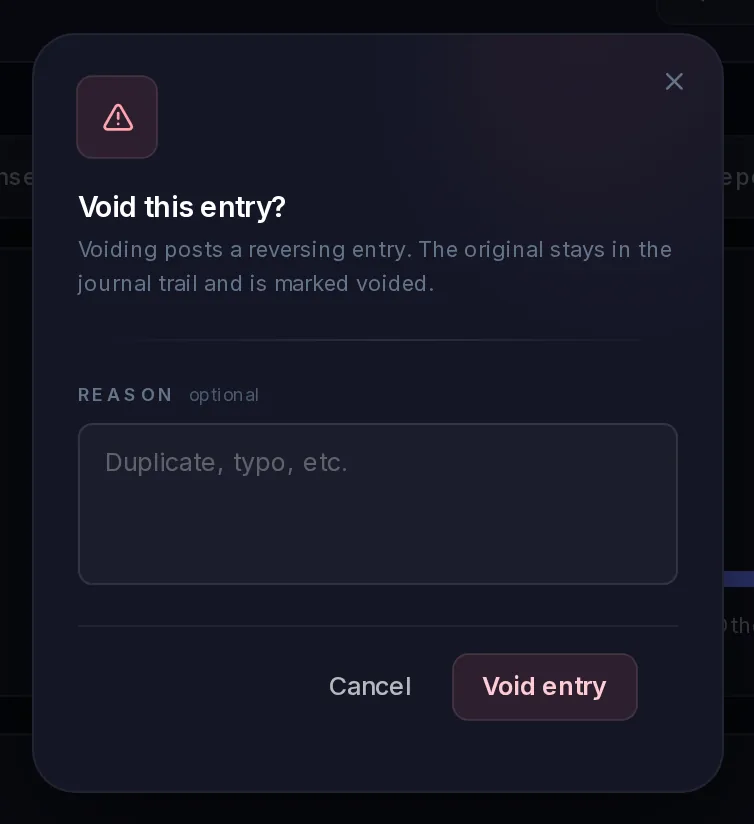
Voiding adds a reversing entry that cancels the original. The original stays in your books, marked Voided, and the reversal shows with the status Reversal.
Import entries from a spreadsheet
If you keep your books elsewhere, bring the entries in from a spreadsheet.
Get the template
Select Template, then Excel (.xlsx) or CSV (.csv). It has the columns to fill in and three example rows: delete them before you upload, or they're imported too.
Fill it in
One row per entry:
Column Required What to put in it Date Yes The date, as YYYY-MM-DD (or a date cell in Excel). Yesterday or earlier is safest (see below). Type Yes INCOME or EXPENSE. Category Yes The name of one of your categories. If a name doesn't match, the row goes under Other income or Other expenses; you can change it in the review step. Amount Yes A positive number, with up to two decimals, up to 1,000,000. Currency No Leave it empty or put USD. A row in another currency isn't imported. Description No Up to 500 characters. Account No Where the money went in or came from. Cash on hand if empty. In an Excel file, keep the entries on the sheet called Entries. A row dated today is refused until midday UTC; date it the day before or import it later in the day.
Upload it
Select Import, then drop the file in or choose it: .xlsx, .xls or .csv, up to 1,000 rows and 2 MB.
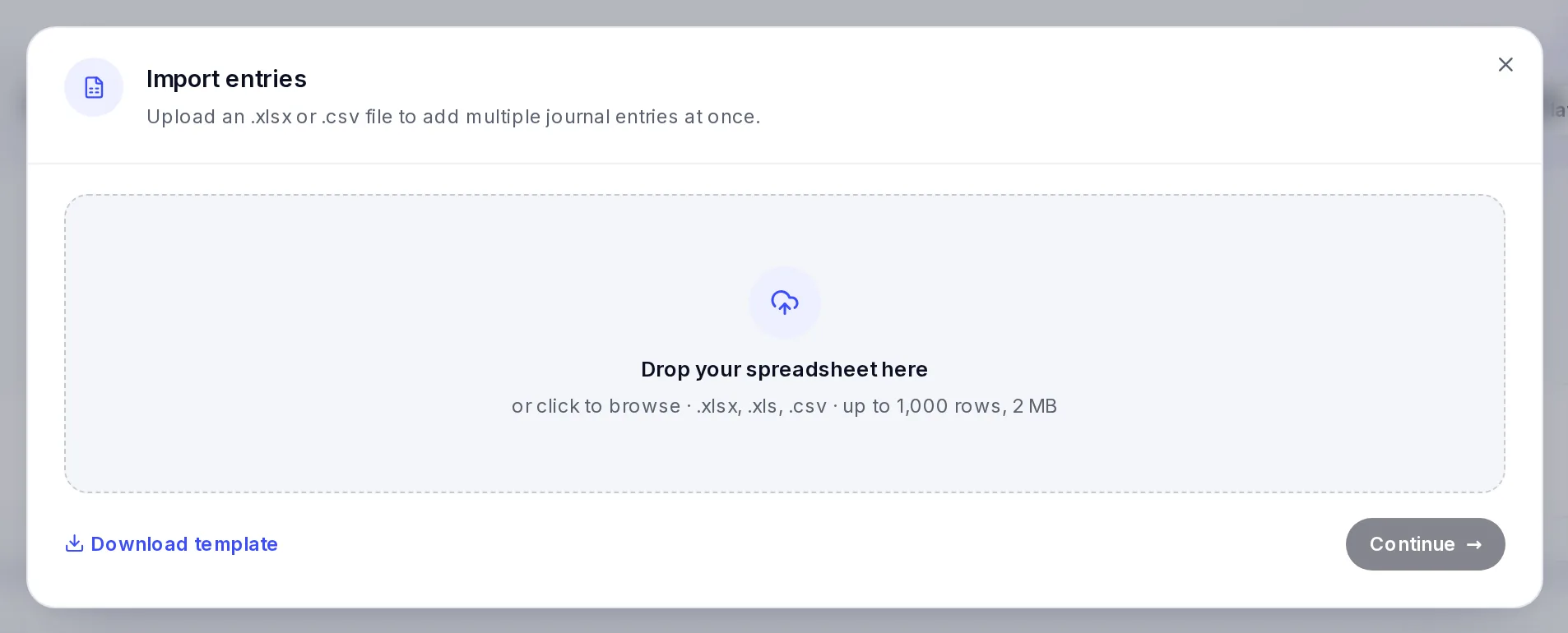
Drop in the filled-in template. Review and import
Each row is checked and counted as Importable, Need attention (fix it in the file, or leave it out) or With fallbacks (a category or account that didn't match and was given a default: check it). Choose the category for a row if needed, keep the rows you want, and select Import (it says how many entries). They're posted to your books straight away, and View in ledger takes you to them.
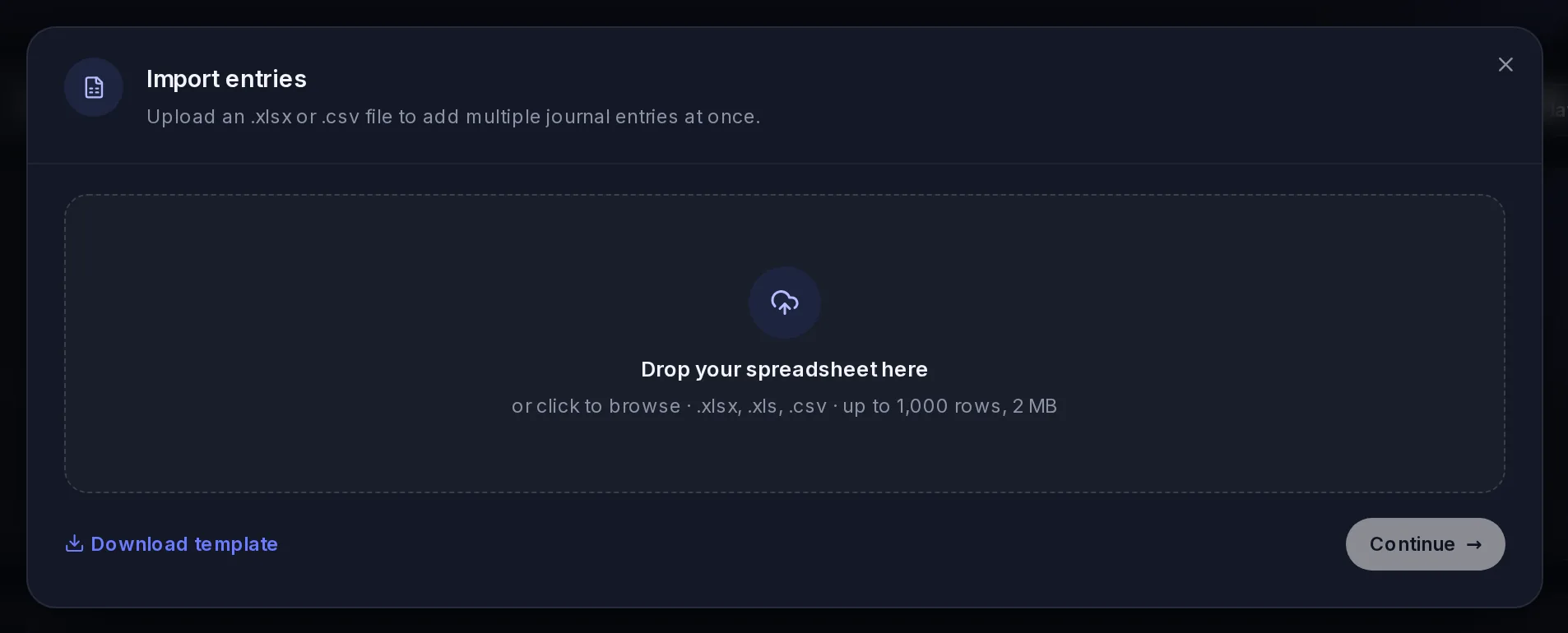
If the file is refused, the message says why: for example File is missing required headers (a column was renamed or removed) or Excel file is missing the 'Entries' sheet.
Export
Select Export and choose a period: Today, 7 days, This month, Last month, Previous year, or your own dates. You get an Excel workbook with three sheets: Summary, Cashflow (day by day) and Transactions (every entry, VezmoPay's and yours).
Categories
Categories shows your chart of accounts: Assets (such as your VezmoPay balance), Liabilities, Income, Expenses and Equity, each with its balance, and the accounts in each with their share.
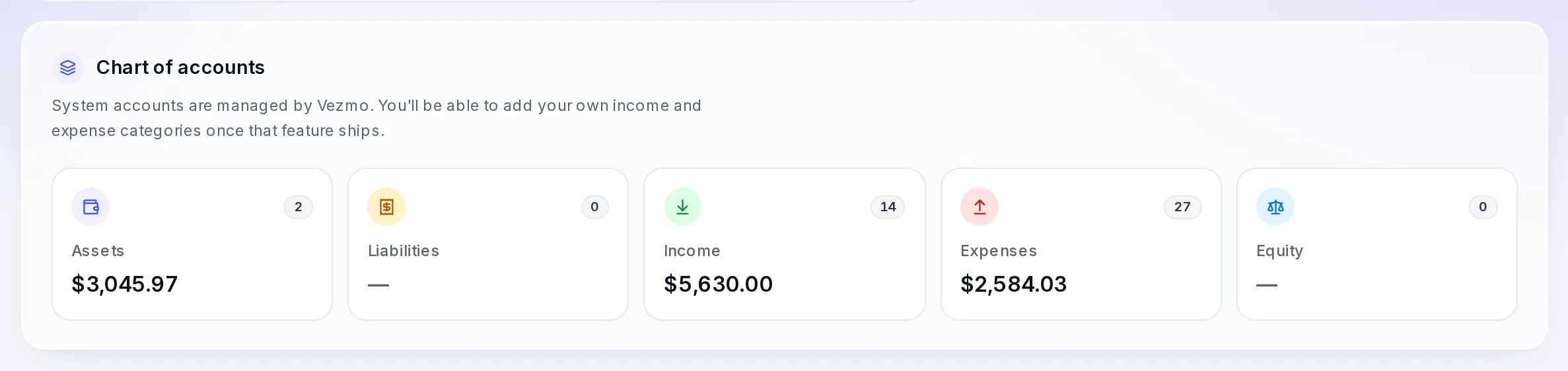
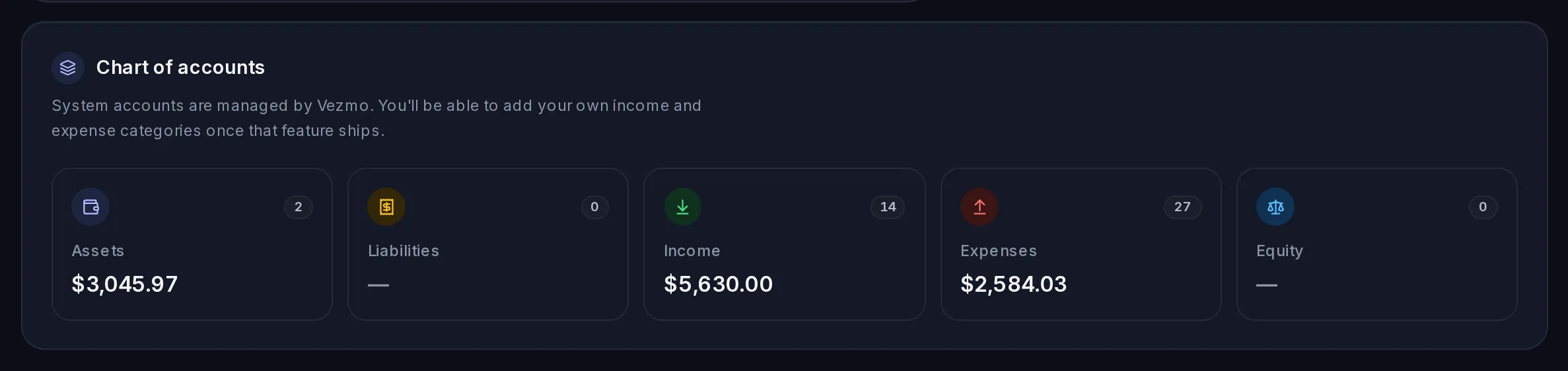
Accounts marked System are kept by Vezmo and filled from VezmoPay. The categories you pick from when you record an entry are set: you can't add your own yet.
External Accounts shows your other money accounts, such as Cash on hand (where manual entries go unless you choose another), and the entries recorded against them.
Reports
Reports sums up your books for a period: 7 days, 30 days, This year, Last year or All time.
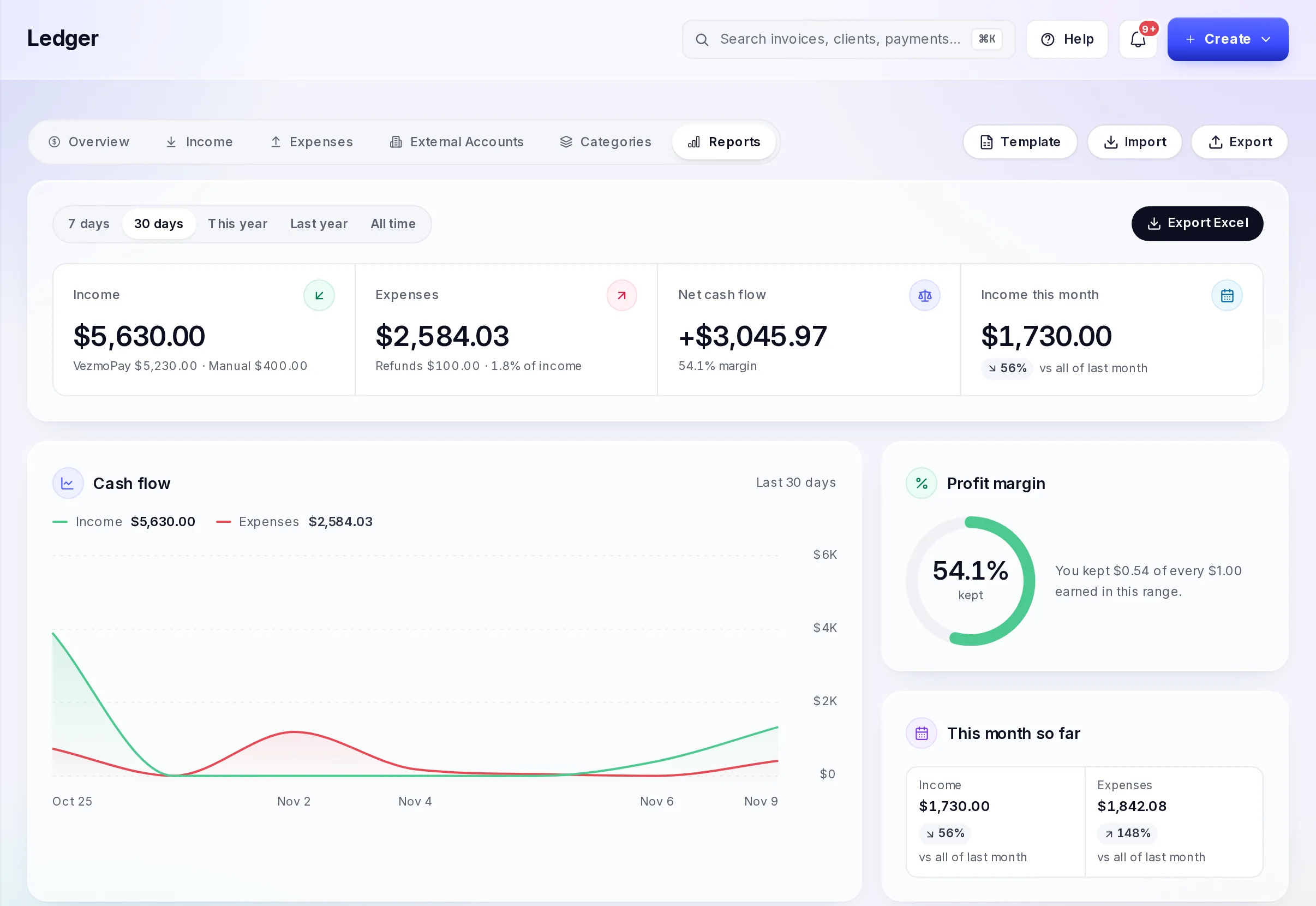
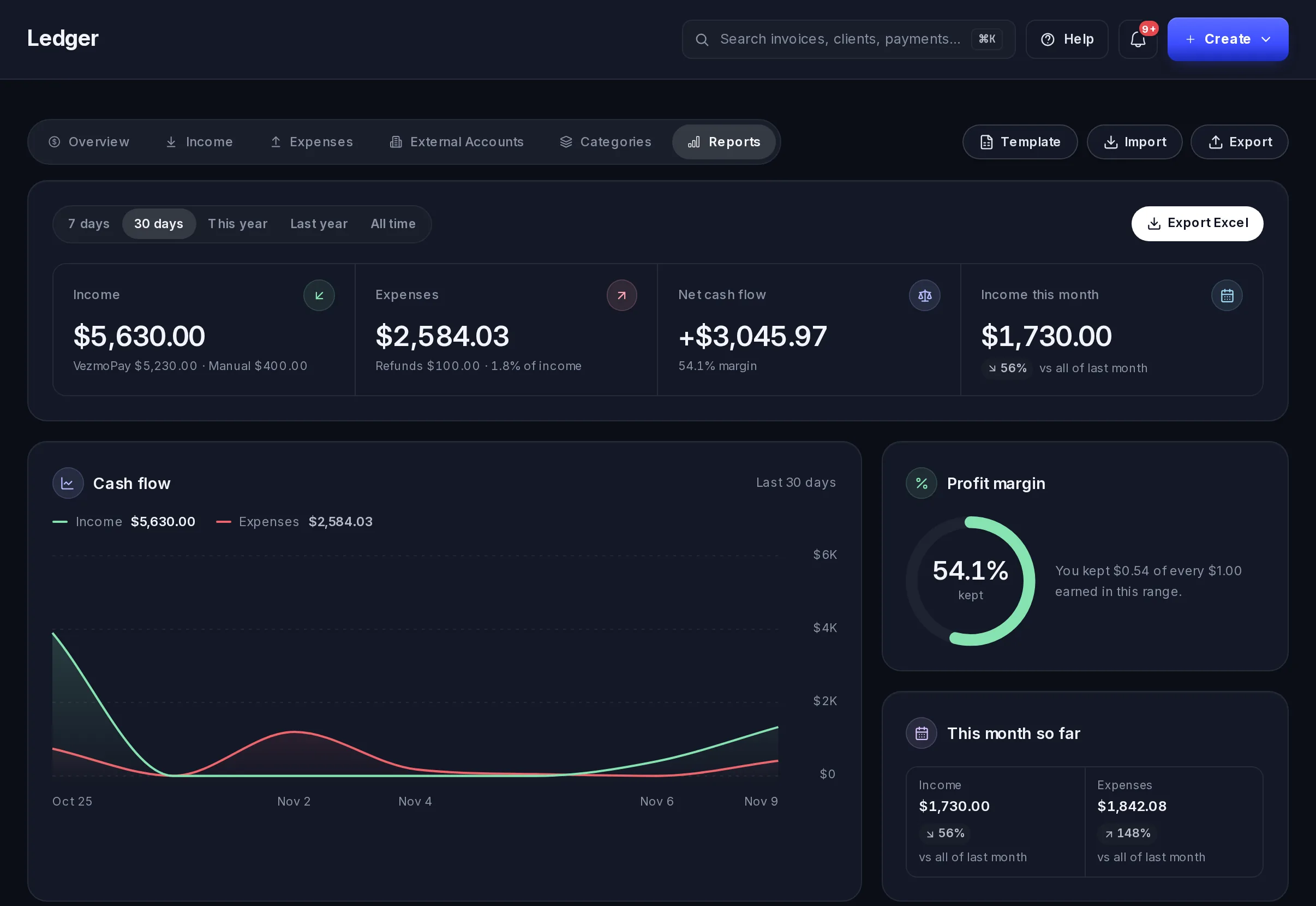
- Income: VezmoPay sales and the income you recorded, each shown.
- Expenses: refunds, VezmoPay costs (platform and processing fees, chargebacks, dispute fees, payout fees and currency conversion losses) and the expenses you recorded.
- Net cash flow: income minus expenses, with your margin.
- Cash flow: a chart of income and expenses over the period.
- Profit margin, This month so far, Where income came from and Where money went.
Export Excel downloads the same report as a workbook.
Who can use the ledger
To use the ledger, a teammate needs View book entries or Create book entries (either puts Ledger in their menu) and View the books. Recording, importing and voiding entries also needs Record entries in the books. See Your team and roles.
Questions
The form says "Date cannot be in the future", but the date is today
Entries dated today are accepted from midday, your time. Before then, record it later in the day or pick an earlier date.
Do I need to record my VezmoPay sales?
No. Sales, fees, refunds and disputes in VezmoPay are entered for you. Record only what happened outside Vezmo.
Can I change an entry?
No. Void it and record it again, so your books keep a record of the change.
Related
Facts checked against the product on 9 Nov 2026.
Was this page helpful?