Send an invoice
Create an invoice with line items, tax and a due date, send it to your client by email straight away, see what each status means, edit it or send it again, and what your client sees when they pay.
Overview
An invoice bills a client for one or more line items, with a due date. You create it in Payments › Invoices, and Vezmo emails it to your client straight away, with the invoice as a PDF and a button to view and pay it online. Your client pays online without creating an account, and the invoice turns Paid.
Use an invoice to bill a client for work, with line items, discounts and tax. For a quick payment of one amount, a payment link is simpler.
How it works
- You create an invoice for one of your clients: the due date, the currency, a design and the line items.
- When you select Create Invoice, we email it to your client at once. The email has a View & Pay Invoice button and the invoice as a PDF.
- Your client opens the invoice and pays it online.
- The invoice shows Paid, and the payment appears in VezmoPay › Transactions with the source Invoice.
There are no automatic reminders. To remind a client, send the invoice again yourself (see Send it again).
| Status | What it means |
|---|---|
| Pending | Sent and waiting to be paid. |
| Overdue | Still unpaid after its due date. The list shows Overdue, while the invoice itself still reads Pending. Your client can still pay it. |
| Paid | Paid in full. A bank payment marks it Paid once it clears. |
| Cancelled | It can no longer be paid. Your client sees "This invoice can no longer be paid". |
| Draft | Saved as a draft through the API. Drafts show under All, and only a draft can be deleted. |
Create an invoice
Start a new invoice
Go to Payments › Invoices, select + Create at the top of the page, then Invoice. (Start from Template lets you pick the design first.) You can also start one from Move money › Request a payment.
Choose the client, due date and currency
- Select Client: search your clients, or select + Add Client to add a new one.
- Due Date: today or later. The issue date is the day you create the invoice.
- Currency: starts as your business's currency. Every line and the total are in it.
- Template Style: the invoice's design, which you must choose. Select Preview to see it.
- Footer Message (optional): a line at the foot of the invoice, for example a thank-you.
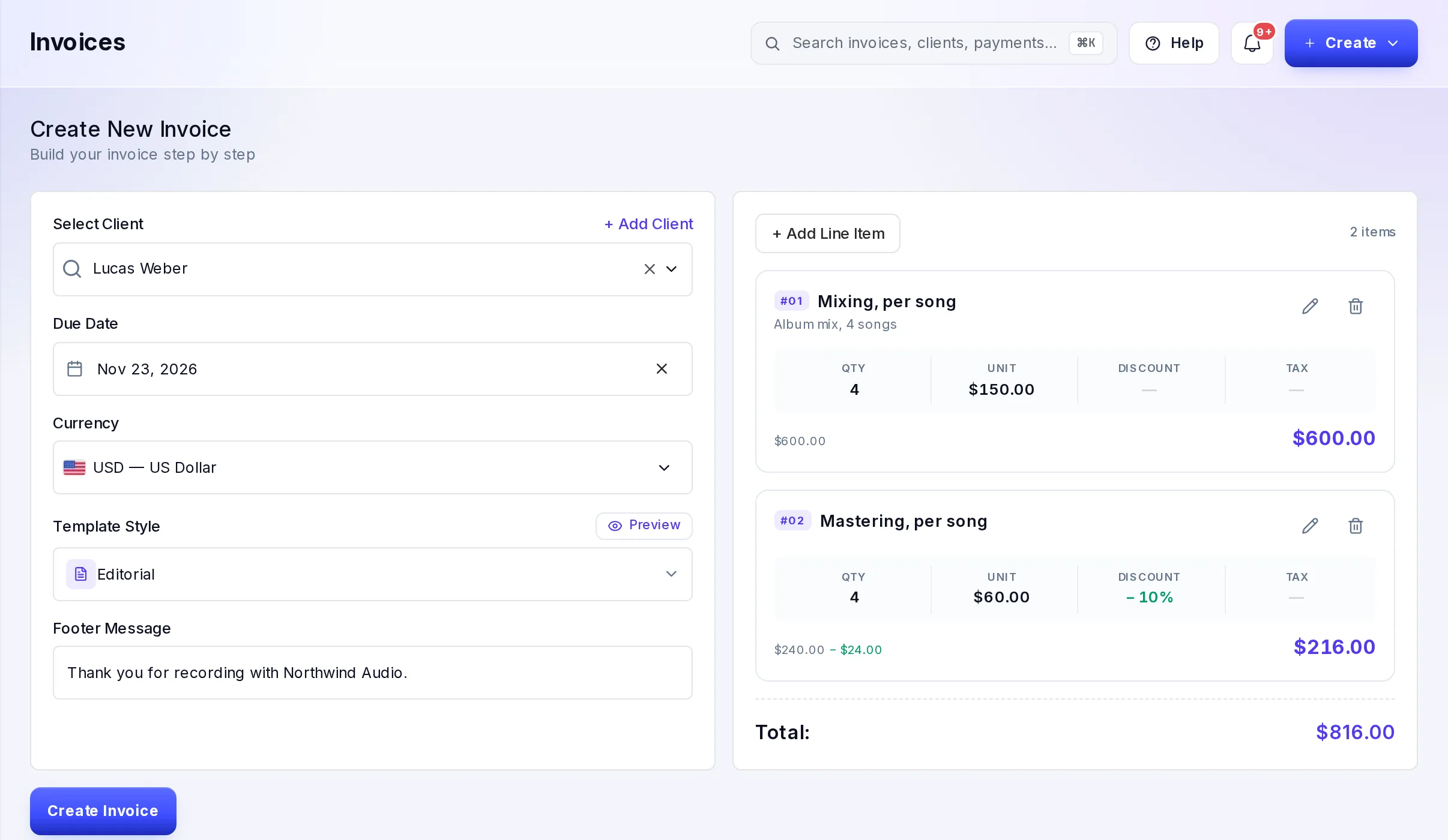
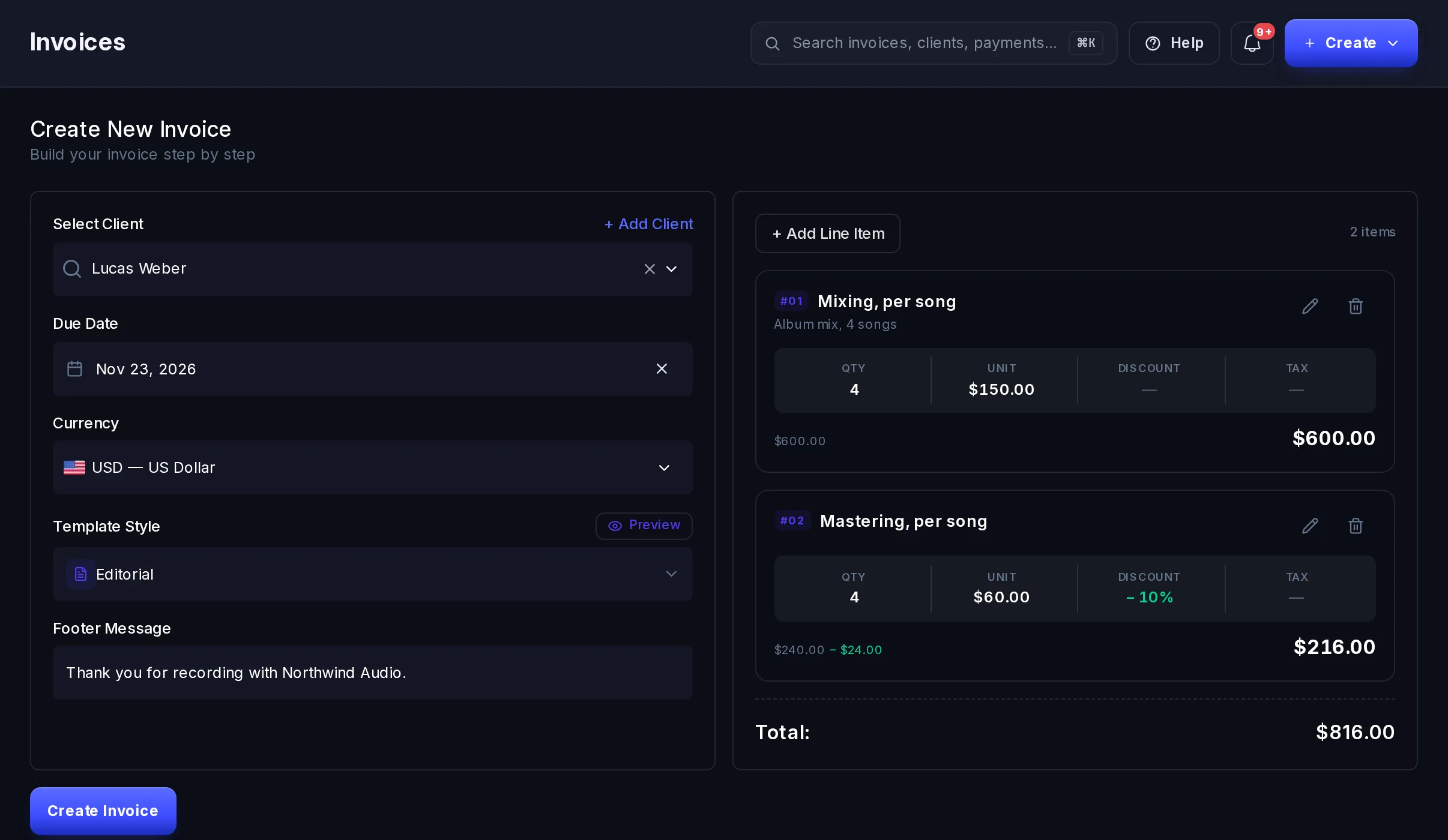
A new invoice with two line items, before it is created. Add your line items
Select + Add Line Item for each product, service or block of hours. Each line has:
- Product / Service name and an optional Product Description, both shown on the invoice.
- Base Price and Quantity.
- Discount, as a percentage (up to 100%) or a fixed amount (up to the line's price times its quantity).
- Tax Rate (%), applied after the line's discount. Vezmo doesn't work out tax for you: see Sales tax on invoices.
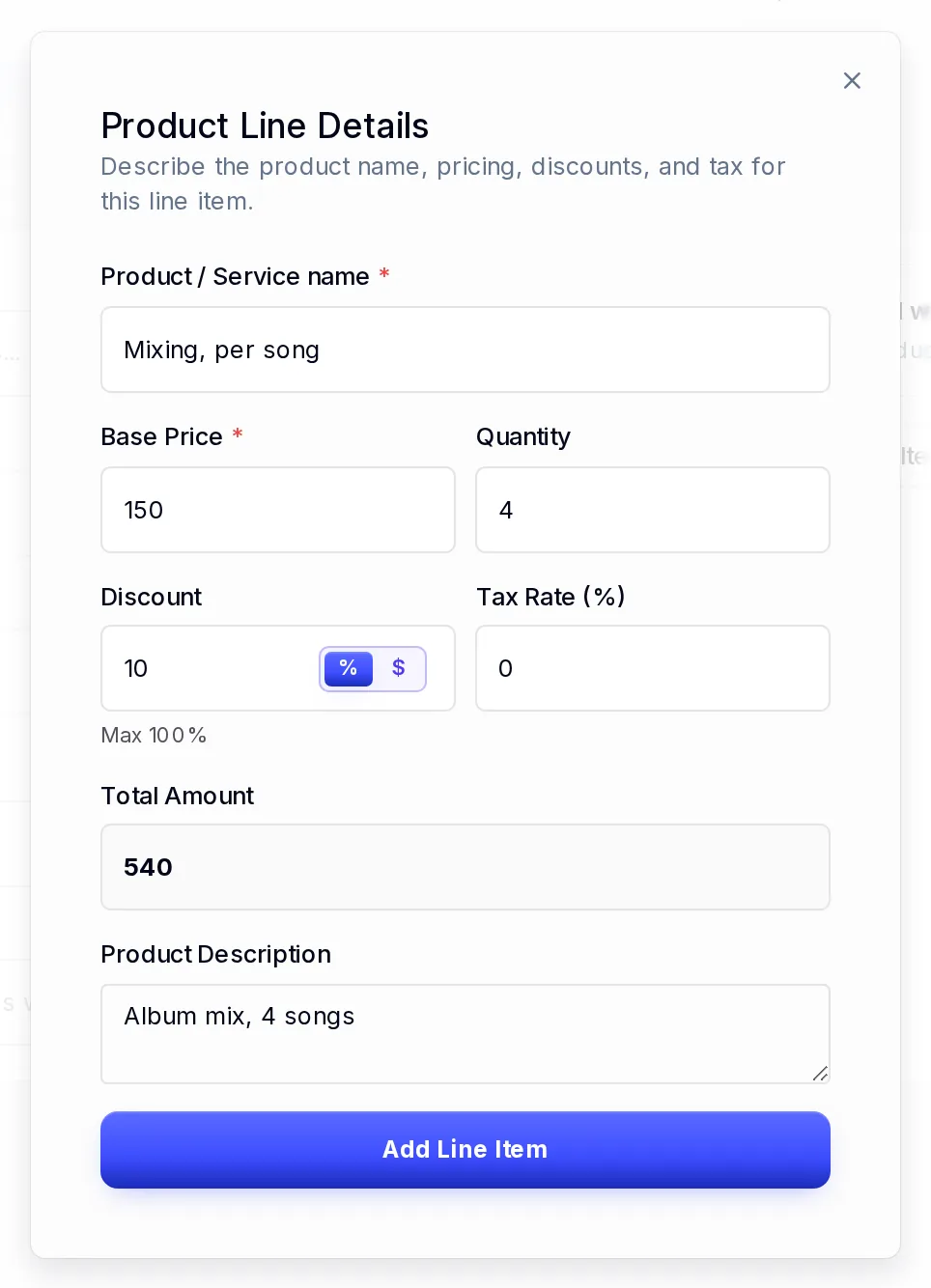
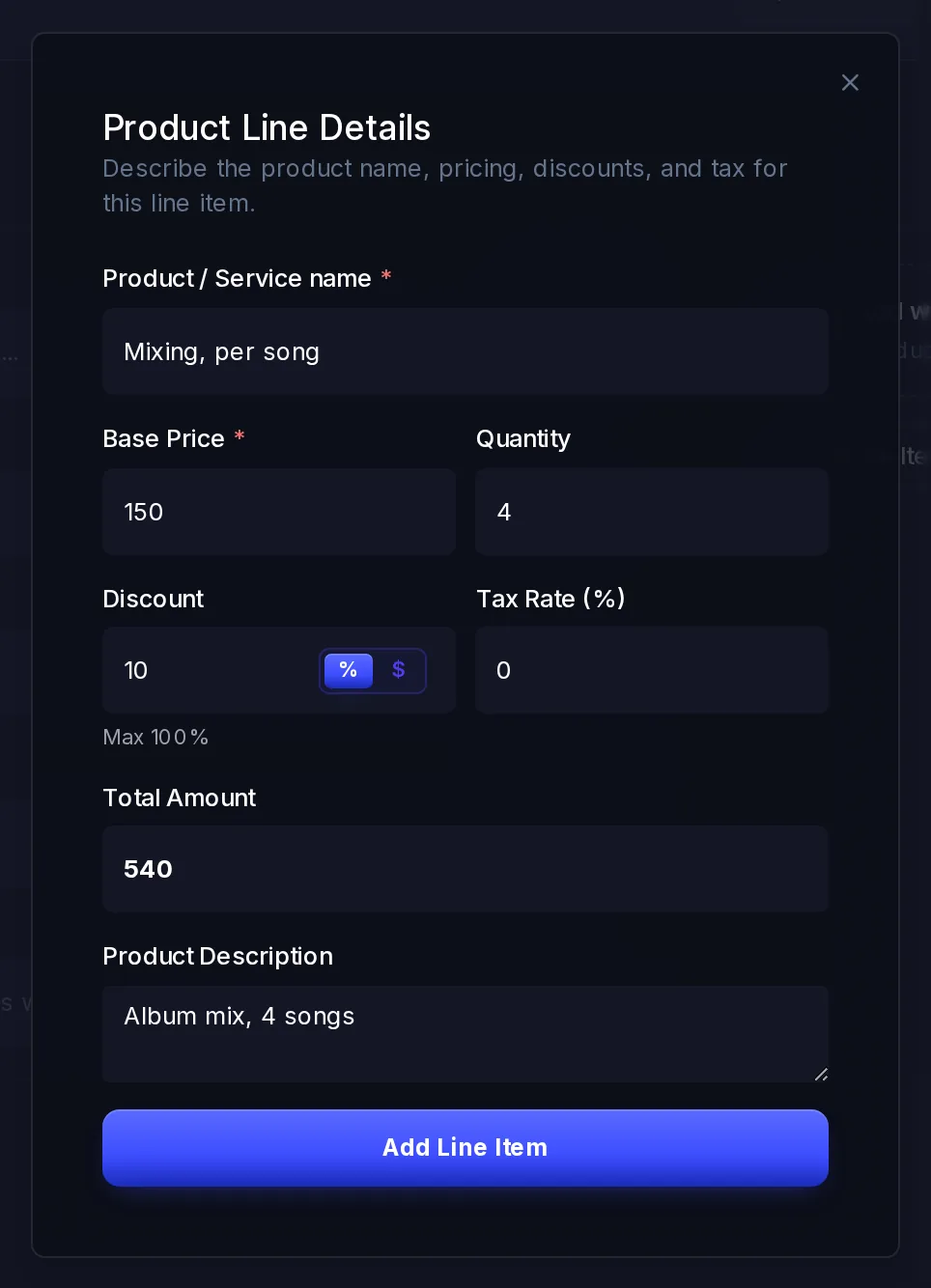
One line item, with a discount. Select Add Line Item. Use the pencil to change a line or the bin to remove it. The total adds up as you go.
Create and send it
Select Create Invoice. We email the invoice to your client straight away, and you get an Invoice sent notification. If the email couldn't be sent, a notification under Needs action says so.
The total must be more than 0 and at least your business's minimum for that currency; the form tells you if it isn't. An invoice's fees are the same as any other VezmoPay payment and depend on how your client pays. See VezmoPay pricing.
Invoices you create in the dashboard are always real ones, even with Test mode on in the VezmoPay menu.
Manage your invoices
Payments › Invoices shows four cards at the top: Total Invoice, Paid, Pending (every unpaid invoice, overdue ones included) and Overdue. Below them, All Invoices lists every invoice with its number, client, email, price, due date and status.
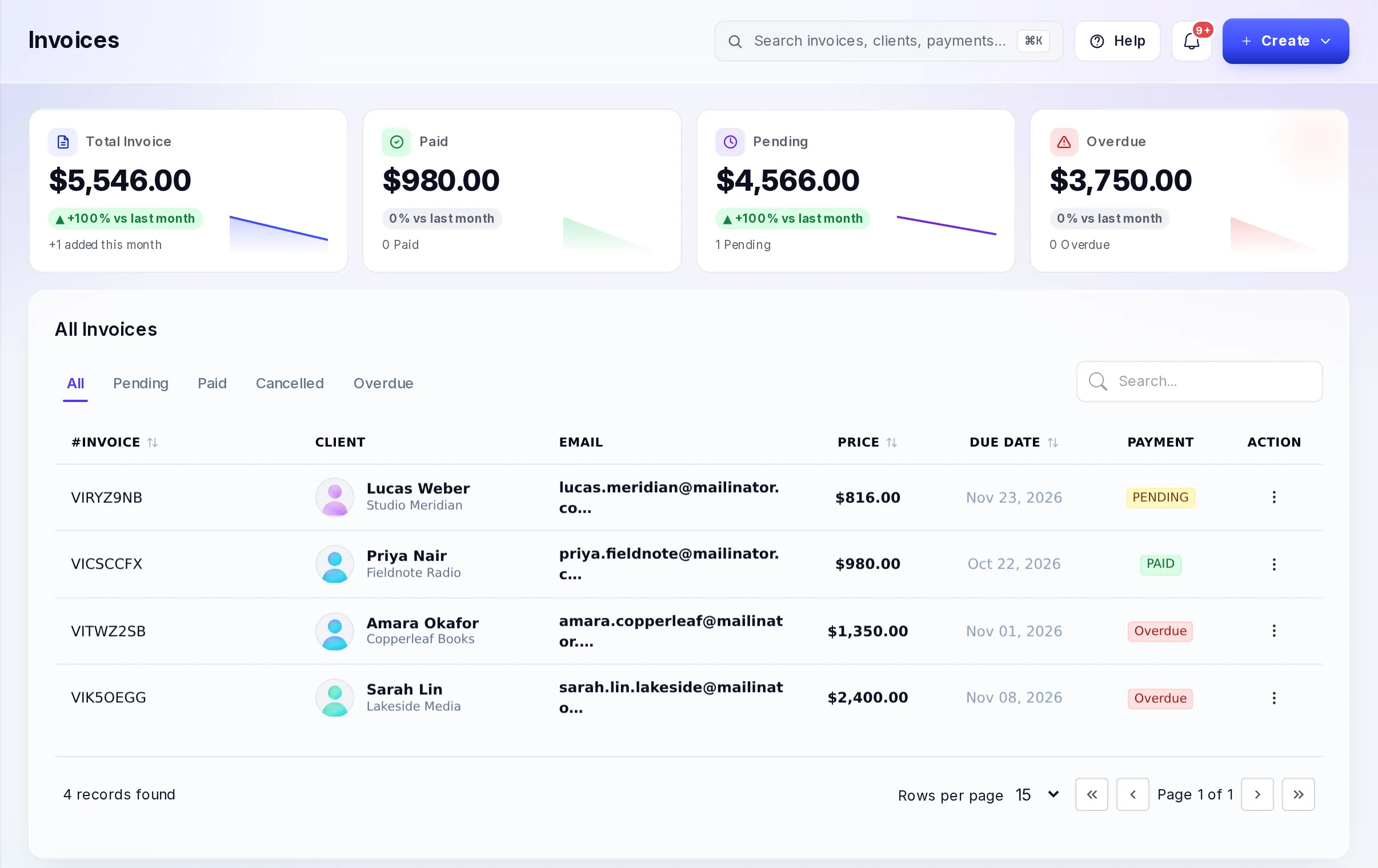
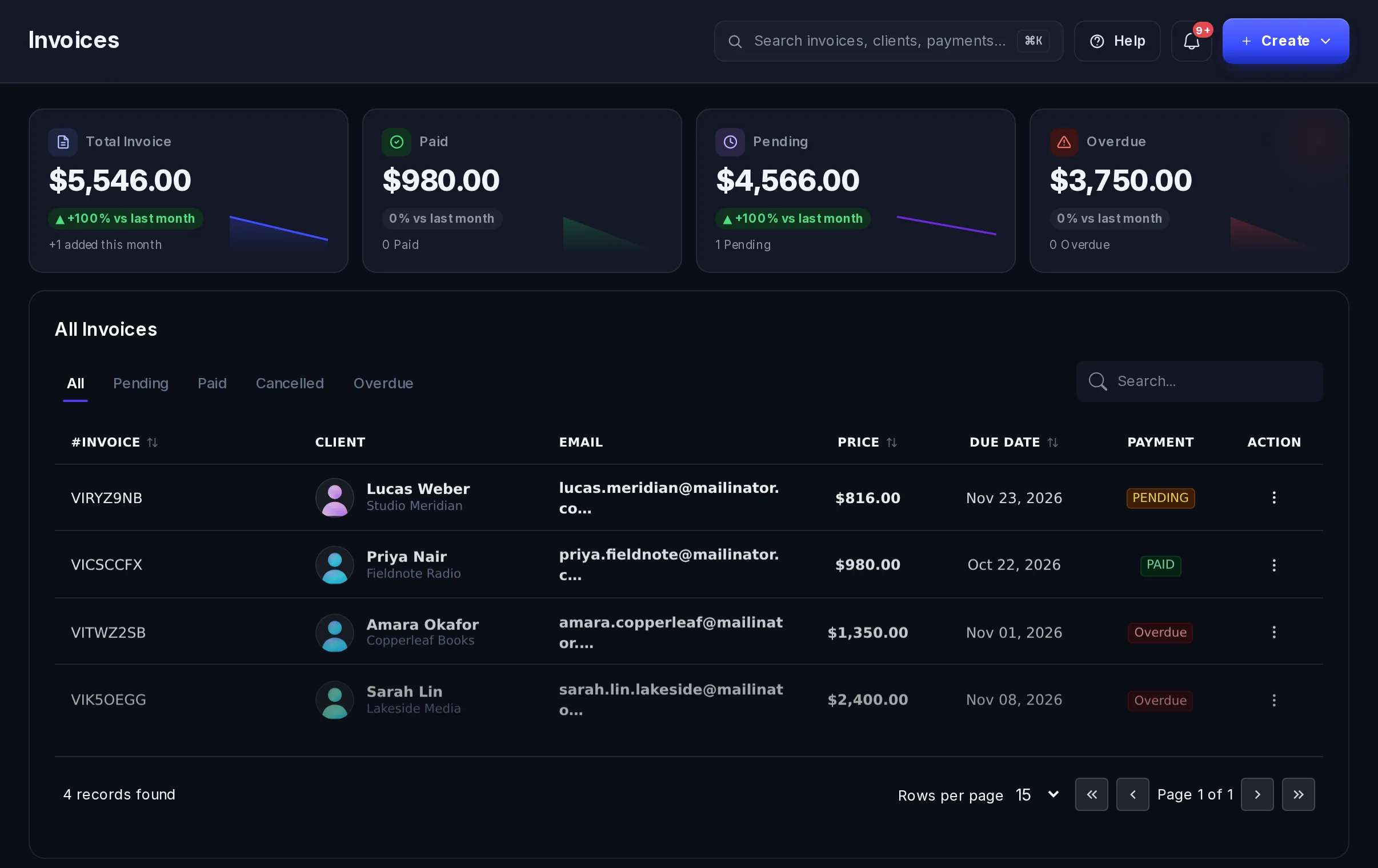
- Filter by All, Pending, Paid, Cancelled or Overdue.
- Search by invoice number, client name or client email.
- Sort by invoice number, price or due date.
Open the menu (⋮) on a row to Preview the invoice, send it again, Edit it or Delete a draft.
Preview an invoice
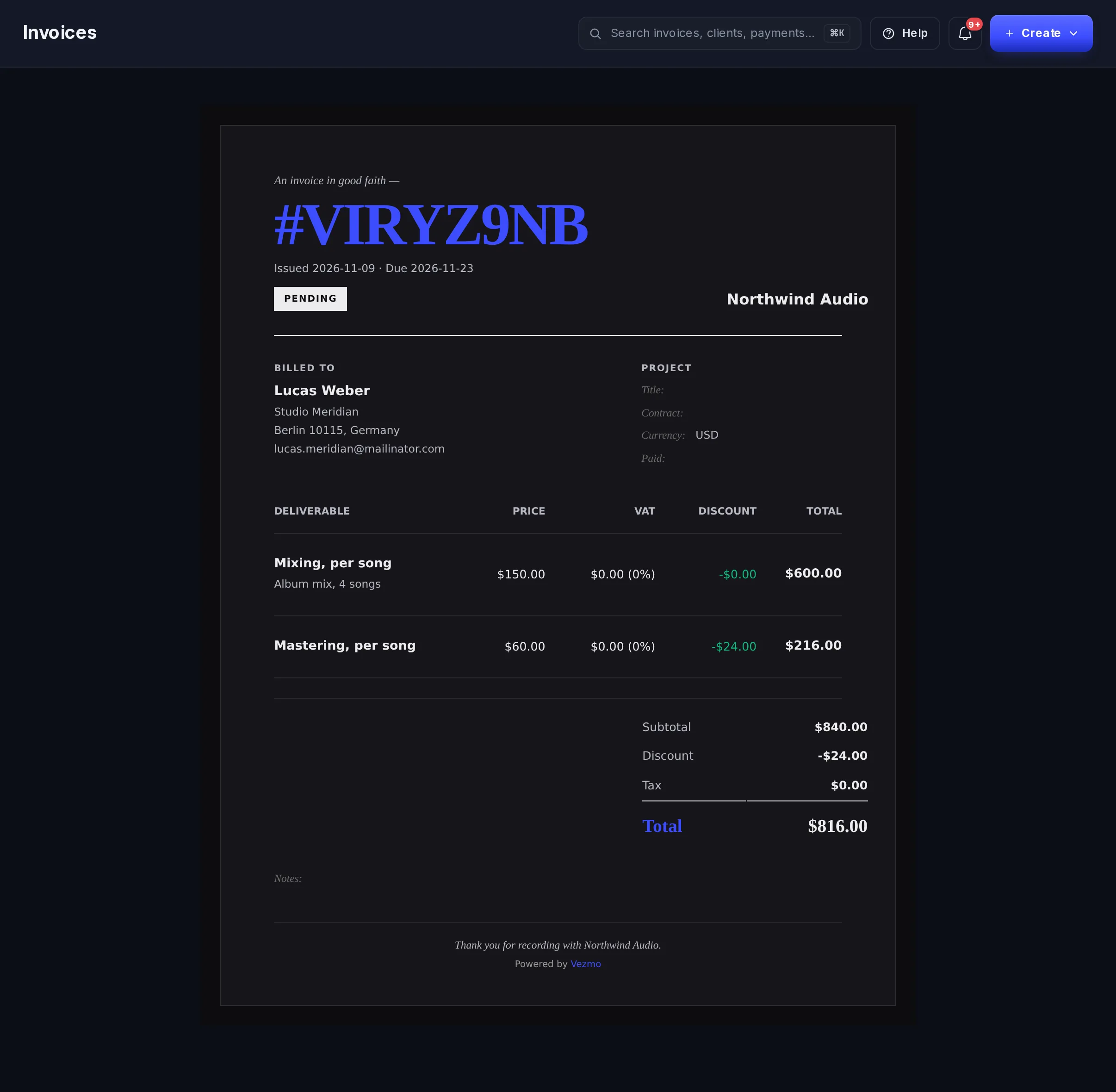
Preview opens the invoice as your client sees it, in the design you chose: who it's from and who it's billed to, the issue and due dates, each line, and the subtotal, discount, tax and total.
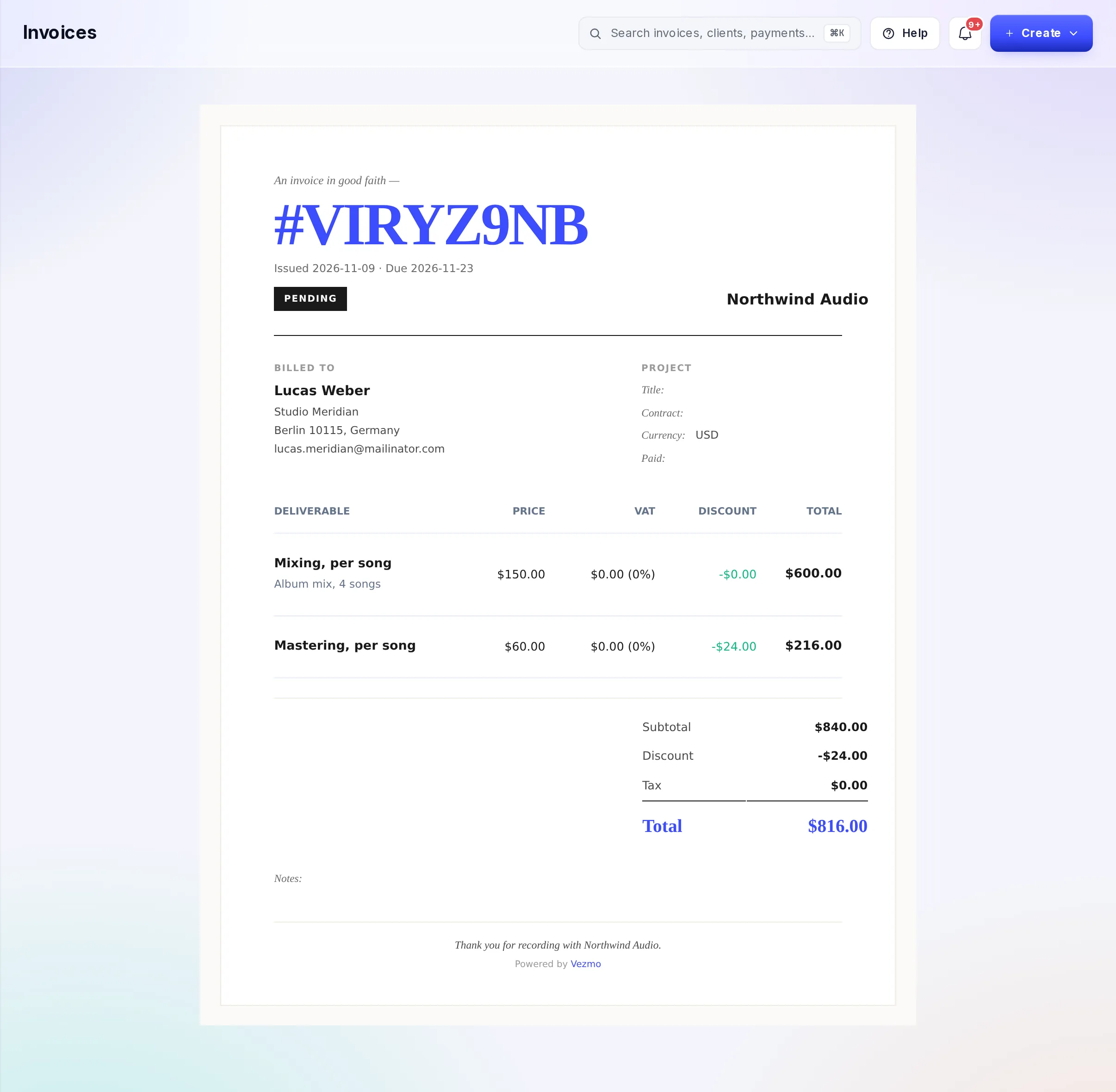
The dashboard has no download button: the invoice goes to your client as a PDF attached to each email we send.
Send it again
Open the row's menu and select Resent to email the invoice to your client again, with a new link. You can do this for any invoice that isn't paid or cancelled. After each email, the same invoice can be sent again after 60 seconds; until then the menu shows how many seconds are left.
Edit an invoice
Select Edit on a pending or overdue invoice (or a draft). You can change anything on it, then select Update Invoice. Saving emails the new version to your client straight away.
Some changes are locked:
- Once the invoice has a payment, or a bank payment on it is still clearing, its amount and currency can't change.
- If your client applied a promo code, the currency can't change.
- An invoice that belongs to a project stays in the project's currency, and its lines can't be added to here.
Paid and cancelled invoices can't be edited.
Delete a draft
Only a draft can be deleted: Delete moves it to the trash. A pending, overdue or paid invoice can't be deleted.
Creating invoices needs the Create invoices permission, editing them Edit invoices, sending one again either of those, and deleting drafts Delete invoices. Managers have all of them; Members can only view invoices.
What your client sees
The email has your business's name, the amount due, the items and a View & Pay Invoice button, with the invoice attached as a PDF named after its number. The button opens a secure page with the invoice on one side and the payment on the other.
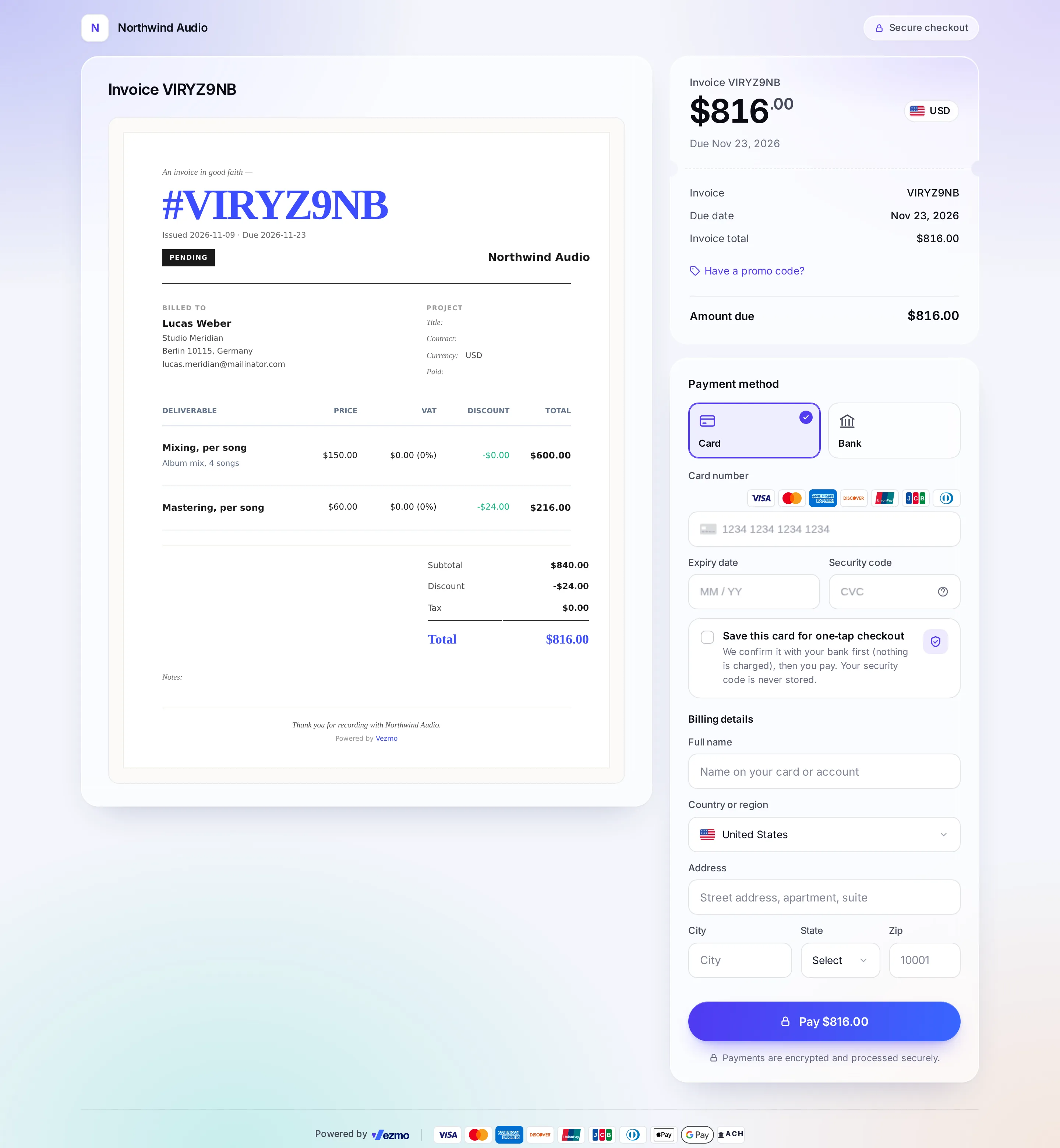
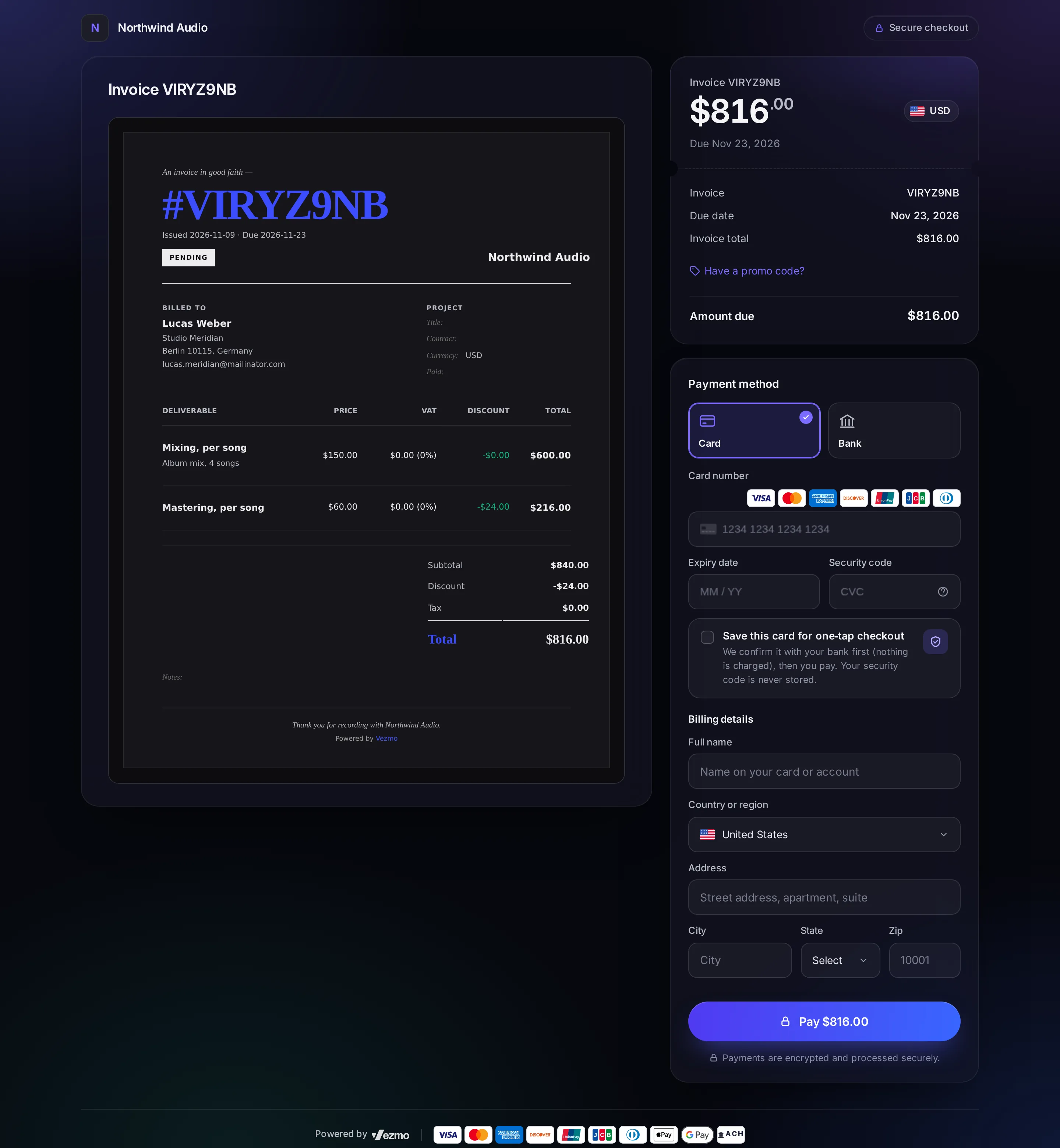
- Ways to pay: card, and a bank payment for invoices in US dollars, plus the other methods you have turned on that work for the currency.
- Their own currency: clients abroad can see and pay the amount in their own currency where available.
- Promo codes: under Have a promo code?, your client can enter a promo code whose Where it works includes invoices. The discount comes off before they pay.
- After paying, they see that the payment went through and get a receipt by email. Opening the link again shows that it's paid.
The link in each email works for 24 hours. After that, your client sees that the link is invalid or has expired and is asked to get a new one from you: send the invoice again for a fresh link.
What happens when
My client pays
The invoice changes to Paid (for a bank payment, once it clears), and the payment appears in VezmoPay › Transactions with the source Invoice. See See a payment's details.
The due date passes
The invoice shows Overdue in your list. Nothing is sent to your client on its own, and they can still pay it. Send it again to remind them.
An email can't be sent
Each invoice can be emailed once a minute, and your business can send a set number of invoice and proposal emails in 24 hours. When you send an invoice again too soon, or after reaching that number, the dashboard tells you how long to wait. When this happens while creating or editing an invoice, your changes are still saved but the email isn't sent: send the invoice again once you can. To send more each day, contact support.
My client needs a new link
The link in an email expires after 24 hours. Send the invoice again: the new email has a fresh link.
I need to give money back
Refund the payment from its details page. See Refund a payment.
Related
- Payment links
- Taxes and tax forms
- See a payment's details
- VezmoPay pricing
- Invoices in the API: create invoices from your own code with a test or live key.
Facts checked against the product on 9 Nov 2026.
Was this page helpful?
Payment links
Create a link for a set amount, send it to anyone by email, text or chat, and get paid by card, bank or wallet. No website needed.
See a payment's details
Find any payment, see what your customer paid, the fees, what reaches your balance and when, how they paid, and refund or answer a dispute.