API keys and access tokens
Test and live API keys, generating a key with the emailed code, the expiry date, one active key per teammate per mode, replacing and revoking keys, permissions, access and refresh tokens, sign-in limits and what each 401 or 403 means.
Overview
Your server uses two kinds of credentials:
- An API key and its secret. You generate them in the dashboard and keep them on your server.
- An access token. Your server trades the key and the secret for one, then sends it with every call. It lasts 30 minutes.
A key acts for the teammate who generated it, in one mode: test or live.
Test keys and live keys
| Test key | Live key | |
|---|---|---|
| Money | None moves. Payments use test cards. | Real payments, real money. |
| When you can make one | Any time, also while your business is being reviewed. | Once VezmoPay is approved for your business. |
| What it sees | Test data only. | Live data only. |
Both use the same base URL, https://api.vezmo.com/api/v1, and the same sign-in. Going live means swapping the key.
The key is vzm_ and 16 characters; the secret is 32 characters. What test mode covers is in
Test mode for developers.
Before approval, the Live keys card reads Live keys open when VezmoPay is active, and the API refuses to
generate a live key (403, code LIVE_KEYS_NEED_VEZMOPAY).
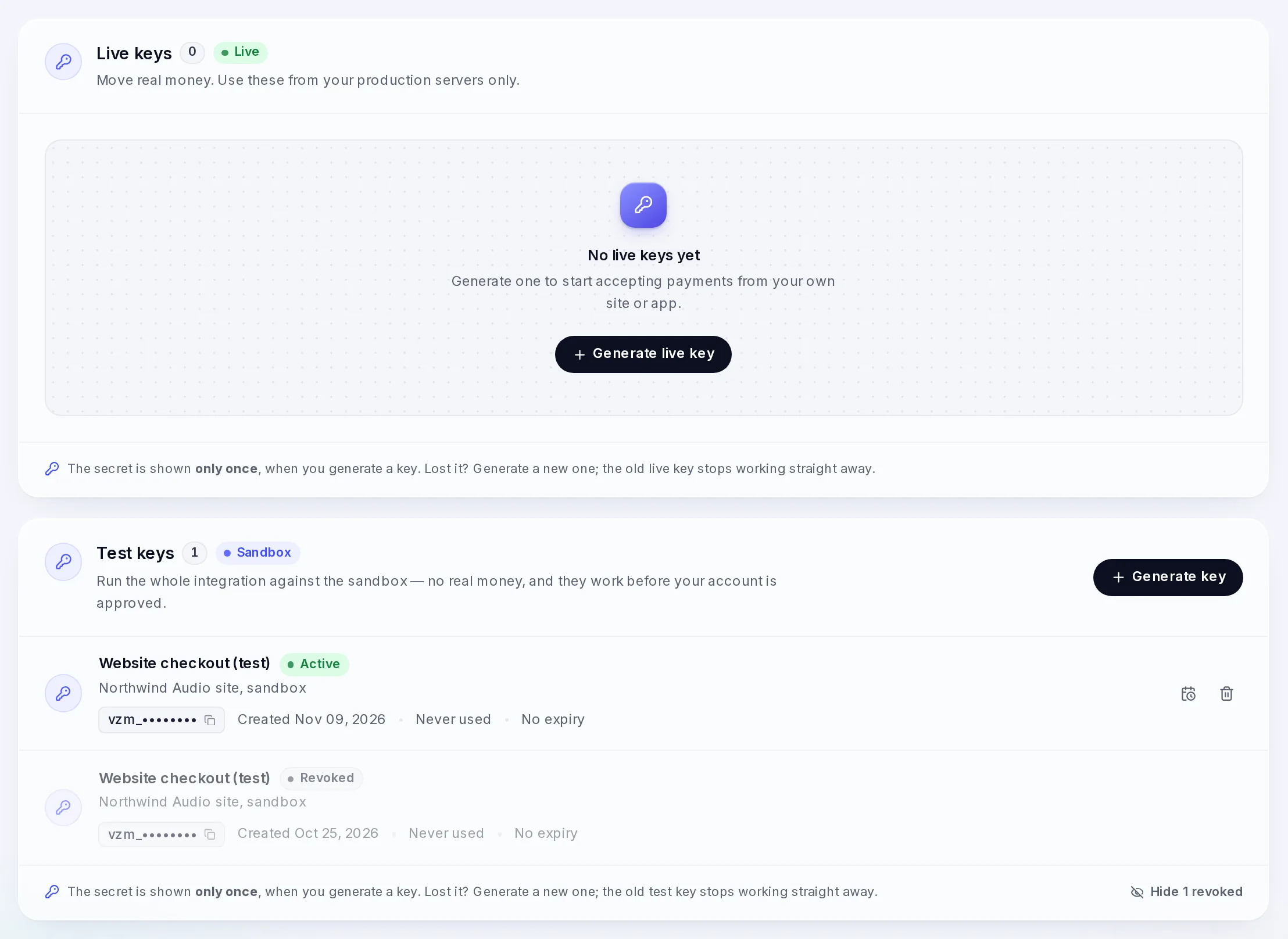
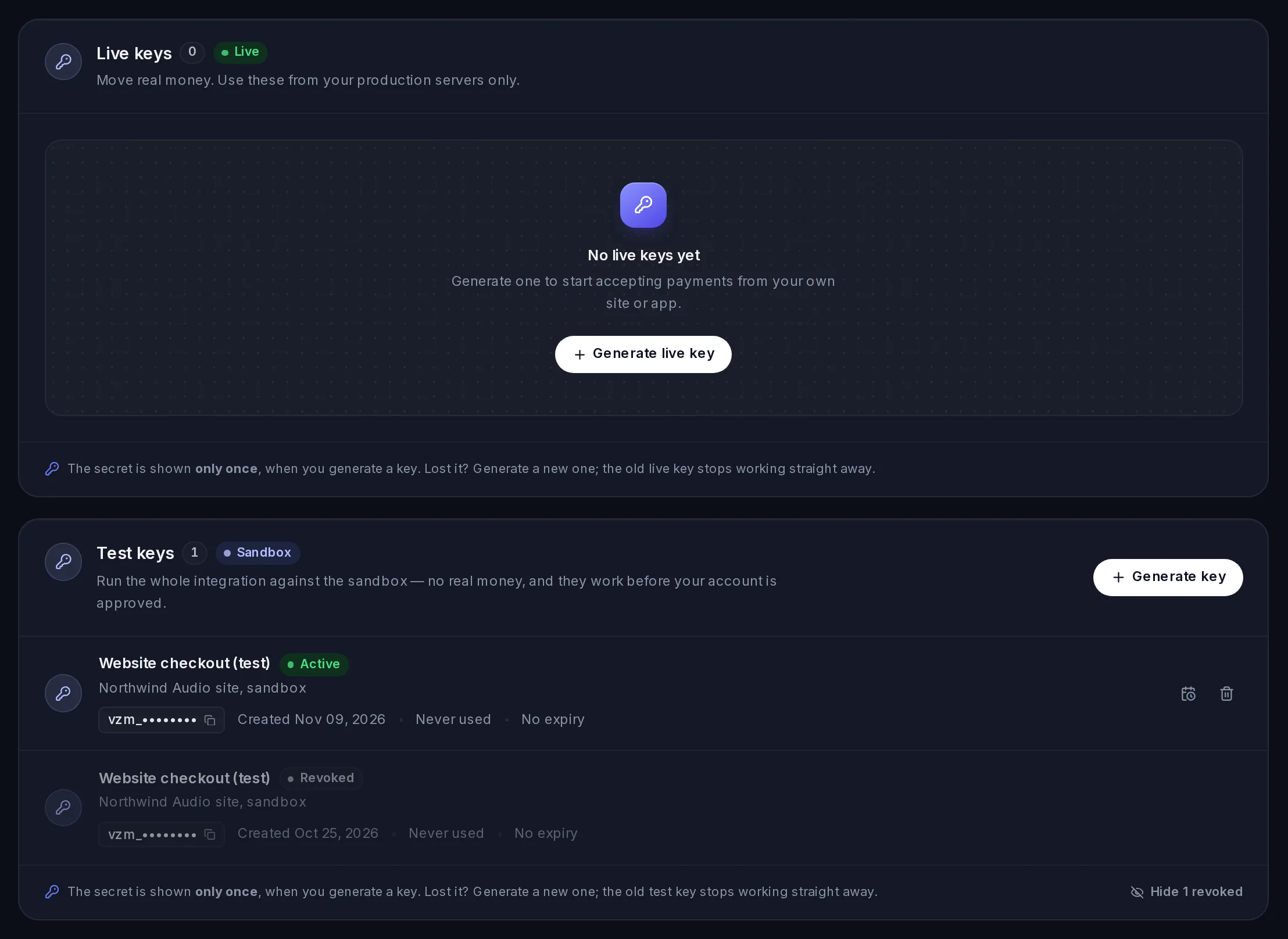
Generate a key
You need the API keys permissions to generate and revoke keys. If you can't see these buttons, ask whoever manages your team's roles to give you the API keys permissions. See Your team and roles.
Open API keys
Go to Payments › VezmoPay, then Developers. The API keys tab opens.
Start a key
In the Test keys or Live keys card, select Generate key (Generate test key or Generate live key when the card is empty).
Fill in the form
- Key name
- Required, up to 100 characters. Name it after where it runs, like "Website checkout".
- Description
- Optional, up to 500 characters.
- Expires
- Optional. The last day the key works: it stops at the end of that day, in your time zone, and from then on every call with the key fails. Leave it empty and the key never expires. Check what this field holds before you generate the key.
If you already have an active key of this mode, tick I understand my current test key will stop working (or live key). See One active key per mode.
Confirm with the emailed code
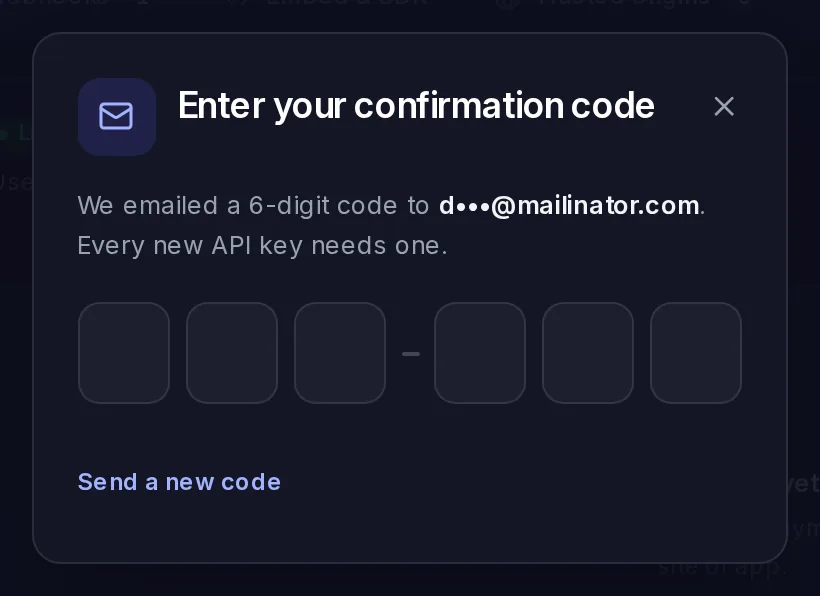
Select Generate key. We email you a 6-digit code: type it in. Every new API key needs one, so a stolen dashboard session alone can't make a key.
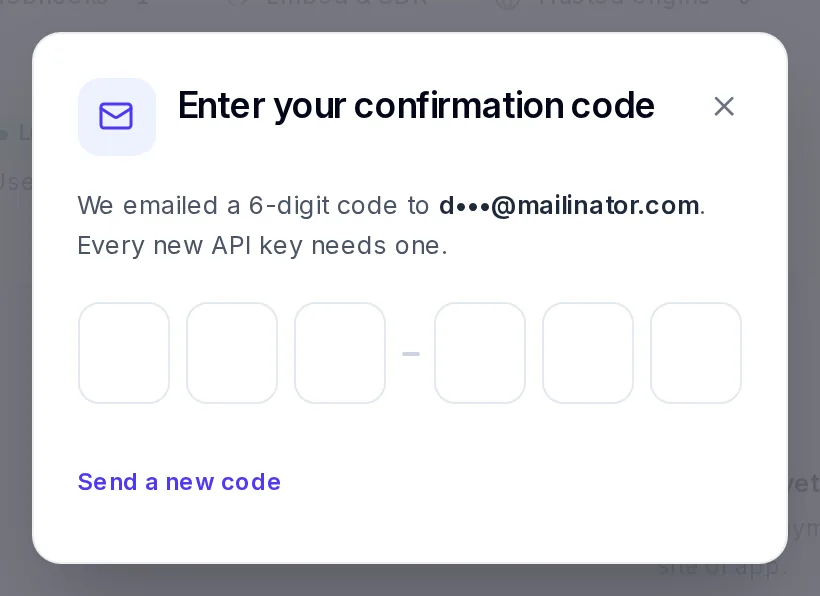
Every new key is confirmed with a code we email to you. Save the key and the secret
The API key and the API secret are shown once. Copy both to your server (for example as environment variables), then select I've saved them — done. Afterwards the list only shows the start of the key.
The expiry date
A key with a date shows Expires and the date on its row, and Expires soon as the day comes near. We email the person who made the key and the account holder 30 days and 7 days before, and tell the person who made it in the app.
To move or remove the date, select the calendar icon on the key's row (Change expiry), pick another day or clear the field, select Save and type the code we email you. The key and the secret stay the same, so nothing changes on your server.
One active key per mode
Each teammate has at most one active test key and one active live key.
- Generating a new key turns off your current key of the same mode at once. There is no overlap: calls with the
old key's tokens answer
401from that moment. Put the new secret on your servers right after you generate it. - A test key and a live key are separate. Replacing one never touches the other.
- Your teammates' keys are their own. Replacing yours doesn't touch theirs, and each teammate sees only their own keys.
- Connect with VezmoPay in the WooCommerce plugin generates a key for you the same way, so it also turns off your current key of that mode.
A replaced key shows as Revoked. Its card folds replaced keys under a button with their count, like Show 1 revoked.
Revoke a key
Select the bin icon on the key's row, then Yes, revoke. The key and its tokens stop working immediately, and the key leaves the list. Revoking needs no code, so you can act fast when a secret leaks.
Permissions
A new key gets every permission an API key can have, for checkout sessions, payments, refunds, payment links, invoices, clients, projects, products, categories, proposals, contracts, subscriptions, agreements and the account settings (payment methods and 3D Secure).
You can't add or remove permissions on an existing key. If a call answers 403 with
"message": "Insufficient API permissions", the key was made before that permission existed, and errors[0].required
names it. Generate a new key: it gets every current permission.
Access tokens
Trade the key and the secret for a token with POST /merchant/api-auth/login: send them in the x-api-key and
x-api-secret headers, with no body. The request and the response, with examples:
Create an access token.
The answer holds two tokens:
- data.accessToken.token
- The access token. Send it as
Authorization: Bearer <token>on every other call. It lasts 30 minutes. - data.accessToken.refreshToken
- Lasts 7 days from sign-in. It gets you a new access token without sending the secret again. Using it doesn't replace it, so sign in again before the 7 days are up.
Sign-in allows 5 requests a minute from one IP address; more answer 429. Keep the token and reuse it until it
expires; never sign in once per call. A token from a dashboard sign-in doesn't work here.
To get a new access token with the refresh token, send it to POST /merchant/api-auth/refresh-token. The answer's
data.accessToken is the new token itself, a plain string. Examples:
Refresh an access token.
A simpler pattern: keep the token on your server, sign in again every 25 minutes, and once more when a call answers
401 (a replaced or revoked key). Then send the call again once; if it still answers 401, the key has stopped
working (see below).
When a key stops working
| What happened | What the API answers |
|---|---|
| The access token is older than 30 minutes | 401 "Invalid or expired token". Sign in again, or use the refresh token. |
| You generated a new key of the same mode, or revoked the key | 401 "API key inactive". Sign-in with the old key: 401 "Invalid API credentials". |
| The key passed its expiry date | 401 "API key expired". Sign-in with it: 401 "Invalid API credentials". |
| The secret is wrong | Sign-in: 401 "API secret does not match". |
| The teammate who made the key was removed from the team | Their keys are switched off: 401 "API key inactive". Sign-in with the key: 401 "Invalid API credentials". |
| That teammate's account was deactivated or suspended | 401 "This account is not active." |
| Vezmo paused API access for your business | 403 "API access for this business is paused. Contact Vezmo support." |
| A live key while VezmoPay isn't approved for your business | Creating a session: 403 "This account isn't approved to accept payments yet." |
A key belongs to the teammate who made it. Before you remove a teammate, move your integrations to a key of someone who stays.
Keep your keys safe
- Keep the key and the secret on your server, in environment variables or a secrets manager. Never in a web page, a mobile app or version control.
- Name each key after where it runs, so you know what breaks when you replace it.
- If a secret leaks, revoke the key or generate a new one at once.
- Each webhook endpoint has its own signing secret: treat it the same way.
Questions
I lost the secret
Generate a new key of the same mode. It replaces the old one at once, so update your server straight away.
Can I keep the old key working while I switch?
Not with your own keys: a new key turns off your current key of that mode at once. Generate the new key when you are ready to deploy its secret.
A teammate can't see my key
Each teammate sees only their own keys. Webhook endpoints are different: they belong to the business, and everyone with webhook access sees them.
Can I change what a key may do?
No. Every new key gets every permission. If one is missing on an old key, generate a new key.
Related
Facts checked against the product on 9 Nov 2026.
Was this page helpful?
Take your first test payment
Make a test API key, trade it for an access token, create a hosted checkout session, pay it with a test card, receive the payment.success webhook and check the payment over the API, with links to each call's examples in the API reference.
Test mode for developers
How a test key runs your integration in the sandbox on the same base URL, how test and live data stay apart, the livemode flag, emails in test mode, what isn't simulated, and test values for cards, 3D Secure, declines, disputes and bank payments.