Go-live checklist
What to check before your integration takes real payments, covering approval and a live key, the key's expiry date, https redirects, trusted origins, a subscribed and verified webhook endpoint, branching on livemode, mobile app registration and a small live test.
Overview
Going live means swapping your test key for a live key: the base URL, the calls and the webhook endpoint stay the same. Before you swap, go through this list. Each item links to the page that explains it.
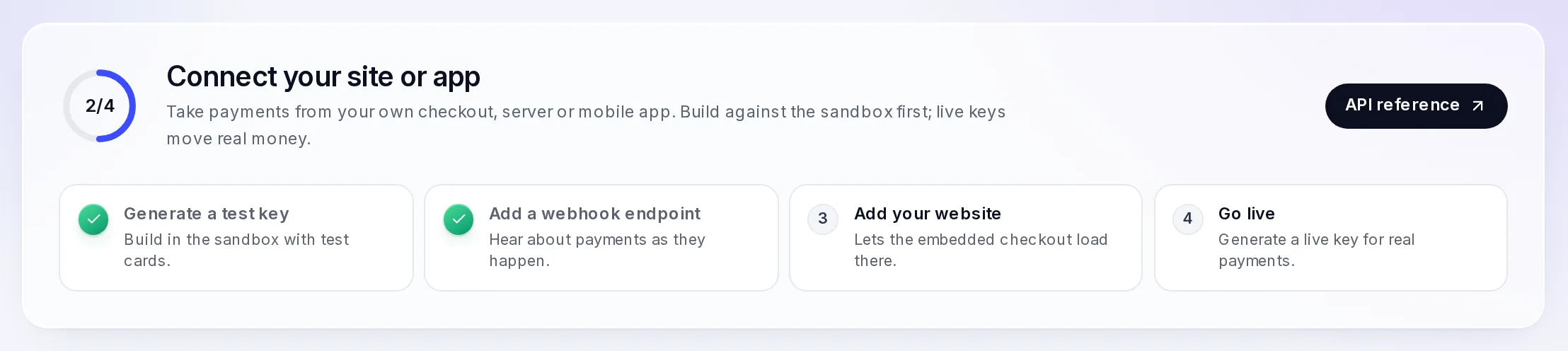
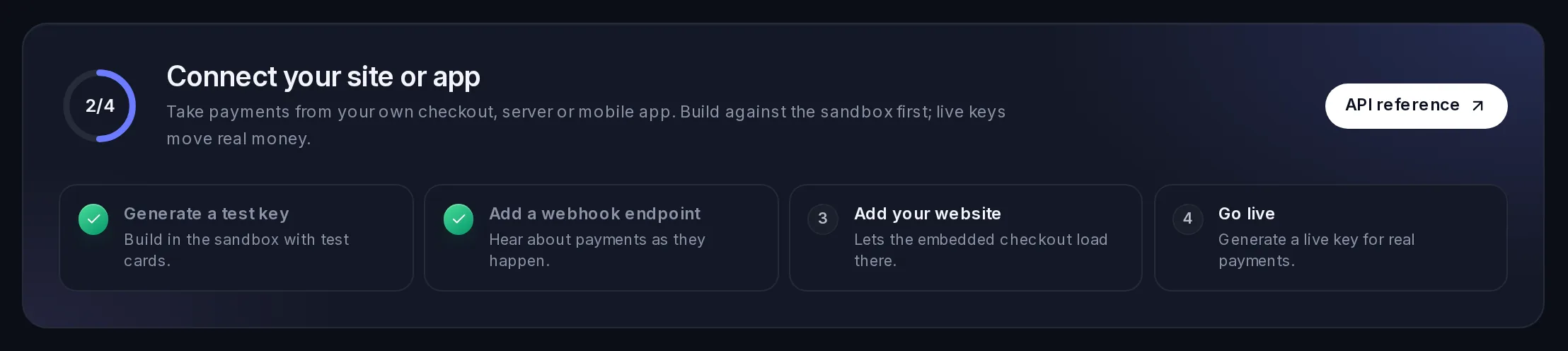
Developers keeps a short version at the top: Connect your site or app, with four steps that tick themselves off.
The checklist
1. VezmoPay is approved, and you have a live key
Live keys open once VezmoPay is approved for your business. Then, in Developers › API keys, select Generate live key in the Live keys card and confirm with the emailed code. Store the key and the secret on your production server only. See API keys and access tokens.
Generate it as a teammate who will stay: a key stops working when the teammate who made it leaves the team.
2. You know the key's expiry date
The key's row shows its expiry date, or No expiry. A key stops working at the end of that day, and every call with it
then fails with 401. We email you 30 and 7 days before; to move or remove the date, use Change expiry on the key's
row. See The expiry date.
3. Your server uses the live key
Swap the key and the secret in your production settings. Sign in once and reuse the access token for 30 minutes; never
sign in once per call. If you use your order numbers as Idempotency-Keys, make sure your test runs used other ones:
see Hosted checkout.
4. Your redirect addresses are your real pages
successUrl and cancelUrl must be https:// addresses on your live site. Your success page shows the order's status,
but doesn't ship it: the webhook does.
5. Your website is a trusted origin (embedded checkout and card fields)
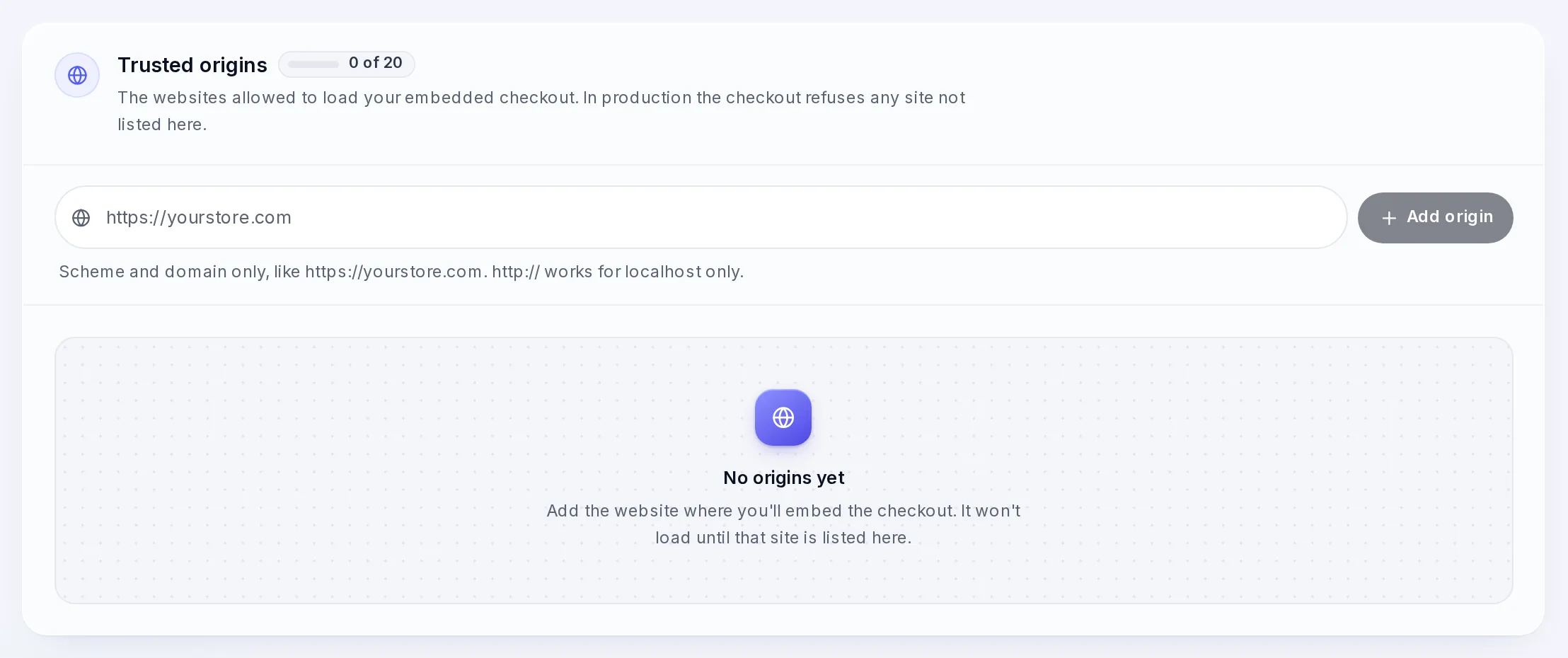
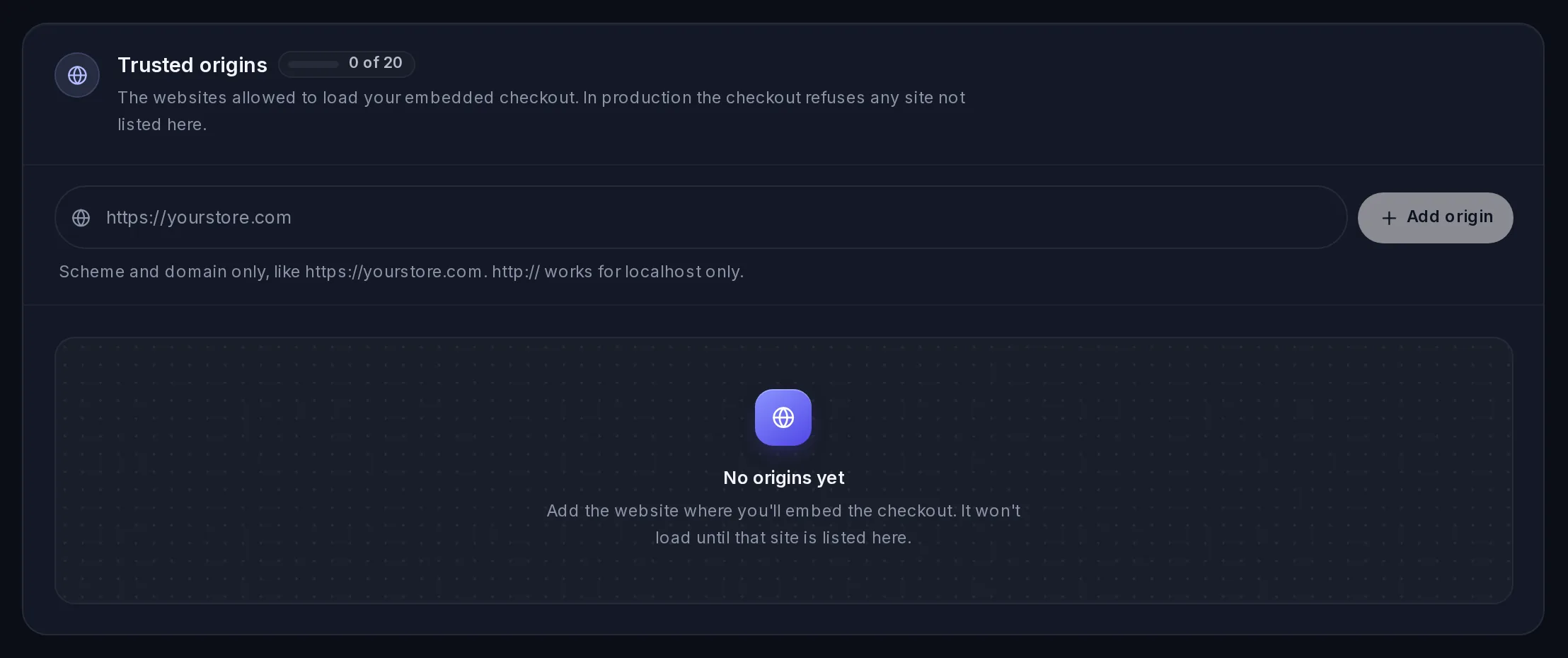
The embedded checkout and the card fields work only on the sites listed in Developers › Trusted origins. Add each
live origin, like https://yourstore.com: the scheme and the domain only, no path. The hosted checkout and payment links
don't need this. See Embedded checkout and card fields.
6. Your webhook endpoint is subscribed and checks signatures
In Developers › Webhooks, your production endpoint:
- is Enabled and ticks every event your code handles: at least
payment.successandpayment.failed, pluspayment.processingif you take bank payments, anddispute.createdandpayment.refundedif you act on those; - checks
X-Webhook-Signature-V2and refuses an old timestamp; - answers
2xxwithin 5 seconds and skips an eventidit has already handled.
See Webhooks.
7. Your code checks livemode
Test and live events reach the same endpoint. Ship an order only when data.livemode is true, and the amount and
currency match the order.
8. Your app is registered (mobile apps only)
If customers pay in your iPhone or Android app, add each app and its return link under Developers › Mobile apps. A checkout sends the customer back only to a return link listed there. To offer Apple Pay inside an iPhone app, add the Apple Pay certificate in the same tab. See Mobile apps in the API reference.
9. A small live payment works
Make one real payment with your own card, through your live integration:
- It shows in VezmoPay › Transactions with Test mode off.
- Your endpoint received
payment.successwithlivemode: true, and your order was marked paid. GET /merchant/payment/:idwith the live key reads"state": "succeeded".
You can then refund it from its details page: see Refund a payment. What a payment and a refund cost is on VezmoPay pricing.
After you go live
- Watch Developers › Webhooks › Deliveries for failed deliveries in your first days.
- Keep your test key: build and test changes in the sandbox before they reach live.
- If an API secret leaks, revoke the key or generate a new one at once. If a webhook signing secret leaks, replace the endpoint (Change the signing secret).
Related
Facts checked against the product on 9 Nov 2026.
Was this page helpful?
Webhooks
Get a signed event on your server when something happens in your business, covering adding an endpoint, all 43 events by product, the envelope and payloads, checking the signature, replies and retries, the automatic switch-off, the delivery log, catching up on missed events and changing the signing secret.
Embedded checkout and card fields
Take a payment inside your own page, with Vezmo's embedded checkout (vezmo.js) or with card fields you place in your own form (vezmo-elements.js), covering trusted origins, the client token, browser events, wallets, pay-later methods that finish outside the frame, appearance and knowing the result.