Open your account and sign in
Create your Vezmo account, confirm your email, protect it with two-step sign-in, sign in with a password or a passkey, reset a forgotten password and join your team from an invitation.
Overview
You use Vezmo in the dashboard at user.vezmo.com. Each person has their own sign-in: a work email and a password, and a passkey if you add one. A business can have several people on it, each with their own sign-in and role.
Before you type your password, check that the address bar shows user.vezmo.com. Every sign-in screen reminds you of this at the bottom.
Create your account
Fill in your details
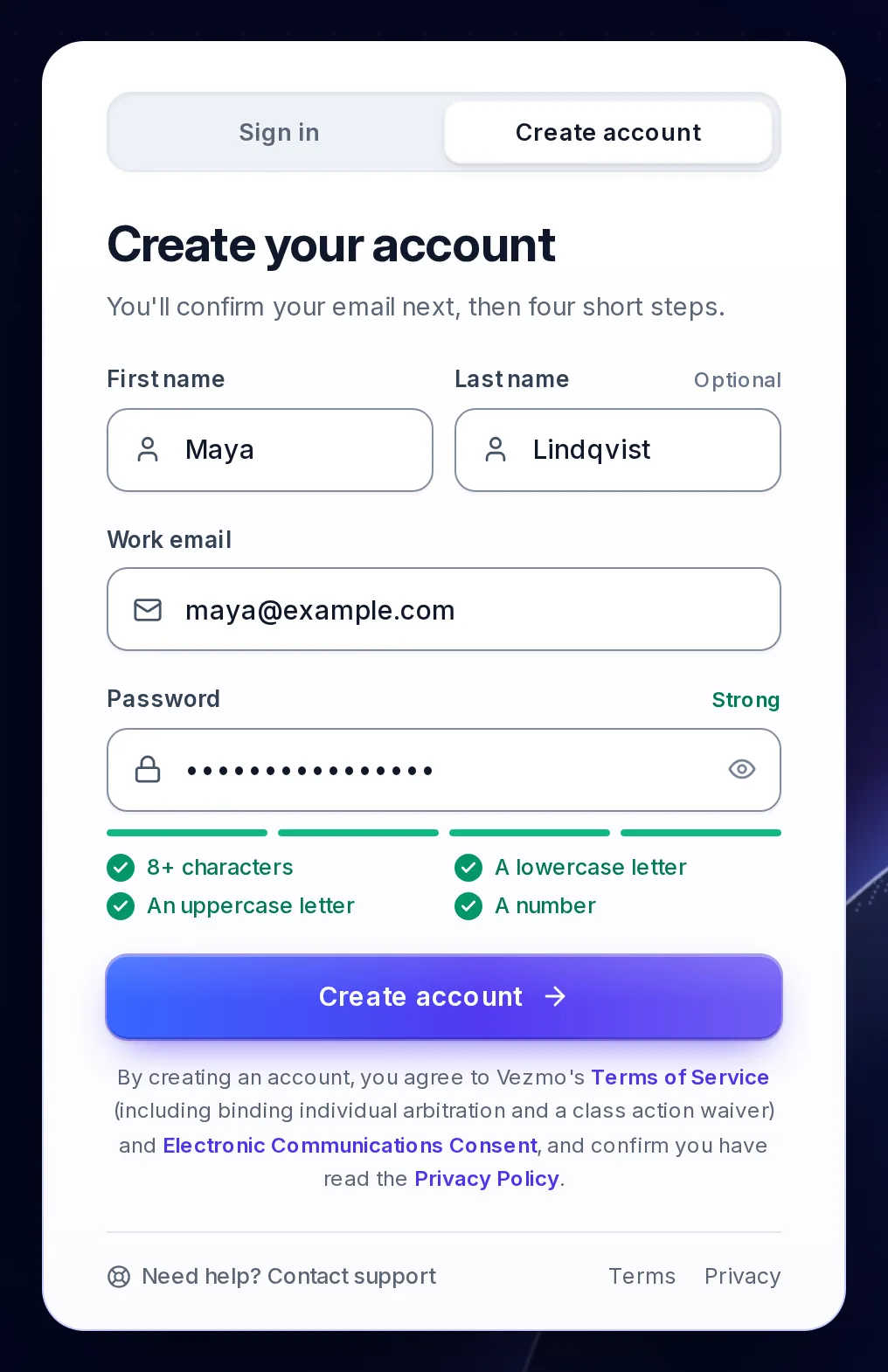
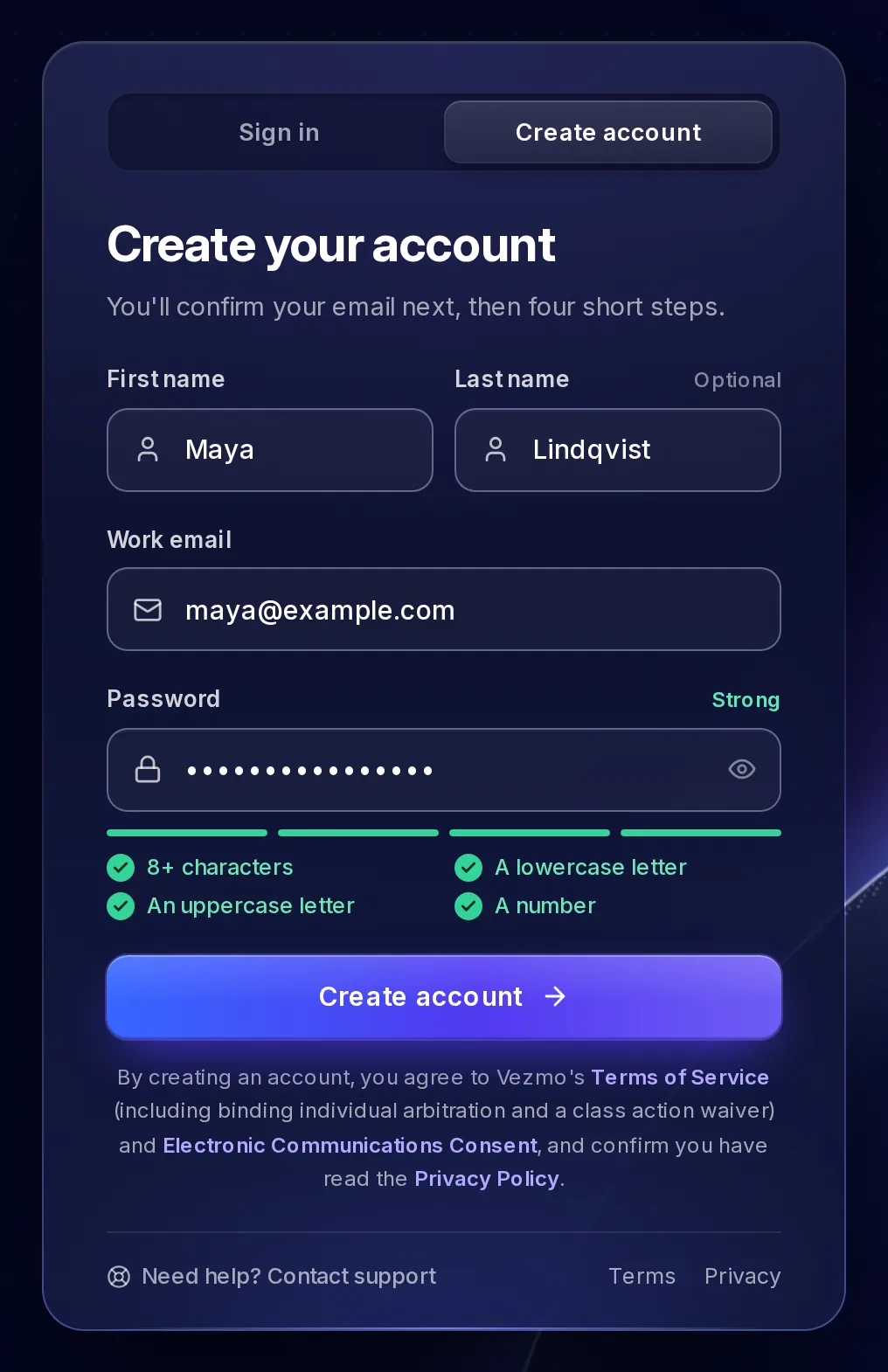
Go to user.vezmo.com/sign-up, or select Create account on the sign-in page. Enter your first name, your last name (optional), your work email and a password.
The password needs at least 8 characters, a lowercase letter, an uppercase letter and a number. Each rule ticks as you type, and a label reads Weak, Almost there or Strong. Select Create account.
If the email already has a Vezmo account, the form says so, with Sign in instead.
Confirm your email
We email you a six-digit code. Type it in: the sixth digit sends it, or select Continue. No code? Check your spam folder, then select Resend. You can ask for a new code every 30 seconds; the page counts down until you can.
Protect your account
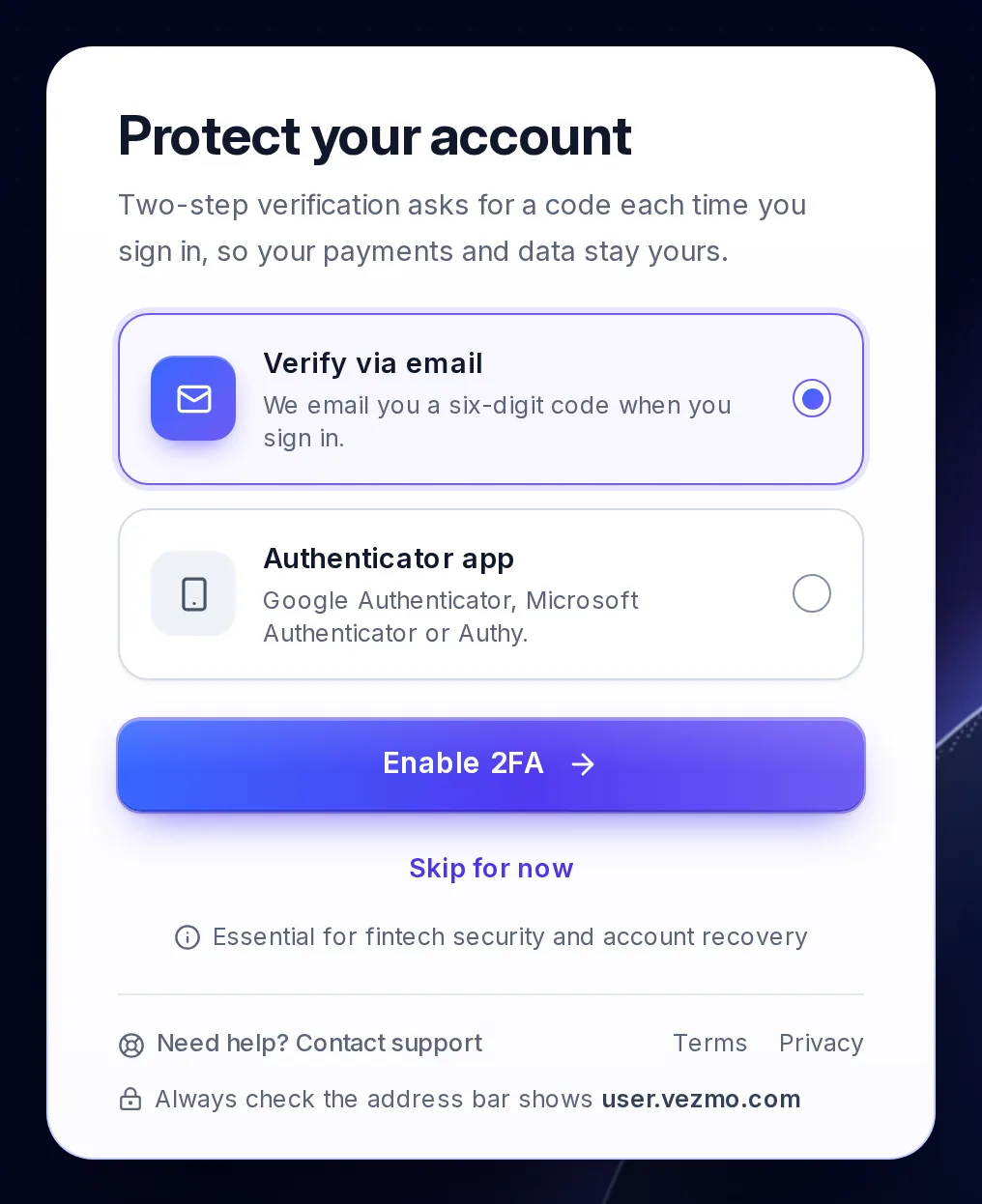
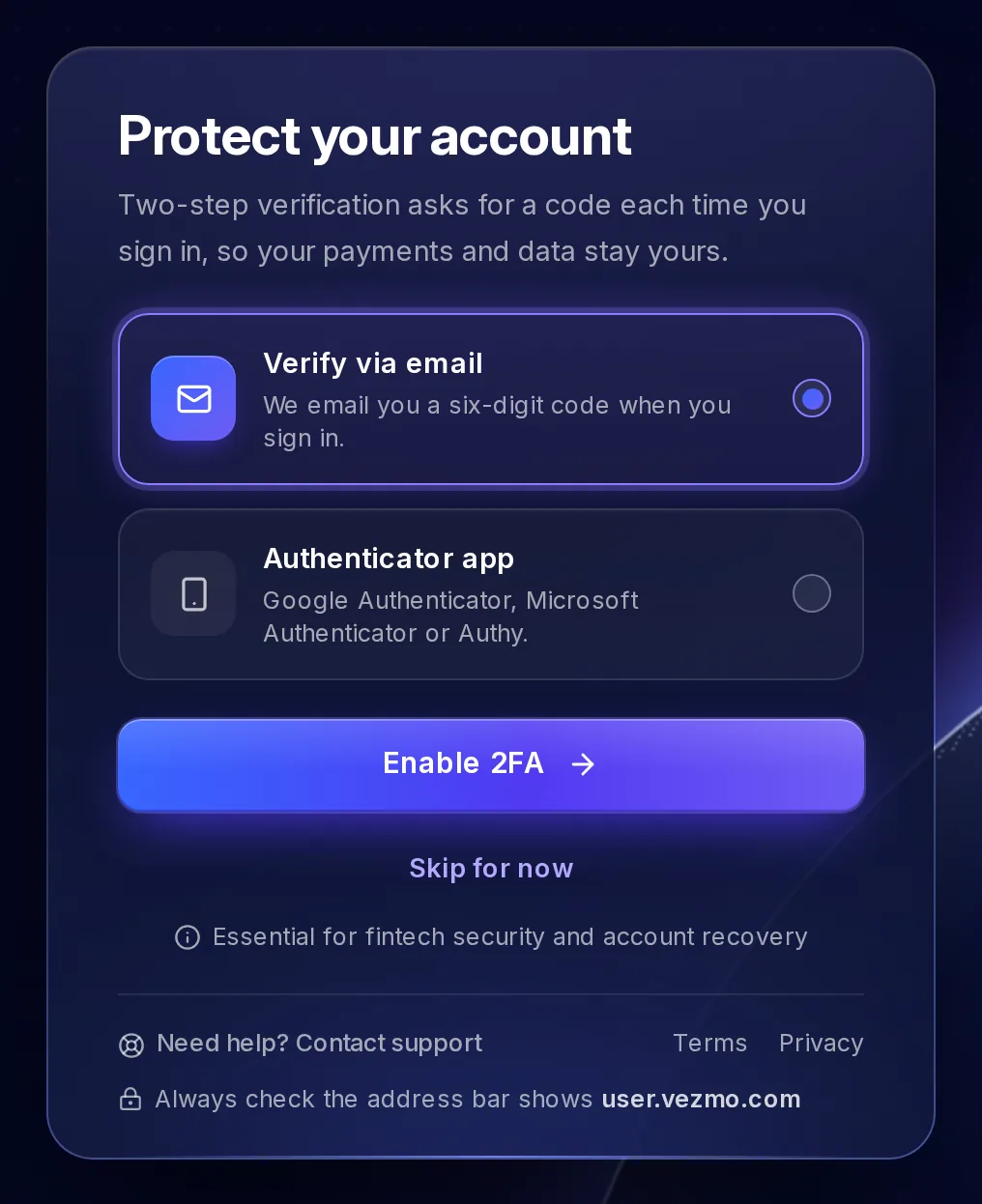
The next screen, Protect your account, offers two-step sign-in: a code each time you sign in, on top of your password.
- Verify via email: we email you a six-digit code each time you sign in.
- Authenticator app: an app such as Google Authenticator, Microsoft Authenticator or Authy makes the code. Scan the QR code with the app (or, under Can't scan it?, copy the key into it), select Continue, then enter the 6-digit code the app shows and select Verify and enable.
Choose one and select Enable 2FA, or select Skip for now. You can turn it on, off or change it later in Your profile: select ⋯ beside your name at the bottom of the menu.
Set up your business
Four short steps follow: who the account is for, your business, your brand and your plan. Get started explains each one. After the last step, your dashboard opens.
Sign in
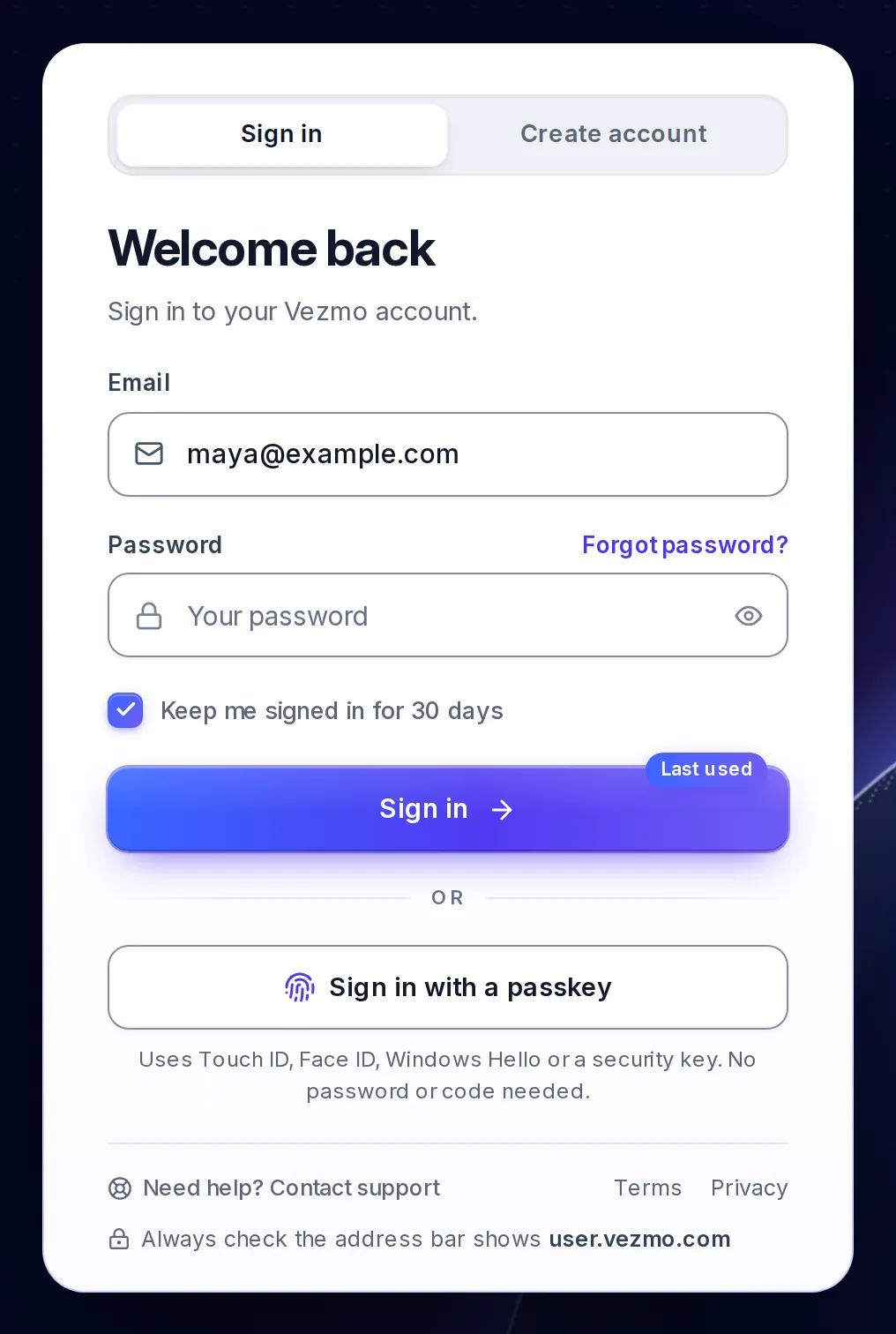
Go to user.vezmo.com, enter your email and password, and select Sign in.
- Keep me signed in for 30 days is ticked to start with. Untick it on a shared or public computer.
- Caps Lock is on shows under the password while it is.
- The eye in the password field shows what you typed.
- If two-step sign-in is on, the next screen asks for your code: Enter your sign-in code for the code we email you, or Enter your authenticator code for the code in your app, which signs you in as soon as the sixth digit is in. Your Keep me signed in choice still counts.
- If you never confirmed your email, signing in takes you to do that first: select Email me a code.
When you sign in from a device we haven't seen before, we email you so you know.
Sign in with a passkey
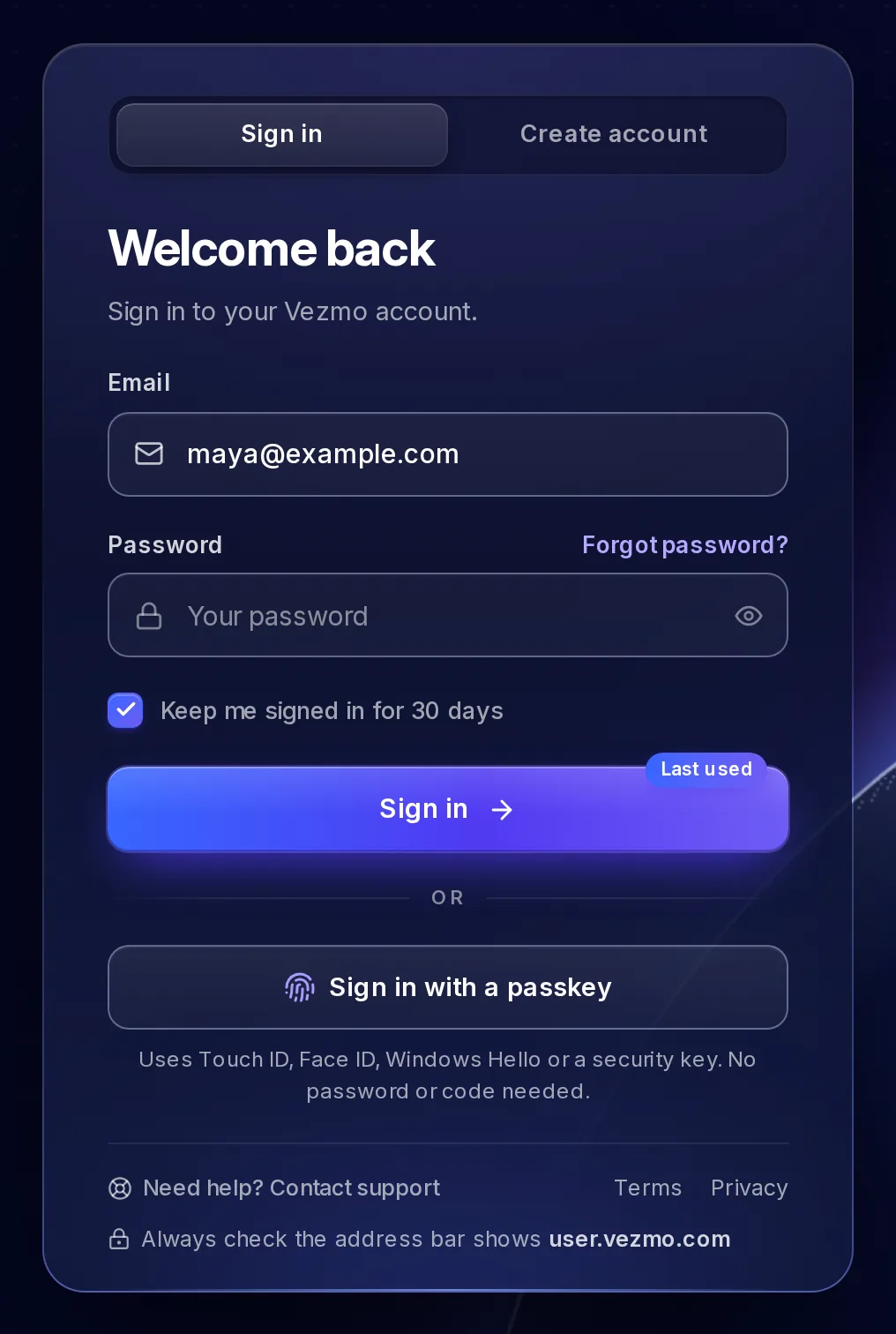
A passkey signs you in with your device's own lock: Touch ID, Face ID, Windows Hello or a security key. No password or code is needed. Add one first in Your profile › Passkeys, then select Sign in with a passkey on the sign-in page, or pick your passkey when your browser offers it in the email field.
The sign-in page remembers how you last signed in on this device and tags it Last used. If that was a passkey, the passkey button comes first.
Forgot your password
Ask for a code
On the sign-in page, select Forgot password?. Enter the email on your account and select Send reset code.
Choose a new password
Enter the six-digit code we email you and a new password. A new password needs at least 8 characters, a lowercase letter, an uppercase letter, a number and a symbol, and no spaces. Select Reset password.
Sign in again
You're back on the sign-in page. Sign in with your new password. If two-step sign-in is on, you enter your code as usual.
Join your team from an invitation
When someone on a business's team invites you, we email you a link to join. It works for 7 days.
Open the link
The page reads Join and the business's name, with who invited you and the email they invited.
Set your password
Add your first and last name and a password of at least 8 characters, then select Accept & continue.
Start working
The business's dashboard opens. You see the parts of Vezmo your role lets you see. You don't verify the business or choose a plan: the business has done that.
Two-step sign-in by email is on for you from the start: the next time you sign in, we email you a code. You can change it in Your profile.
If the page says Invitation unavailable, the link has expired or is no longer valid. Ask the person who invited you to send a new invitation. If the business has no room for another member on its plan, the page says so: ask the person who invited you to make room, then try again.
Questions
Can I sign in with Google or another account?
No. You sign in with your email and password, or with a passkey.
I didn't get the code
Check your spam folder and that the email shown on the screen is yours. Then select Resend; you can ask for a new code every 30 seconds.
I lost the phone with my authenticator app
Contact us from vezmo.com/contact-us, the Need help? Contact support link on the sign-in page.
I was invited, but I already use Vezmo with that email
An invitation can only go to an email that has no Vezmo account yet. Ask for the invitation to go to another email address.
How do I sign out?
Select ⋯ beside your name at the bottom of the menu, then Log out.
Related
- Get started: the four set-up steps and your first payment.
- Verify your business
- Notifications: security emails and what else reaches you.
Facts checked against the product on 9 Nov 2026.
Was this page helpful?
Get started with Vezmo
Open your account in four short steps, choose your plan, find your way around the dashboard and get ready to take your first payment.
Verify your business
Verify your business once for every Vezmo service, with the steps for a business and for Just me, your ID and live selfie on your phone, owners and the person in control, the documents we ask for, review and statuses, changes our team asks for, and turning on payments.