Your business settings
A map of Settings, then your company details (name, tagline, industry, legal structure, default currency and address) and how changes reach your documents, and your branding (logo, brand colour, the preview, signing pages and the Powered by Vezmo mark).
Overview
Settings is where you set up the business itself: its details, its look, your team and your plan. Open it from Settings at the bottom of the menu.
What's in Settings
| Section | Page | What it's for |
|---|---|---|
| Your business | Company | The business's name, details, default currency and address. Below on this page. |
| Branding | Your logo and brand colour on what your clients see. Below on this page. | |
| Team | Who works in the business and what each person can do. See Your team and roles. | |
| Plan & billing | Your plan, what you're using and your plan invoices. See Plans and billing. | |
| You | Notifications | Which emails and alerts reach you. See Notifications. |
| Connect | Developers | API keys, webhooks and the rest of an integration. See Developers. |
| Apps | Connect your accounting software. |
You see the pages your permissions open. Your own name, password, two-step sign-in and passkeys are in Your profile, not in Settings: see Your profile and sign-in security.
Company
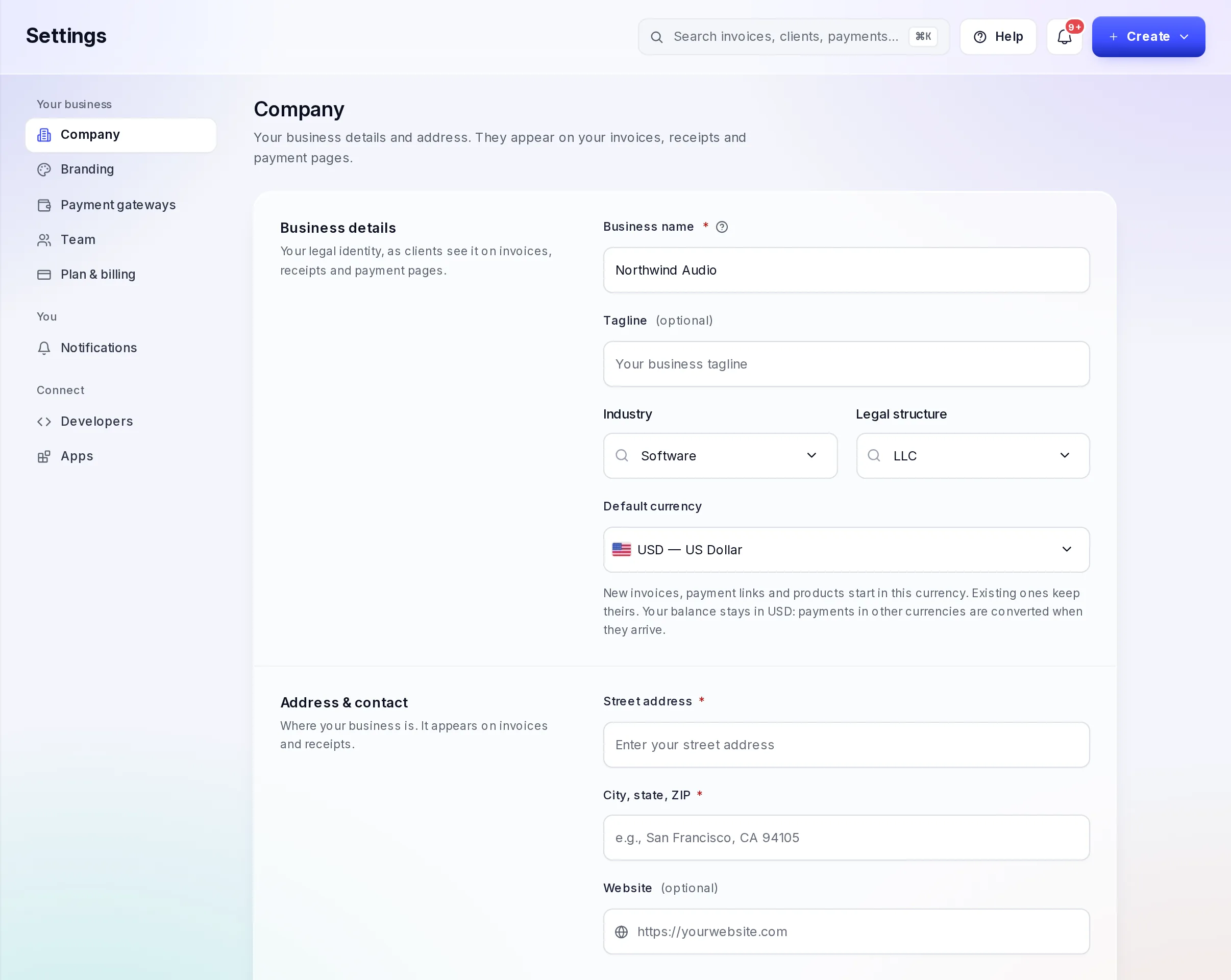
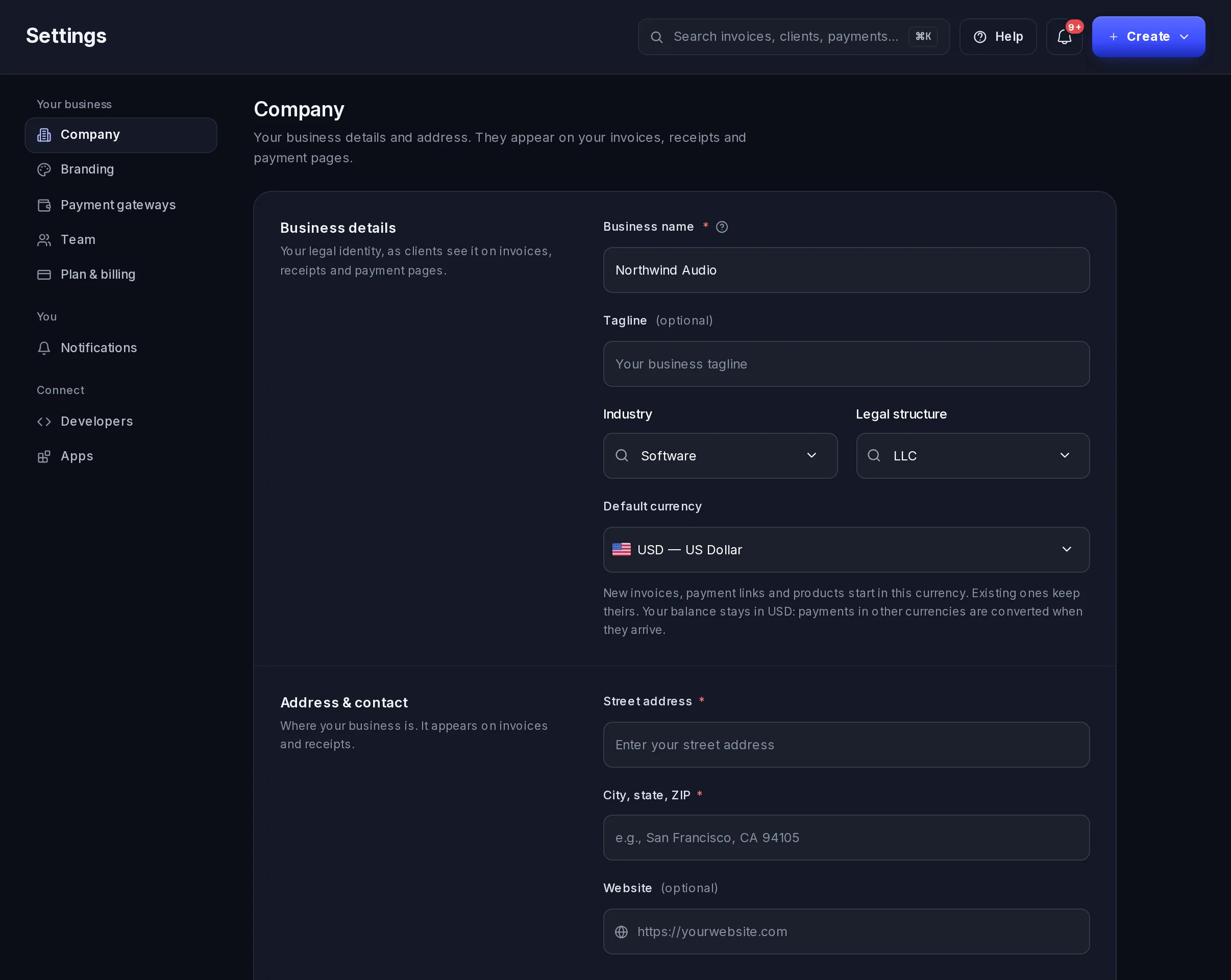
Business details
- Business name: the name your clients see on invoices, receipts and payment pages. Use the name of the legal entity that gets paid, not a nickname.
- Tagline (optional): a short line about what you do, up to 120 characters.
- Industry and Legal structure: pick from the lists.
- Default currency: new invoices, payment links and products start in this currency. The ones you already made keep theirs. Your VezmoPay balance stays in US dollars: payments in other currencies are converted when they arrive.
Address & contact
- Street address and City, state, ZIP (both required): where the business is. They appear on your invoices and receipts.
- Website (optional).
Select Save changes. As the page says, changes show on the documents you create from then on.
Once your business is verified, its Business name and Legal structure can't be changed here: saving a new one is refused, and the message asks you to contact support.
Branding
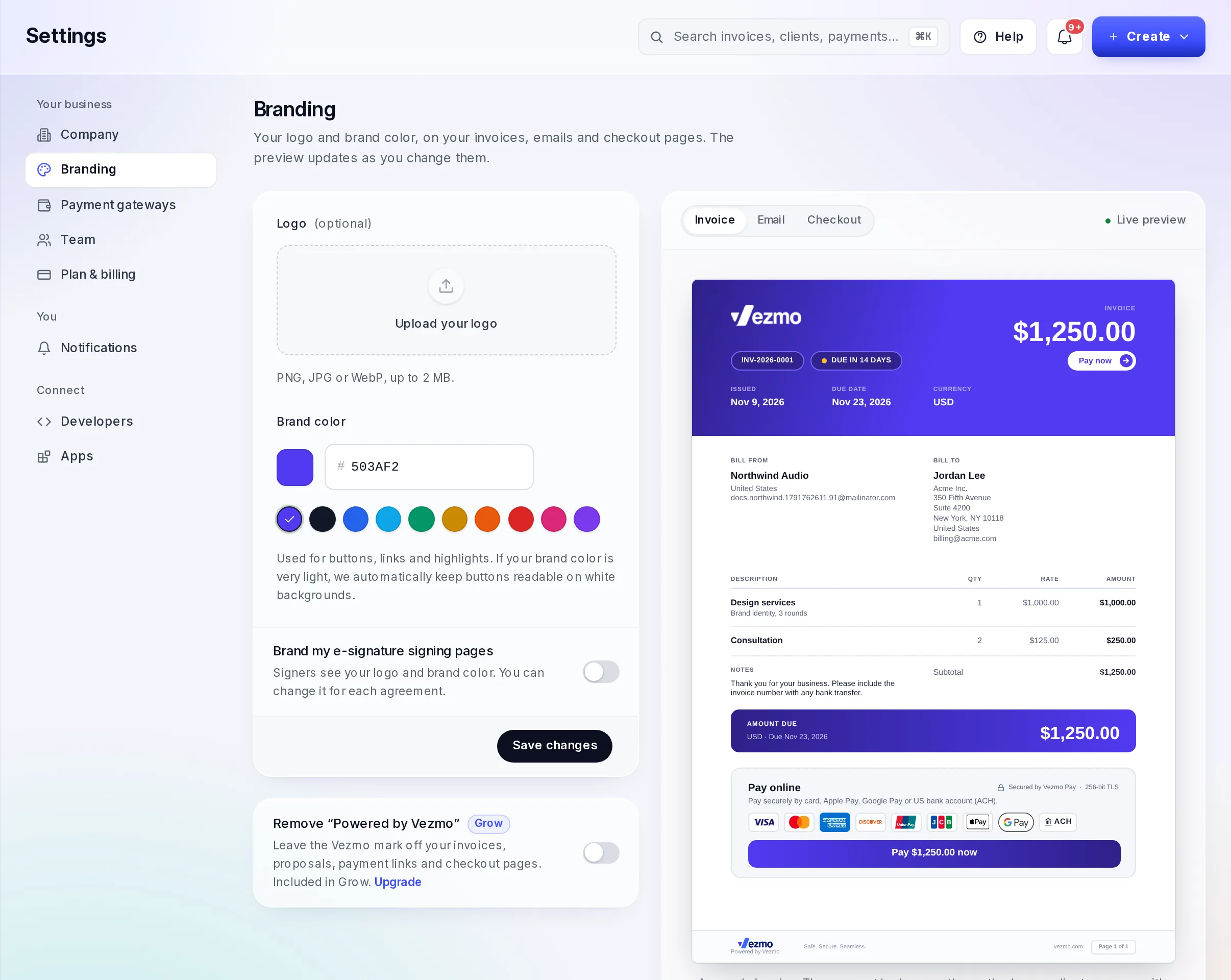
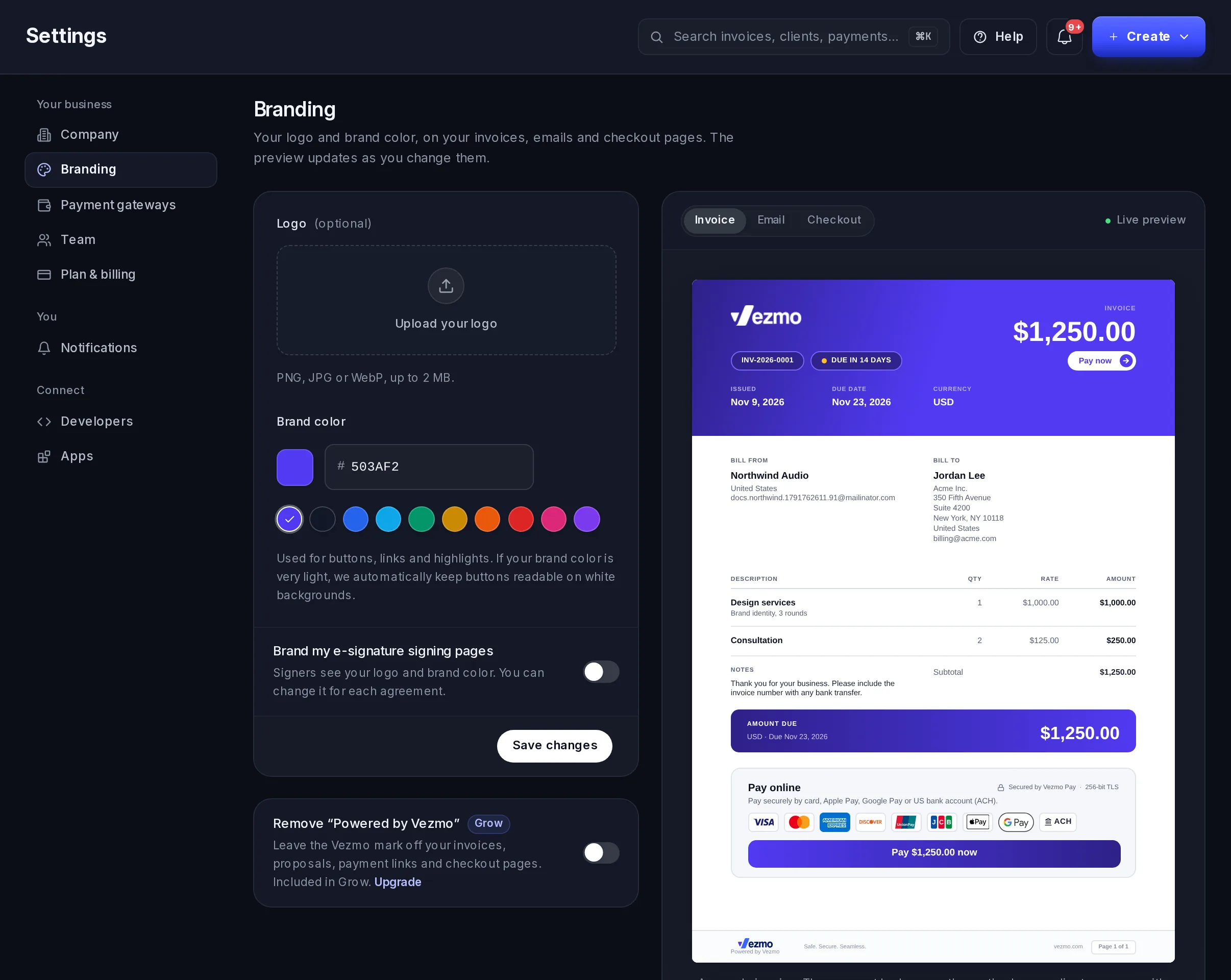
Your logo and brand colour appear on your invoices, emails and checkout pages.
Add your logo
Under Logo, select Upload your logo (or Replace logo) and choose a PNG, JPG or WebP image of up to 2 MB.
Pick your colour
Under Brand color, use the colour picker, choose one of the swatches, or type a hex code. It's used for buttons, links and highlights. If your colour is very light, buttons stay readable on white backgrounds.
Check the preview
Preview shows your logo and colour on an Invoice, an Email and a Checkout page (one tab each), and changes as you do. The payment badges on the sample invoice are the ways your clients can pay you.
Save
Select Save changes.
Signing pages
Brand my e-signature signing pages puts your logo and colour on the pages where people sign your agreements. This is the starting choice for each new agreement; you can change it on the agreement itself. See Agreements.
Powered by Vezmo
Your invoices, proposals, payment links and checkout pages show a small "Powered by Vezmo" mark. Turn on Remove "Powered by Vezmo" to leave it off. The change applies straight away; there's nothing to save.
If your plan doesn't include it, the card names the plan that does, with Upgrade. See Plans and billing and vezmo.com/pricing.
Questions
Who can change these settings?
Company and Branding show for anyone whose role includes View business details. Saving changes needs Edit business details. See Your team and roles.
Can I set a different currency for one invoice?
Yes. The default currency is only where a new invoice, link or product starts. See Send an invoice.
Related
- Get started: the four set-up steps, where you first entered these details.
- Your profile and sign-in security
- Your team and roles
Facts checked against the product on 9 Nov 2026.
Was this page helpful?
Your profile and sign-in security
Change your name, photo, phone and country, change your password, turn two-step sign-in on or off and choose how you get the code, add, rename and remove passkeys, and the security emails we send you.
Notifications
What Vezmo tells you and where, the bell and its count, what needs you, the Notifications page with each notification's details, the alerts that pop up, choosing what reaches you by email, and the daily summary.