Find your way around the dashboard
The set-up checklist a new business sees, the Home panels and the reporting period, the menu and its sections, search, the Create menu, your profile menu, and the dashboard on a phone.
Overview
The dashboard at user.vezmo.com is where you run your business on Vezmo. The menu on the left takes you everywhere; the bar at the top has search, Help, the bell and Create. The first page, Dashboard, changes with where your business is: a set-up checklist while you get started, then your business at a glance once payments are on.
The set-up checklist
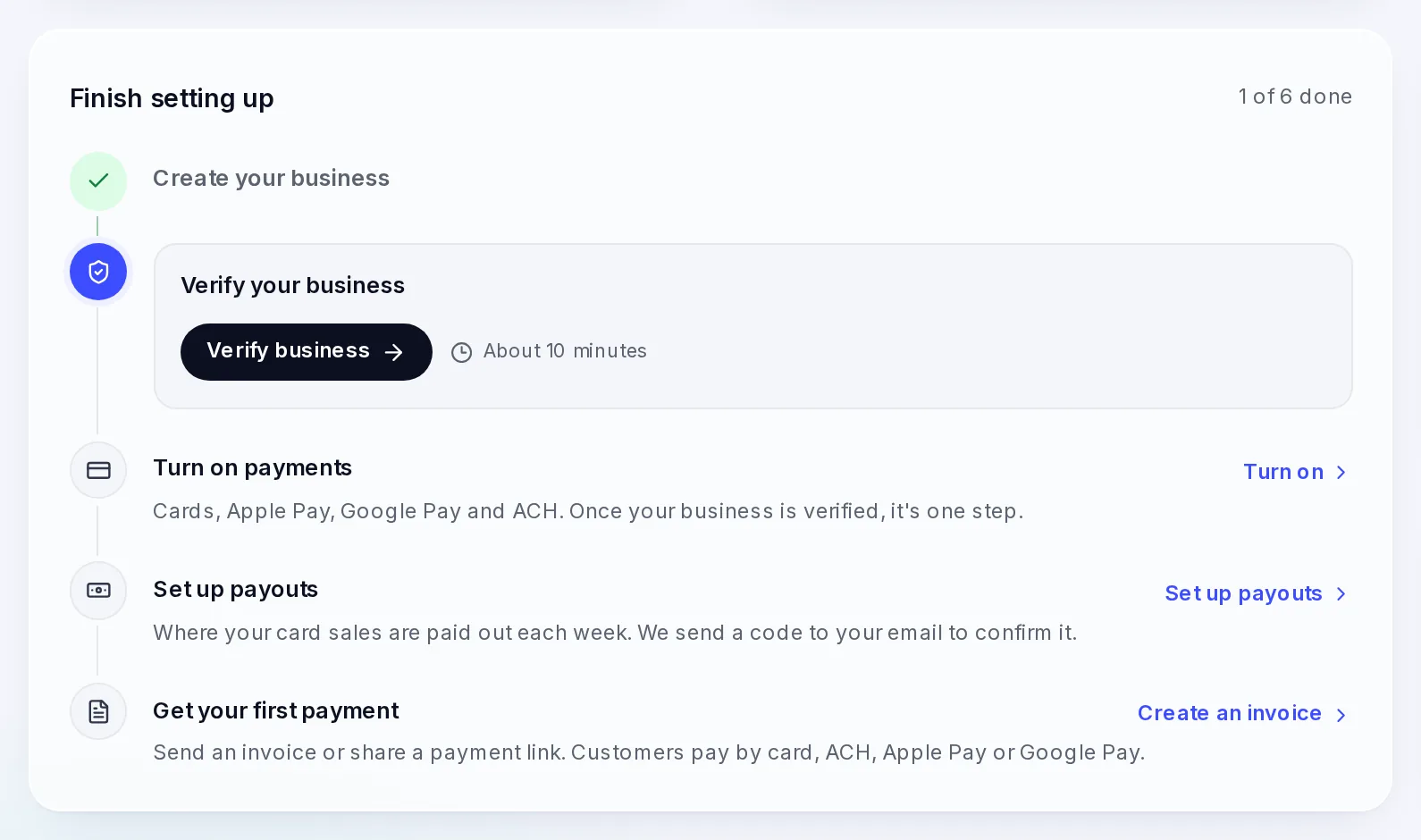
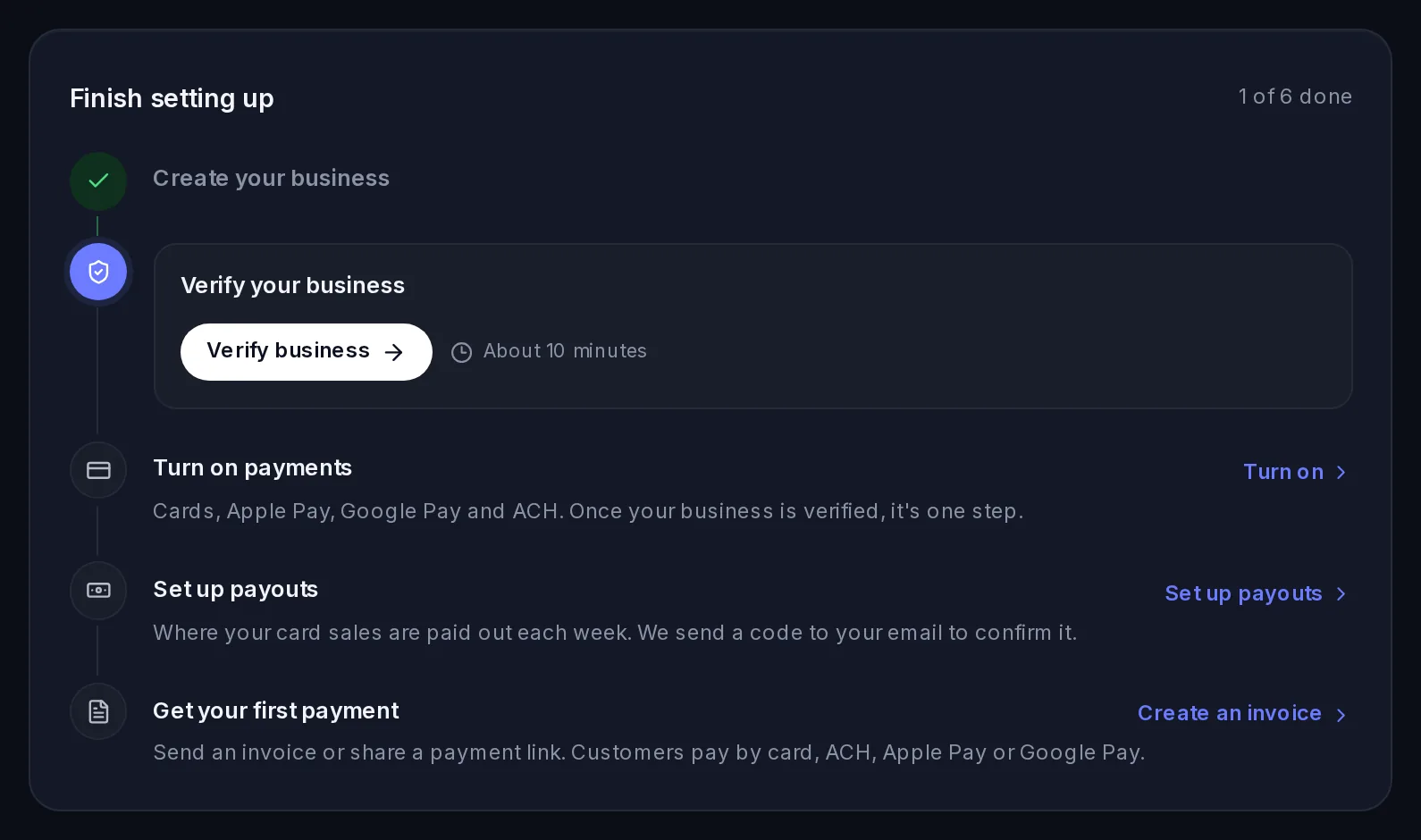
A new business sees Welcome to Vezmo and the list of what's left to set up, with a ring that counts the steps done and a button for the next one.
| Step | What it means |
|---|---|
| Create your business | Your business's name and address, from when you opened the account. Edit opens Settings. |
| Verify your business | Your ID and a live selfie, your business details and a few documents: about 10 minutes, once for every service. See Verify your business. |
| Turn on payments | Cards, Apple Pay, Google Pay and ACH bank payments. Once your business is verified, it's one step. |
| Set up payouts | The bank account your card sales are paid out to. We send a code to your email to confirm it. |
| Get your first payment | Send an invoice or share a payment link. |
The list can also show an optional step for a service in early access; you can leave it. Beside the list, Payments review shows where your request for payments is: Apply, In review, then Payments on. While our team reviews your business, the top of the page says so, and says whether anything is still needed from you.
You can send invoices while we review the rest. Under the checklist, Your Home, once money moves previews what Home will show; once you have unpaid invoices, or invoices paid this month, Getting paid shows them there instead. Once payments are approved, the full Home below takes over.
Home
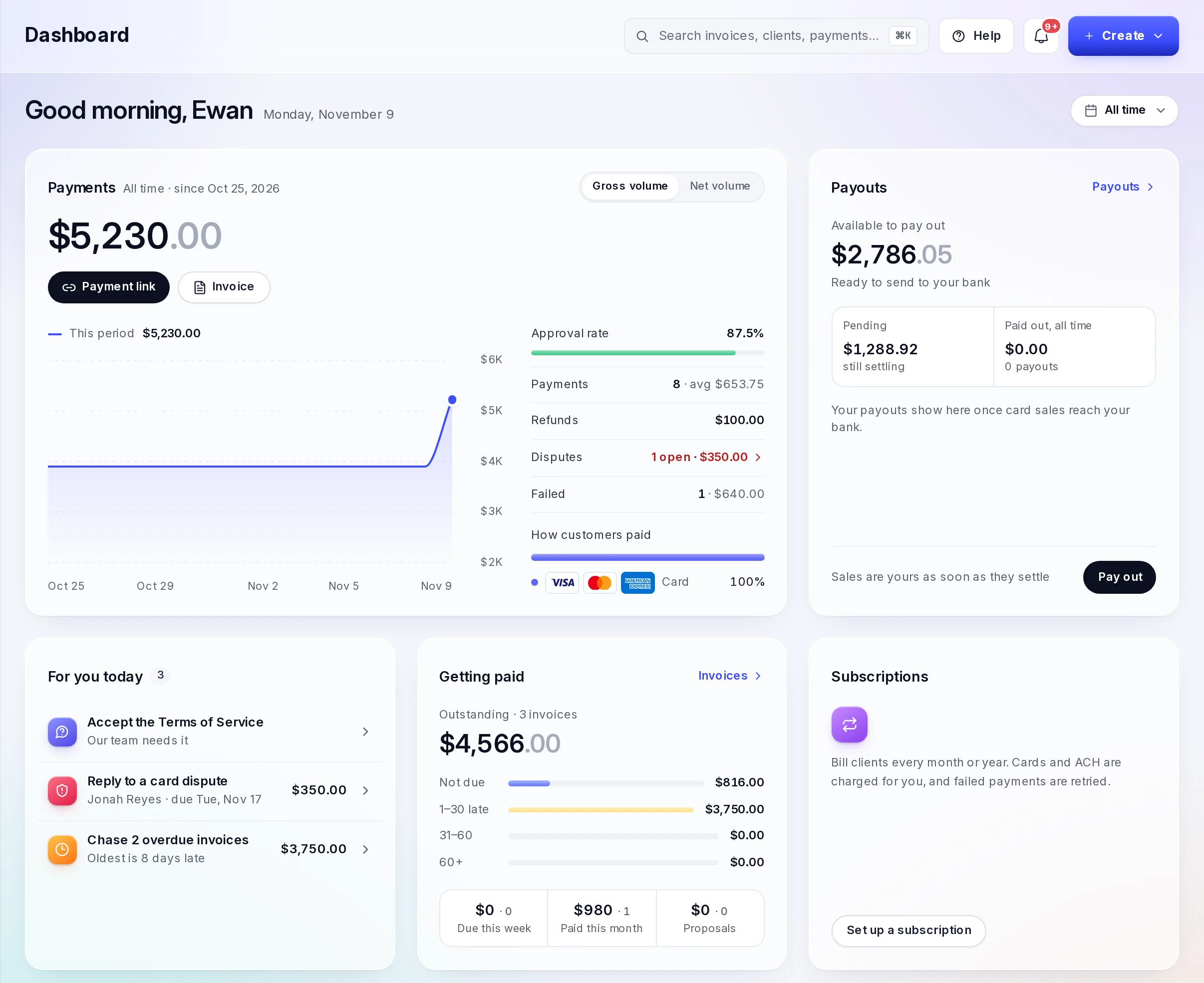
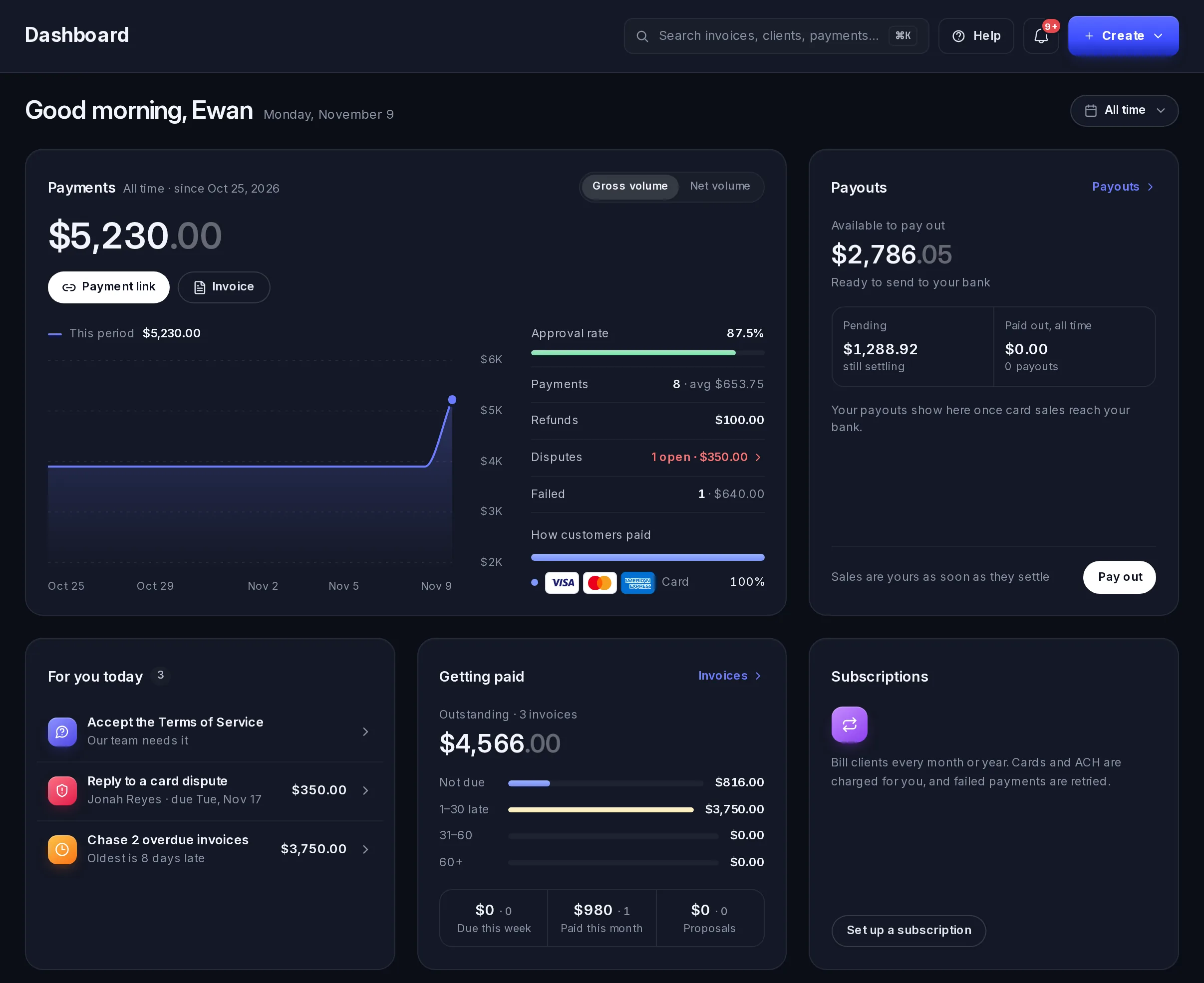
Home greets you by name with today's date, and shows your business at a glance. It always shows your live business, even while test mode is on.
| Panel | What it shows |
|---|---|
| Payments | What you took in the period, as Gross volume or Net volume, on a chart. Beside it: the approval rate, how many payments and their average, refunds, disputes, failed payments, and how customers paid. Payment link and Invoice start a new one. |
| Payouts | What's available to pay out, what's still settling, what's been paid out, and Pay out. |
| For you today | What needs you: what our team asked for, card disputes to answer, overdue invoices to chase and proposals waiting for a yes. Each opens where you act on it. You're all caught up when there's nothing. |
| Getting paid | Your unpaid invoices, by how late they are (not due, 1–30 days, 31–60, over 60), and what's due this week, paid this month and waiting in proposals. |
| Subscriptions | Your subscribers, or Set up a subscription if you have none. |
| Recent activity | The latest payments and payouts, with All, Money in and Money out, and All activity for the full list. |
The reporting period
The pill at the top right of Home sets the period the figures cover: All time, Last 7 days, Last 14 days, Last 30 days or Last 12 months. A choice applies at once. For your own dates, pick the first and last day on the calendar beside the list and select Apply. Vezmo keeps your choice for the next time you open Home.
If your Home looks different
- A teammate whose role doesn't include the dashboard sees a welcome page instead of Home.
- A teammate whose role can't see the business's payments sees a short Home: what needs them and Getting paid.
The menu
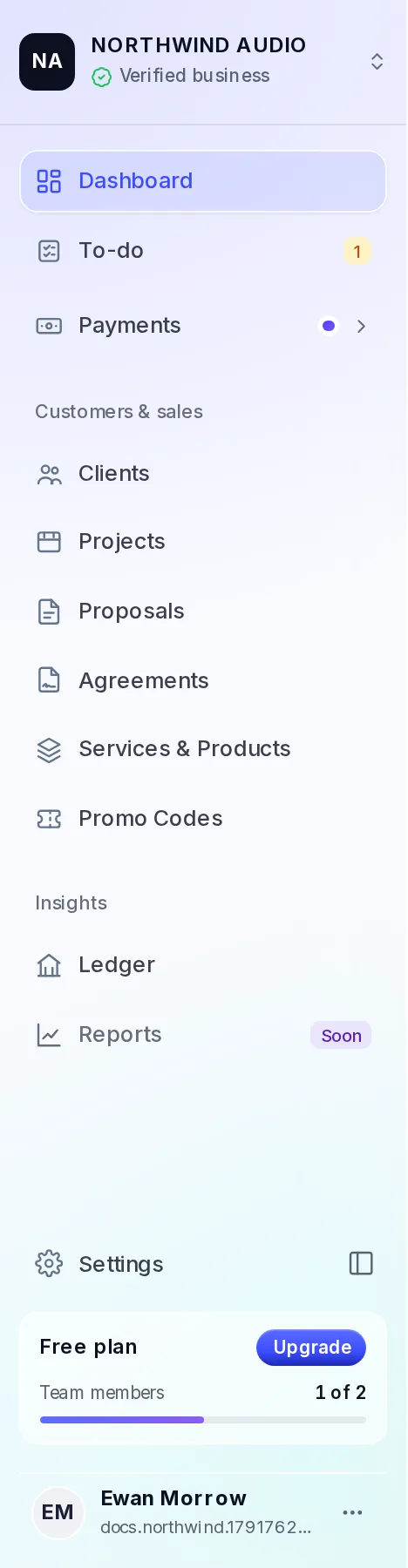
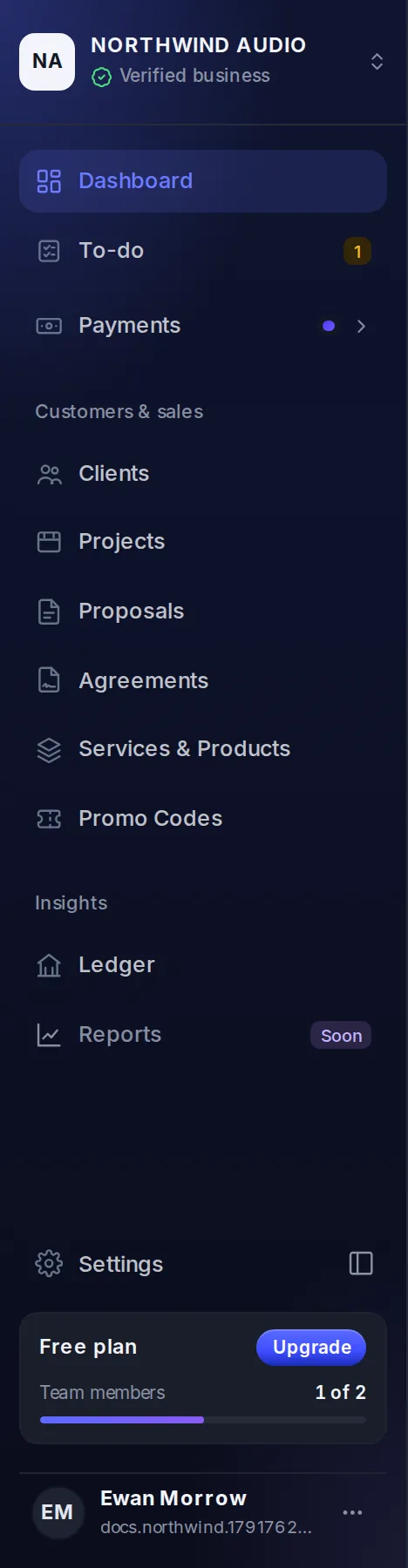
Your business is at the top, with a line that says where its verification is: Verified business, Verification in review, Action needed or Verify your business. Select it for Verify your business (or See what's needed), Business settings and Members.
Under it:
| Menu | What you do there |
|---|---|
| Dashboard | Home, above. |
| To-do | Everything our team needs from you. The number beside it is how many things need you. See Your To-do. |
| Payments | Invoices, Payment Links, Payment History, VezmoPay (your payments console: transactions, balance, payouts, disputes, reports and more) and Gateway Payments (payments taken through a payment gateway of your own). |
| Customers & sales | Clients, Projects, Proposals, Agreements, Services & Products and Promo Codes. |
| Insights | Ledger, your books. Reports is marked Soon. |
| Settings | Your business, team, notifications and more. |
Below the menu, a box shows your plan, with Upgrade (or Manage), and how many team members your plan has room for. See Plans and billing.
You only see what your role lets you see. The button beside Settings folds the menu down to icons, and opens it again. On VezmoPay's pages the menu folds by itself, and VezmoPay's own menu shows beside the page.
Your profile menu
At the bottom of the menu are your name and email. Select ⋯ for:
- Your profile: your photo, name and phone, your password, two-step sign-in and passkeys;
- Plan & billing;
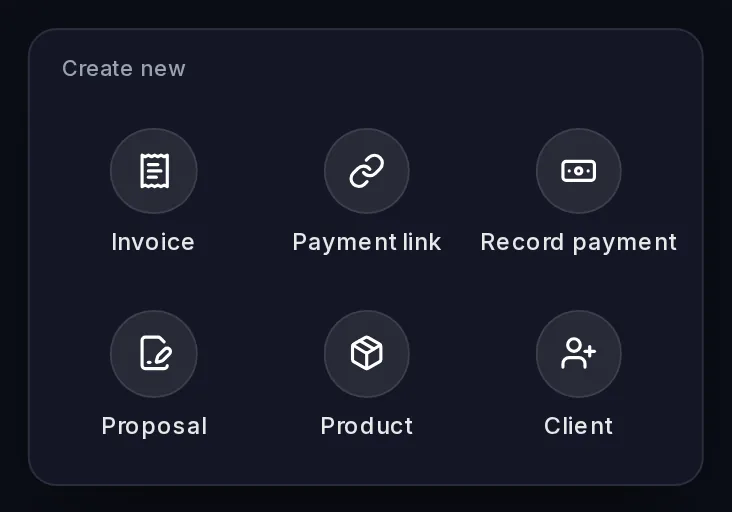
- Appearance: Light or Dark;
- Help & support: your support tickets with our team;
- Log out.
Search
Select the search box at the top of any page, or press Ctrl K (⌘K on a Mac). Type at least three characters: the results come in groups (invoices, payments, clients, proposals and products). Use the arrow keys and Enter to open one, or select it.
Create
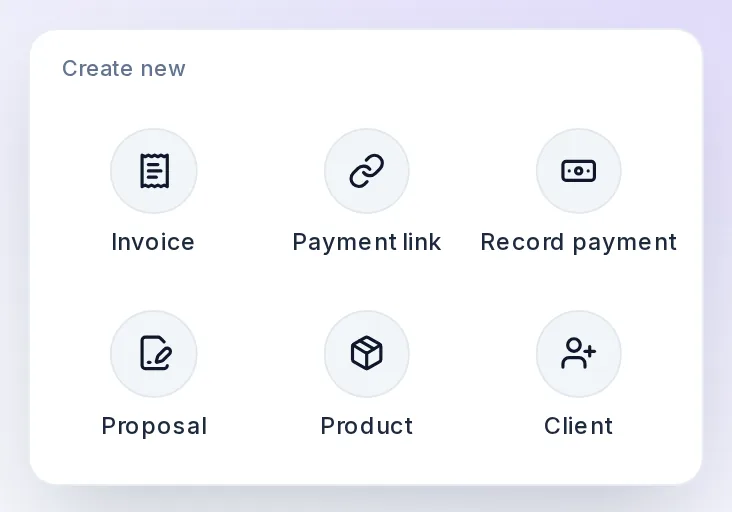
Create, at the top right of the Dashboard, has a shortcut for each thing you make most. Pages with a main task of their own show that task's button in the same place instead, such as Add Client on Clients.
| Shortcut | What it does |
|---|---|
| Invoice | Opens Invoices, where you make a new one. |
| Payment link | Opens Payment Links, where + Payment Link makes a new one. |
| Record payment | Opens Payment History. |
| Proposal | Opens Proposals. |
| Product | Opens Services & Products. |
| Client | Opens the form to add a new client, right where you are. |
You only see the shortcuts your role lets you use. To record money you received outside Vezmo, use Record income in Ledger.
On a phone
On a phone, the top bar has the bell, your profile picture and ☰, which opens the whole menu, with Support and your profile. Icons along the bottom take you straight to the main places, such as the Dashboard, VezmoPay and Settings.
Related
- Your To-do
- Notifications: the bell and what reaches you.
- Test mode and live mode
- Get started
Facts checked against the product on 9 Nov 2026.
Was this page helpful?
Verify your business
Verify your business once for every Vezmo service, with the steps for a business and for Just me, your ID and live selfie on your phone, owners and the person in control, the documents we ask for, review and statuses, changes our team asks for, and turning on payments.
Test mode and live mode
What test mode is, the Test mode switch and banner in VezmoPay, the test card, trying payments before your business is approved, emails that only reach your team, what stays live, why the switch is kept per browser, and what your clients see.