Your profile and sign-in security
Change your name, photo, phone and country, change your password, turn two-step sign-in on or off and choose how you get the code, add, rename and remove passkeys, and the security emails we send you.
Overview
Your profile holds your own details and how you sign in. Everyone on a team has their own profile: changing yours doesn't change anyone else's. To open it, select ⋯ beside your name at the bottom of the menu, then Your profile. On a phone, select your picture at the top of the screen.
This page covers what you can change once you're signed in. Signing in itself, a forgotten password and setting up two-step sign-in when you create your account are in Open your account and sign in.
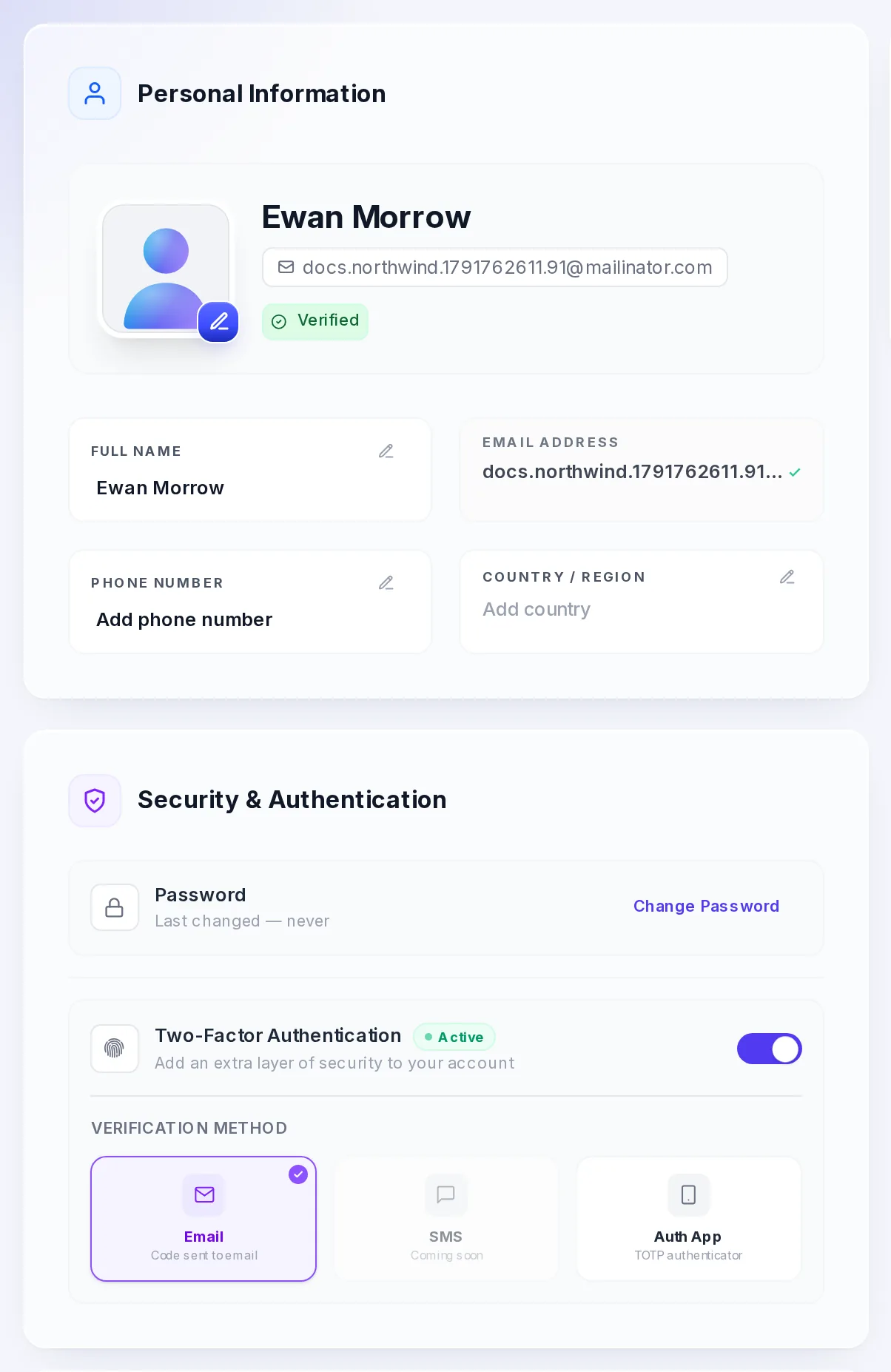
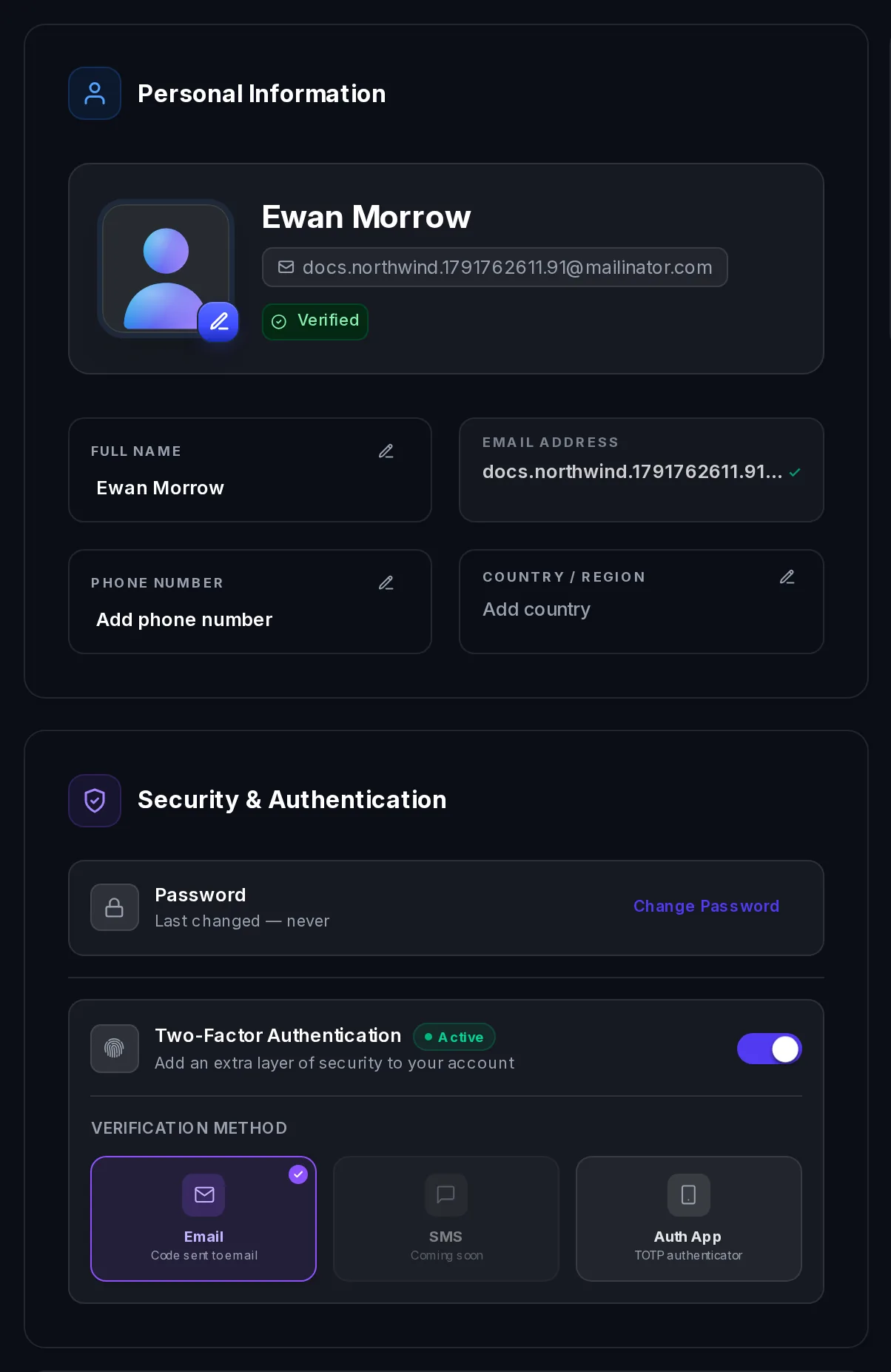
Your details
- Photo: select the pencil on your picture to upload a new one (JPEG, PNG or WebP).
- Full Name and Phone Number: select the pencil beside one, change it, then select the tick.
- Country / Region: select the pencil and pick a country. It saves as soon as you pick one.
Your email is the one you sign in with, and it can't be changed here.
Your business's details (its name, address and currency) are in Settings › Company: see Your business settings.
Change your password
Open the form
Under Security & Authentication, select Change Password.
Enter the old and the new
Enter your Current password, then a New password of at least 8 characters, and type it again in Confirm new password.
Save it
Select Save new password. You're signed out on every device, and you sign in again with the new password. We email you to say your password was changed.
If you don't remember your current password, sign out and use Forgot password? on the sign-in page. See Forgot your password.
Two-step sign-in
With two-step sign-in on, you enter a code after your password each time you sign in. The Two-Factor Authentication row shows Active or Off.
Turn it on or off
Select the switch on the Two-Factor Authentication row and confirm with your password. We email you whenever it's turned on or off. We strongly recommend keeping it on.
Choose how you get the code
While it's on, Verification Method shows the choices:
- Email: we email you a six-digit code each time you sign in.
- Auth App: an authenticator app on your phone, such as Google Authenticator, Microsoft Authenticator or Authy, makes the code.
- SMS is shown as coming soon.
Select the one you want and confirm with your password.
I lost the phone with my authenticator app
See I lost the phone with my authenticator app.
Passkeys
A passkey signs you in with your device's own lock: your fingerprint, your face, Windows Hello or a security key, with no password and no code. Passkeys can't be phished: they only work on Vezmo's real address.
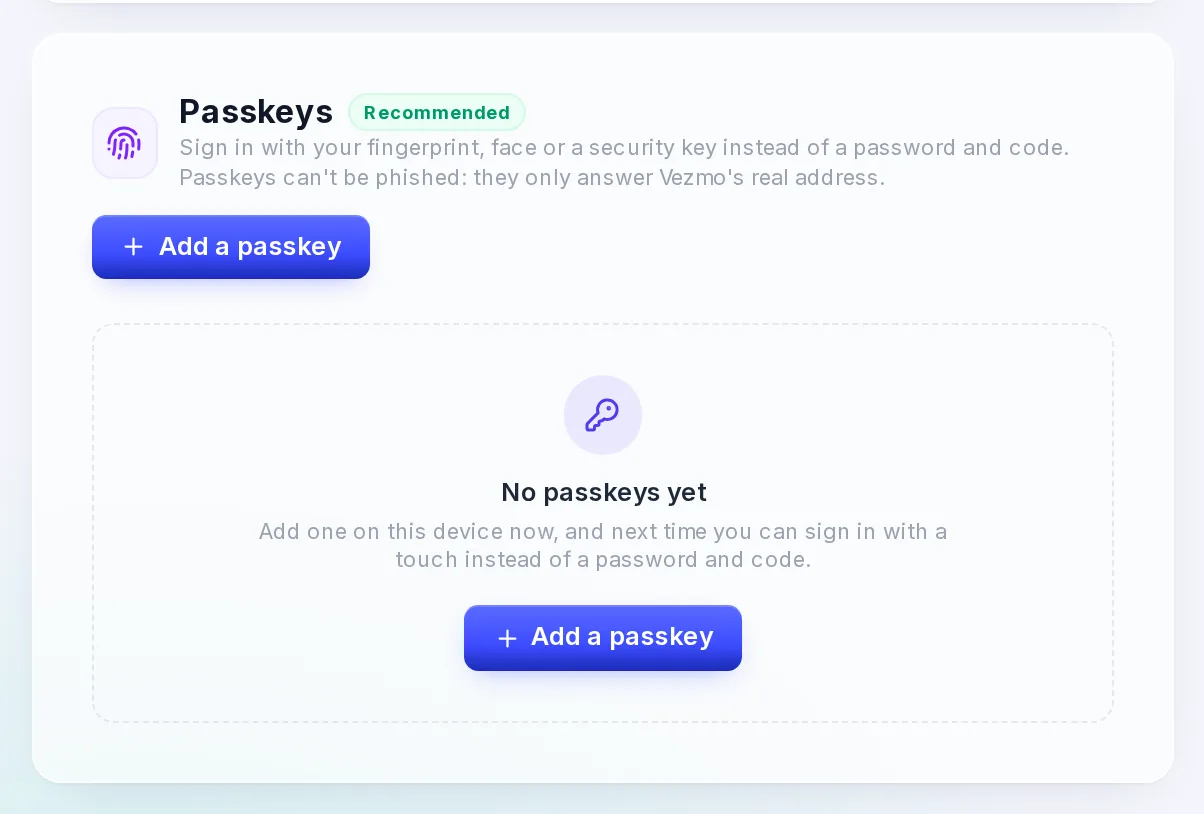
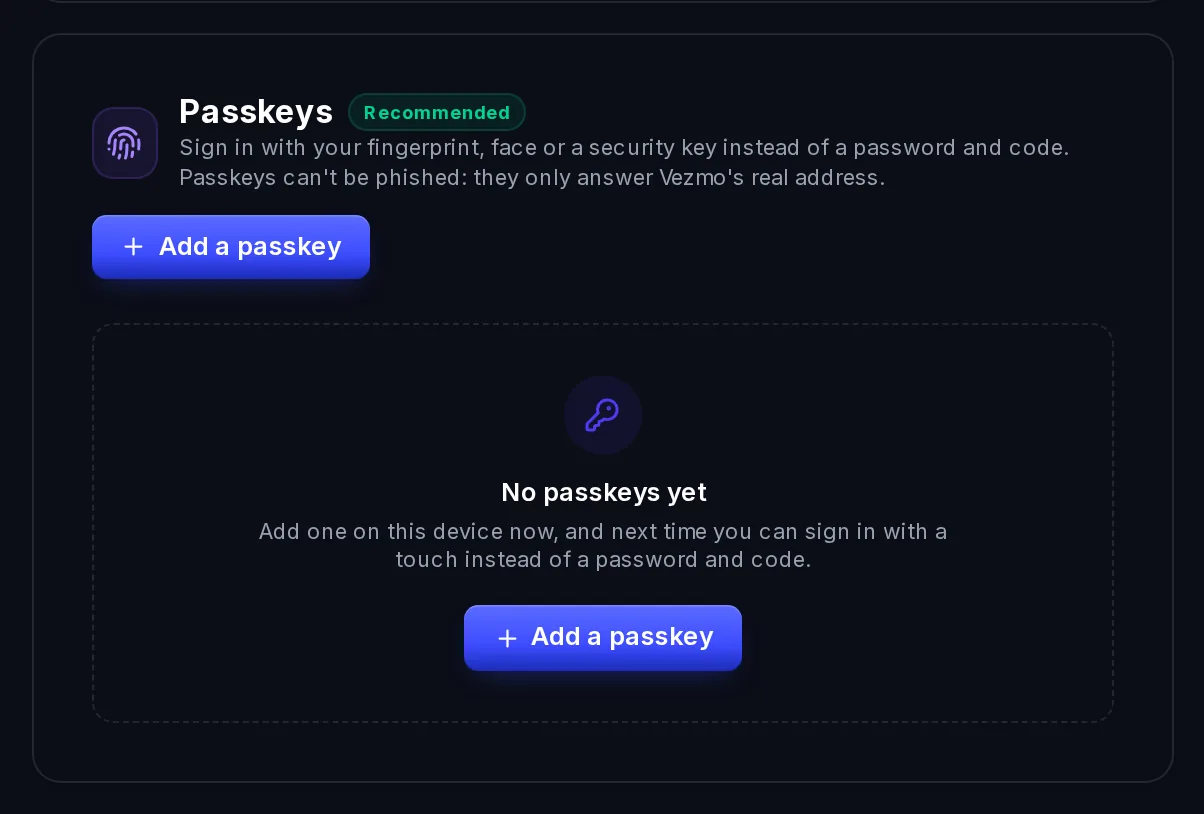
Add a passkey
Start
On Your profile, in Passkeys, select Add a passkey.
Name it and confirm it's you
Give it a Name (optional) so you can tell your passkeys apart later, such as "MacBook Touch ID" or "YubiKey". Enter Your password, then select Create passkey.
Confirm on your device
Your device asks you to confirm with your fingerprint, face or security key. When it's done, the passkey is in the list, and you can use it the next time you sign in.
If the window says passkeys aren't available in this browser, use a current version of Chrome, Safari, Edge or Firefox.
Each passkey in the list shows when it was added and last used. Select the pencil on its row to rename it.
Remove a passkey
Select the remove button on the passkey's row and confirm with your password. It stops working at once; you can still sign in with your password and code. Remove the passkey of a device you lost or gave away.
To sign in with a passkey, see Sign in with a passkey.
Security emails
We email you when something changes on your sign-in:
- Your password was changed, or reset from the sign-in page.
- Two-step sign-in was turned on or off.
- Someone signed in to your account from a device we haven't seen before.
If you didn't do it, change your password at once and contact us.
Questions
Does turning off two-step sign-in affect my team?
No. It's set for each person. Each teammate turns it on or off in their own profile.
Why does my password row say "Last changed — never"?
The row doesn't show the date yet, even after you change your password.
Can I see and sign out of my other devices?
Not one by one. If you think someone else is signed in to your account, change your password: that signs you out on every device, and every new sign-in needs the new password.
Related
Facts checked against the product on 9 Nov 2026.
Was this page helpful?
Your To-do
The To-do page, where everything our team and our partners need from you lands for every service, each kind of item and what to do with it, answering in place, the three states, and how it ties in with the bell and your emails.
Your business settings
A map of Settings, then your company details (name, tagline, industry, legal structure, default currency and address) and how changes reach your documents, and your branding (logo, brand colour, the preview, signing pages and the Powered by Vezmo mark).