Your To-do
The To-do page, where everything our team and our partners need from you lands for every service, each kind of item and what to do with it, answering in place, the three states, and how it ties in with the bell and your emails.
Overview
When our team, or a partner behind one of your services, needs something from you, it lands in one place: To-do, in the menu. A document, an answer, a new ID, a terms update, a dispute to reply to: each is one item, and you answer most of them right there, without hunting for the page it belongs to.
The number beside To-do in the menu is how many things need you. We also email you when something new arrives, and it shows in the bell under Needs action.
The page
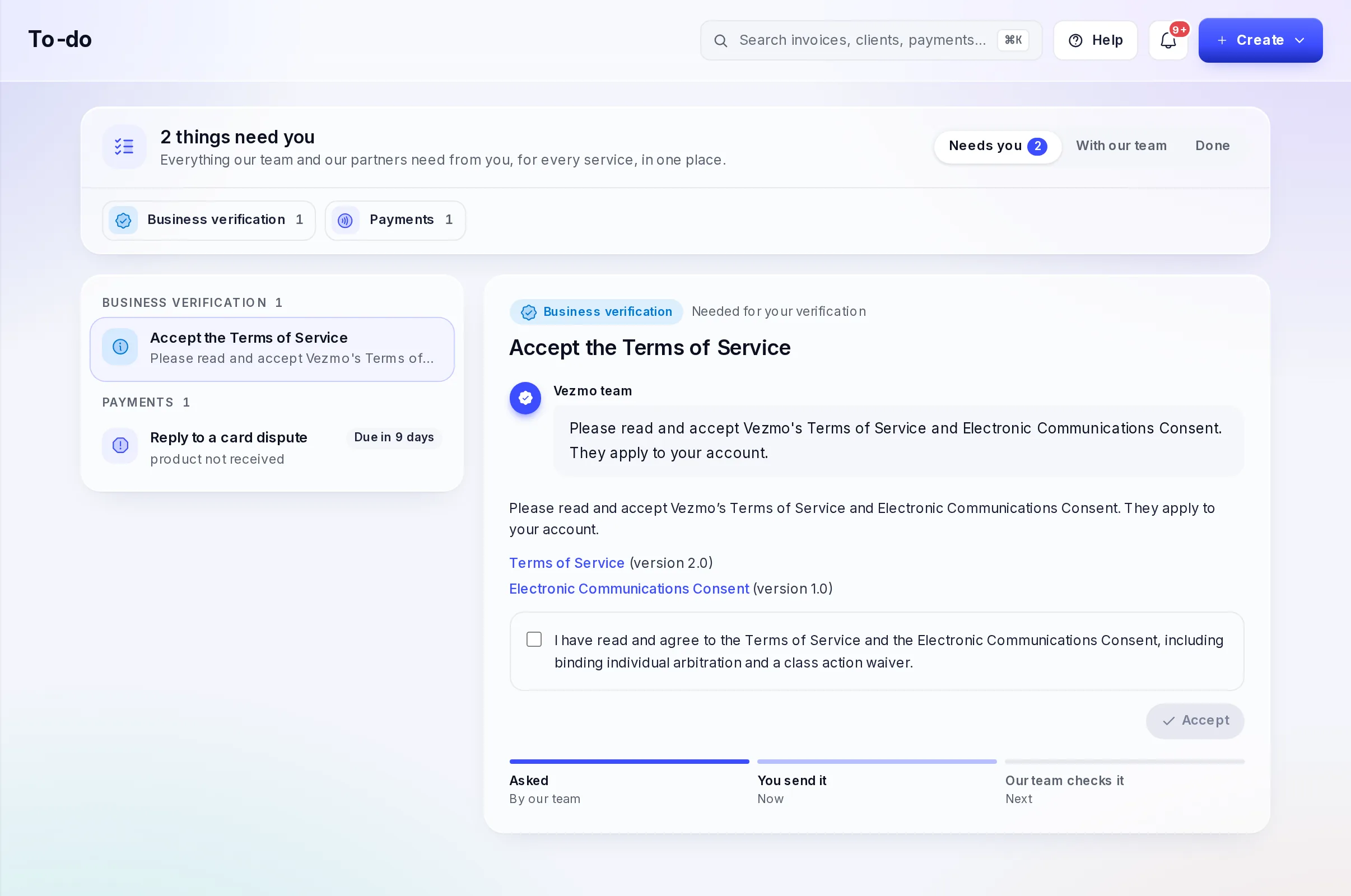
- The tabs: Needs you, With our team and Done, each with how many.
- The services: below the tabs, one chip per service with items (Business verification, Payments, Agreements, Plan & billing and others). Select one to see only its items.
- The list, grouped by service. Each item says what it's about, when it was asked and, if there's a date, Due today, Due tomorrow, Due in 3 days or Overdue.
- The open item, on the right: which service it's for, our team's message, the place to answer, and where it stands: asked, you send it, our team checks it.
Each kind of item
| Item | What to do |
|---|---|
| Document requested | It says what the document must show and, if it must be recent, the oldest date we accept. Drop the file in, or choose one; add the date on it if asked, and a note if it helps. Select Send to our team. If we already have one from your verification, Send the one we have sends it, or add a newer one. |
| Answer requested | One detail our team needs, such as your industry or an address. Fill it in and send it. |
| Question from our team | Write your answer, add files if they help, and send it. |
| ID check | A new photo of an ID and a live selfie. For you: do it on your phone, as in your verification. For an owner: select Copy their link and send it to them, or show them the QR code. It may name the kind of ID to use. |
| Live selfie | Take the selfie: a short live selfie, on your phone or this computer. |
| Card dispute | Reply to the dispute: add your evidence before the deadline. See Answer a dispute. |
| A dispute alert needs your choice | See the alert: refund the payment now, or keep it and risk a dispute. |
| Everyone signed. Waiting for your approval | Review the signers: check each signer's ID and selfie, then approve and complete the agreement. See Agreements. |
| Needed to keep payments running | Details our payments partner needs to keep your payments on. Similar ones are grouped into one item. |
| Terms to accept | Accept the Terms of Service, or the updated VezmoPay Merchant Agreement: read them, tick the box and accept. |
| Your payments application needs a few changes | Open your application, change what's listed, and send it again. |
| Send your verification again | Our team sent your verification back: change what's listed, then send it again. |
| Tax | Add your tax ID, or fill in your tax form. See Taxes and tax forms. |
| Payout setup | Open payout setup: it takes a minute and keeps your payouts moving. |
| Apple Pay certificate | Create or renew the certificate for Apple Pay in your own iPhone app, under Developers › Mobile apps. |
| Plan | Pay for your plan after a plan payment failed, or a notice about your plan's prices or account fees, with nothing to send. See Plans and billing. |
When an item is about one payment or payout and our partner is holding that money until you answer, the item says so. Answer it soon, so the money can be released.
Where an item stands
| Tab | What it means |
|---|---|
| Needs you | Waiting for you. |
| With our team | You sent it. Our team is looking at it, usually within 1 to 2 business days, and tells you if anything else is needed. |
| Done | Nothing more is needed. Done keeps the last 30 days. |
If our team can't accept what you sent (a file it couldn't use, for example), the item comes back to Needs you and says what's needed instead.
The bell, your emails and Home
The To-do is the same work you see elsewhere, counted once:
- The bell: the Needs action tab starts with Waiting in your To-do and Open your To-do. A notification whose task is in your To-do says In your To-do and isn't counted twice. See Notifications.
- Email: when something new needs you, we email you.
- Home: For you today on your Dashboard lists what's waiting.
Questions
Who sees the To-do?
Everyone on your team who can see the business. Who gets the emails is set per person in Notifications.
I answered, but the item is still there
It moved to With our team while we look at it. Once we've checked it, it moves to Done.
What happens if I miss a date?
The item shows Overdue. Some asks pause something until they're answered: a new ID asked after your business was verified, for example, pauses payouts past its date until our team has checked it. The item says what's at stake.
Related
Facts checked against the product on 9 Nov 2026.
Was this page helpful?
Test mode and live mode
What test mode is, the Test mode switch and banner in VezmoPay, the test card, trying payments before your business is approved, emails that only reach your team, what stays live, why the switch is kept per browser, and what your clients see.
Your profile and sign-in security
Change your name, photo, phone and country, change your password, turn two-step sign-in on or off and choose how you get the code, add, rename and remove passkeys, and the security emails we send you.