Verify your business
Verify your business once for every Vezmo service, with the steps for a business and for Just me, your ID and live selfie on your phone, owners and the person in control, the documents we ask for, review and statuses, changes our team asks for, and turning on payments.
Overview
Before your business can take live payments, we check who you are and who owns and runs the business. You do it once: one verification covers every Vezmo service, so nothing you give here is asked for again when you turn on another one.
It takes about 10 minutes to fill in, and you can stop and come back: each page saves when you continue. What you gave when you opened your account (your business's name and address, for example) is already filled in.
To start, select Verify your business under your business's name at the top of the menu, or on the set-up checklist on your Dashboard. The Verification page opens with the steps on the left and the step you're on beside them.
The steps
The steps follow who the account is for. A business (Small business, Company, Accounting firm, or Just me with a registered company) has five steps; Just me as a person has four.
| Step | A business | Just me |
|---|---|---|
| 1. You | Your ID and a live selfie, then your details. | The same. |
| 2. Business / Your work | The company, its addresses and contact, and what it does and how money moves. | Your work, and what you do and how money moves. |
| 3. Owners | Who owns and runs the business. | Not asked. |
| 4. Documents | Company papers, bank proof, and proof of home address for each person. | Proof of your home address and a bank letter. |
| 5. Review and submit | Check everything and send it once. | The same. |
The list on the left ticks each step when it's done and shows how many things are left. While the verification is a draft, the first page of the Business step asks Who is verifying: A business or Just me. You can switch there, and the steps change to match.
Each page saves when you select Save and continue. If you leave a page with changes you haven't saved, Vezmo asks Leave without saving? first.
Your ID and live selfie
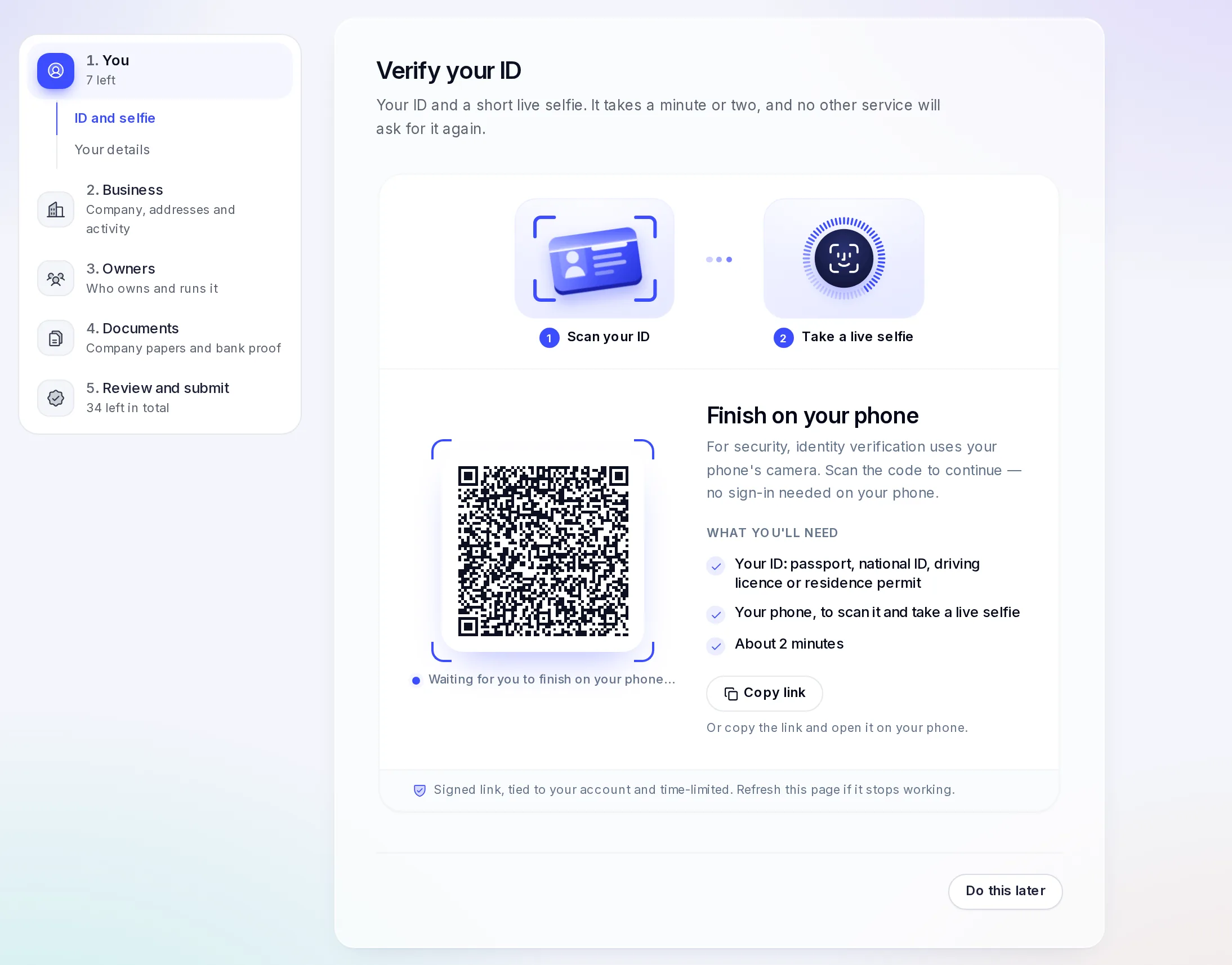
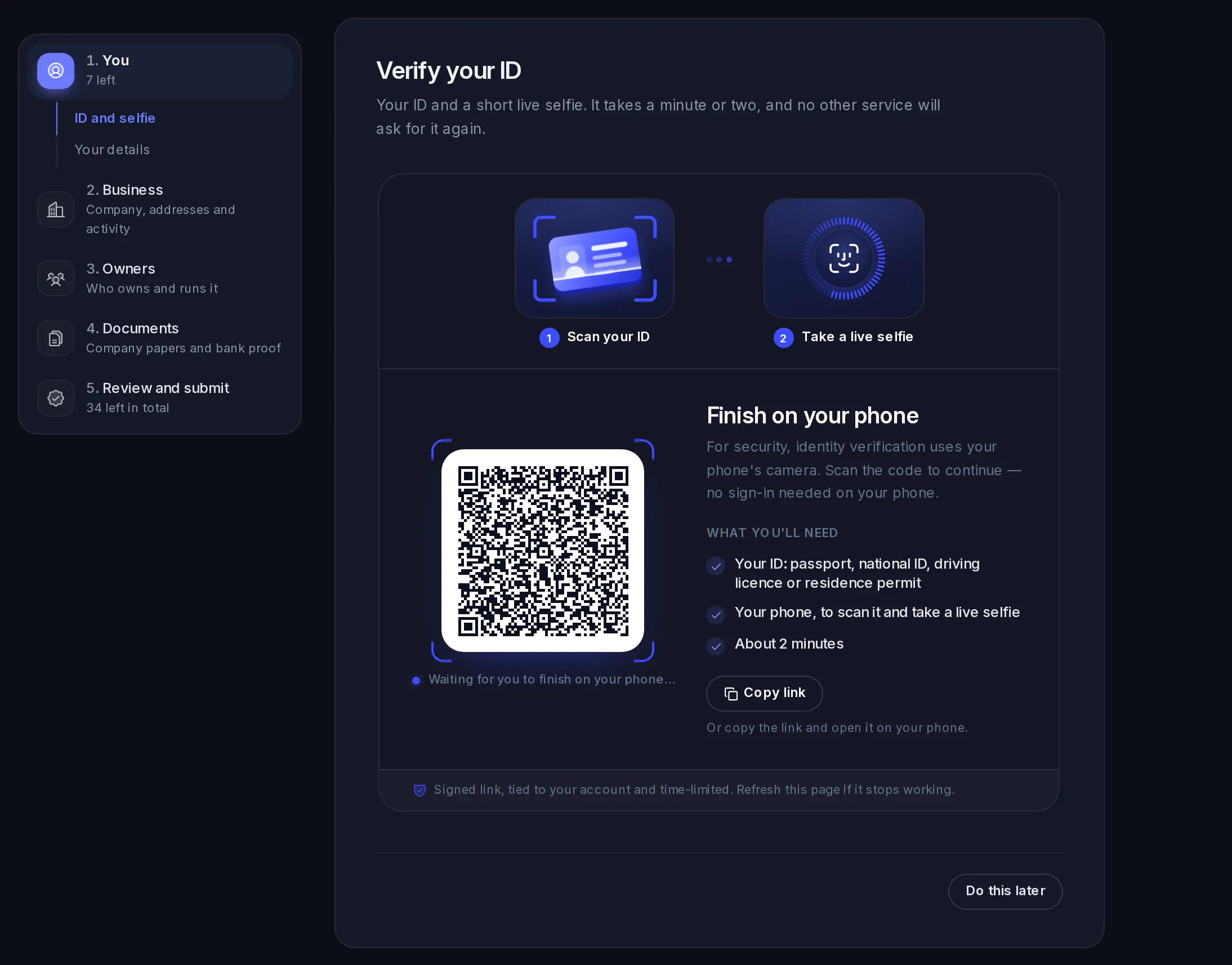
The first page of step 1 is Verify your ID: a photo of your ID and a short live selfie, so we know it's really you. It takes a minute or two, and no other service asks for it again.
Continue on your phone
The check uses your phone's camera. On a computer, the page shows Finish on your phone with a QR code: scan it with your phone's camera. Nothing to sign in to on the phone. Or select Copy link and open the link on your phone. The link is signed, tied to your account and works for a limited time; if it stops working, refresh the page for a new one. On a phone or tablet, the check runs right on the page.
Photograph your ID
Have the original with you: a passport, a national ID card, a driving licence or a residence permit. Agree to how your ID and selfie are used, choose your ID, and let the camera guide each photo: a passport's photo page and its second page, or a card's front and back. Then check what we read from it (your name, date of birth and document number) and correct anything that's wrong.
Take a short selfie
Record a few seconds of selfie video, following what the screen asks.
Back on your computer
The page moves on by itself: Completed on your phone. From then on, step 1 says We have your ID and selfie. You won't be asked for them again.
If a photo doesn't work, the screen says why and lets you take it again. The usual fixes: hold the phone flat above the ID, fit all four corners in the frame, keep your fingers off the text, move somewhere brighter, and tilt the ID away from the light if there's glare. Use the real document, not a photocopy, a printout or a picture of a screen.
Not ready? Select Do this later and come back to it; you can fill in the other steps meanwhile.
Your details
The second page of step 1 asks:
- your name and date of birth, exactly as on your ID, and your nationality. What we read from your ID is filled in ("Filled in from your ID. Check it's right.");
- your mobile number, used only to confirm it's you if anything about your account needs checking;
- your home address, where you live now (no PO boxes). You add a proof of it under Documents;
- for a US person, your Social Security number. It's kept sealed, and only its last 4 digits are ever shown;
- for a business, your role: your job title, and whether you own part of the business (with your share), control it, or are a director;
- for Just me, your employment and where your money comes from;
- whether you, a close family member or a close associate hold an important public role, now or in the last 5 years.
About the business
Step 2 asks about the business, in three short pages:
- Company: the legal name and trading name, the type of business, the country of registration, the date of incorporation, the registration number and the tax ID, exactly as on your registration papers. If you've applied for a tax ID and are still waiting for it, tick I've applied for it and I'm waiting and add it when it arrives.
- Address and contact: the registered address and where you work (no PO boxes or registered-agent addresses for where you work), the business email and phone, and a website or online shop if you have one.
- Activity: what the business does and its industry, your expected monthly volume and average payment, whether any of your work is licensed or regulated, the countries you get paid from and pay to, how you'll use Vezmo and where the money comes from, and three yes-or-no questions: bearer shares, moving money for other people or businesses, and ownership by a foundation.
For Just me, step 2 is Your work: the country you work from, a trading name, your tax number and a website or portfolio if you have them, then the same questions about what you do and how money moves.
Owners and the person in control
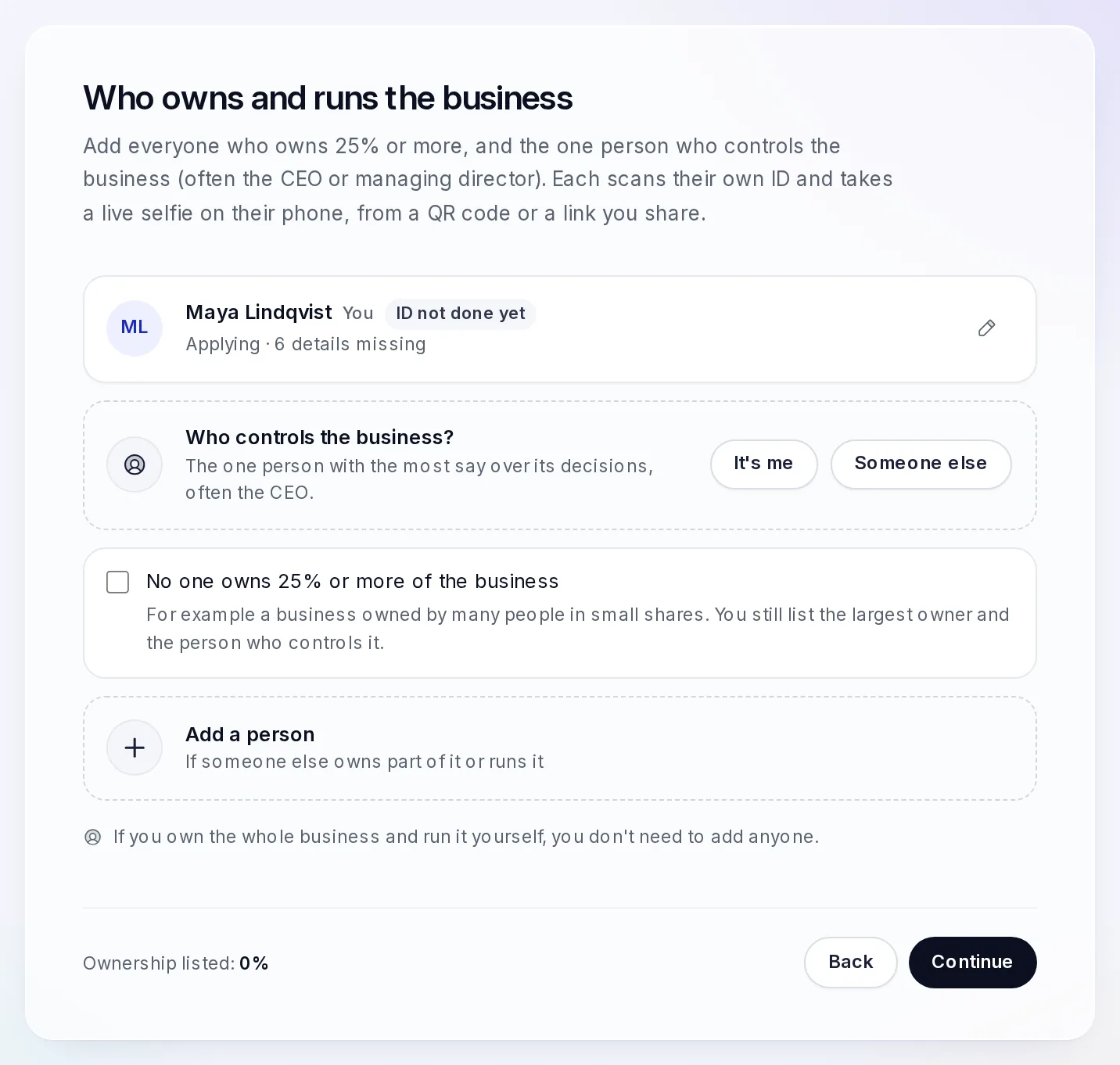
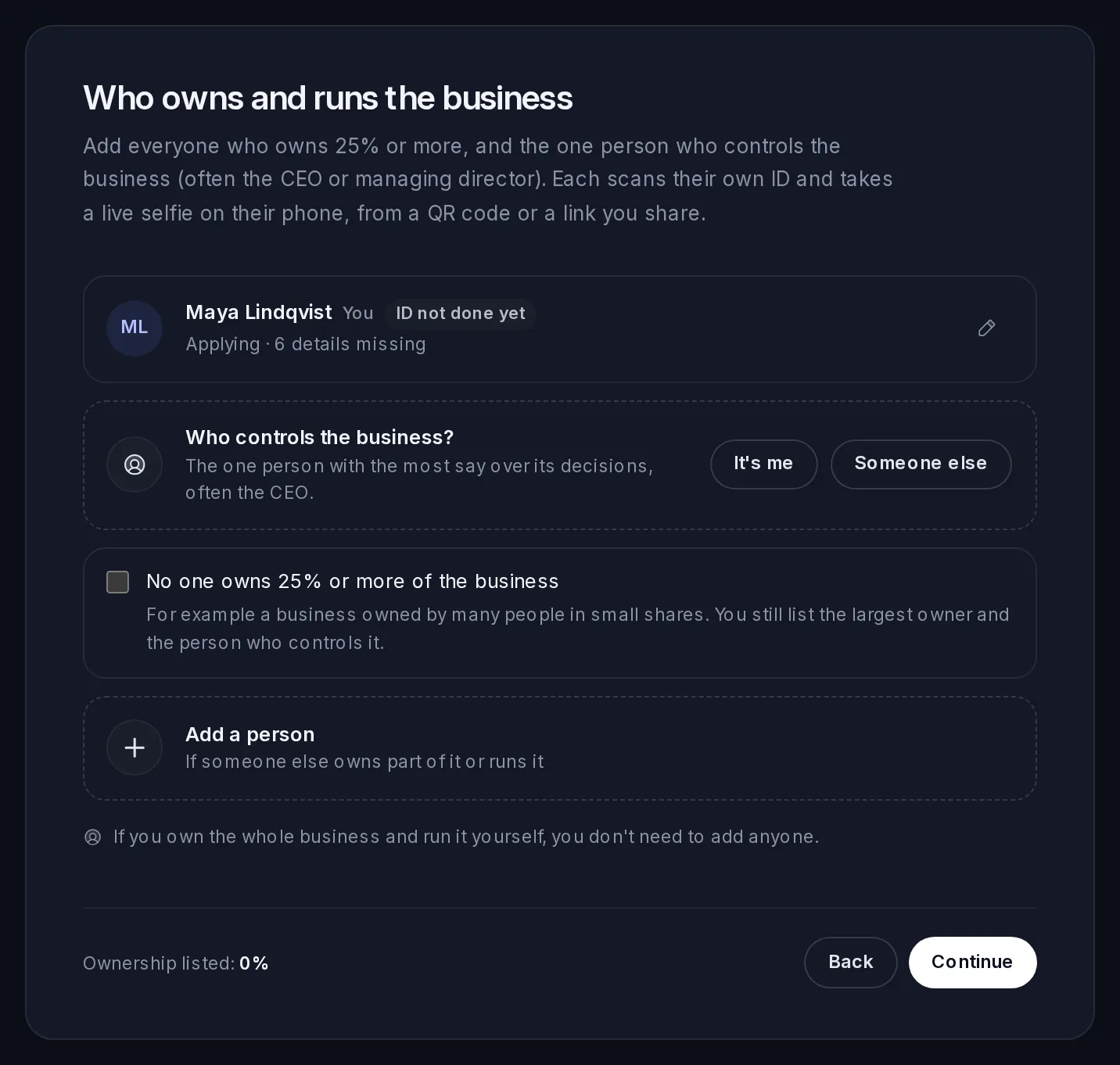
Step 3, Owners, lists everyone who owns 25% or more of the business and the one person who controls it, often the CEO or managing director. The page says the share that applies to your business.
- Who controls the business? Select It's me or Someone else.
- Add a person for each other owner, the person in control, or a director. Enter their first and last name, their email (their verification link goes there) and mobile number, and their role: Owns part of the business with their share, Controls the business with their job title, or Director.
- If nobody owns 25% or more (a business owned by many people in small shares, for example), tick No one owns 25% or more of the business. You still list the person with the largest share and the person who controls it.
- If you own the whole business and run it yourself, you don't need to add anyone.
The foot of the page shows the total share listed. It can't be more than 100%.
How owners verify themselves
Each person you add scans their own ID and takes their own live selfie, on their own phone. They don't need a Vezmo account. Select Get their ID on their row, then either:
- if they're with you, let them scan the QR code with their phone, or
- send them their link: Copy link (to paste into a message), Share (your phone's share menu), Email or Text message.
On their page they add their details (name, date of birth and home address), take a photo of their ID and a live selfie, and add a proof of their home address. It takes about 3 minutes. The link works for 7 days; if they're told it has expired, select Get their ID again to send them a new one.
Each person's row shows where they are:
| On their row | What it means |
|---|---|
| Link ready | Their link is made but not sent yet. |
| Link sent | We emailed or texted them their link. |
| Opened the link | They've opened it and are part-way through. |
| ID in, selfie next | Their ID is in; the selfie isn't yet. |
| ID received | Their ID and selfie are in, with our team. |
| Verified | Our team accepted their ID. |
| ID not accepted | Our team couldn't accept their ID. |
| ID asked again | Our team asked them for a new ID and selfie. Send them their link again. |
Documents
Step 4 asks for documents. Upload clear photos or PDFs (PDF, JPG or PNG, up to 10 MB), every page, in colour. Where a document's date matters, the form asks for the Date on the document, and shows the oldest date it accepts. A document that has grown too old shows Older than 3 months: upload a newer one.
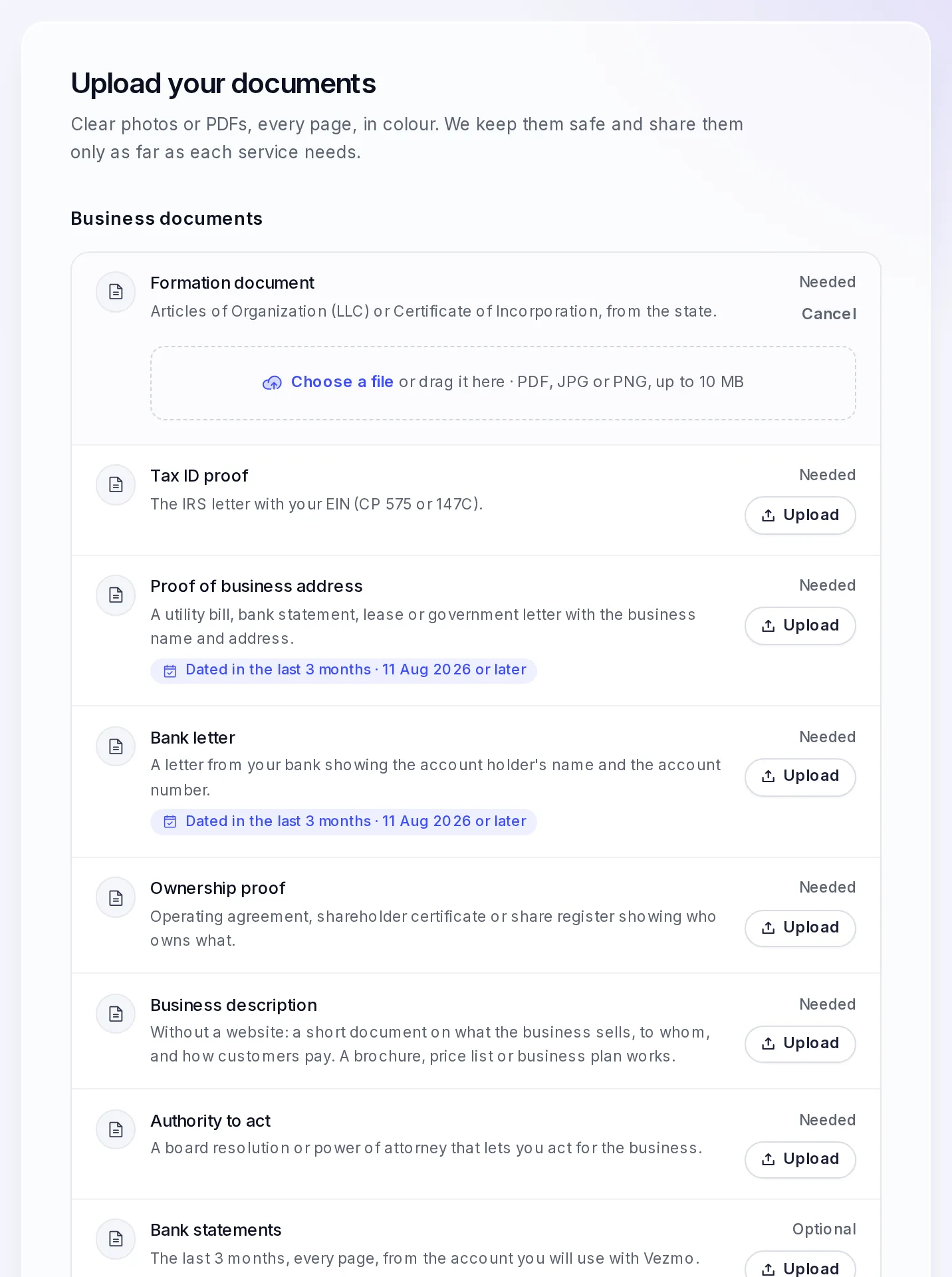
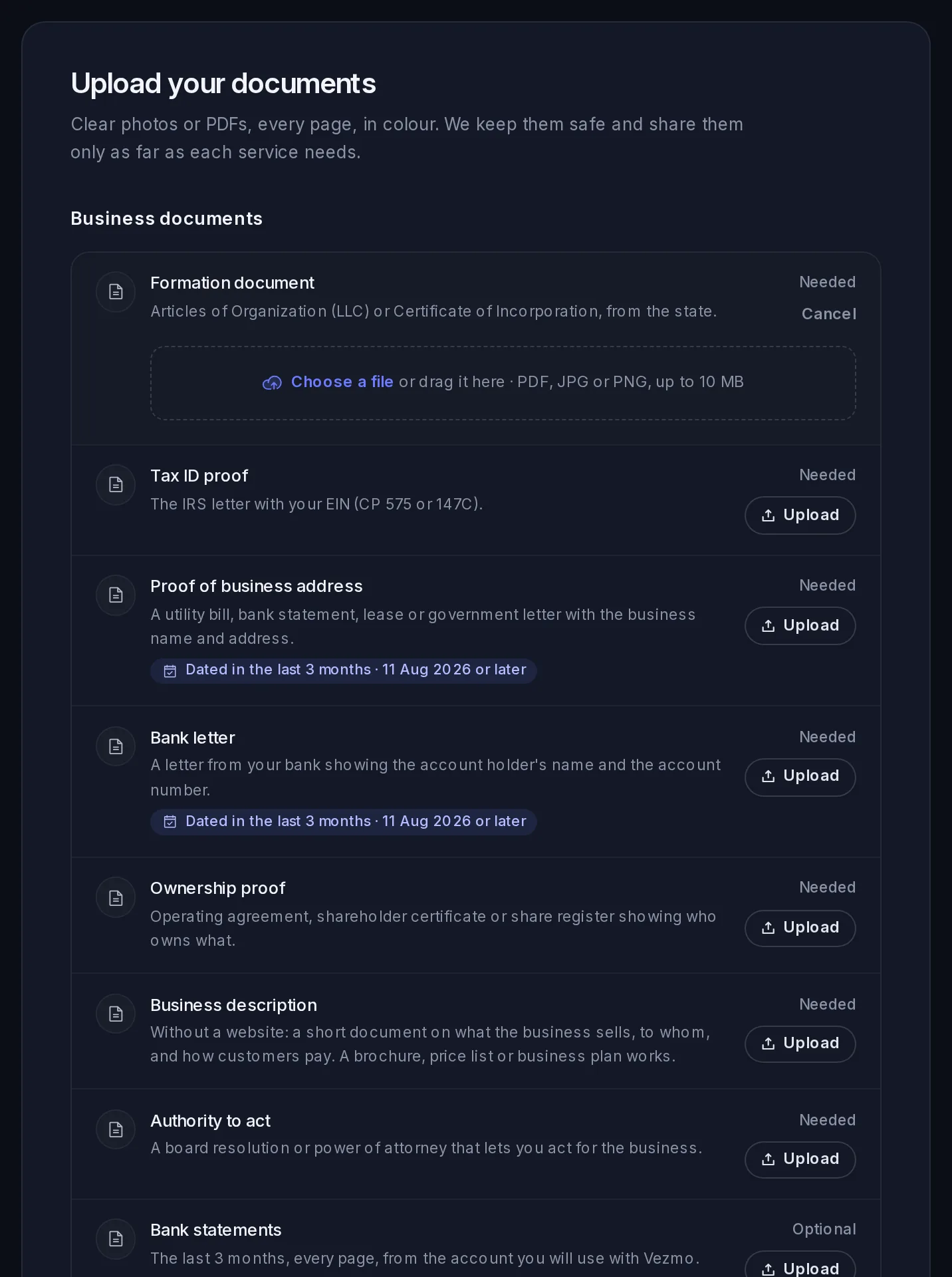
For a business:
| Document | When we ask for it | What works |
|---|---|---|
| Formation document | Always. | The certificate of incorporation, articles, or an extract from the company register. In the US, the Articles of Organization (LLC) or Certificate of Incorporation from the state. |
| Tax ID proof | Unless you've applied for a tax ID and are waiting for it. | The letter or certificate that shows your business's tax or VAT number. In the US, the IRS letter with your EIN (CP 575 or 147C). |
| Proof of business address | Always. Dated in the last 3 months. | A utility bill, bank statement, lease or government letter with the business's name and address. |
| Bank letter | Always. Dated in the last 3 months. | A letter from your bank that shows the name on the account and the account number. |
| Ownership proof | For a company, or when more than one person owns the business. | An operating agreement, shareholder certificate or share register that shows who owns what. |
| Business description | For a company without a website. | A short document on what the business sells, to whom, and how customers pay. A brochure, price list or business plan works. |
| Business licence | When any of your work is licensed or regulated. | The licence that covers it. |
| Authority to act | When you aren't an owner, the person in control or a director. | A board resolution or power of attorney that lets you act for the business. |
| Proof of home address | For each person listed. | A utility or phone bill or a bank statement from the last 3 months, a rental contract, a driving licence or a government letter, with their name and the home address you entered. Not a national ID card. Owners can add their own from their link. |
For Just me: a proof of your home address (as above) and a bank letter, dated in the last 3 months.
Some documents are optional: bank statements (the last 3 months, every page, from the account you'll use with Vezmo), a certificate of good standing for a company (issued in the last 12 months) and your latest yearly accounts. Add them under Anything else (optional). You can send your verification without them; they can speed up the review, especially for larger businesses, and our team may ask for one later.
Review and send
Step 5, Review and submit, shows a card for each step with what you've given and what's still missing. Until everything is in, it says how many things are left; select a card to go back to that step.
When everything is in, tick the declaration: that what you gave is true, complete and up to date, that you've listed every owner of 25% or more and the person who controls the business, that you'll tell Vezmo when any of it changes, and that Vezmo may check it and share it with the partners that provide each service you turn on, only as far as each needs it. Then select Send for review.
Your answers lock while our team reviews them.
Statuses
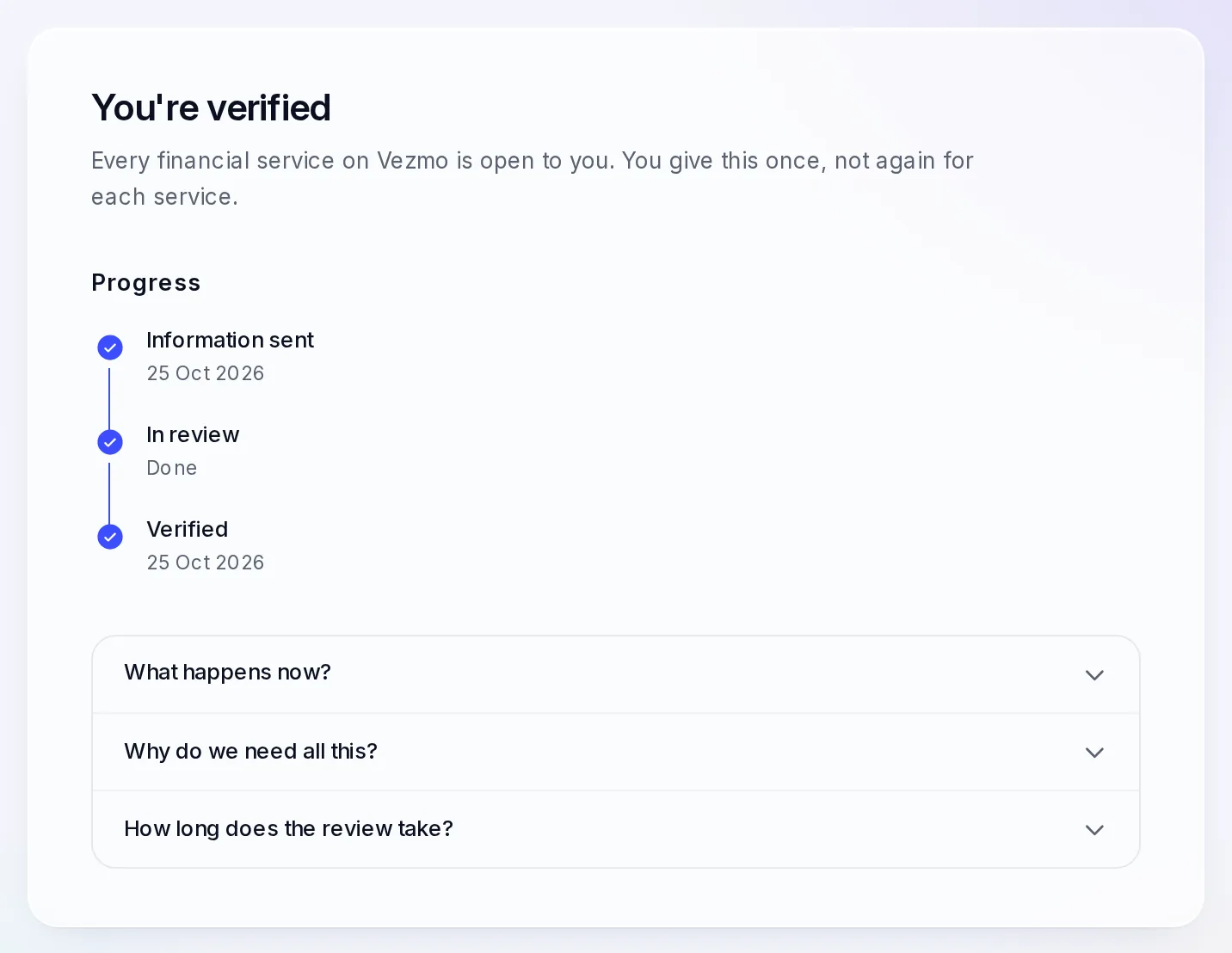
The card above the steps shows where your verification is:
| Status | What it means |
|---|---|
| In review | It's with our team. We email you when it's reviewed, usually within 1 to 2 business days. Businesses with several owners, or in licensed industries, can take a little longer. |
| Action needed | Our team needs a little more. The page lists what to change; everything else stays as it is. |
| Verified | Your business is verified. Every service is open to you, with nothing asked again. |
| Not approved | We couldn't approve it. We email you the reason. Reply to that email or contact support if you think it's a mistake. |
When our team asks for something
We tell you by email, in the bell under Needs action, and in your To-do.
While we review it. Your verification shows Action needed and a banner, Our team needs a few changes, lists each thing. Select Fix it to go to the step it's on, or Answer it to give it in your To-do. Change only what's listed, then send it again from Review and submit.
After you're verified. Our team can still ask for something: a document, an answer, or a new ID and selfie (it may name the kind of ID to use). You stay verified and everything keeps working; give it in your To-do. A new ID can come with a date: give it by then, or payouts pause until our team has checked the new one. Payouts start again once it's checked.
Our team can also ask for a new live selfie on its own. VezmoPay then shows Live selfie verification required with Start verification, and the date to do it by; past that date, payouts pause until it's done. Your To-do lists it too, with Take the selfie. After you take it, it shows as under review until our team has checked it.
Turn on payments
Payments (VezmoPay: cards, Apple Pay, Google Pay and ACH bank payments) are a request of their own, with their own terms. Our team decides them together with your verification. Go to Payments › VezmoPay, or select Turn on on the set-up checklist on your Dashboard.
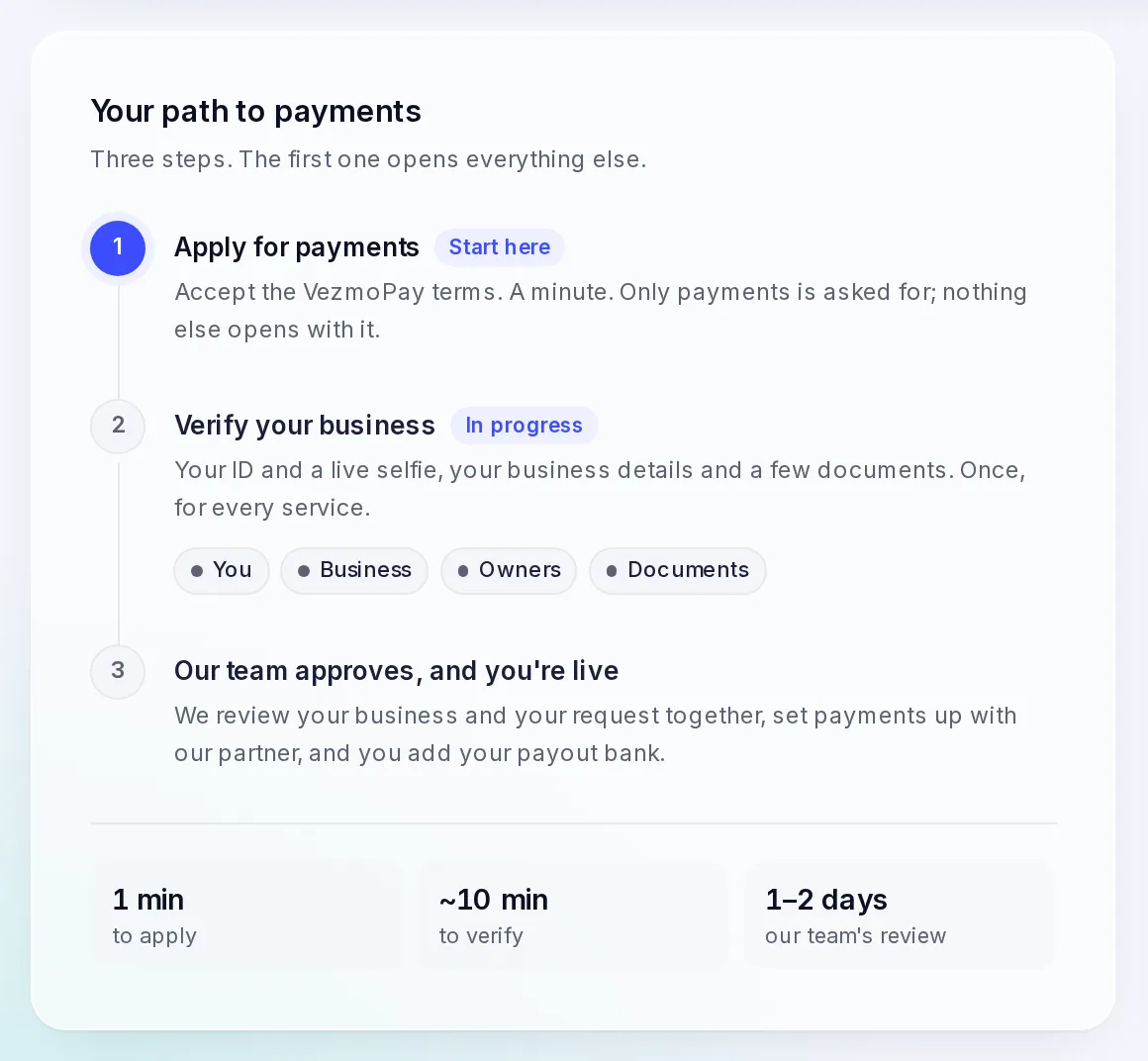
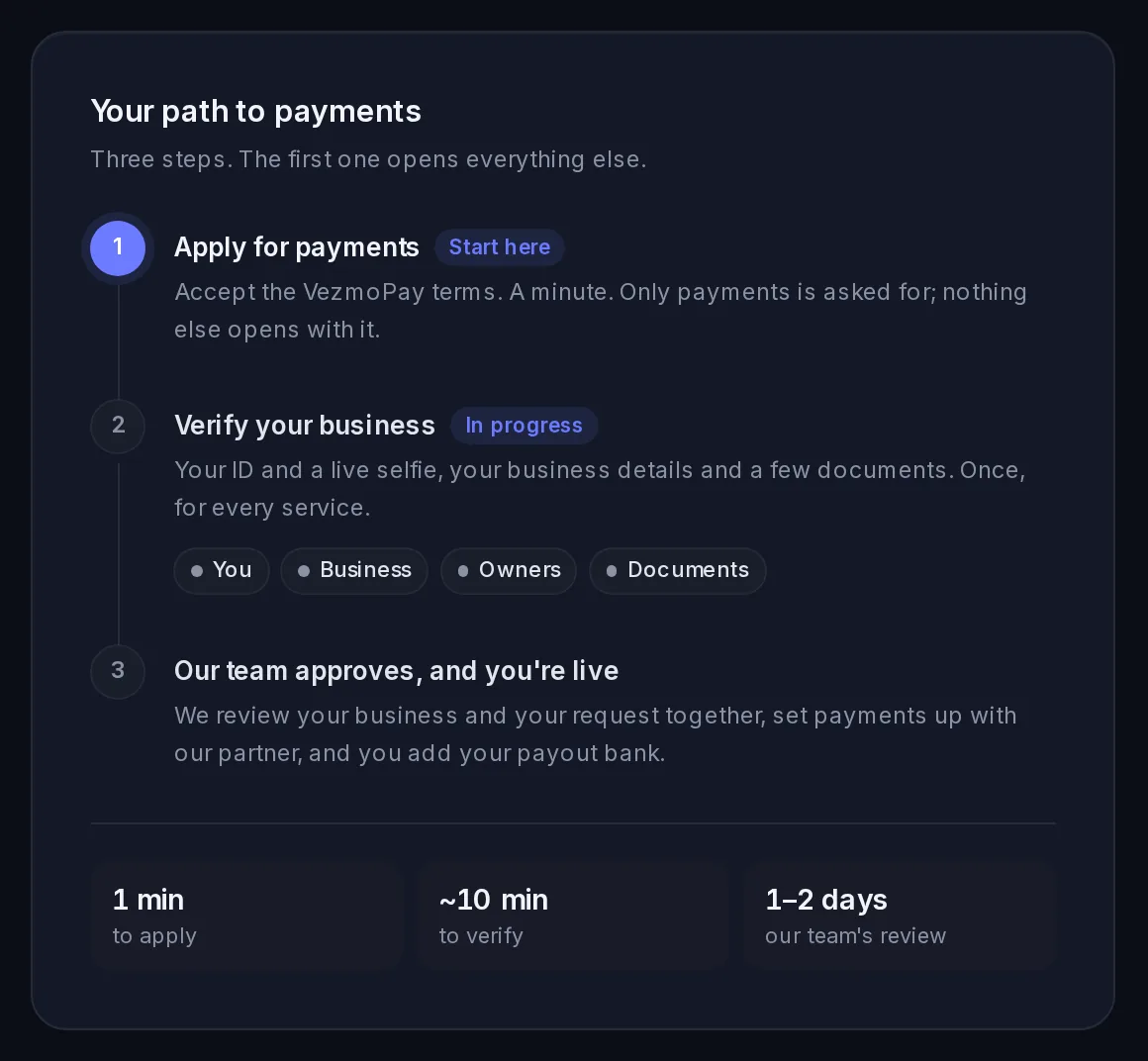
- Before your verification is approved, the page offers Apply for payments. Tick the box to agree to the VezmoPay Merchant Agreement (with its payment partner terms) and the Terms, then select Apply for payments. It takes a minute, and takes you on to your verification. The page then shows Applied for payments · decided with your verification.
- If your business is already verified, the page is Turn on payments. It shows What we'll use, taken from your verification, so there's nothing to fill in. Tick the box to agree to the terms and select Turn on payments. It reads Your request is with our team; we usually review it within a business day and email you.
- Once payments are approved, the page reads Payments are approved while we finish setting them up. Then add the bank account your payouts go to, and you're ready to take your first payment.
- If we don't approve payments, the page says why, with Ask again.
Until payments are on, you can make and send payment links, but a customer who opens one sees that no payment method is available yet.
Questions
How long does it take?
About 10 minutes to fill in, plus a couple of minutes on your phone for your ID and selfie. Our team usually reviews it within 1 to 2 business days.
Can I change an answer after I've sent it?
Not while our team reviews it. If they need something changed, they ask, and you change only that. If something changes later (a new address or a new owner), tell our team from Help.
Do my co-owners need a Vezmo account?
No. They verify from the link you send them, on their own phone, without signing in.
Why do you need all this?
The law asks every payment and account provider to know who they work with. Doing it once, here, means you're never asked again when you turn on another service.
Related
- Open your account and sign in
- Your To-do: where our team's asks arrive.
- Plans and billing: a paid plan starts when your business is approved.
Facts checked against the product on 9 Nov 2026.
Was this page helpful?
Open your account and sign in
Create your Vezmo account, confirm your email, protect it with two-step sign-in, sign in with a password or a passkey, reset a forgotten password and join your team from an invitation.
Find your way around the dashboard
The set-up checklist a new business sees, the Home panels and the reporting period, the menu and its sections, search, the Create menu, your profile menu, and the dashboard on a phone.