Two checks on money actions
Why payouts, refunds, sends and changes to where money goes ask for a code we email you and your passkey or authenticator app, how to add one, the 48-hour pause after your first one, the wait on new recipients and payout accounts, the daily limit on refunds made with an API key, and what to do if you lose your device.
Overview
Before money leaves your business, or before anything changes where it can go, we check it's you twice:
- a code we email you;
- your passkey, or the code from your authenticator app.
Both checks happen in one window, Confirm it's you. It shows what you're approving, such as the amount and who it goes to, so you can check it before you finish. The code shows it's your email; the passkey or app shows it's your device.
If you have neither a passkey nor an authenticator app, the dashboard asks you to add one first. See Protect your money.
What needs the two checks
| Area | Actions |
|---|---|
| Payouts | Asking for a payout. Adding, changing or removing a payout account. |
| Payments | Refunding a payment from the dashboard, including a full refund that answers a pre-dispute warning. Connecting your own payment account, or sending card payments to it. |
| Accounts | Sending or converting money, moving it between your balances, and adding or removing a recipient. |
| Developers | Creating an API key or connecting a WooCommerce store. Changing a key's expiry date. |
| Team | Inviting a teammate. Giving a teammate or a role permissions that can move money, or letting a teammate with those permissions back in. |
| Your sign-in | Changing your password or your sign-in email. |
Each person confirms with their own passkey or authenticator app. You still need the permission for the action itself: see Your team and roles.
Confirm it's you
Start the action
For example, select Confirm payout, or Refund on a payment. Confirm it's you opens and shows what you're approving.
Enter the code we email you
We email a 6-digit code to the address you sign in with. Type it in. Send a new code sends another.
Use your passkey or authenticator app
Select Use your passkey and confirm on your device, or type the 6-digit code from your authenticator app. The action then goes ahead.
The two checks approve only what the window shows. If the amount, the recipient or anything else changes, you confirm again. The check lasts 10 minutes and allows 5 wrong tries. After that, select Start again for a new code.
If it says Your passkey can't be used here, try again in another browser on the same device.
Protect your money
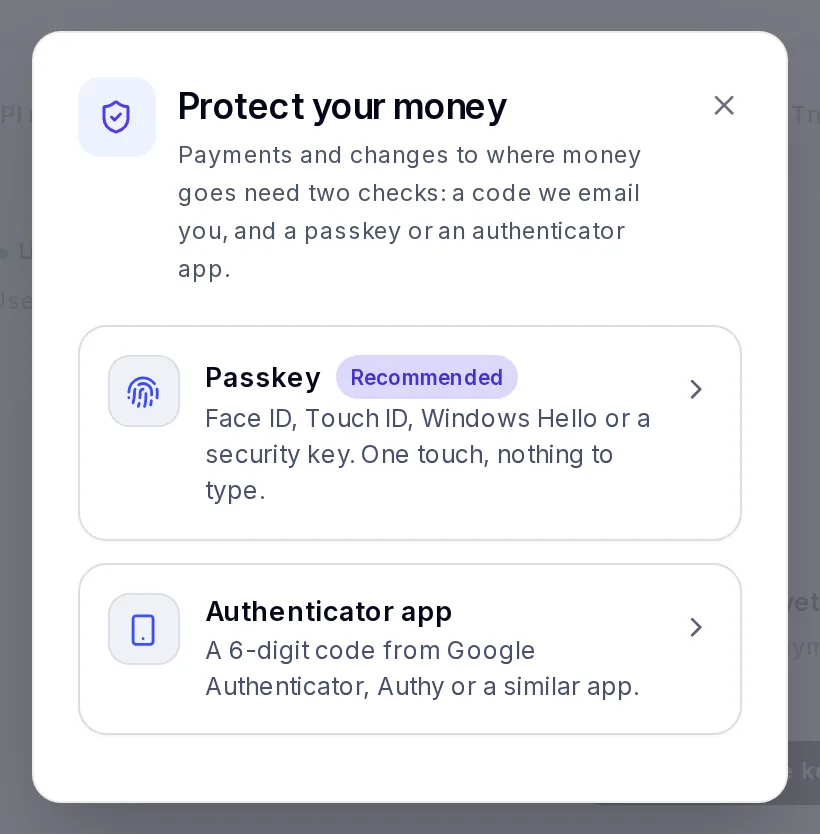
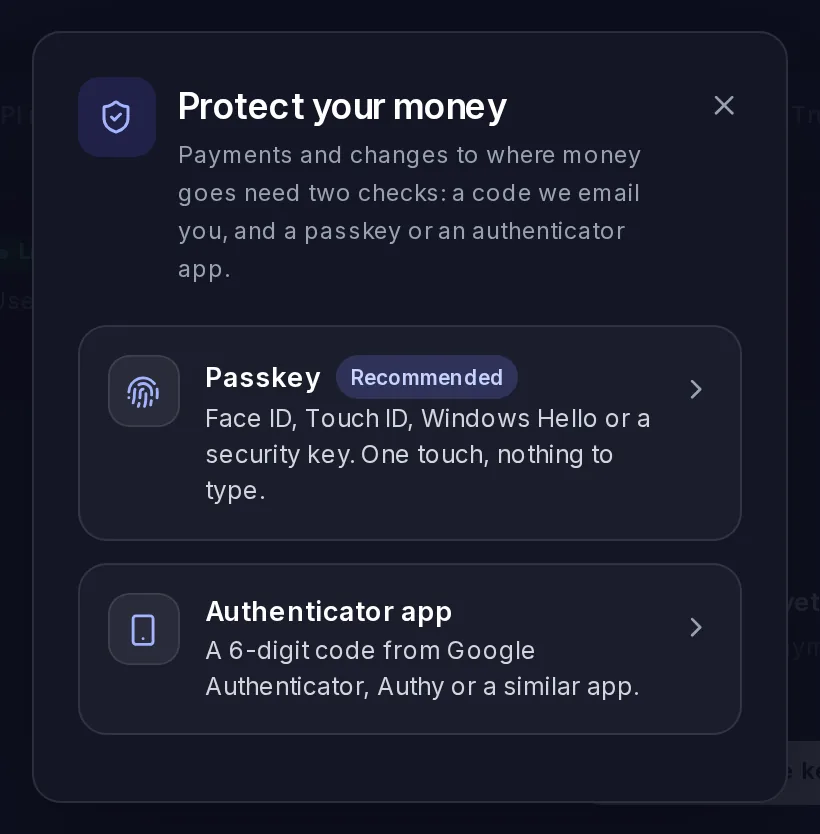
If you have no passkey and no authenticator app, your first money action opens Protect your money instead.
Choose a passkey or an authenticator app
Passkey is recommended: Face ID, Touch ID, Windows Hello or a security key, with nothing to type. Authenticator app uses a 6-digit code from Google Authenticator, Authy or a similar app.
Confirm it's you
Enter the code we email you, then your password.
Add it
For a passkey, your device asks for your face, fingerprint or screen lock. For an authenticator app, scan the QR code with the app, or type the key shown under it, then enter the 6-digit code the app shows.
Go back to what you were doing
We take you back to the action you started, and Confirm it's you asks for the code we email you and your new passkey or app. If the action is one of the changes paused below, it waits until the pause ends.
We email you when two-step sign-in is set up. You can also add a passkey any time in Your profile › Passkeys: see Your profile and sign-in security.
The 48-hour pause after your first one
Your first passkey or authenticator app starts a 48-hour pause. For your safety, adding new recipients, payout accounts, API keys or teammates, and changing your password or sign-in email are paused, because two-step sign-in was just set up. You can still pay recipients and payout accounts you already use.
While it lasts, Some changes are paused shows in Your profile, on the payout form and where you send money, with the time it ends. These keep working:
- payouts to the payout account you already have;
- refunds;
- sends to recipients you already use, and moves between your balances;
- your first payout account, if you don't have one yet;
- test API keys. Only live keys wait;
- Forgot password on the sign-in page, if you can't remember your password.
The pause is yours alone: it doesn't stop your teammates.
Some other security changes pause sending for 48 hours, such as adding another passkey or authenticator app when you already have one, or a reset after a lost device. The notice then reads Sending is paused and says why and until when.
New recipients and payout accounts wait 24 hours
A new recipient in Accounts, and a payout account you add when you already have one, wait 24 hours before money can go to them. This protects your account if someone else gets into it. The first payout account you add doesn't wait.
While one waits, it shows Waiting and Ready to use on with the date and time. A payment or payout to it before then is refused, and the message says when it can start. You're emailed when your payout account changes.
Refunds made with an API key
Refunds your systems make with a live API key can add up to 10,000 US dollars a day for your business, counted over the UTC day. A refund that would go over the limit is refused, and nothing is refunded. You can still refund from the dashboard, with the two checks, or try again after 00:00 UTC. Refunds with a test key don't count.
For developers, the call answers 400 with the code API_REFUND_DAILY_CAP. See
Errors, retries and idempotency.
Lost your passkey or authenticator app
If you can't use your passkey or authenticator app any more, our team can reset two-step sign-in for you. We check it's you first, with a photo of your ID and a short selfie video.
Ask for a link
When you sign in, on the screen that asks for your code, select Lost your passkey or authenticator? Check Your sign-in email, then select Email me a link.
Show your ID and take a selfie
Open the link from the email within 24 hours. It's clearer on a phone. Take a photo of the same kind of ID you verified with, then record a short selfie video with the moves the page shows.
Our team checks it
We compare it with the identity you verified with us, and email you the answer.
Set up again
After a reset, your old passkeys and authenticator app no longer work, and every device is signed out. Sign in with your password and the code we email you, then add a new passkey or authenticator app. You need one before you can move money.
After a reset, money can't leave your account for 48 hours, and everyone else in your business is emailed. The reset needs an approved ID check to compare with. If yours isn't approved yet, contact us from vezmo.com/contact-us.
Questions
Can I turn the two checks off?
No. Every money action asks for them, whoever makes it, and each person uses their own passkey or authenticator app.
Why is the payout account I just added waiting?
You already had one. Only the first payout account starts without a wait. Payouts to the new one can start at the time it shows.
Someone in my team lost their phone
They select Lost your passkey or authenticator? when they sign in, as above. Everyone else in your business is emailed when their reset is done.
Related
Facts checked against the product on 16 Nov 2026.
Was this page helpful?
Your profile and sign-in security
Change your name, photo, phone and country, change your password, turn two-step sign-in on or off and choose how you get the code, add, rename and remove passkeys, and the security emails we send you.
Your business settings
A map of Settings, then your company details (name, tagline, industry, legal structure, default currency and address) and how changes reach your documents, and your branding (logo, brand colour, the preview, signing pages and the Powered by Vezmo mark).